This section allows you to manage your supply storage by assigning stock locations, which streamline inventory management and ensure that supplies are consistently tagged with the correct warehouse or storage area.
- Navigate to Administration → Inventory Settings:
- From the Ascora Dashboard, click on Administration.
- Then select Inventory Settings to access the configuration options for supplies.
- Add a New Stock Location:
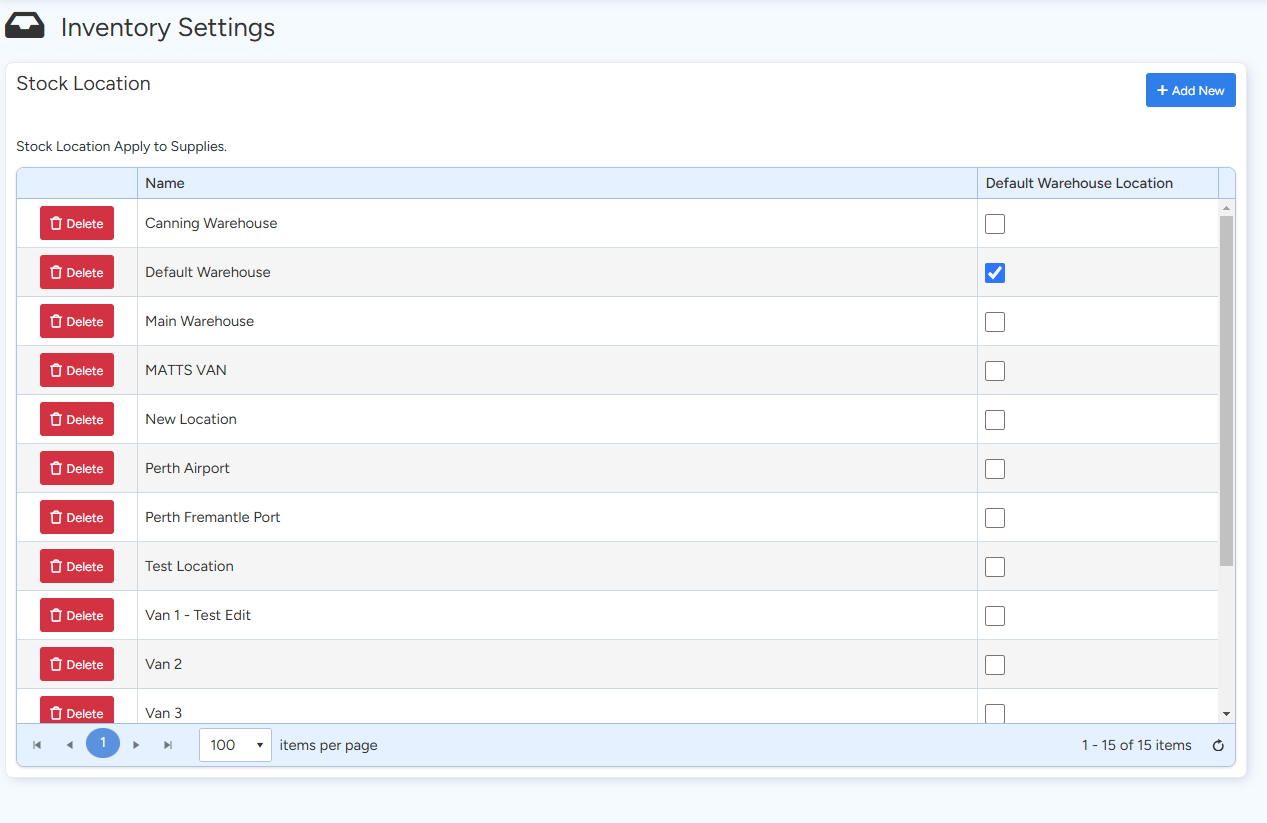
- In the Stock Location area, click the Add New button.
- Enter the name for your new stock location (e.g., "Main Warehouse").
- Press Save to create the new location.
- Set Your Default Warehouse:
- Locate the newly added stock location in the list.
- Tick the checkbox next to its name to designate it as your default warehouse.
- Confirm that the default setting is applied.
Following these steps will ensure that every new supply record is automatically linked to the designated default warehouse, simplifying your inventory management process.
Got a question?
Submit an Idea 💡 Go to Ideas Portal