Accurate time tracking is crucial for ensuring proper billing and managing job costs. With Ascora’s intuitive Check In and Check Out features on the Android app, you can effortlessly capture the exact time spent on each job. This guide will walk you through how to use these functions step-by-step, helping you maintain precise records that support efficient invoicing and effective project management.
📽 Watch the video guide ⤵
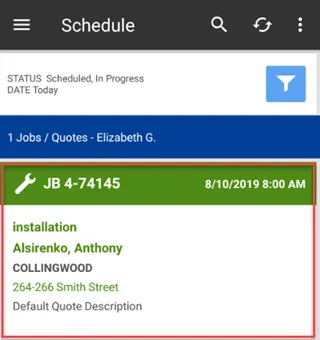
1. Log into your Ascora App and from here you will see the Jobs listed for the day.
2. Click on the Job you will need to Check In for.
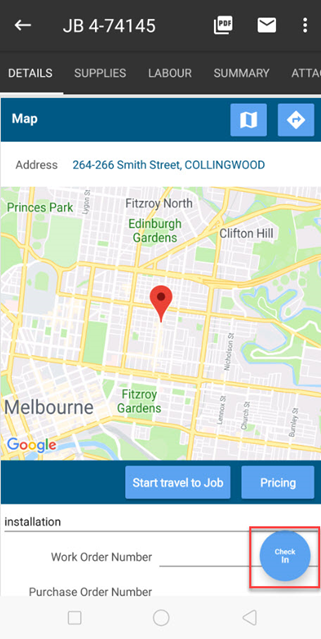
3. Once you click into the Job, you will see the Check In button appear on the bottom right hand side.
4. Touch the Check In button to Check In to the Job.
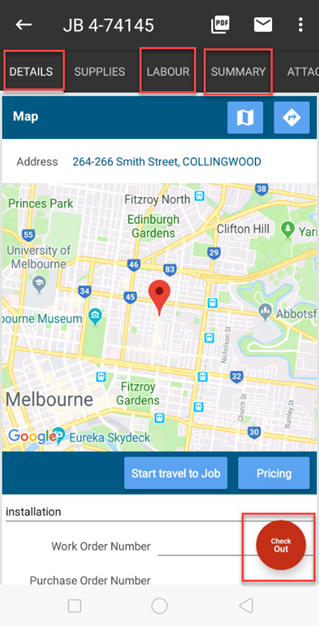
5. When you are ready to Check Out of the Job, press on Check Out. This can be found at the same place where Check In was on the Job Details tab and also on the Labour and Summary tabs.
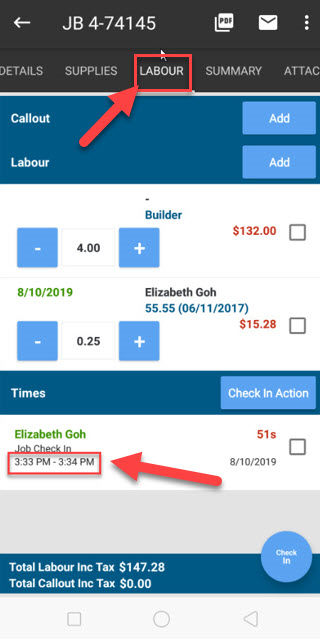
6. To check that your Check In and Check Out function has worked correctly, you can touch the “Labour” tab and you will be able to see the Check In and Check Out times.
You have now successfully used the Check In and Check Out function of the App!
Got a question?
Submit an Idea 💡 Go to Ideas Portal