EzzyBills provides a seamless way to automate supplier invoice processing by extracting invoice details and pushing them directly into Ascora. This integration eliminates the need for manual data entry, reduces errors, and ensures that supplier invoices are efficiently allocated to jobs or purchase orders.
With multiple processing options, including manual uploads, direct supplier email submissions, and automatic mailbox sync, businesses can streamline their accounts payable workflows. Additionally, EzzyBills' approval workflow ensures that only verified invoices are sent to Ascora, adding a layer of control and accuracy to your financial processes.
This guide provides step-by-step instructions to set up EzzyBills with Ascora, generate an API key, configure workflows, and manage invoice imports effectively, helping you save time and improve invoice tracking accuracy.
How to Integrate EzzyBills with Ascora
1. Go to http://www.ezzybills.com/ and log into your EzzyBills account. If you don't have an account with EzzyBills, you can click on the 30 Days Free Trial button to register.
If you already have an account, proceed to step 5 after logging in. If you're creating a Trial account, proceed to step 2.
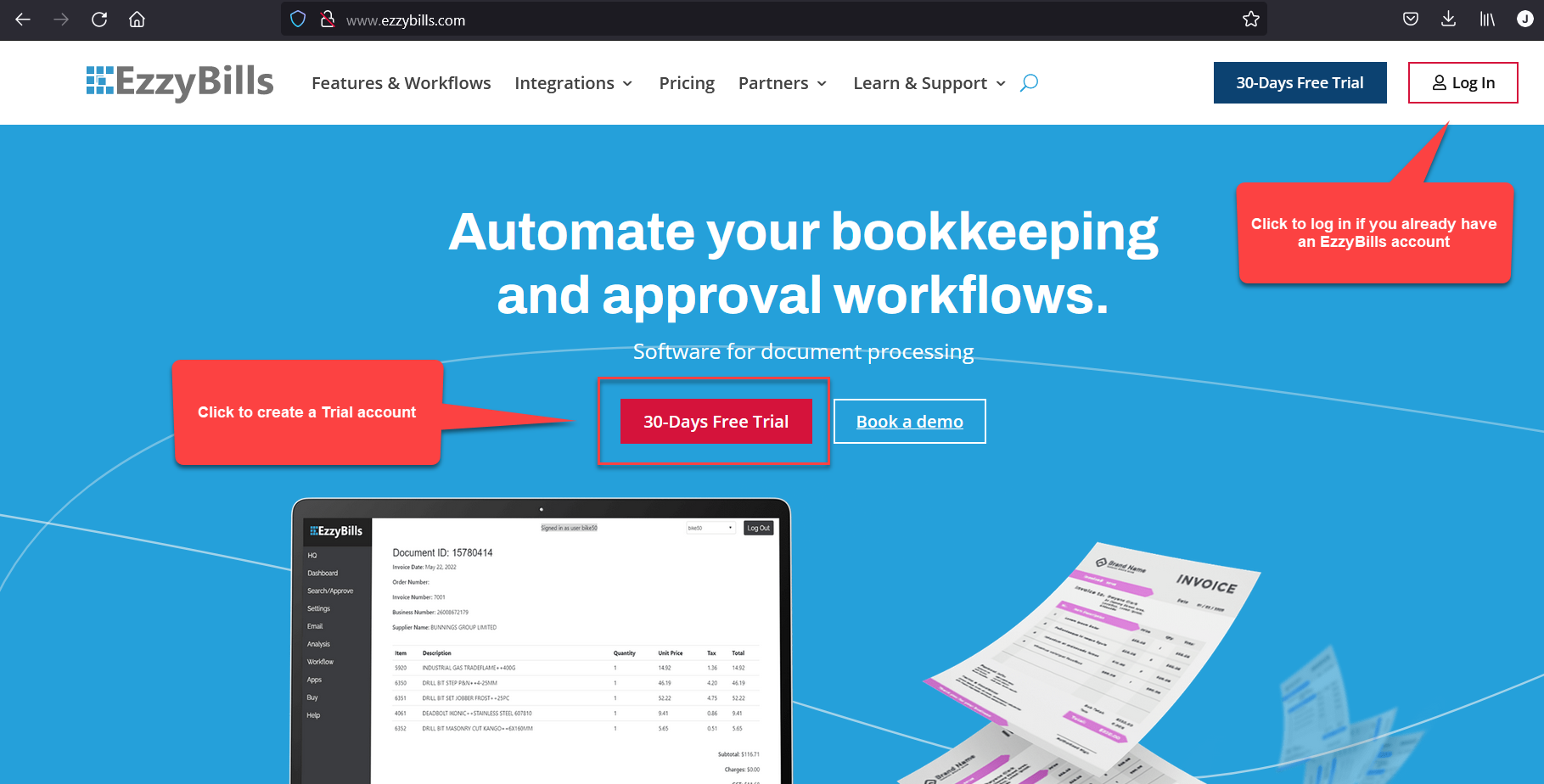
2. After clicking 30 Days Free Trial you'll see the following screen where you enter your details to create an EzzyBills account.
In the field Integrate With make sure to select Ascora to create the correct Workflow and once all other details are complete, click Register.
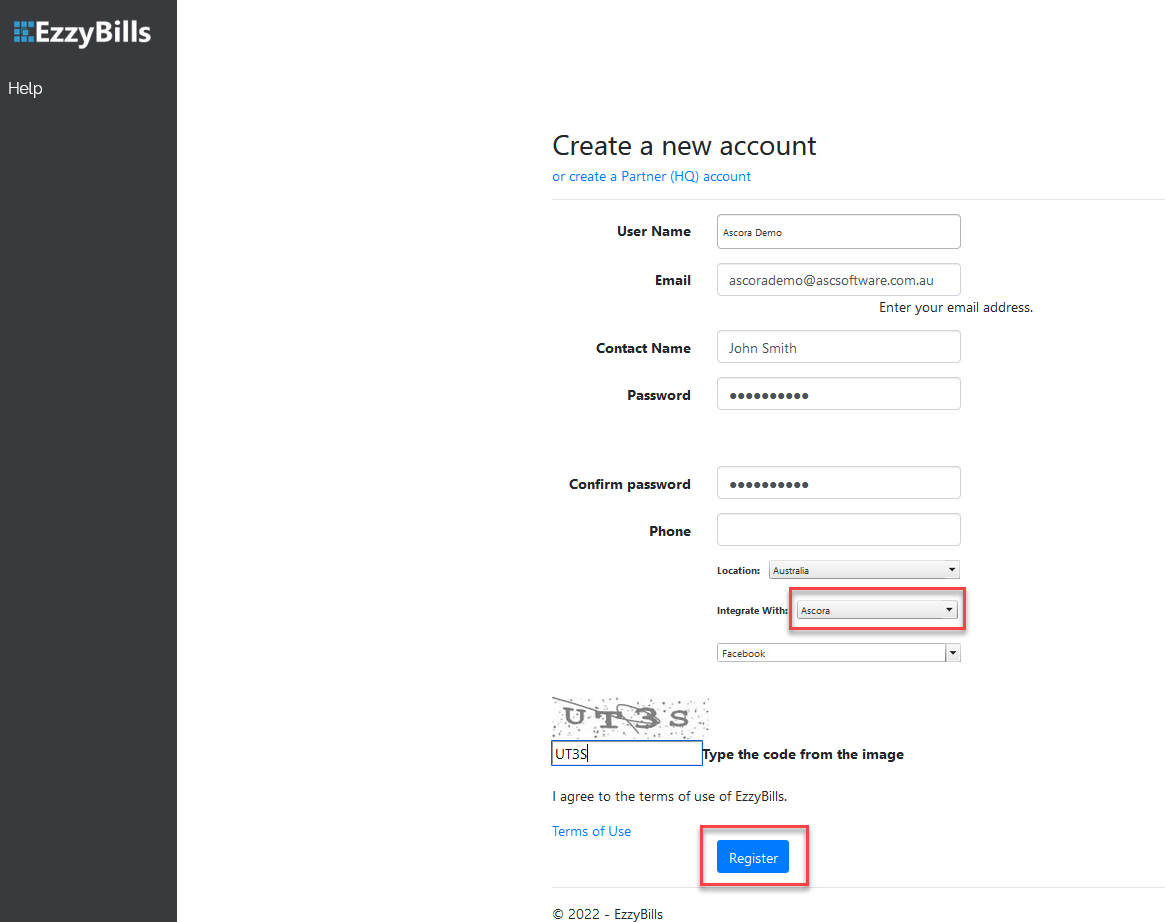
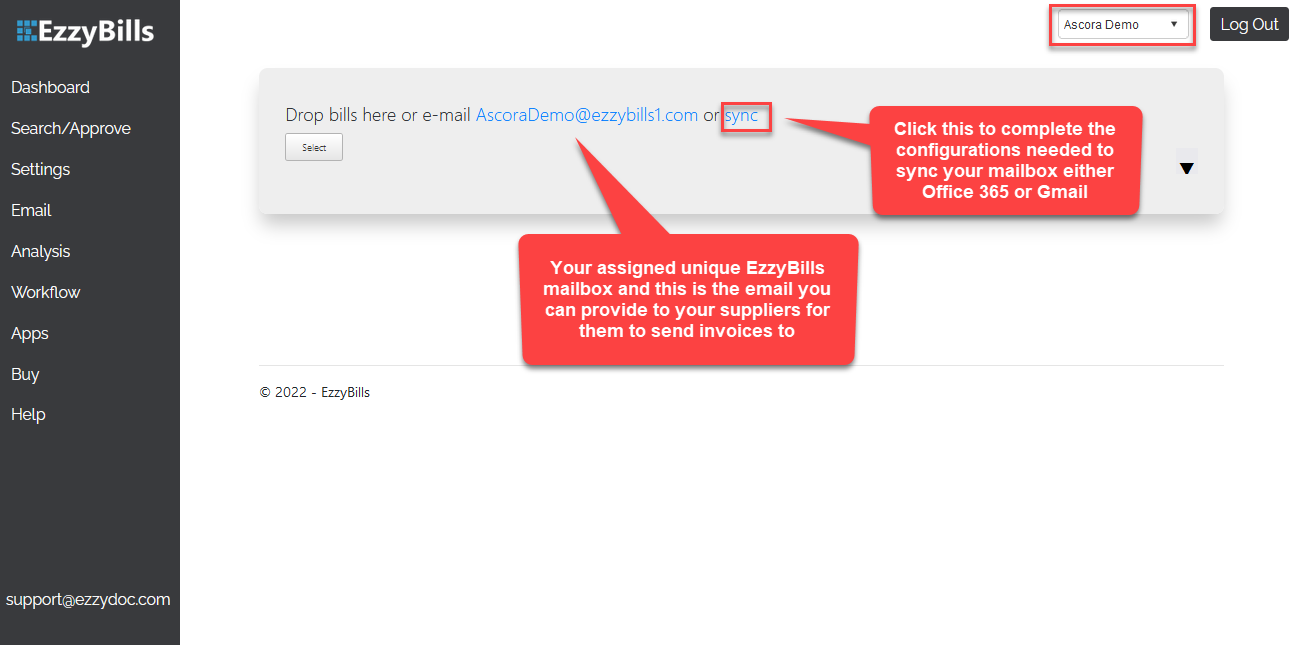
3. It will take a few seconds to complete the registration and once done, you'll see the following screen.
You'll be assigned your unique EzzyBills mailbox which you can provide to your suppliers and they can send invoices to that mailbox.
Alternatively, you can set up automatic sync with your mailbox by clicking the "sync" link.
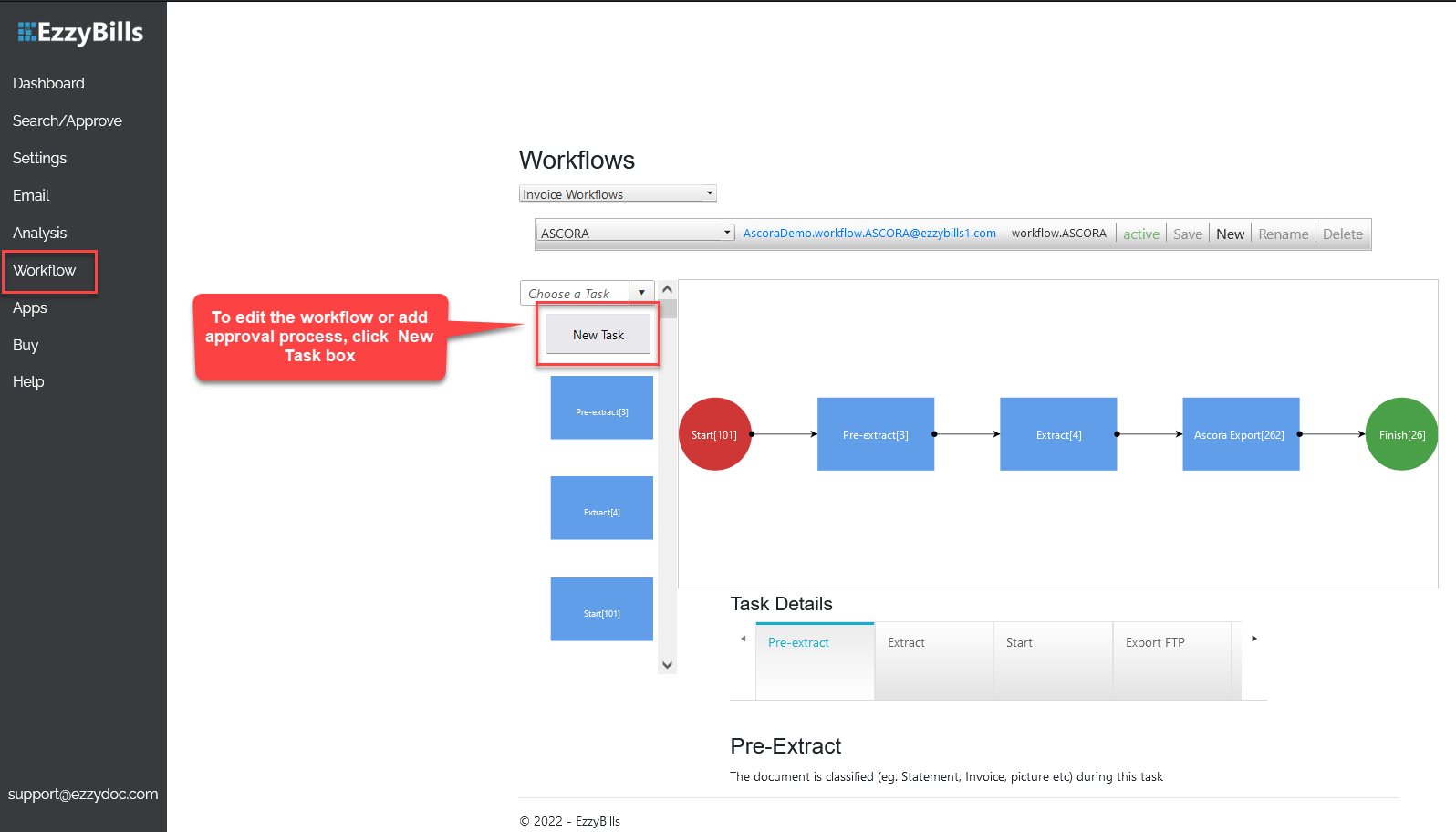
4. Click Workflow and you should see one that is readily built in the system as part of EzzyBills and Ascora integration.
This is the standard workflow for EzzyBills and Ascora integration but if you want to update this workflow such as adding an approval process, you're able to do it by clicking New Task.
How to add API Key to your EzzyBills account
Your API key is the direct connection between your Ascora account and EzzyBills in order to sync both systems as part of the integration process. The next step is to obtain and copy your unique API Key in Ascora and paste it into the EzzyBills by going to the Apps tab.
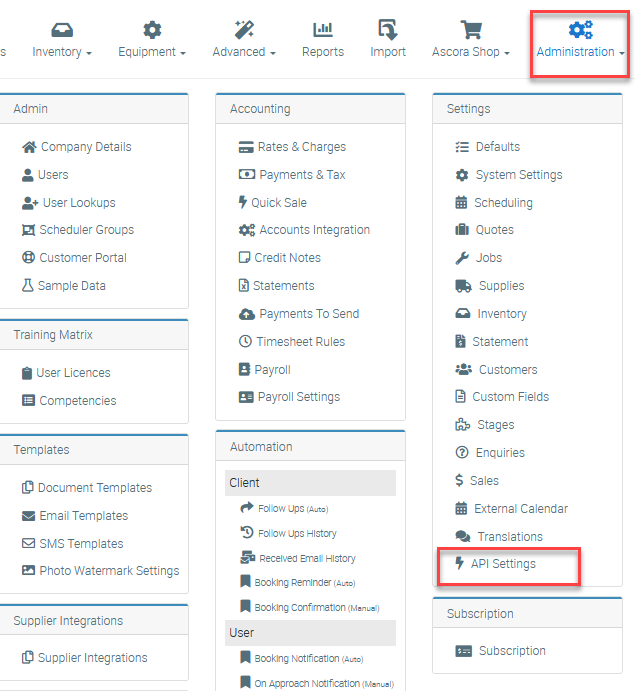
5. Access https://ascora.com.au/ and log into your Ascora account then go to Administration → API Settings.
6. Click on Generate New API Key if you haven't generated one before otherwise, click on Copy to Clipboard if there's already one available.

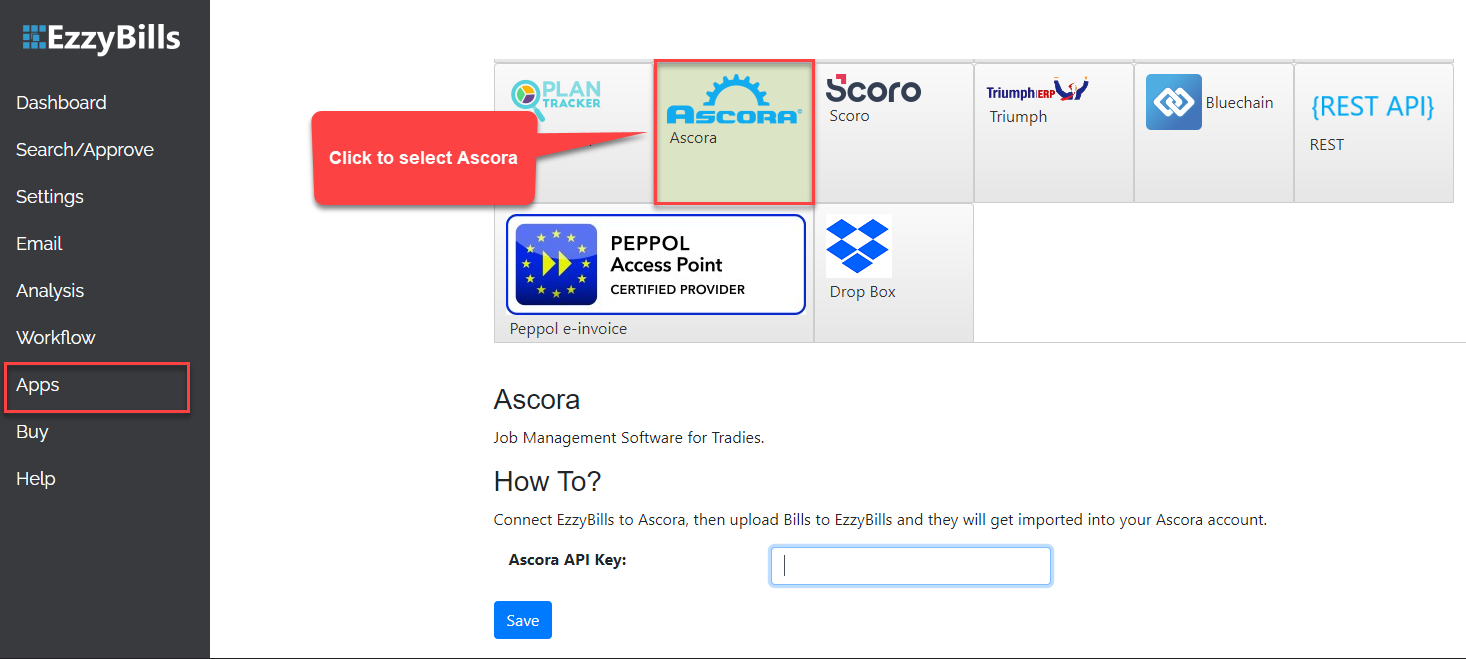
7. Go back to your EzzyBills account and navigate to the Apps tab and select Ascora.
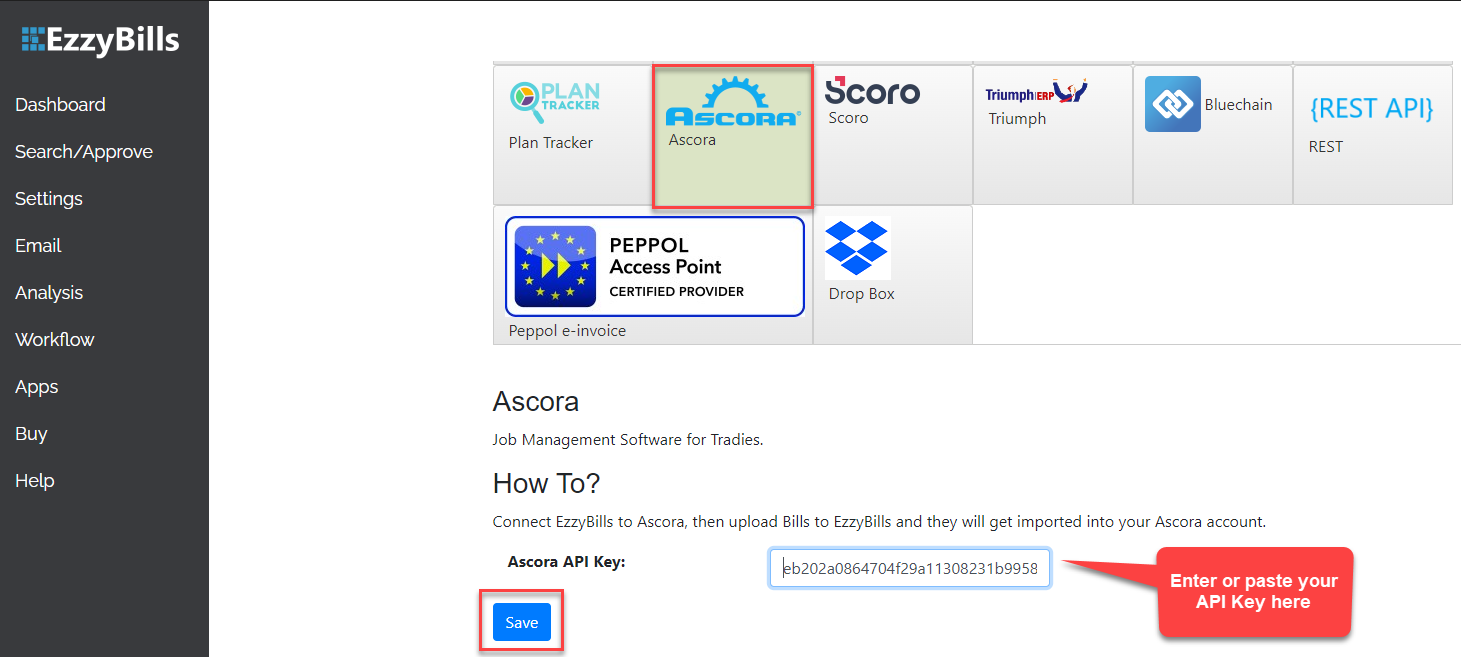
8. From the same screen after clicking on Ascora, scroll down and enter or paste the API key in the Ascora API Key field then click Save.
Uploading an Invoice in EzzyBills
Each EzzyBills account has a unique email address assigned which you can provide to your suppliers to where they can send the invoices to. EzzyBills also supports pulling invoices from Dropbox and Google Drive and also works with hyperlinks.
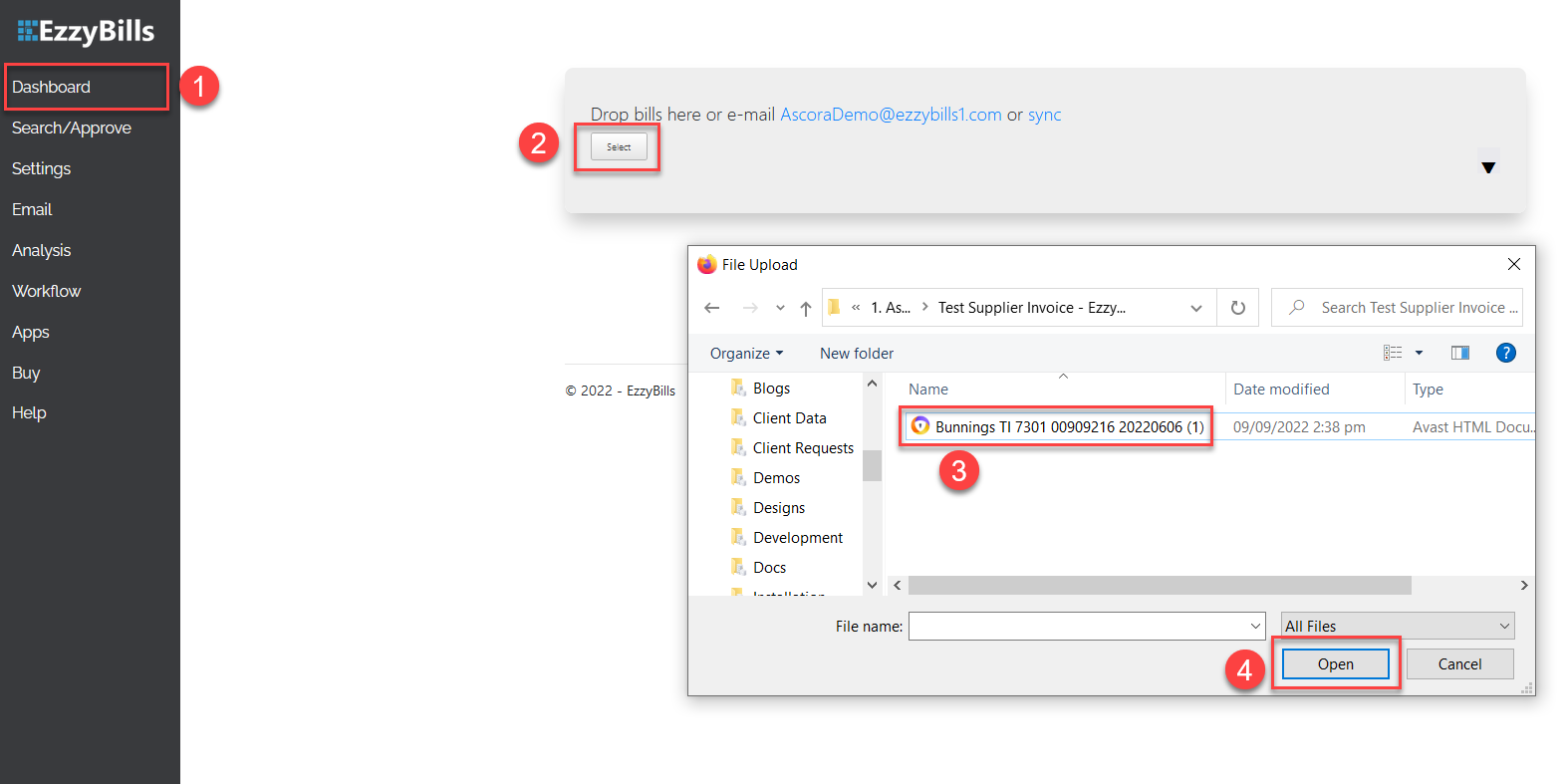
1. Go to Dashboard and click on the Select box and search for your supplier invoice and click Open.
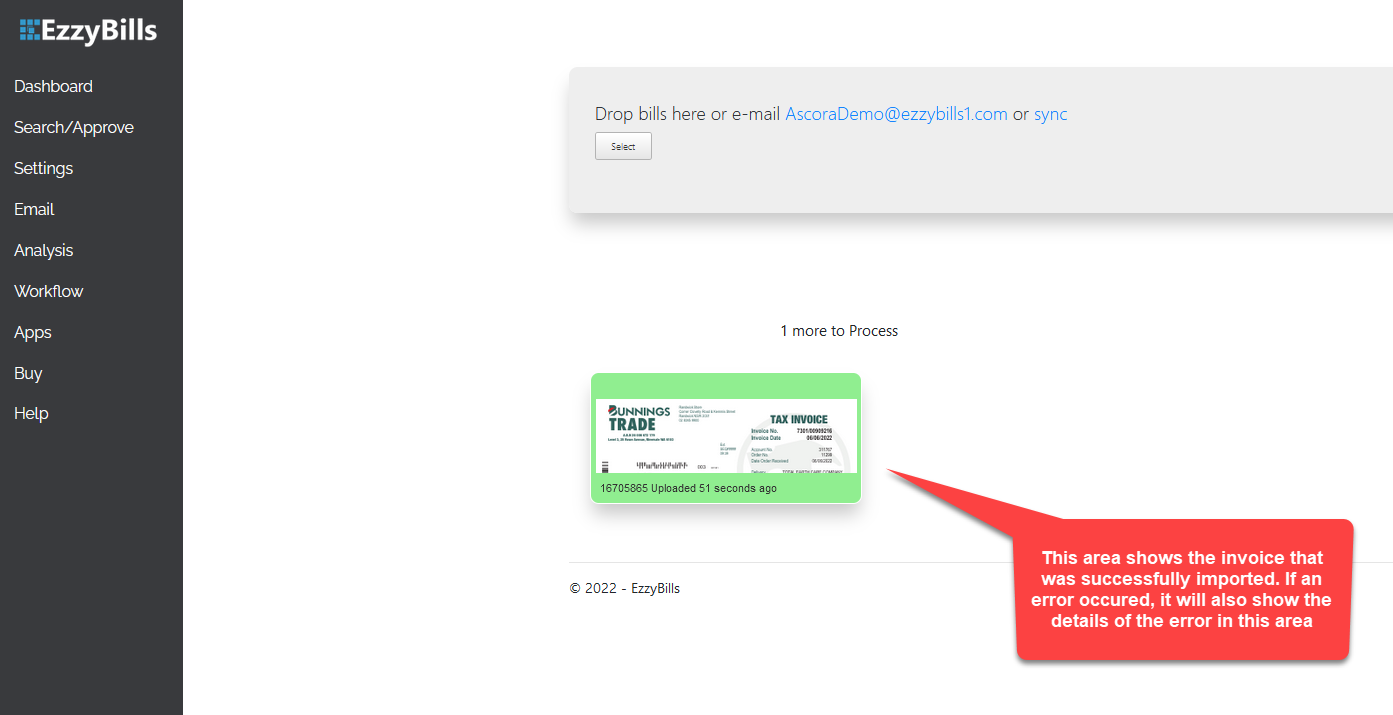
2. EzzyBills processes the invoice and shows a preview in the Dashboard similar to what is shown in the image below. This is the same screen where the error displays if something went wrong during the upload or import process.
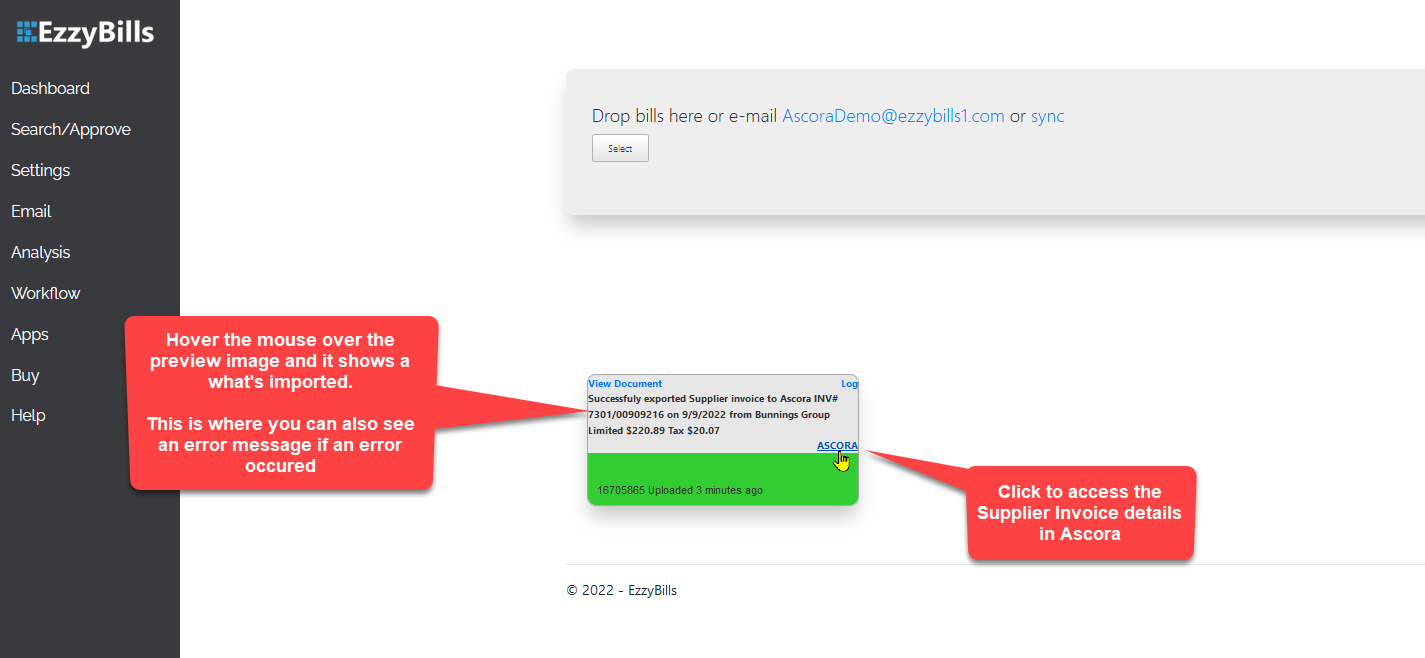
3. You can hover the mouse cursor in the image preview to show more information or see the link to access the invoice on the Ascora screen.
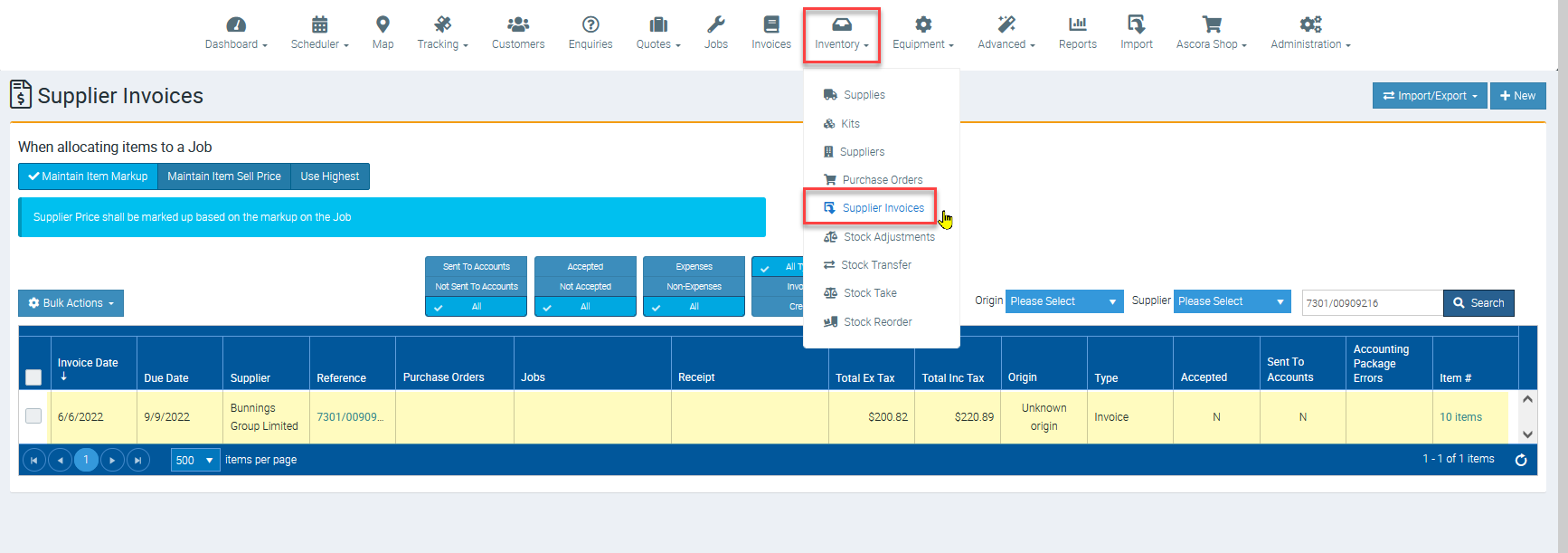
4. Invoice details are sent to your Ascora account which you can access in the Inventory → Supplier Invoices area.
In this example, we see Bunnings invoice successfully imported in Ascora which was pushed from EzzyBills.
Imports with Errors Encountered
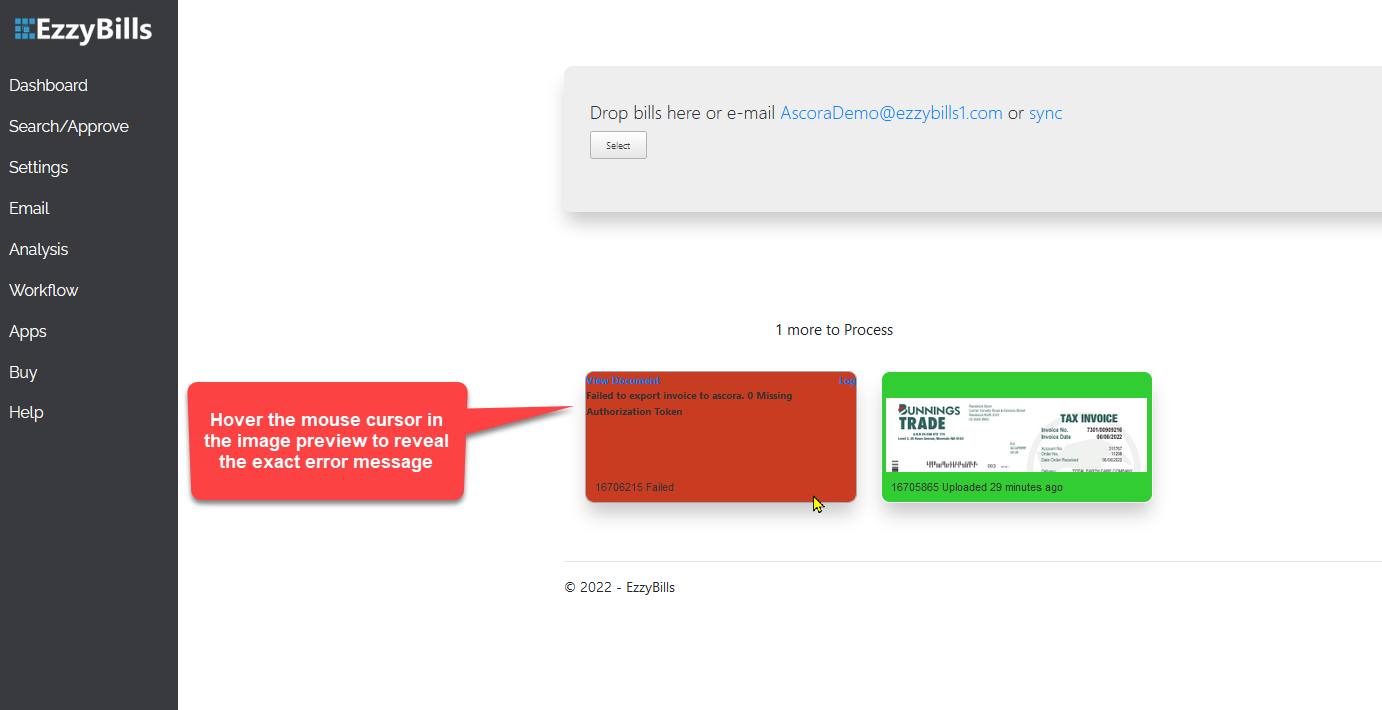
Invoices added to EzzyBills but encountered an error show as images with red background compared to successfully processed ones that appear in green background.
The following example shows Bunning's Supplier Invoice that failed to process completely.
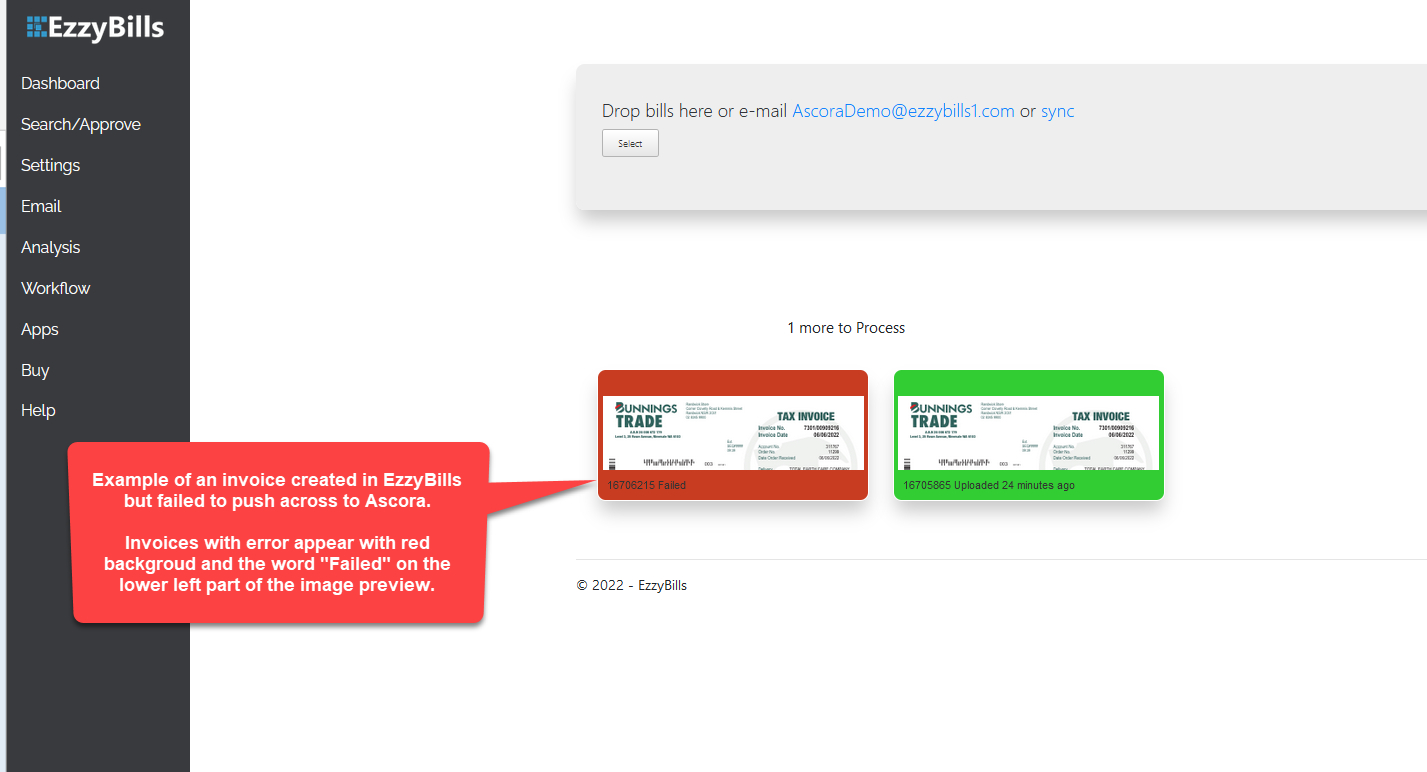
Hover the mouse cursor in the image preview to see the details of the error. In this example, this invoice failed to push across to Ascora due to missing authorisation token which can be set up in the Apps tab.
Tips
▶ If EzzyBills could not locate the supplier, it will create an Unknown Supplier but if it can locate the new supplier, it will be created automatically.
▶ Allocating supplier invoice line items to a job or PO must be done in Ascora Inventory → Supplier Invoices screen.
Got a question?
Submit an Idea 💡 Go to Ideas Portal