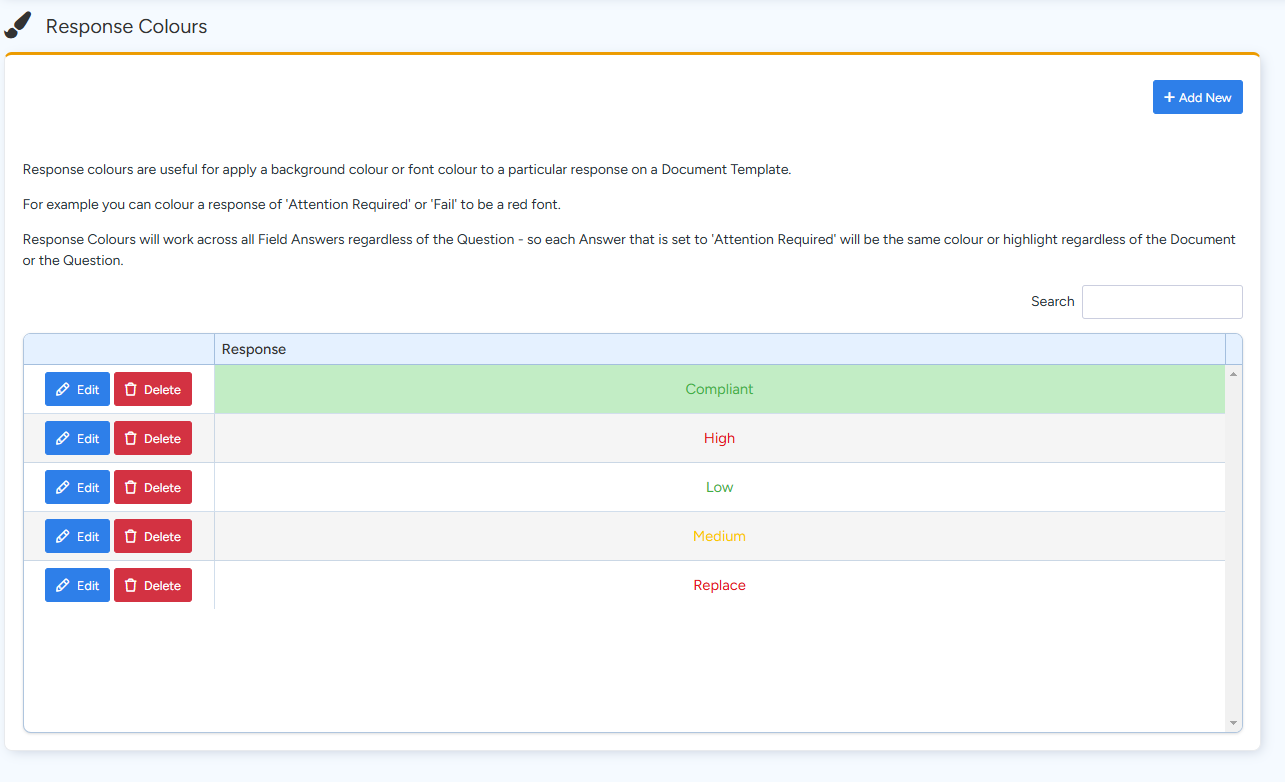
Response Colours allow you to visually highlight specific responses across your document templates by applying consistent background or font colours. For instance, you can set the response "Attention Required" or "Fail" to display in red, ensuring that these critical responses stand out on every document they appear in. This feature works globally across all field answers—any answer with the same label will always appear with the same colour, regardless of the document or question it’s associated with.
Below is a step-by-step guide on how to configure and use Response Colours in Ascora:
- Access the Response Colours Section:
Navigate to Administration → Response Colours. Here you’ll see a list of current response colour configurations.
- Creating or Editing a Response Colour:
- To add a new response colour, click + Add New.
- Enter the specific response text (e.g., "Attention Required" or "Fail") and choose the desired font or background colour from the options provided.
- If you wish to edit an existing response colour, simply click the Edit icon next to the response name, adjust the colours as needed, and save your changes.
- Consistency Across Documents:
Once configured, any field answer set to the specified response will automatically adopt the defined colours. This ensures a consistent look across all your templates, making it easier to spot important statuses at a glance.
- Saving and Applying Settings:
After finalizing your selections, click Save to apply the changes. These settings will immediately reflect across all documents that utilize the merge fields linked to these responses.
By following these steps, you can ensure that your documents consistently highlight key responses, making them more intuitive and visually appealing for users.
Got a question?
Submit an Idea 💡 Go to Ideas Portal