Custom Forms in Ascora can be tailored to capture different types of information by modifying Answer Types. Whether you need users to select from a predefined list or manually enter data, adjusting the answer type ensures the best user experience.
This guide focuses on changing an Answer Type (e.g., from Multiple Choice to Text) and explains when each type is most effective. It also includes steps to test and ensure that the changes are correctly applied in the Ascora Mobile App.
- Multiple Choice answer type allows a mobile app user to select their name from a list of technicians and this is more applicable to a smaller team.
- Text as answer type - allows the a mobile app user to manually type their name when completing the custom form and this is more applicable to a bigger team where a job can be assigned to any technician so it's not efficient to have a long list of names to select from when completing the custom form.
Editing the Custom Form Question
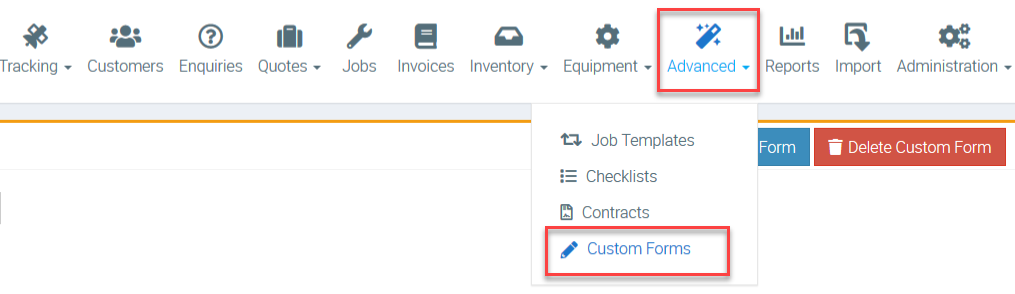
1. Go to Advanced → Custom Forms.
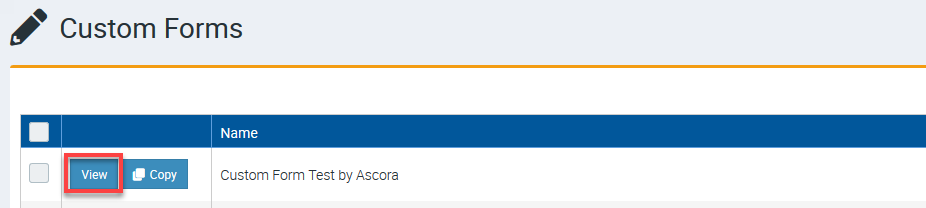
2. Look for the Custom Form that you want to edit and click View.
In this example, we are accessing the form called Custom Form Test by Ascora.
3. Click the Form Question that you need to edit.
In this example, we are editing the Form Question called Technician Name by changing the Answer Type from Multiple Choice to Text.
Click Save to proceed.

Editing The Custom Form Template
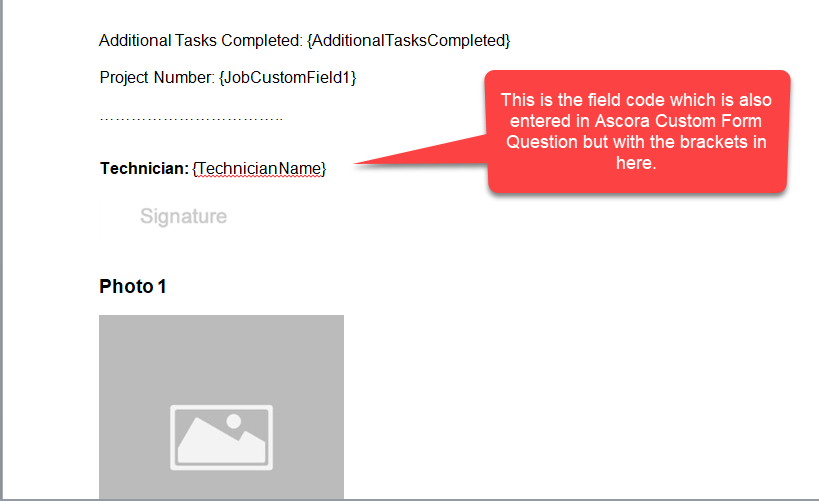
You need to edit the Template if you made changes to Field Codes but if you only made changes to the Answer Type, editing the template is not applicable.
Below image shows how the Form Question is set up on Word Template.
Testing your Custom Form on your Android Mobile App
Once you've made the necessary changes in Ascora Form Question, and template if applicable, you can test it in the Mobile App by going to Custom Form tab → select the Form and test the question that you've updated.
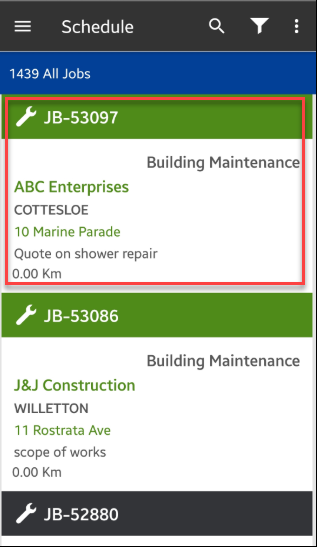
1. Access your job from the mobile app.
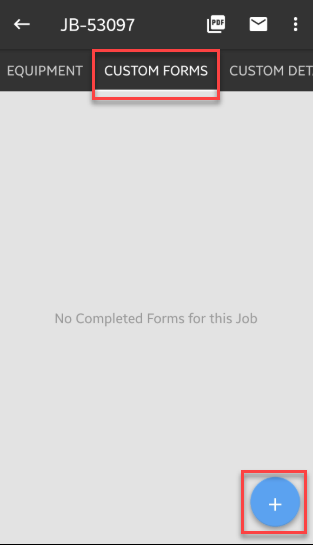
2. Navigate to Custom Forms tab and tap the + button.
The form that appears should already be the updated version.
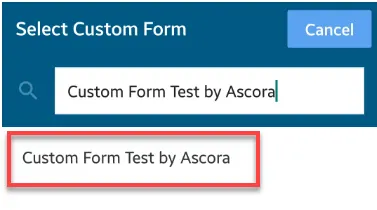
3. Select the custom form that you need to test and in this example, it's called Custom Form test by Ascora.
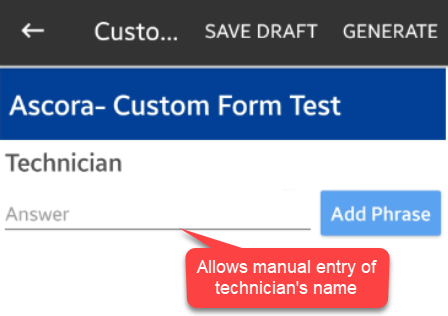
4. The following example shows the question called Technician which allows manual entry of information as we have changed the Answer Type to Text.
Got a question?
Submit an Idea 💡 Go to Ideas Portal