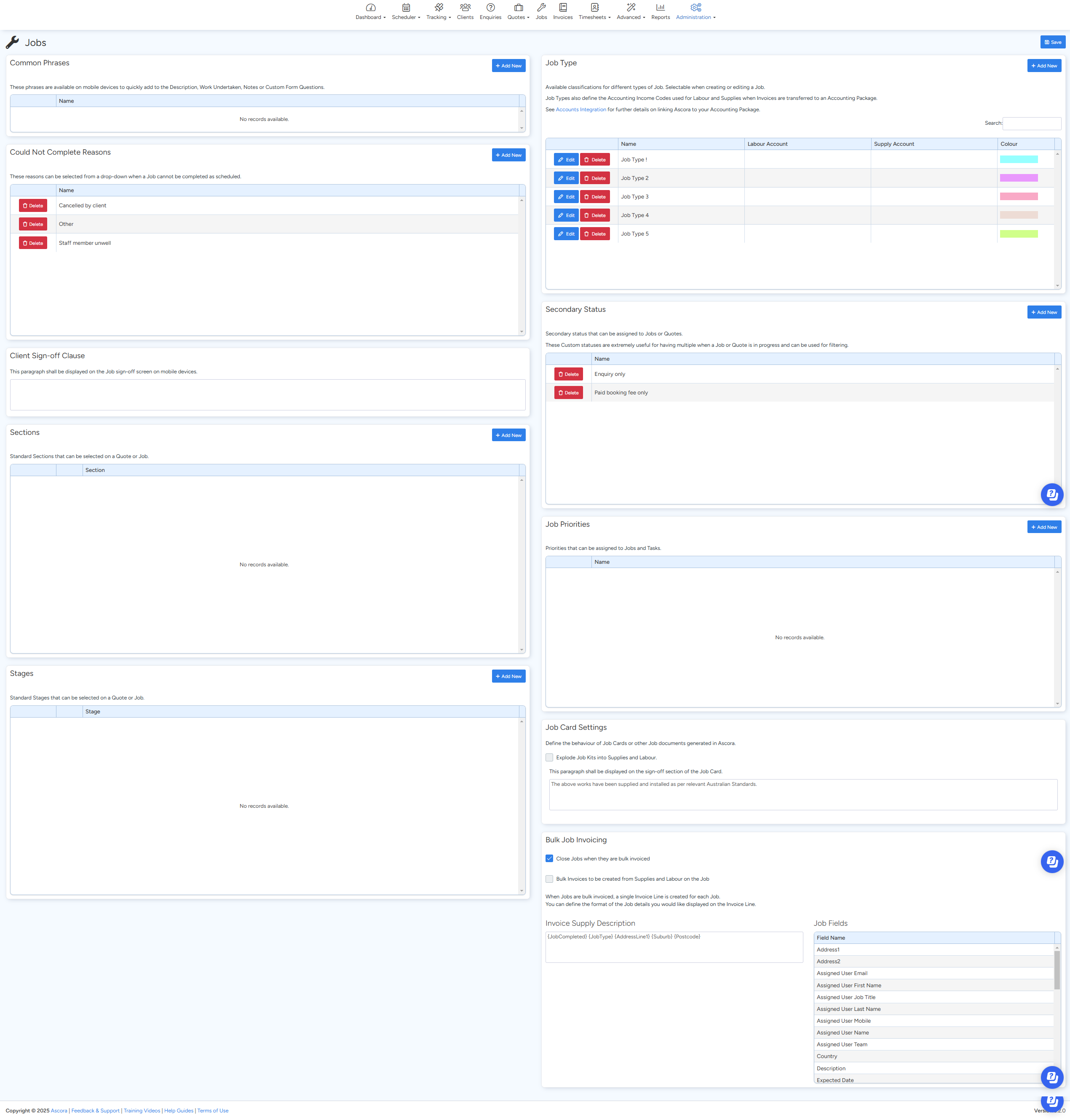
The Jobs Administration section in Ascora allows you to configure various settings that streamline job management. These settings include defining job types, setting up standard phrases for mobile use, configuring job statuses, and managing client sign-off clauses. By customizing these options, businesses can improve workflow efficiency and maintain consistency across job records.
Configuring Job Settings in Ascora
To access and update these settings:
- Navigate to Administration → Jobs.
- Update or add details under the relevant sections below.
- Click Save to apply your changes.
Common Phrases
Common phrases allow field staff to quickly insert predefined descriptions, work details, or notes into job records using mobile devices. This feature saves time and ensures consistency in job documentation.
📽 Common Phrases video guide ⤵
🛠 How to Add or Update Common Phrases:
- Go to Administration → Jobs → Common Phrases.
- Click + Add New to create a new phrase.
- Enter the phrase and click Save.
📌 Example Phrases:
- "Work completed as per job specifications."
- "Awaiting client approval before proceeding with additional tasks."
- "Materials on order, rescheduling required."
Job Types
Job types help classify different types of jobs in Ascora. These classifications are selectable when creating or editing a job. Additionally, job types define the Accounting Income Codes used for labour and supplies when invoices are transferred to an accounting package.
📽 Job Types video guide ⤵
📽 Job Types (Working with Job Types) video guide ⤵
🛠 How to Add or Update Job Types:
- Go to Administration → Jobs → Job Types.
- Click + Add New to create a new job type.
- Enter the name and assign the relevant Accounting Income Codes.
- Click Save.
📌 Example Job Types:
- "Emergency Repair"
- "Routine Maintenance"
- "Installation Service"
🔗 Accounting Integration: If you need to link your job types to your accounting package, refer to the ↪️ Integrating Ascora with MYOB AccountRight or ↪️Integrating Ascora with MYOB Essentials ↪️ Integrating Ascora with MYOB Live or ↪️Integrating Ascora with Xero
Could Not Complete Reasons
When a job cannot be completed as scheduled, users can select a predefined "Could Not Complete" reason from a dropdown menu. This helps keep records accurate and improves scheduling efficiency.
📽 Could Not Complete Reasons video guide ⤵
🛠 How to Add or Update Could Not Complete Reasons:
- Go to Administration → Jobs → Could Not Complete Reasons.
- Click + Add New to create a new reason.
- Enter the reason and click Save.
📌 Example Reasons:
- "Weather conditions prevented completion."
- "Client unavailable at the scheduled time."
- "Additional parts required before proceeding."
Secondary Status
Secondary statuses allow for additional classifications beyond the standard job status. These are particularly useful for tracking job progress and filtering active jobs.
📽 Secondary Status video guide ⤵
🛠 How to Add or Update Secondary Statuses:
- Go to Administration → Jobs → Secondary Status.
- Click + Add New to create a new status.
- Enter the status name and click Save.
📌 Example Secondary Statuses:
- "Waiting for Parts"
- "Pending Approval"
- "Quality Check Required"
Client Sign-Off Clause
This clause appears on the Job sign-off screen on mobile devices, ensuring that clients acknowledge completed work before signing off.
📽Client Sign-Off Clause video guide ⤵
🛠 How to Add or Update the Client Sign-Off Clause:
- Go to Administration → Jobs → Client Sign-Off Clause.
- Click + Add New to enter the clause text.
- Click Save.
📌 Example Clause:
"By signing, the client acknowledges that the work has been completed to satisfaction and agrees to the terms outlined in the service agreement."
Stages & Sections
Stages and sections provide standardized tracking for jobs and quotes. These help categorize work into different progress points.
📽 Stages & Sections video guide ⤵
🛠 How to Add or Update Stages & Sections:
- Go to Administration → Jobs → Stages or Sections.
- Click + Add New to create a new stage or section.
- Enter the details and click Save.
📌 Example Stages:
- "Site Inspection Completed"
- "Installation in Progress"
- "Final Review Pending"
📌 Example Sections:
- "Labour"
- "Materials & Equipment"
- "Additional Services"
Job Card Settings
Job card settings define the format and behaviour of job cards or other job-related documents generated in Ascora.
🛠 Configurable Options:
✅ Explode Job Kits into Supplies and Labour: Breaks down job kits into individual components for detailed tracking.
✅ Sign-Off Section Message: Customize the message displayed on the sign-off section of job cards.
📌 Example Sign-Off Message:
"By signing this job card, you confirm that the work has been completed to your satisfaction."
Bulk Job Invoicing
Bulk invoicing settings control how jobs are invoiced in batches.
📽 Bulk Job Invoicing video guide ⤵
🛠 Available Bulk Invoicing Options:
✅ Close Jobs When Bulk Invoiced: Automatically closes jobs once invoiced in bulk.
✅ Bulk Invoices Created from Supplies and Labour: Generates invoice lines based on actual supplies and labour used.
✅ Customize Invoice Display: Define how job details are shown on invoices.
📌 Example Bulk Invoice Setting:
"When jobs are bulk invoiced, a single invoice line is created for each job."
Finalizing Your Job Settings
✅ Review and update common phrases to make mobile data entry easier.
✅ Ensure job types are properly classified for accounting and tracking purposes.
✅ Use secondary statuses to track job progress.
✅ Enable bulk job invoicing if processing multiple jobs at once.
✅ Save all changes to apply them system-wide.
By configuring these settings, businesses can ensure consistency, efficiency, and better job tracking within Ascora.
Got a question?
Submit an Idea 💡 Go to Ideas Portal