Efficiency in job tracking, scheduling, and time management is essential for ensuring seamless operations. Ascora’s Start and End My Day feature is designed to streamline your workday, ensuring every job, check-in, and check-out is accurately recorded.
By following best practices, you can maximize accuracy, reduce errors, and simplify payroll processing. This guide outlines:
✔ Syncing Ascora to keep your data up-to-date
✔ Using filters effectively to view relevant jobs
✔ Checking in and out of jobs correctly
✔ Handling unscheduled or additional tasks
✔ Tracking office or yard time when not linked to a job
✔ Ensuring compliance with payroll settings
Whether you're working on scheduled jobs, handling additional tasks, or starting and ending your day with non-billable activities, this guide ensures you capture your time accurately. Following these best practices will help maintain clear records, improve payroll accuracy, and enhance overall job tracking efficiency.
Ascora App Best Practice
Keeping your Ascora app synchronized is critical for ensuring you always have access to the latest job details, schedules, client information, and timesheet records. Regular syncing prevents discrepancies, avoids missing updates, and ensures a seamless workflow between mobile users and the office team.
Why Syncing is Important?
- Access the Latest Job Information – Any job assignments, updates, or cancellations made by the admin team will instantly reflect on your app.
- Ensure Accurate Timesheet Data – Syncing ensures that check-in and check-out times are up to date and properly recorded for payroll.
- Prevent Data Loss – If your device loses connection or crashes, syncing your data regularly helps avoid losing important job logs or timesheets.
- Enable Smooth Offline Functionality – If you work in an area with limited network coverage, syncing beforehand ensures that all required job details are stored and accessible offline.
- Ensure Job Notes & Attachments Are Up to Date – Any changes to job requirements, customer instructions, or necessary attachments (such as photos or forms) will be reflected when you sync.
Best Practices for Syncing
✔ Sync at the Start of the Day – Before heading to your first job, perform a manual sync to ensure you have all job assignments and updates.
✔ Sync After Major Job Actions – Whenever you complete a job, update details, or add attachments, syncing ensures everything is properly stored.
✔ Sync Before Logging Off for the Day – This guarantees all check-ins, check-outs, timesheets, and notes are uploaded before you close the app.
✔ Check Your Network Connection – Ensure you have a stable internet connection before syncing for a smoother process.
How to Sync:
- Open the Ascora App.
- Tap the Sync button (usually found in the top-right corner or under the menu).
- Wait for the sync process to complete before navigating away from the app.
- Confirm that your job list, timesheets, and updates have been refreshed.
By syncing regularly, you can work confidently, knowing that your data is secure, accurate, and up to date.
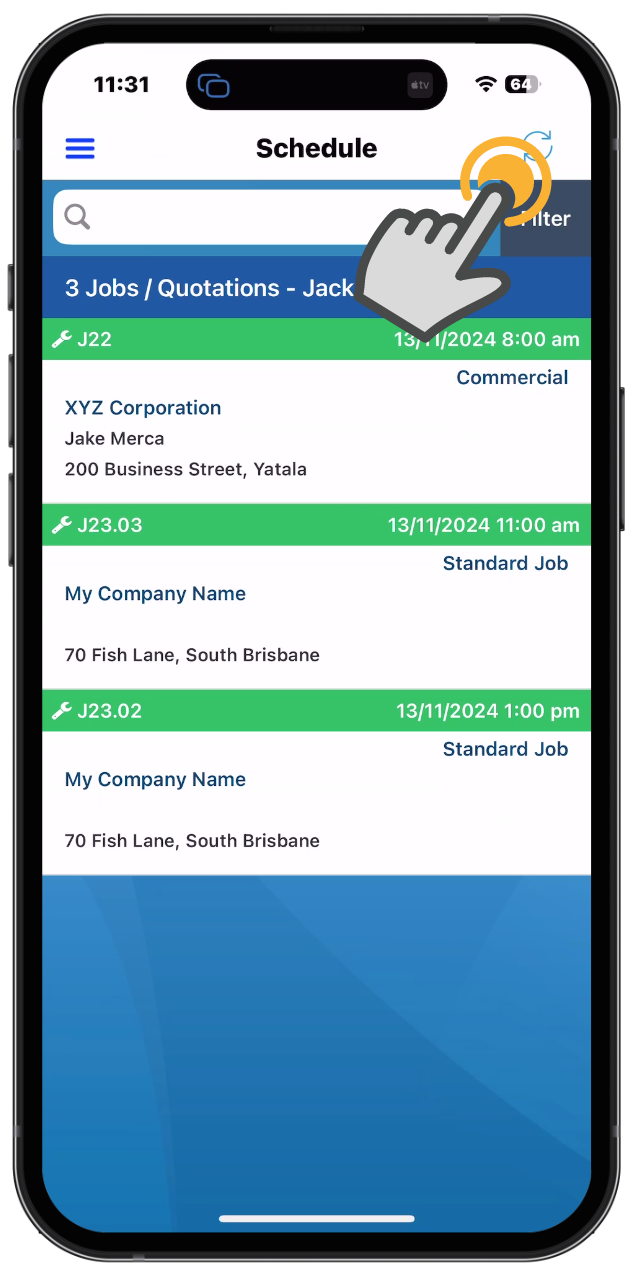
Applying the right filters in Ascora is essential for keeping your job list organized and ensuring you’re always working with the most relevant data. By setting filters correctly, you can easily find the jobs assigned to you, track progress, and avoid missing important tasks.
Why Setting Filters Correctly is Important?
✔ Avoid Missing Jobs – If a job doesn’t appear on your list, incorrect filter settings may be the reason. Adjusting filters ensures all assigned jobs are visible.
✔ Improve Efficiency – Instead of scrolling through an extensive list, filters allow you to quickly locate the jobs that matter.
✔ View Only Relevant Information – Focus on open jobs, completed jobs, or those assigned to specific team members without unnecessary distractions.
✔ Ensure Data Accuracy – Filters help match the jobs on your mobile device with those in the system, ensuring everything is up to date.
✔ Customize Your View – You can adjust filters to display jobs based on status (e.g., pending, completed, overdue), assigned technician, priority, or location.
Best Practices for Setting Filters Correctly
✅ Check Your Filters at the Start of the Day – Ensure you’re seeing all scheduled jobs before heading out.
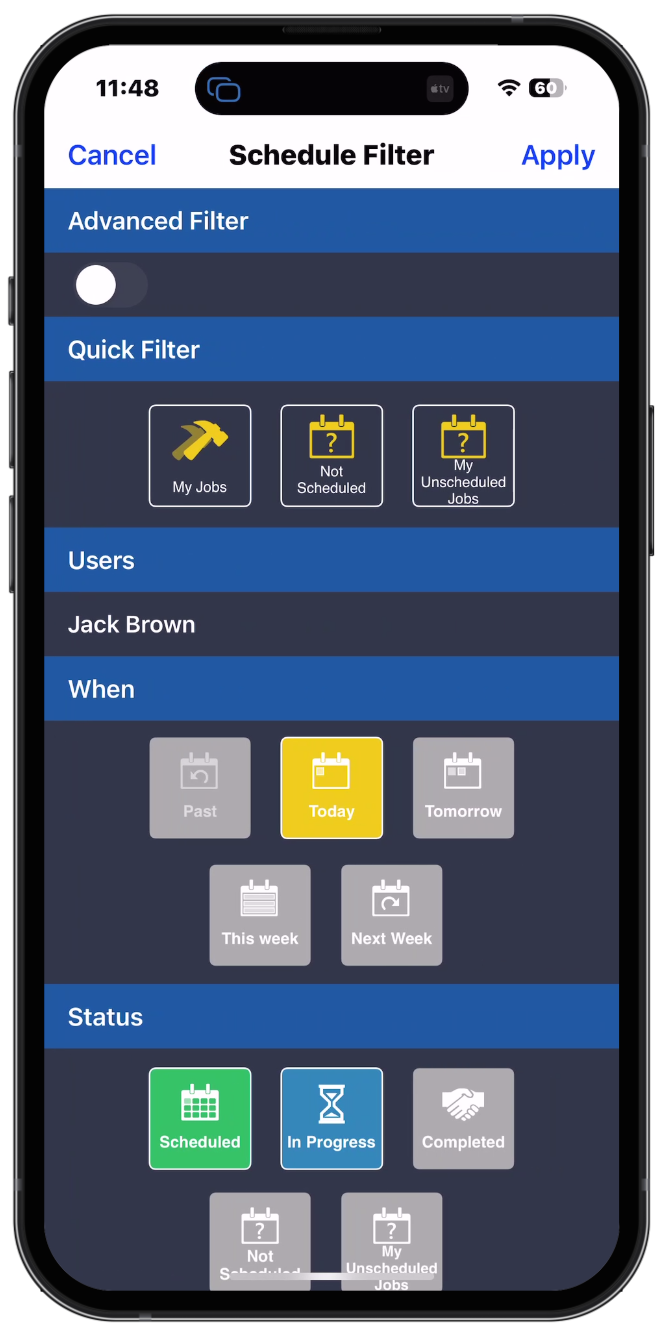
✅ Use Status Filters – Sort jobs based on progress (e.g., "In Progress," "Completed," "Pending") to focus on what’s required.
✅ Filter by Date Range – Make sure you’re looking at today’s jobs and not outdated assignments.
✅ Filter by Assigned Technician (if applicable) – If you’re part of a team, select your name to see only your assigned tasks.
✅ Adjust Filters If You Can’t Find a Job – If a job isn’t appearing, review and reset your filters to expand the search.
✅ Sync After Adjusting Filters – Once filters are set, sync your app to ensure all job details are current.
How to Adjust Filters in Ascora:
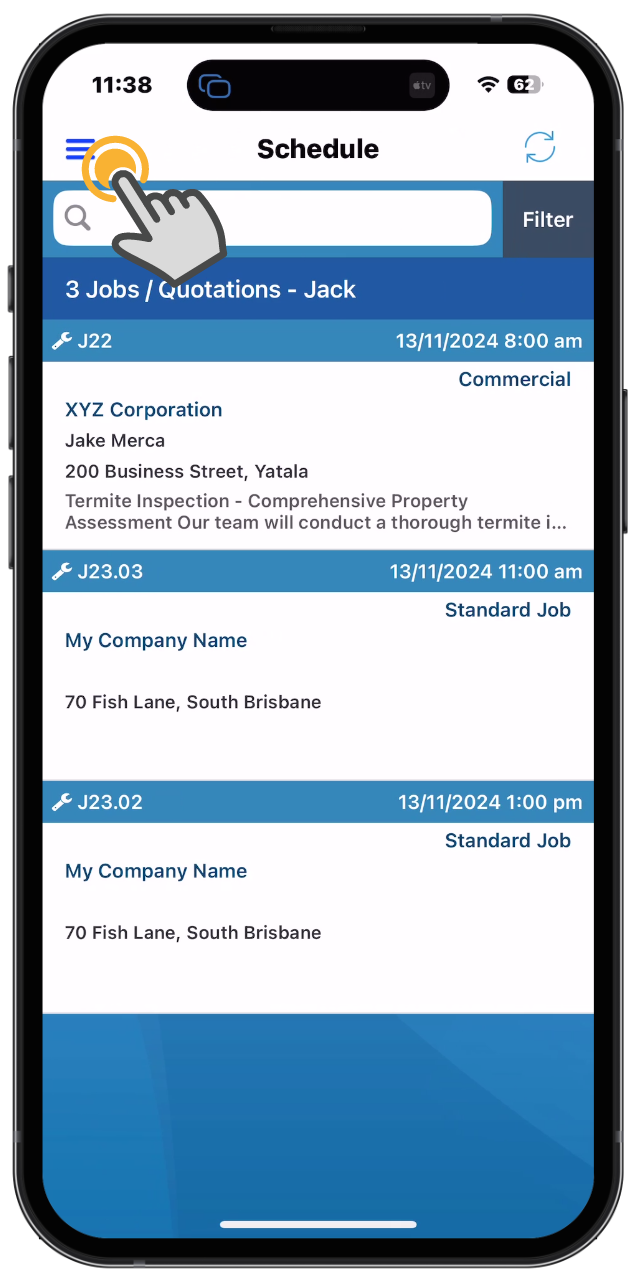
- Open the Ascora App and navigate to the Job List.
- Tap on the Filter Menu (usually represented by a funnel or list icon).
- Select the desired Job Status, Date Range, or Assigned Technician.
- Apply the filters and refresh your job list.
- If a job still isn’t visible, reset filters to All Jobs and adjust as needed.
By ensuring your filters are set correctly, you eliminate confusion, stay organized, and maximize productivity throughout your workday.
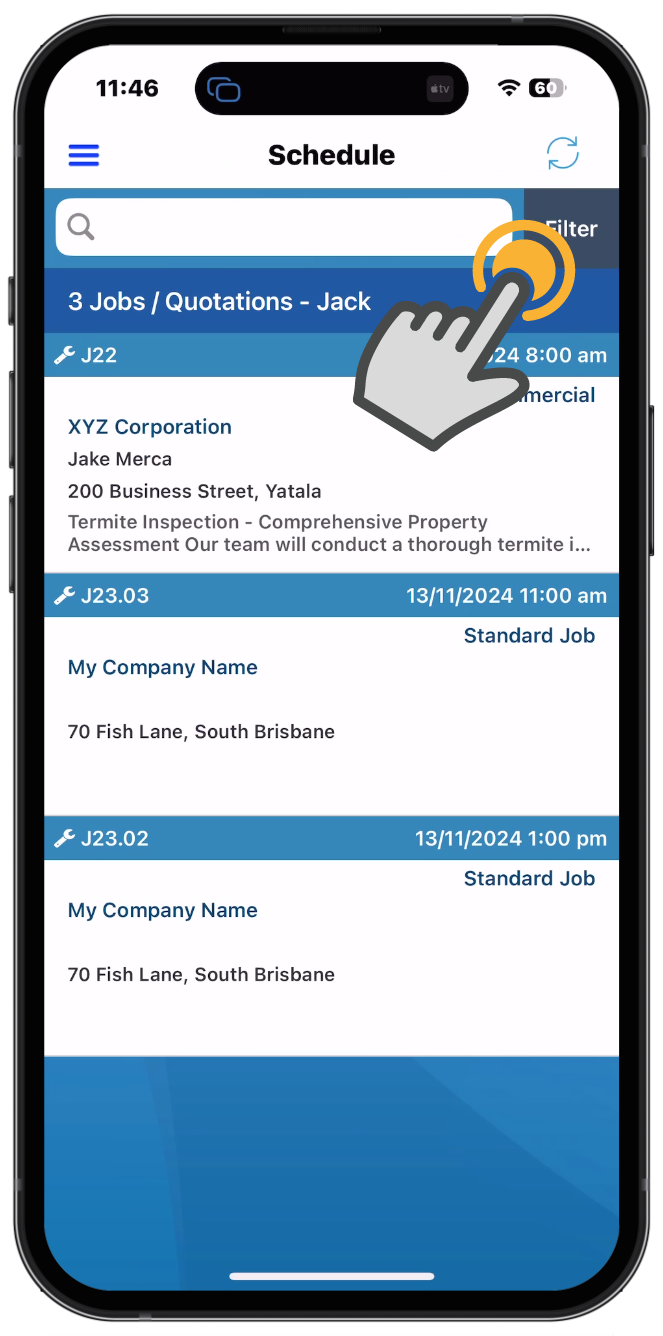
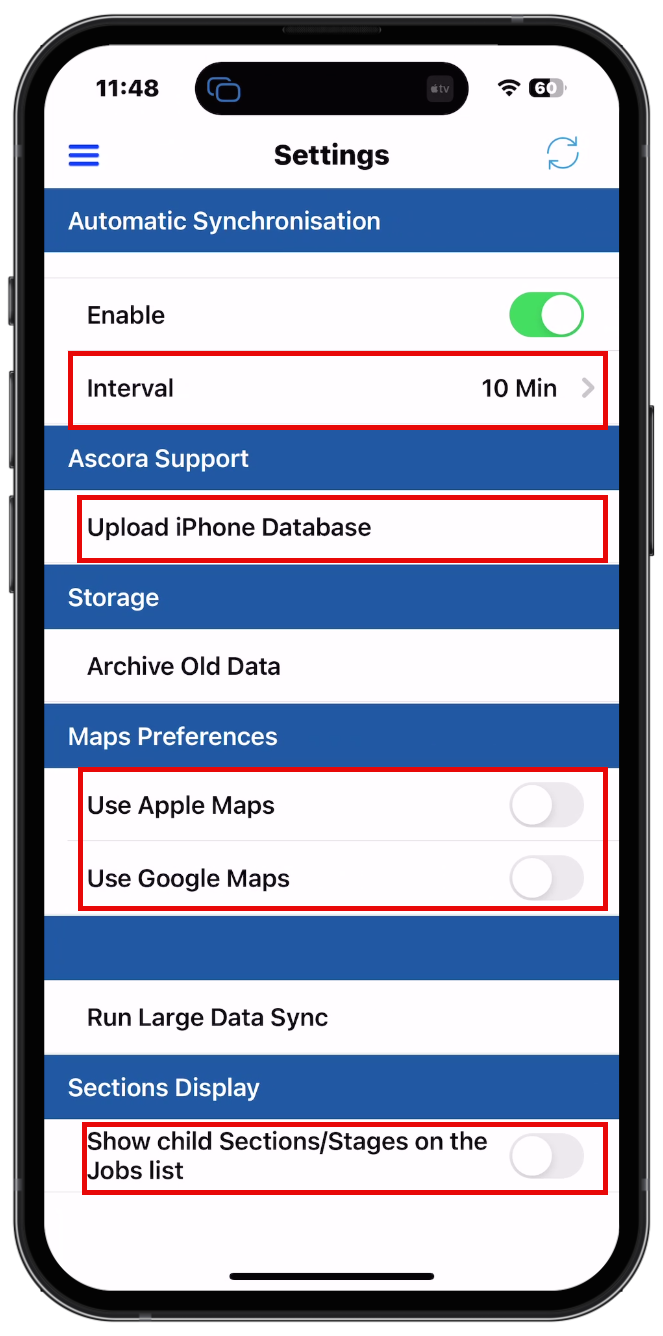
Having the correct Ascora App settings is essential to ensure that you're working with the most up-to-date job details, schedules, and customer information. Incorrect settings can lead to outdated data, missed jobs, or incorrect time tracking.
Why Checking Your App Settings is Important?
✔ Ensures Data Accuracy – Keeps job details, timesheets, and customer information current.
✔ Prevents Syncing Issues – Avoids delays or missing updates by ensuring the app communicates properly with Ascora’s cloud system.
✔ Optimizes Performance – Ensures the app is set to the best configuration for your workflow.
✔ Minimizes Errors – Reduces mistakes caused by outdated or incomplete job data.
✔ Improves Job Scheduling – Ensures real-time updates for new or reassigned jobs.
Key Settings to Check in Your Ascora App:
🔹 Sync Frequency:
- Check that your auto-sync settings are enabled (if applicable).
- Manually sync the app at the start of the day, after completing jobs, and before logging off to ensure all data is captured.
🔹 Job List Filters & Views:
- Ensure your filters are correctly set to display the relevant jobs (e.g., Pending, In Progress, or Completed).
- If you’re missing jobs, check your filters and reset them if needed.
By keeping your Ascora App settings correctly configured, you can avoid delays, maintain accuracy, and work more efficiently throughout your day.
Keeping your iPhone software up to date is crucial for ensuring that Ascora runs smoothly and efficiently. Ascora is optimized to work with the latest iOS updates, and running an outdated version of iOS may cause performance issues, compatibility problems, or unexpected app crashes.
Why Updating iOS is Important for Ascora?
✔ Improved Compatibility – Ensures the Ascora app functions as intended without glitches or performance issues.
✔ Bug Fixes & Security Enhancements – iOS updates often fix vulnerabilities and improve overall system security, reducing the risk of app errors.
✔ Better Performance & Speed – New iOS versions optimize background processes, leading to faster app performance and improved battery life.
✔ Access to New Features – Some app features may only be available on newer iOS versions, ensuring you don’t miss out on important updates.
✔ Reliable Syncing & Data Accuracy – Prevents sync failures, missing job data, or incorrect timesheet entries due to outdated system software.
How to Check & Update Your iPhone Software:
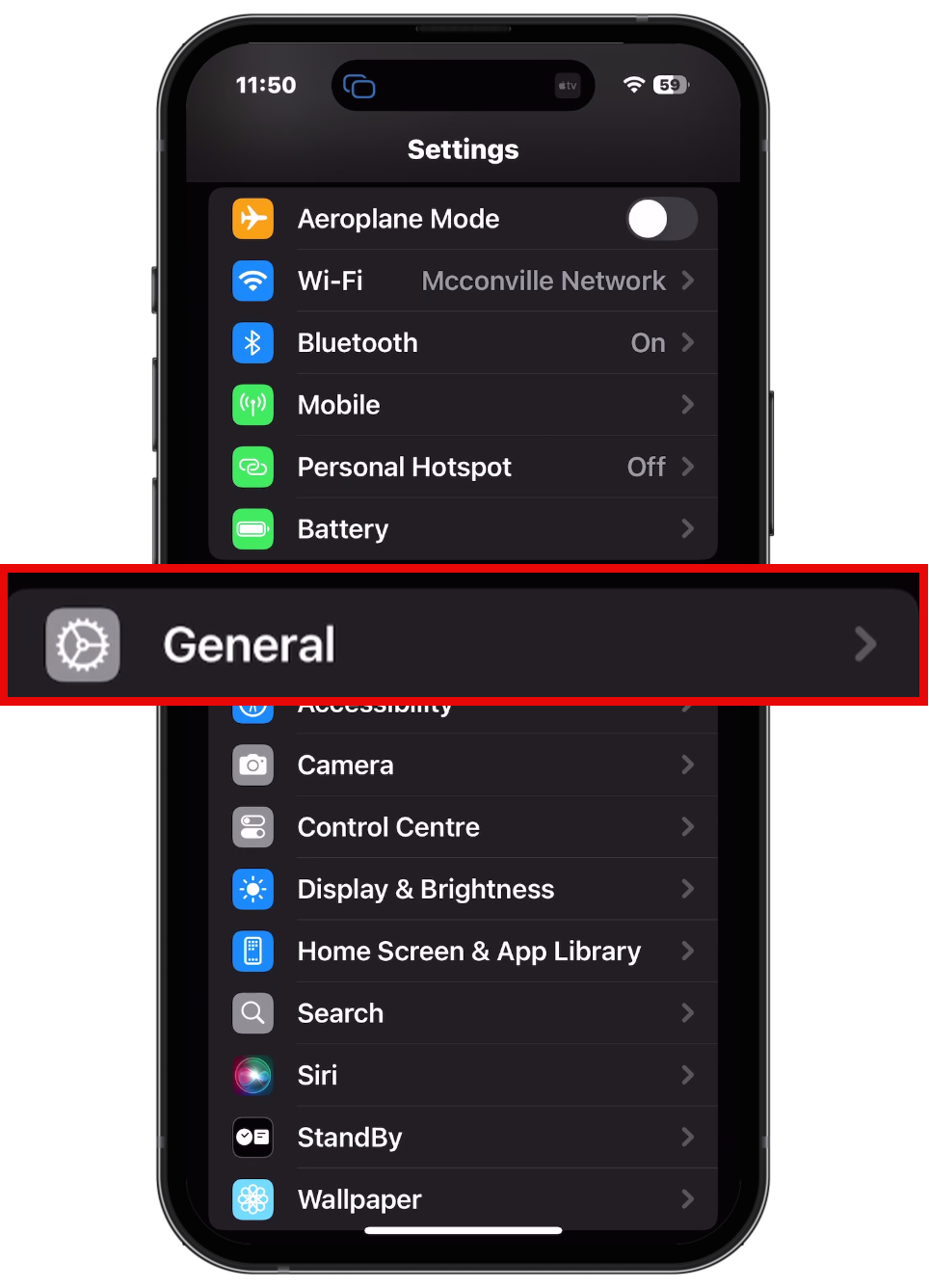
1️⃣ Open Settings on your iPhone.
2️⃣ Scroll down and tap General.
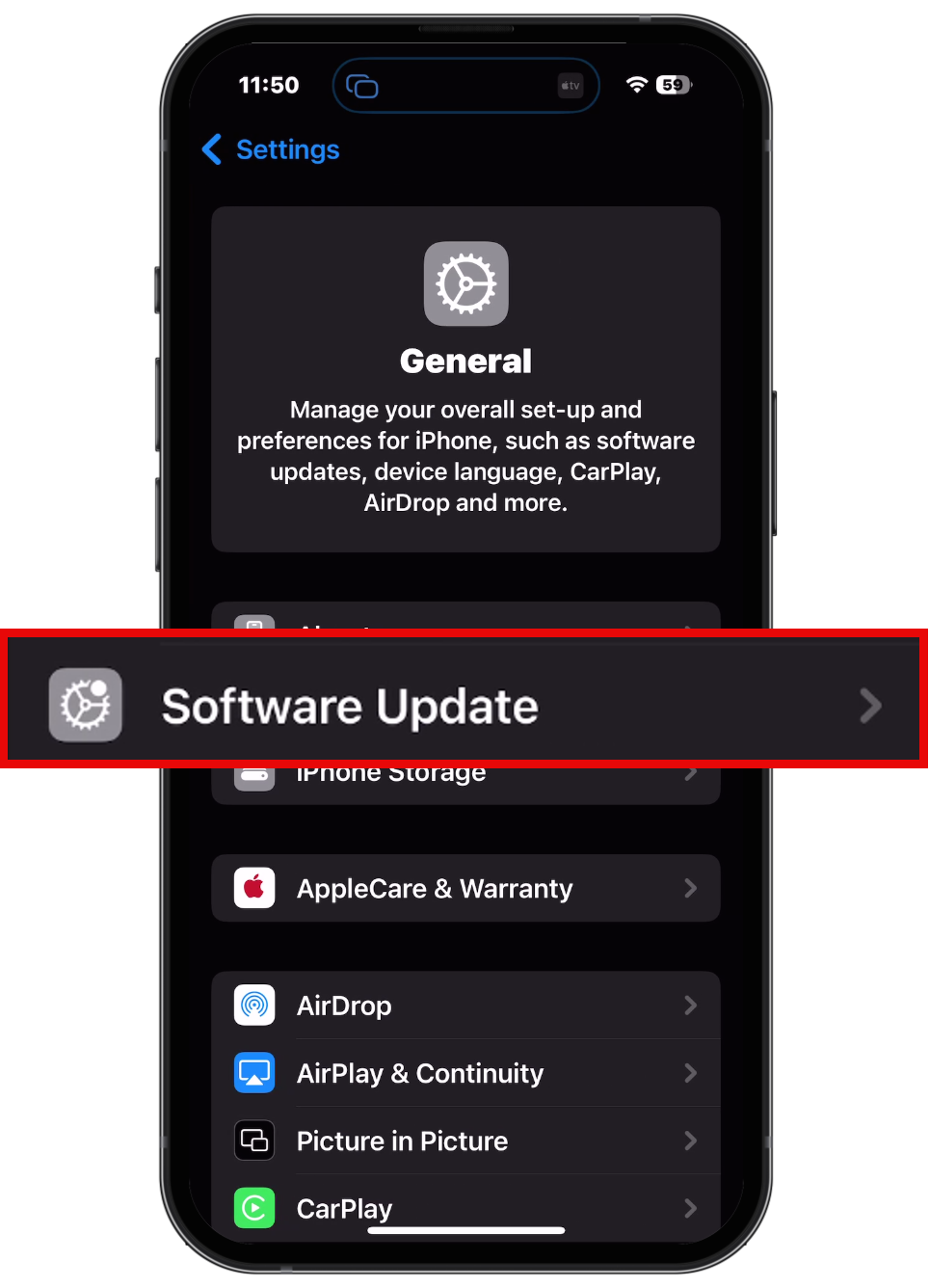
3️⃣ Select Software Update – your iPhone will check for available updates.
4️⃣ If an update is available, tap Download and Install.
5️⃣ Follow the prompts to complete the installation and restart your device.
Additional Steps for a Smooth Ascora Experience:
🔹 After updating iOS, restart your device to clear temporary system cache and ensure a smooth transition.
🔹 Check if Ascora also has an update in the App Store and install the latest version if available.
🔹 If you experience any issues, try logging out of Ascora, restarting your device, and logging back in.
By keeping your iOS updated, you can ensure that Ascora operates at its best, minimizing disruptions and maximizing efficiency in your daily workflow.
General Workflow For Start And End My Day Setup
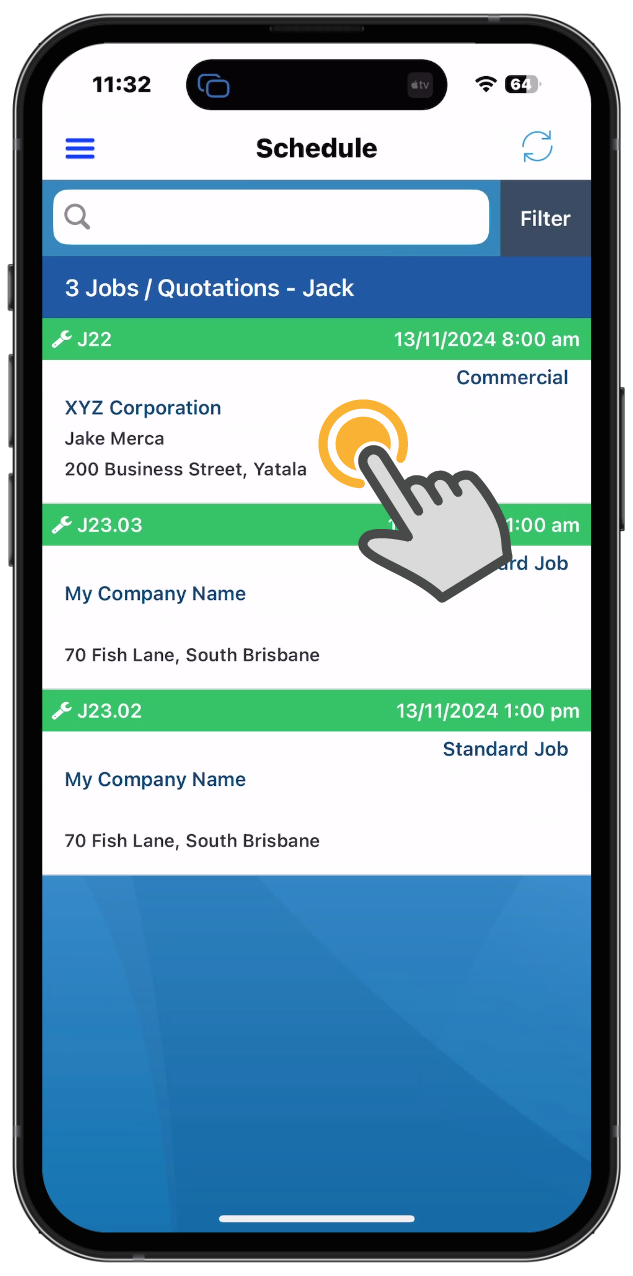
Open Ascora And View Schedule - Select First Job
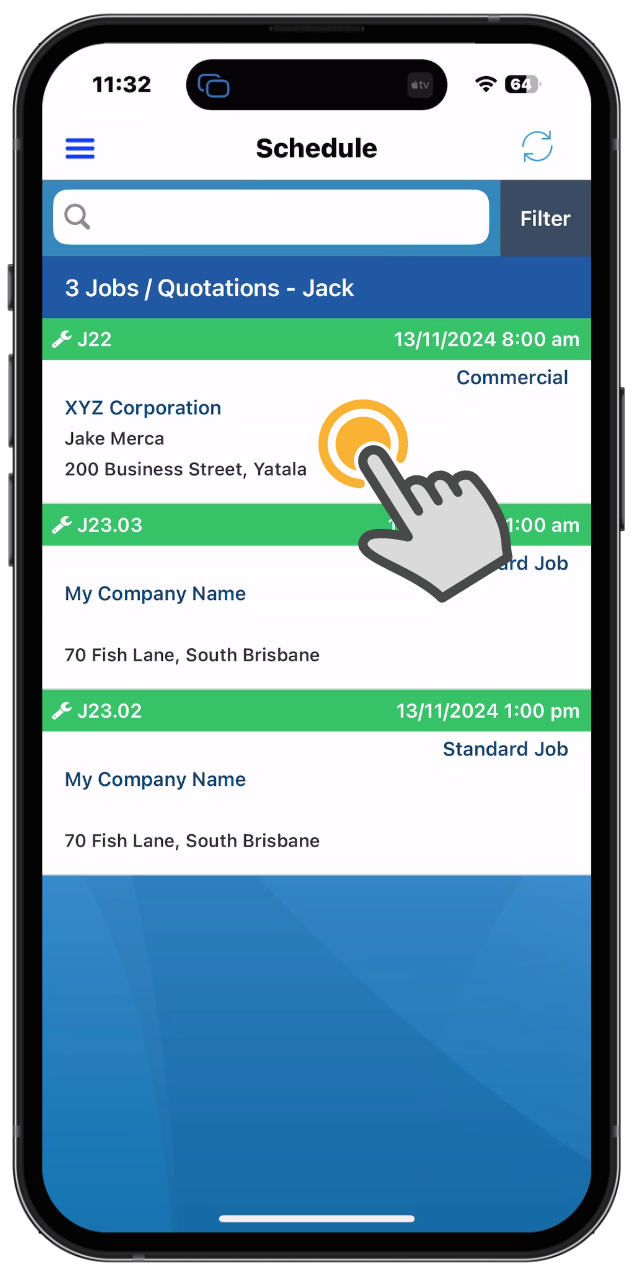
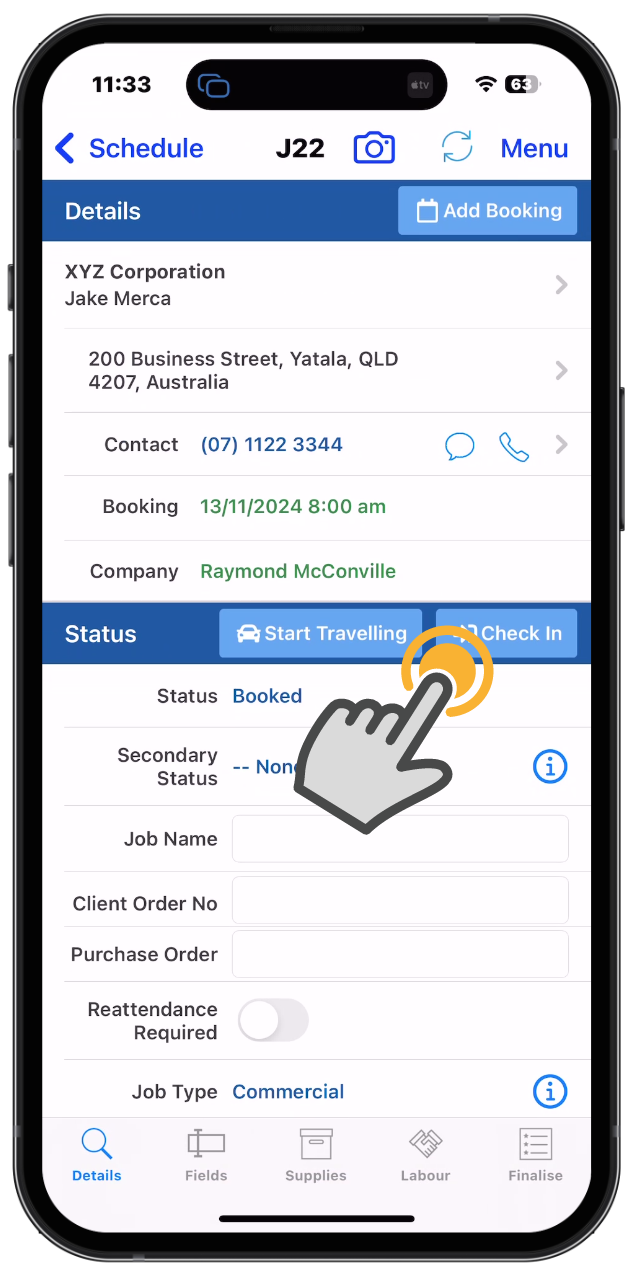
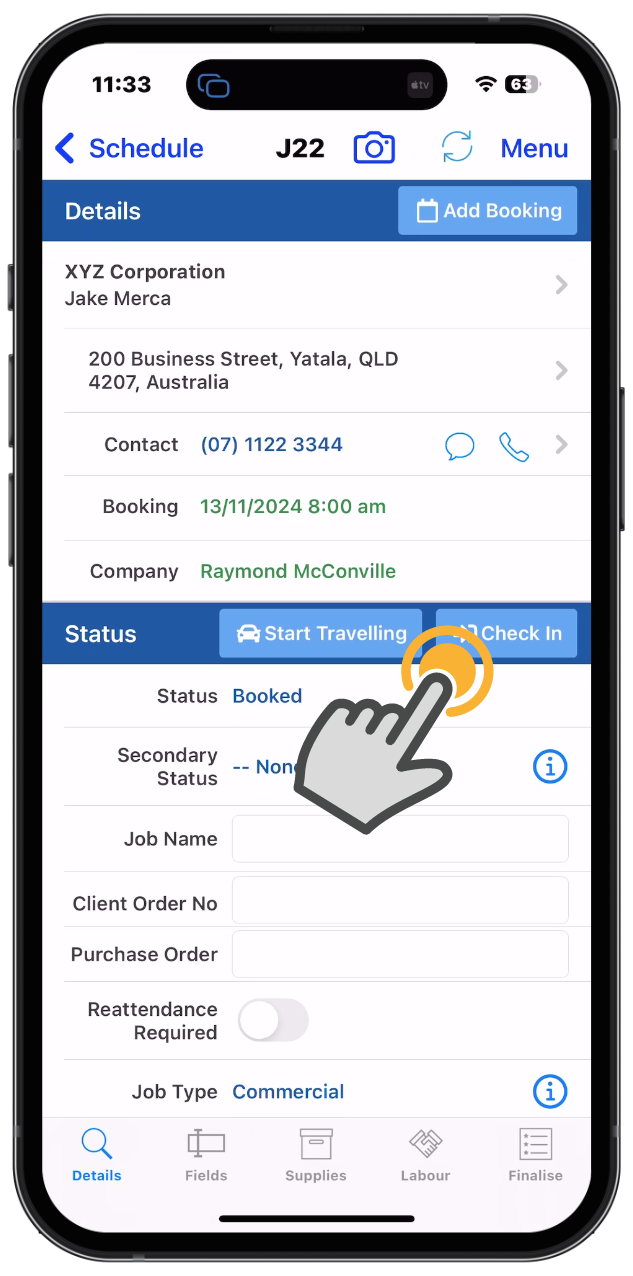
Click Check In,
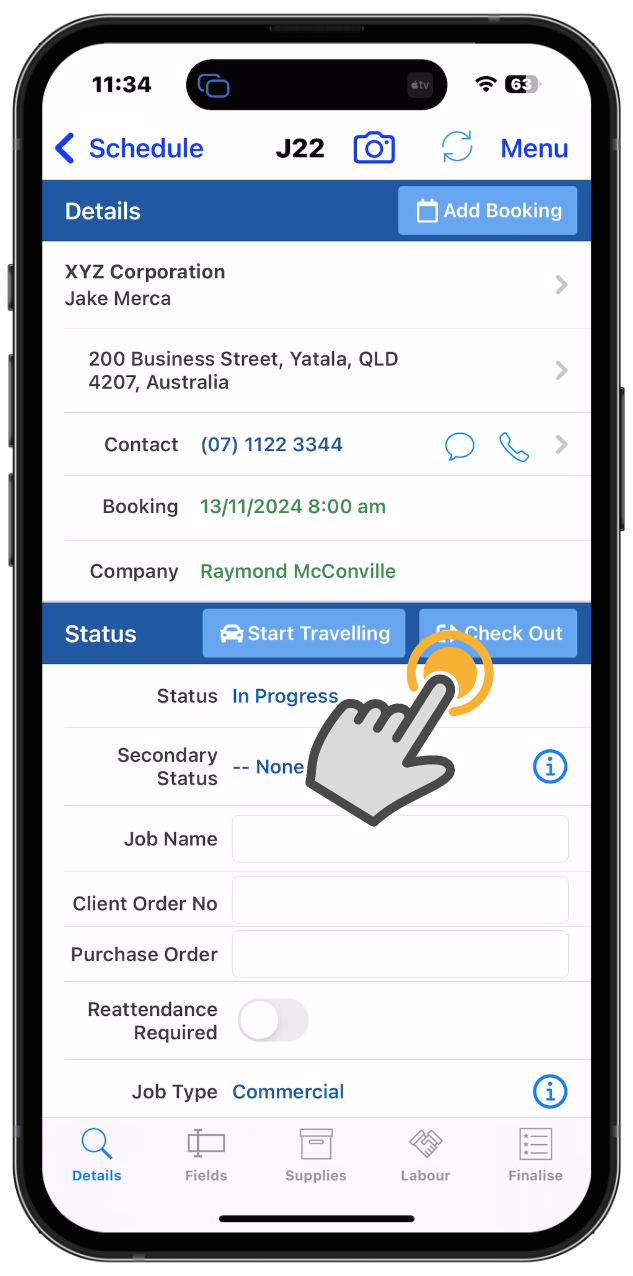
Click Check Out
Last Job Of The Day - Checking Out
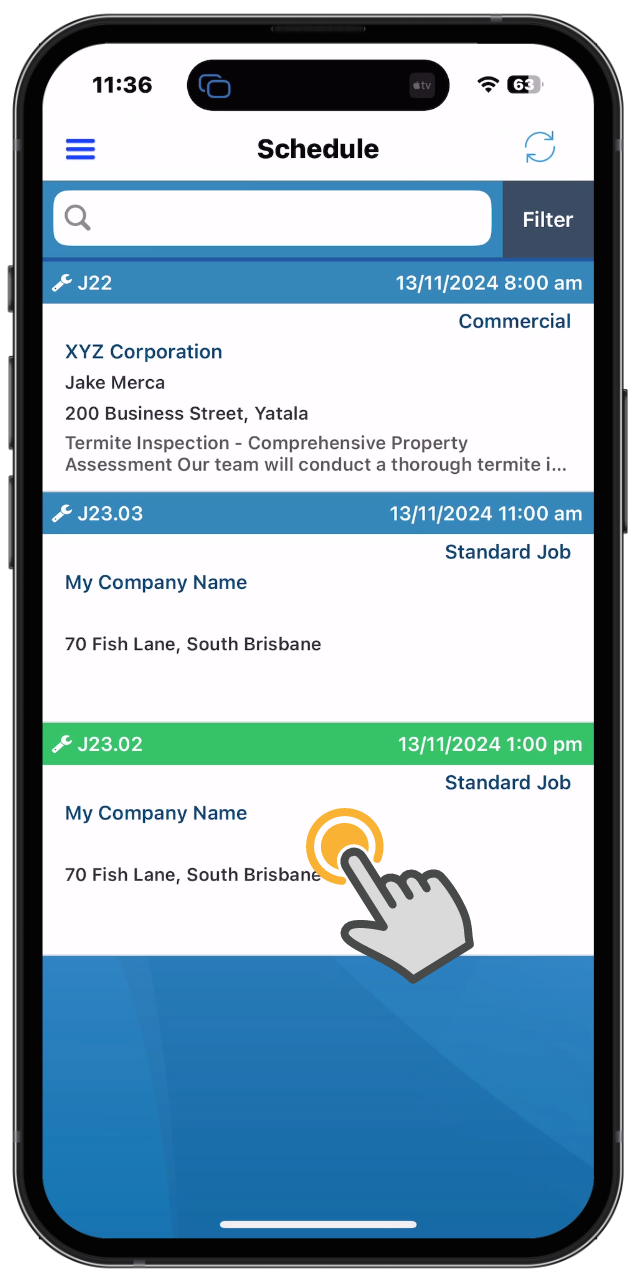
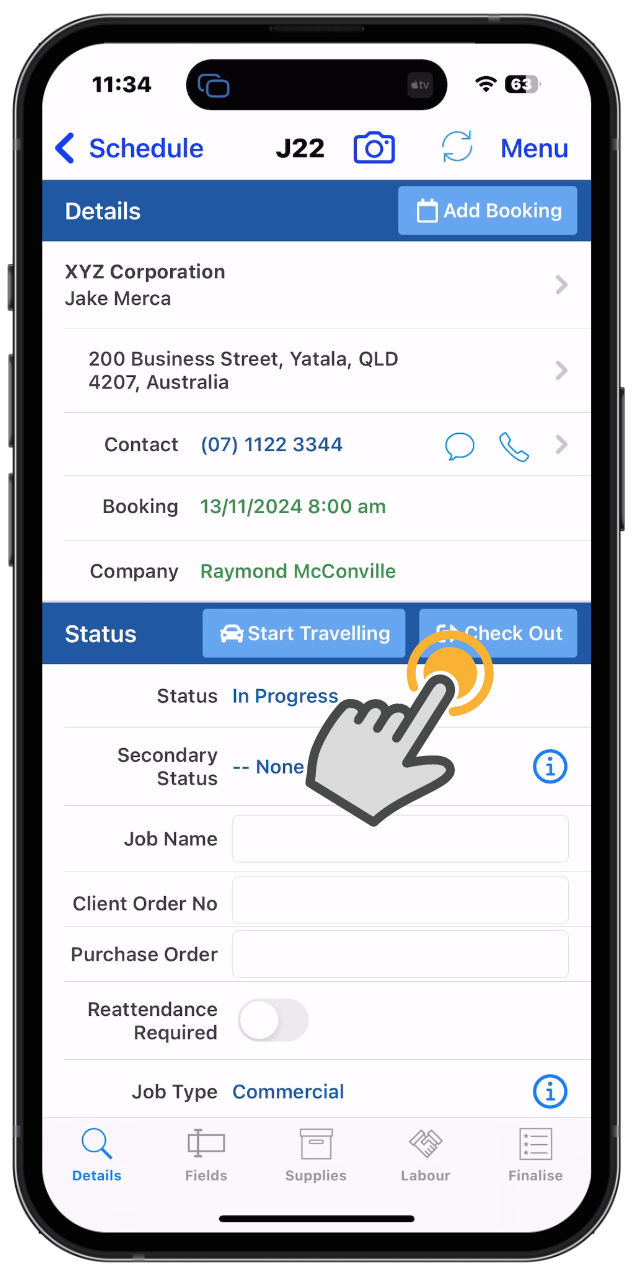
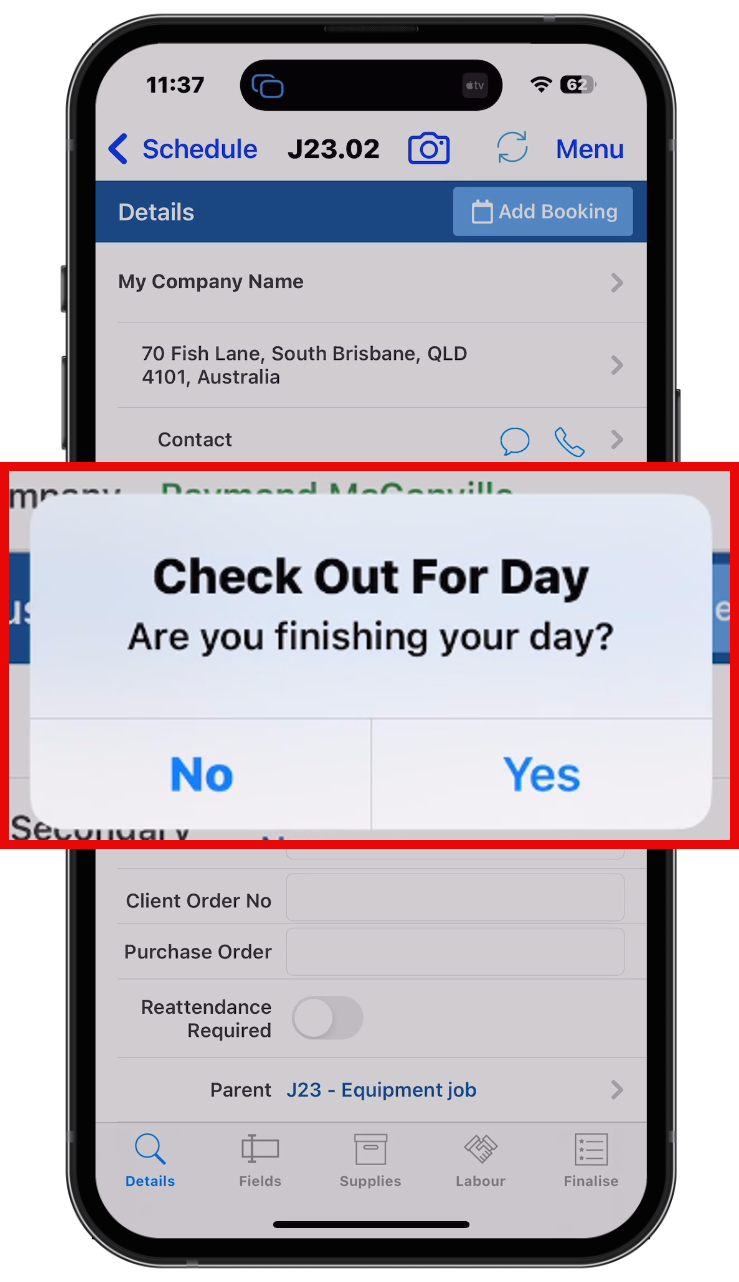
This concludes the general workflow for the "Start and End My Day" process. Below are some alternate scenarios that are in addition to the above workflow.
Accessing Jobs
Checking Into a Job That Is Not in Your Schedule
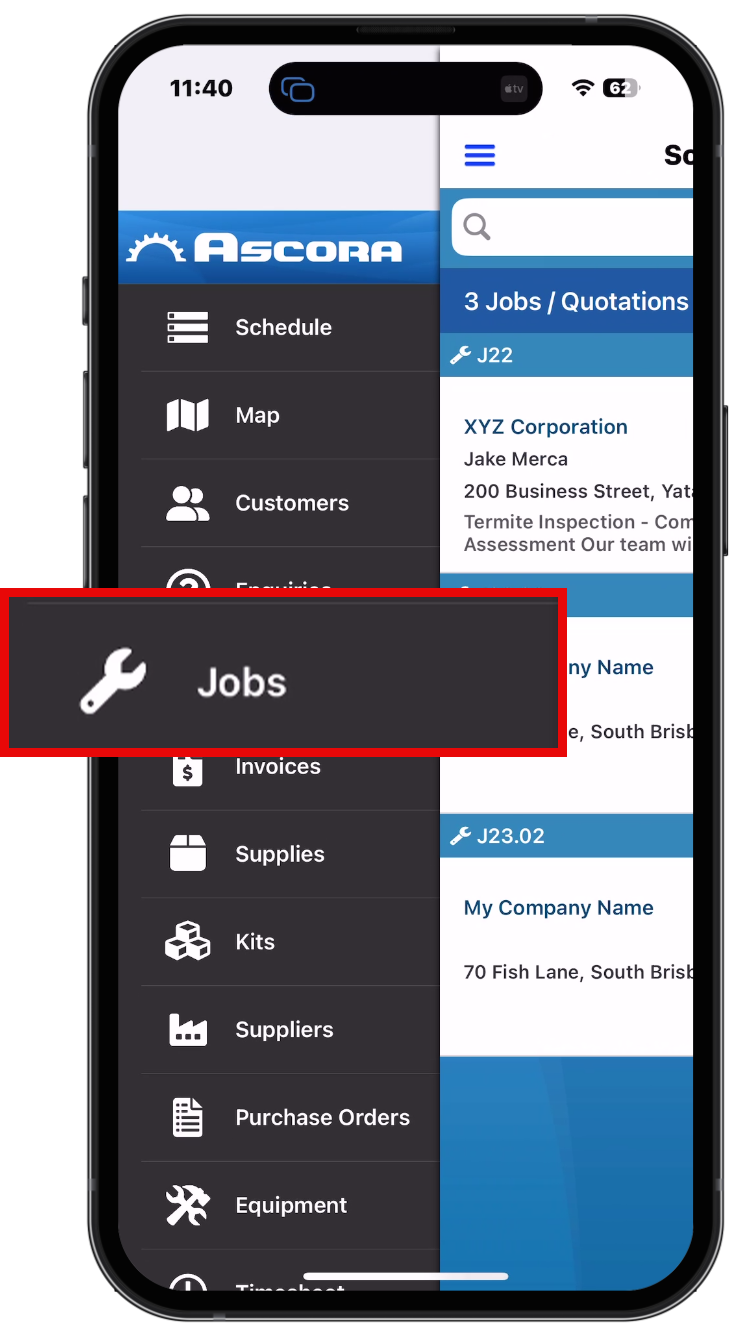
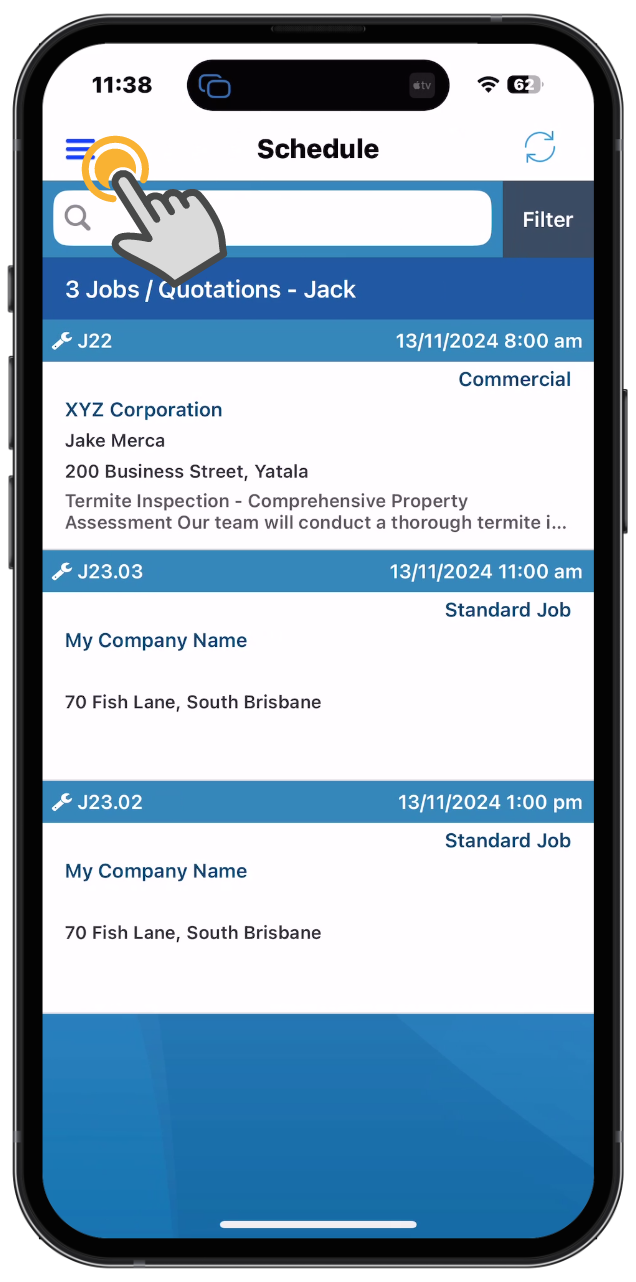
- Open the side menu.
- Select "Jobs".
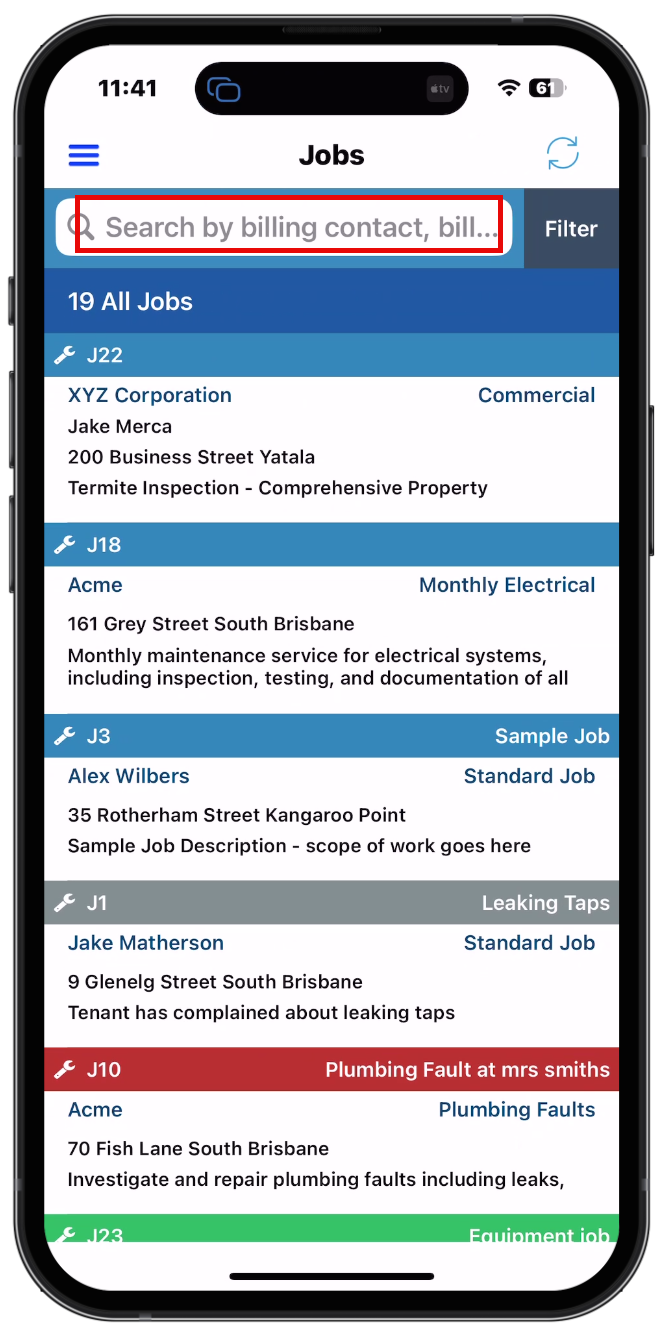
- Search for the job you have been directed to.
- Complete the steps above to check in and begin your work.
This will ensure the job is logged and tracked properly in the system.
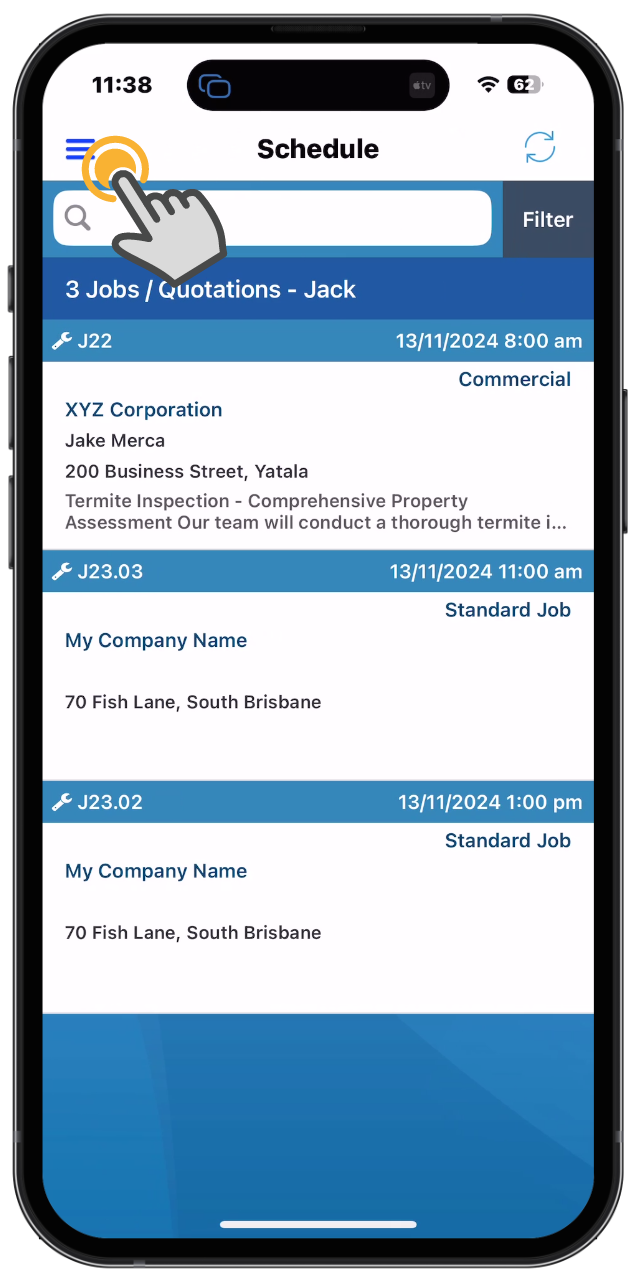
Starting Or Ending When Not Linked To A Job
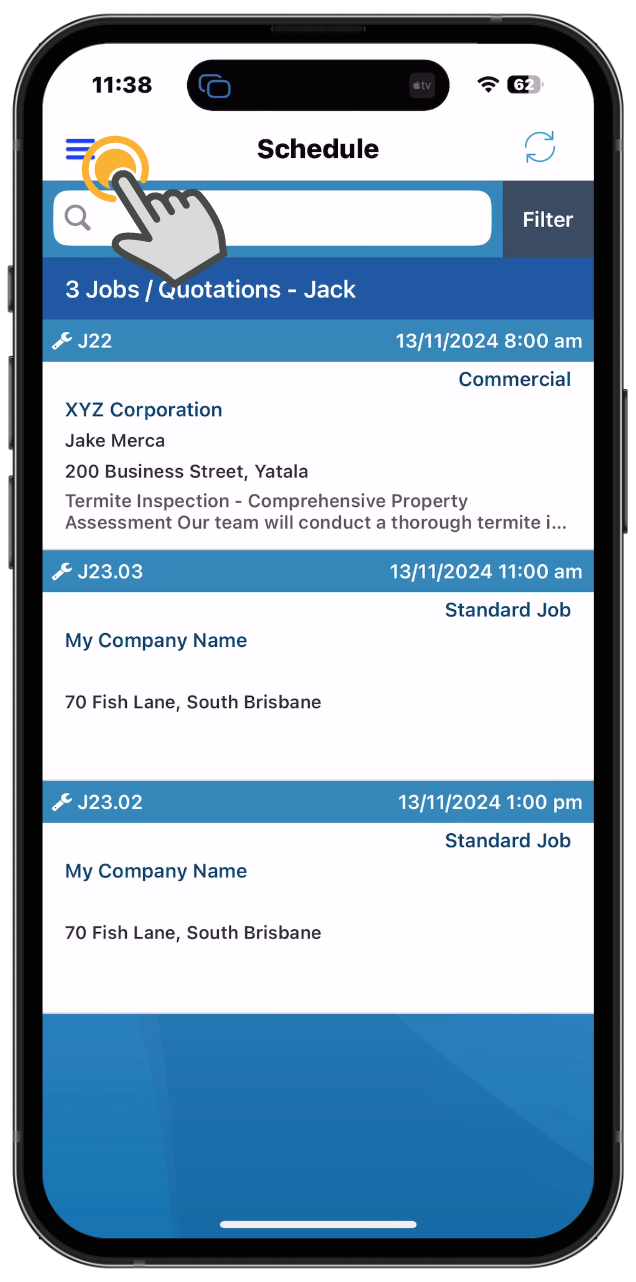
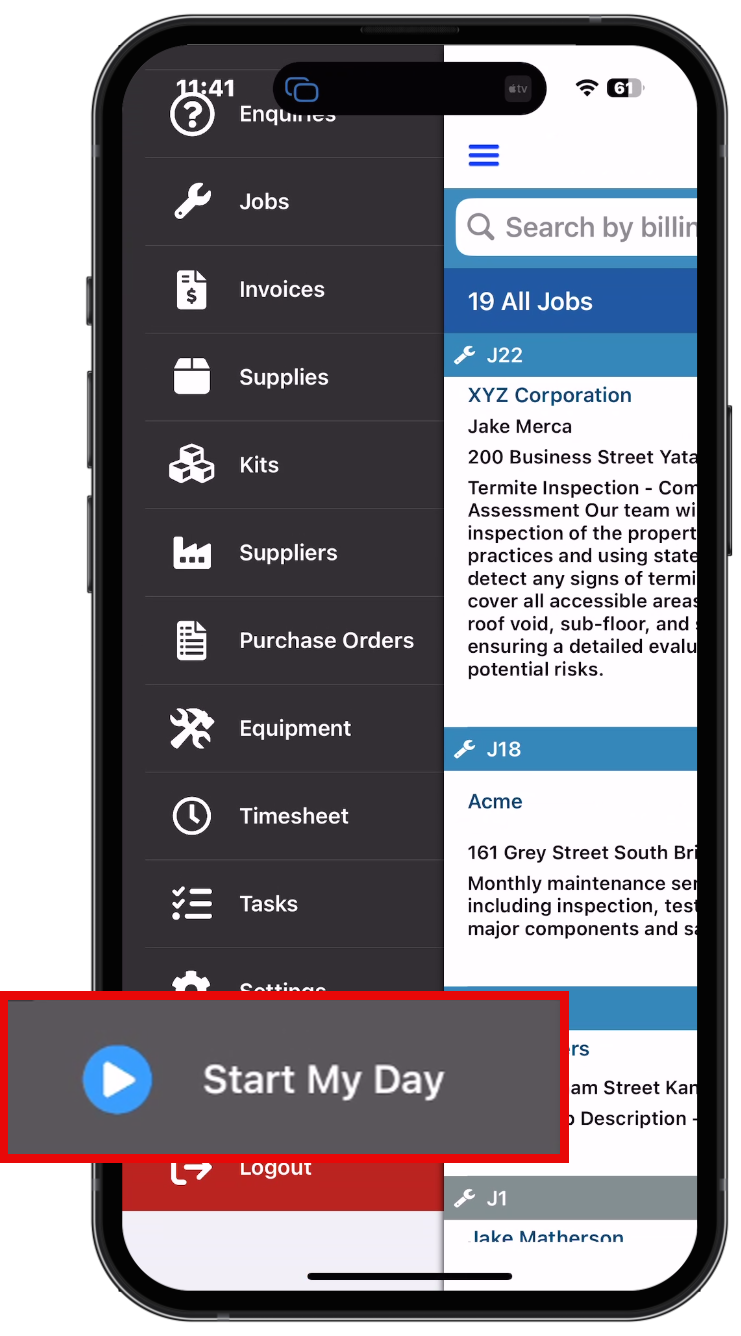
Starting at the Office/Yard or Completing Another Task Not Linked to a Job
- Open the side menu.
- Click "Start My Day".
This will ensure your time is recorded accurately, even when you're not linked to a specific job.
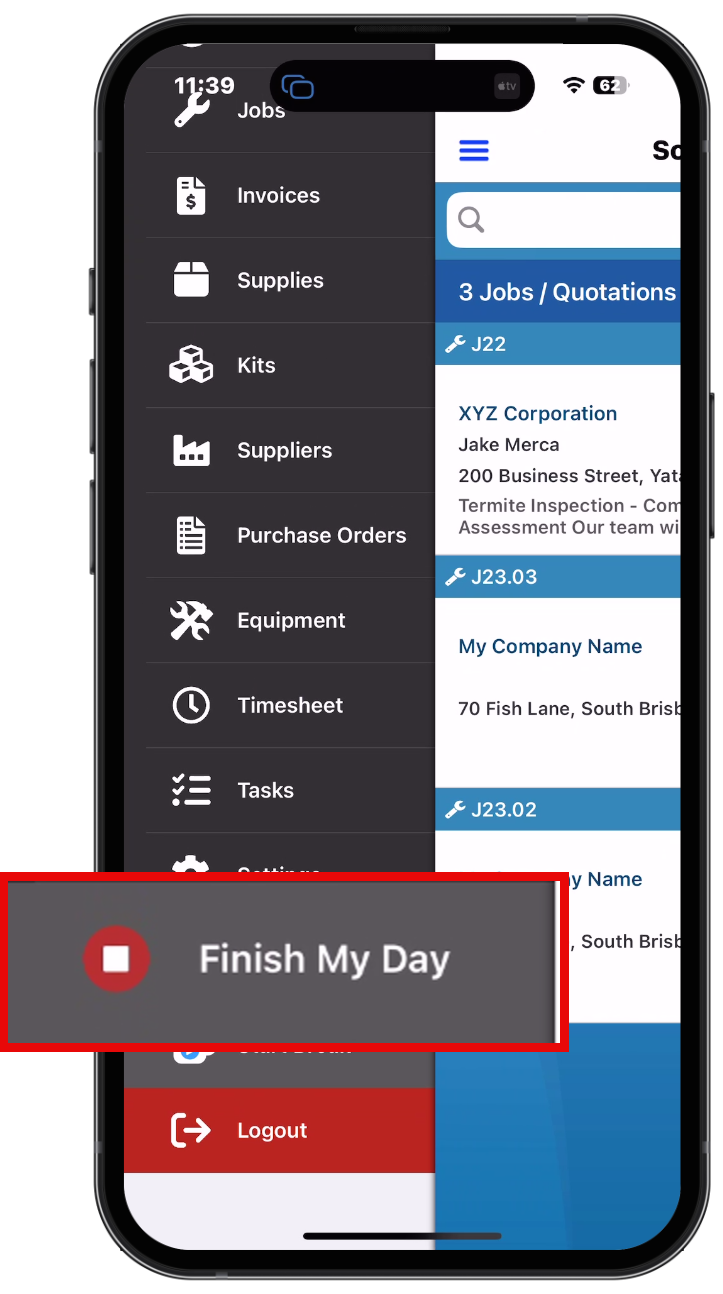
Ending at the Office/Yard or Completing Another Task Not Linked to a Job
- Open the side menu.
- Click "End My Day".
This will ensure your time is recorded accurately, even when you're not linked to a specific job.
Not Commonly Required
Manual Time Entry
For times when you are instructed to do so, follow these steps:
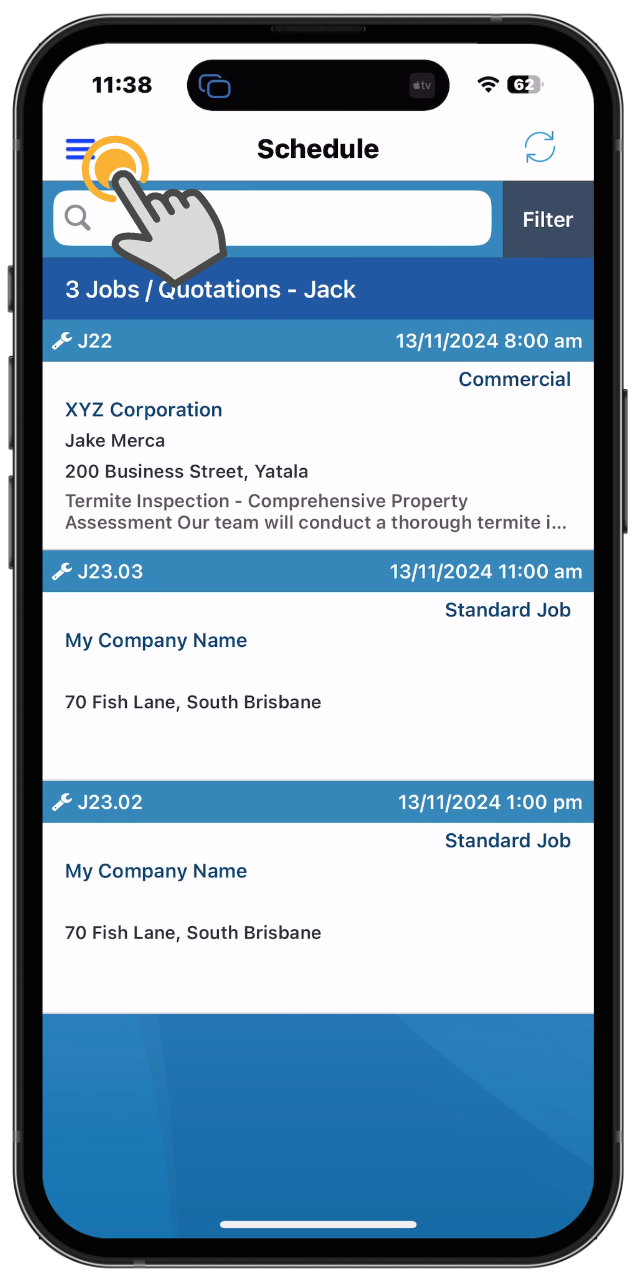
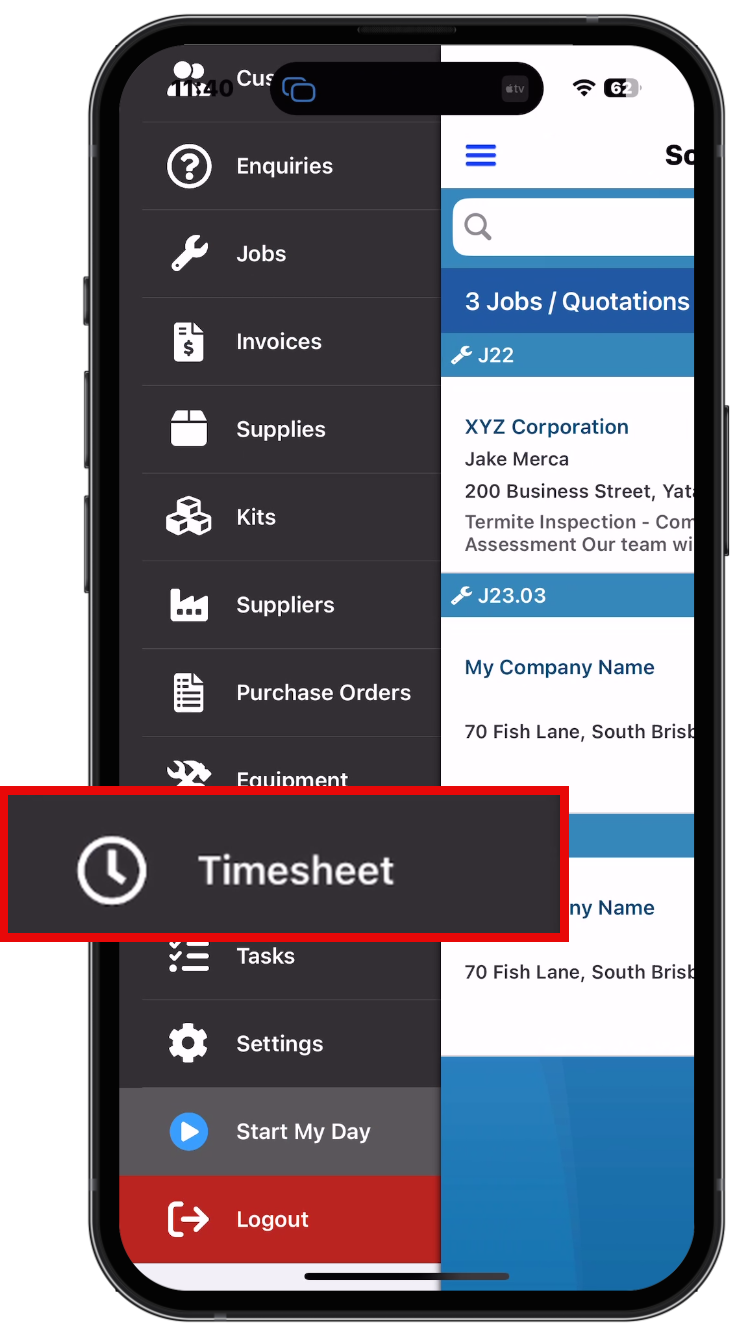
- Open the side menu.
- Select Timesheets.
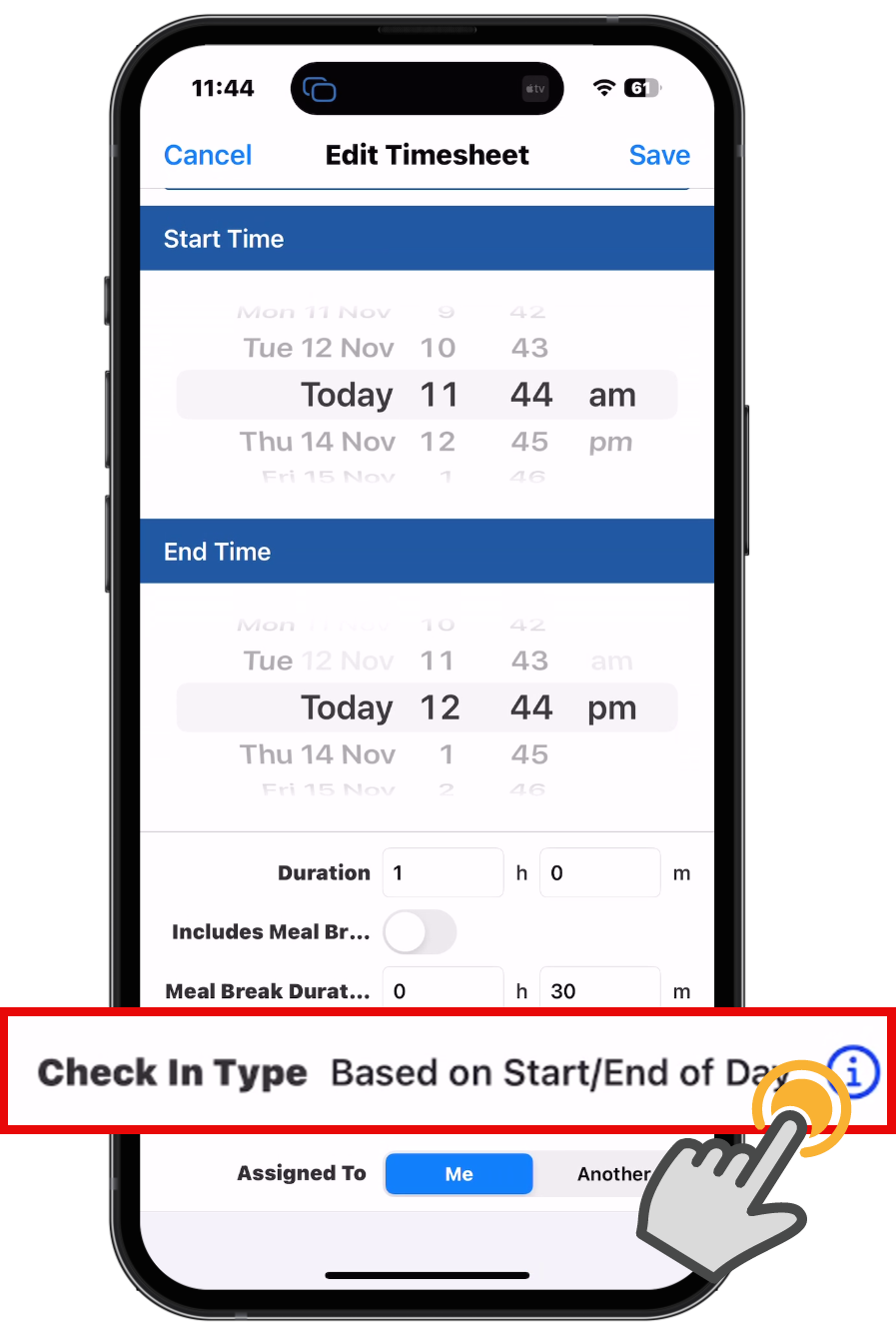
- Click the plus icon to add a new entry.
- Populate the timesheet as required.
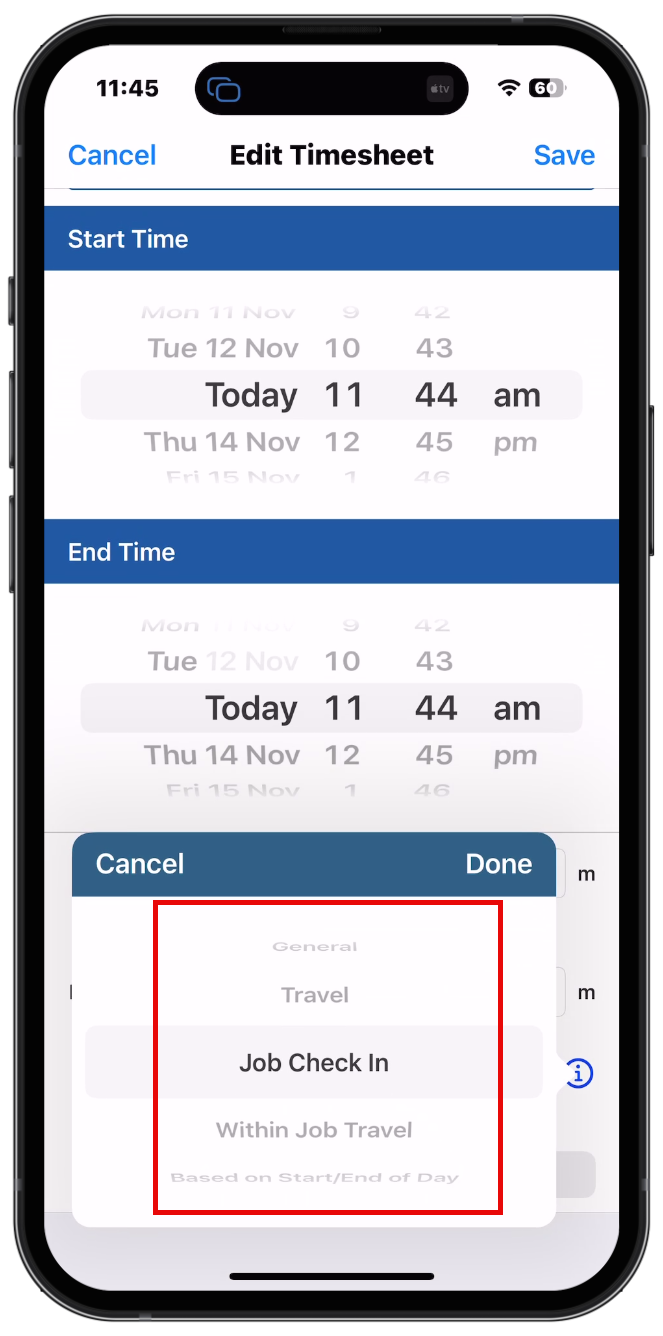
- Ensure you select the "i" icon to choose the check-in type.
This will present a few options for you to allocate your time to.This allows you to track non-billable work as directed.
Viewing Time Sheets
Start And End My Day
You may notice that, as your system is set to Start and End My Day, and if you have previously been set to Actuals from timesheets, the display may look a little different. This is due to payroll settings that pay you based on the check-in of your first job (Start My Day) and the check-out of your last job (End My Day).
You can toggle the field that shows the check-in times for each job you attended throughout the day. However, adjusting these times will not affect the start and end of the day's work. It is not necessary to manually adjust these times, and it is advisable to contact your supervisors or admin team to make any adjustments on the web.
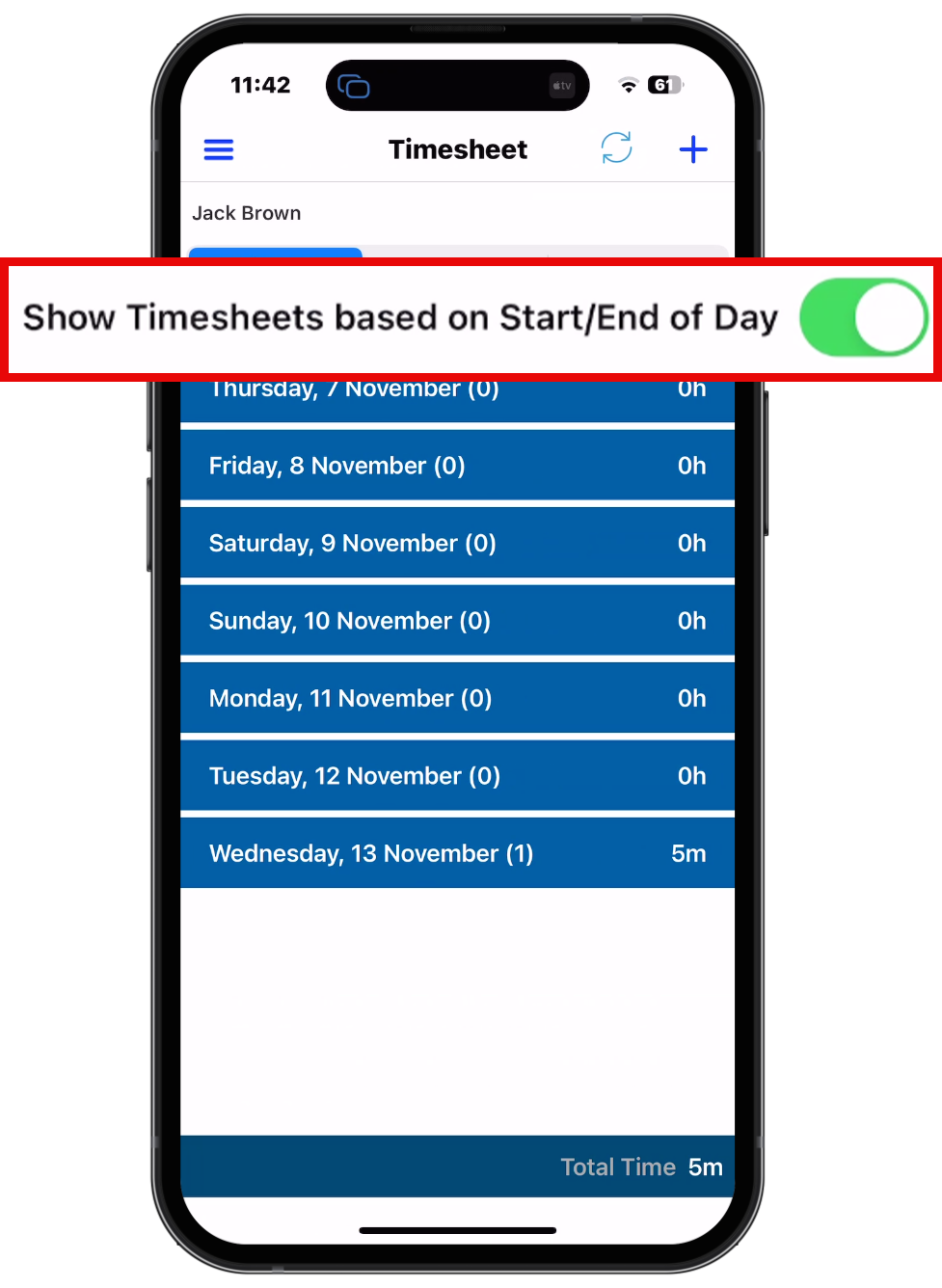
In conclusion, while the system is set to track your workday from the start to the end of the jobs you attend, any adjustments to the individual check-in times for each job will not impact the overall start and end of your day as determined by payroll. It is important to follow the proper process for tracking time and reach out to your supervisors or admin team for any necessary adjustments. This ensures that your timesheets are accurate and aligned with payroll requirements. If you have any questions or need assistance, don't hesitate to contact your support team.
Got a question?
Submit an Idea 💡 Go to Ideas Portal