Variations allow you to efficiently handle changes or additions to the original scope of work within a job section. Whether it's a customer request or an adjustment in project requirements, Variations can be seamlessly integrated into a job section, ensuring accurate tracking of values and updates to the overall job.
Once a Variation is quoted, accepted, and converted to a job, it will automatically update the section's details, including recalculating the section total to reflect the added Variation value. This ensures transparency and consistency across your jobs.
In this guide, we will walk through the steps to:
- Add a Variation to a job section.
- Quote and price the Variation.
- Convert the Variation to a job and understand the impact on the job section.
- Track all changes using the Audit Log for accountability and record-keeping.
This streamlined process helps you maintain control over project changes while ensuring that all updates are accurately reflected in your job management system.
📽 Watch the video guide ⤵
1. Start with the Job Section.
Begin with the job section you want to update. In this example, we are adding a variation to a job section with an initial Fixed Price of $1,200.00
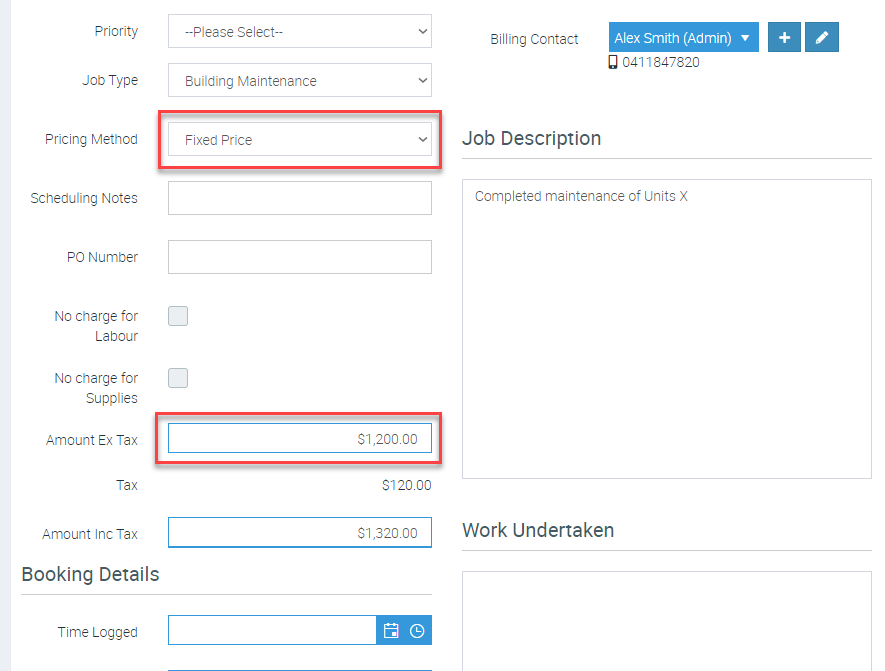
2. Navigate to the Variations Tab
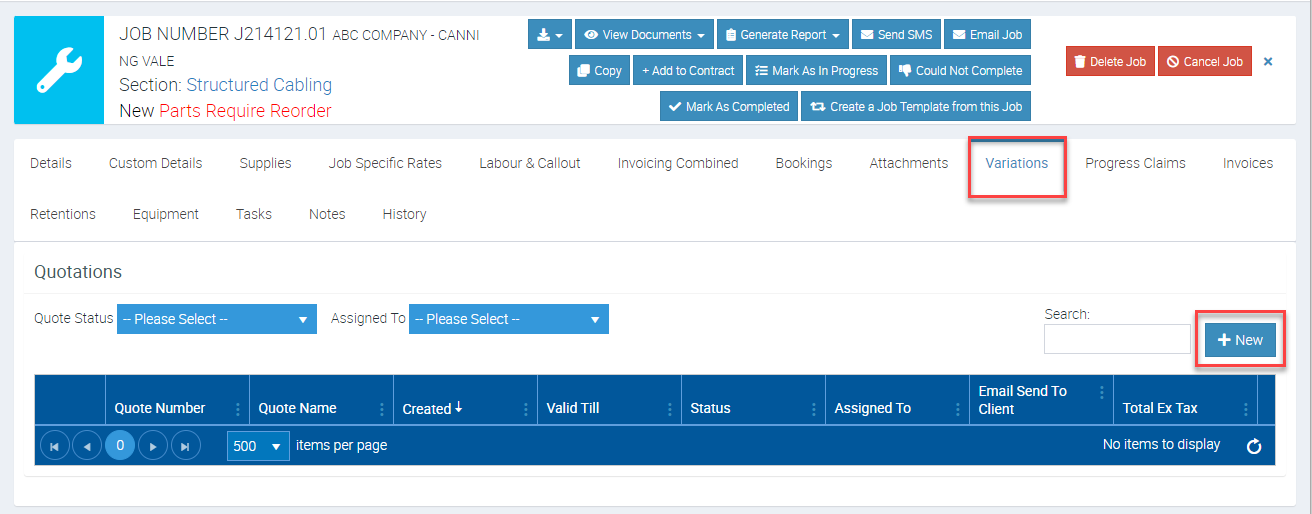
Go to the Variations tab within the Job Card and click the + New button to start creating a new Variation.
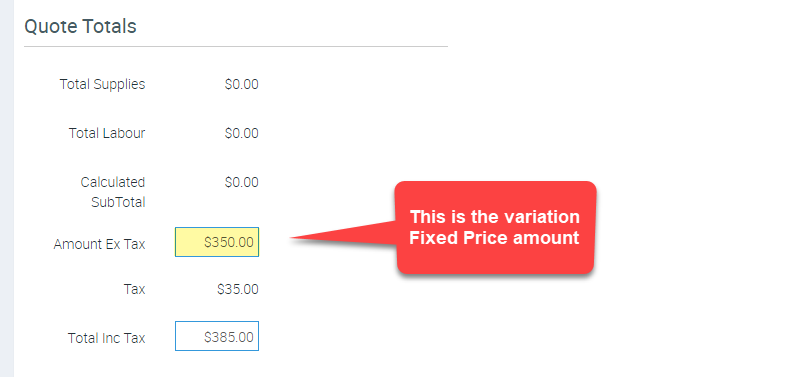
3. Enter Variation Details
Provide all necessary details for the Variation, including the quote name and pricing method. In this example, we are adding a Fixed Price Variation of $350.00. Ensure all information, such as description, supplies, and attachments, is included for clarity.
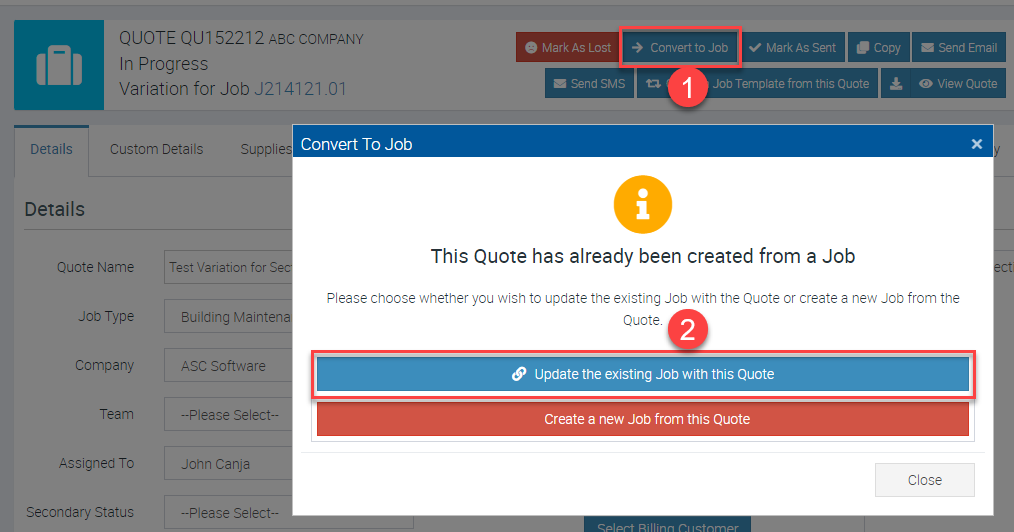
4. Convert the Variation Quote to a Job
Once the Variation quote is accepted by the customer, convert it into a job by selecting one of the following options:
- Update the Existing Job with this Quote: This option updates the original job section, recalculating the total value and incorporating the Variation.
- Create a New Job from this Quote: This creates a separate, standalone job that does not affect the original job section.
Choose the option that best suits your project requirements.
5. Verify Updated Job Section Total
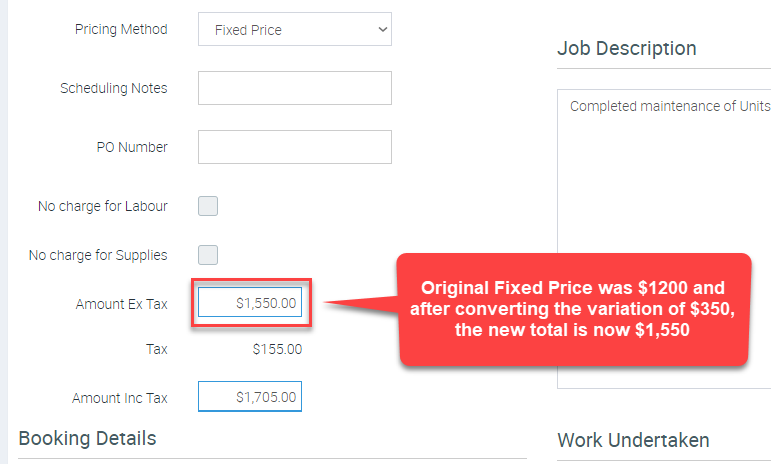
After applying the Variation, review the updated Total Ex Tax for the job section. In this example, the total has increased from $1,200.00 to $1,550.00, reflecting the Variation's value.
6. Review Changes in the Audit Log
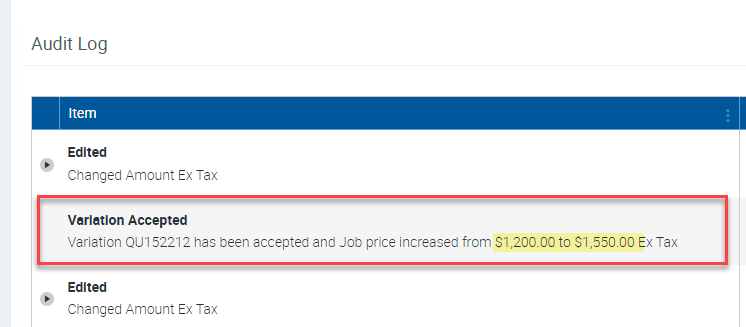
Every change made, including the addition of Variations, is recorded in the Audit Log. Scroll to the bottom of the quote or job screen to view the log and ensure a clear history of modifications is maintained for accountability.
By following these steps, you can efficiently manage Variations within job sections, ensuring accuracy, transparency, and streamlined workflows.
Got a question?
Submit an Idea 💡 Go to Ideas Portal