Managing supplier invoices efficiently is crucial for maintaining accurate financial records, streamlining job cost tracking, and ensuring timely payments. Ascora provides multiple ways to process supplier invoices, whether manually, through manual import, or via automatic import for supported supplier formats.
For businesses handling a high volume of invoices, automatic imports can significantly reduce administrative effort by automatically processing invoices and allocating them to jobs or purchase orders. For occasional invoices or unsupported formats, manual creation and import remain flexible options to ensure proper documentation and tracking.
We already have a number of supplier invoice formats that Ascora supports such as those for Reece, Bunnings Warehouse, Lawrence & Hanson, and many more. For a complete list of available supported formats, please see Untitled.
This guide provides a step-by-step breakdown of how to create, import, and automate supplier invoice processing in Ascora, helping you choose the best method based on your workflow and supplier relationships.
Creating Supplier Invoices Manually
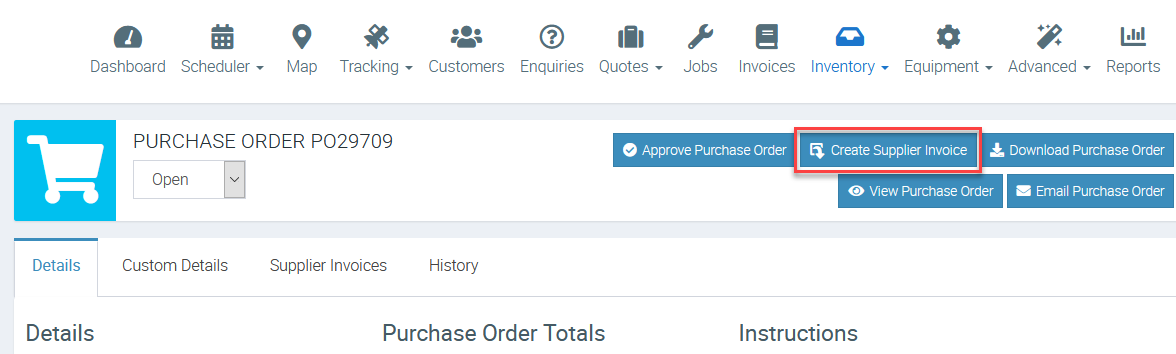
If the supplier invoice format is not part of the supported formats, you can create the invoice manually by going to either Inventory → Purchase Orders and click Create Supplier Invoice button when you are in the Purchase Order Main screen.
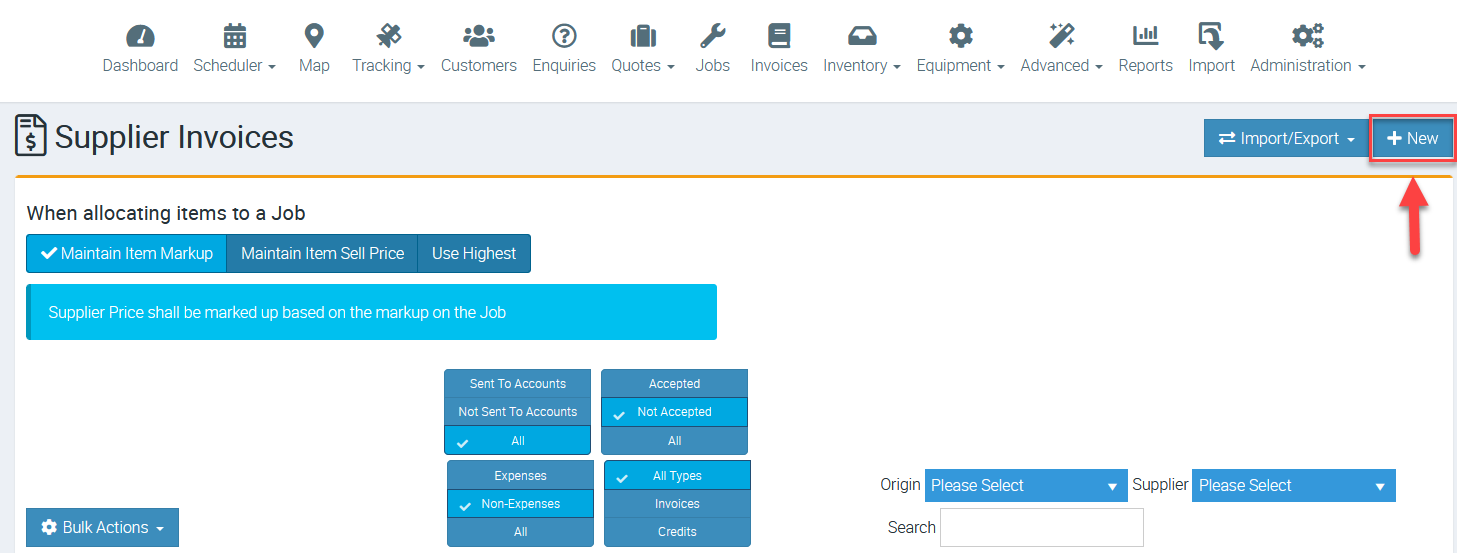
Another way of creating a supplier invoice manually is by going to Inventory → Supplier Invoices and click New.
For more details on how to create supplier invoices manually, please access ⌨️ Entering Supplier Invoices Manually user guide.
Once the processor has been created and tested on our side from the samples provided, we deploy this with an update to Ascora. From there you will be able to select this as an Invoice Format on your Supplier and use when importing manually or automatically. So for example if you are receving the Supplier Invoices via email Ascora can pick them up and process them automatically for you linking them to the related job if possible.
Due to the length of time it can take to create, test and deploy the Supplier Invoice processor we charge $350 EX GST per Supplier Format.
Importing Supplier Invoice Manually
It is important to note that doing manual import is just another way of importing a supplier invoice which is part of the supported formats. This is applicable in scenarios such as receiving a supplier invoice from one supplier in a rare occasion (or once off only) or when you have not yet enabled automatic import for that particular supplier.
📽 Watch the video guide ⤵
1. To do a manual import, go to Inventory → Supplier Invoices.
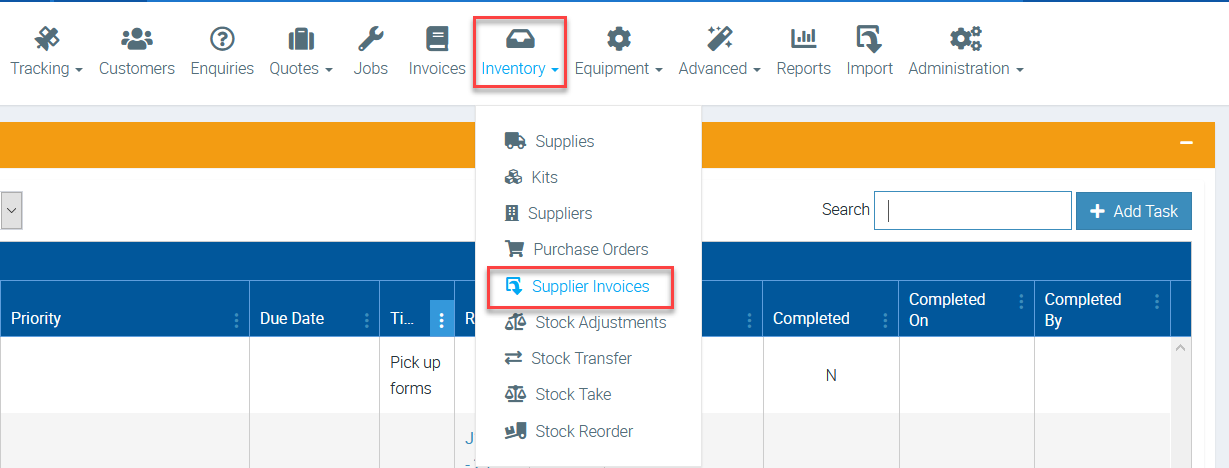
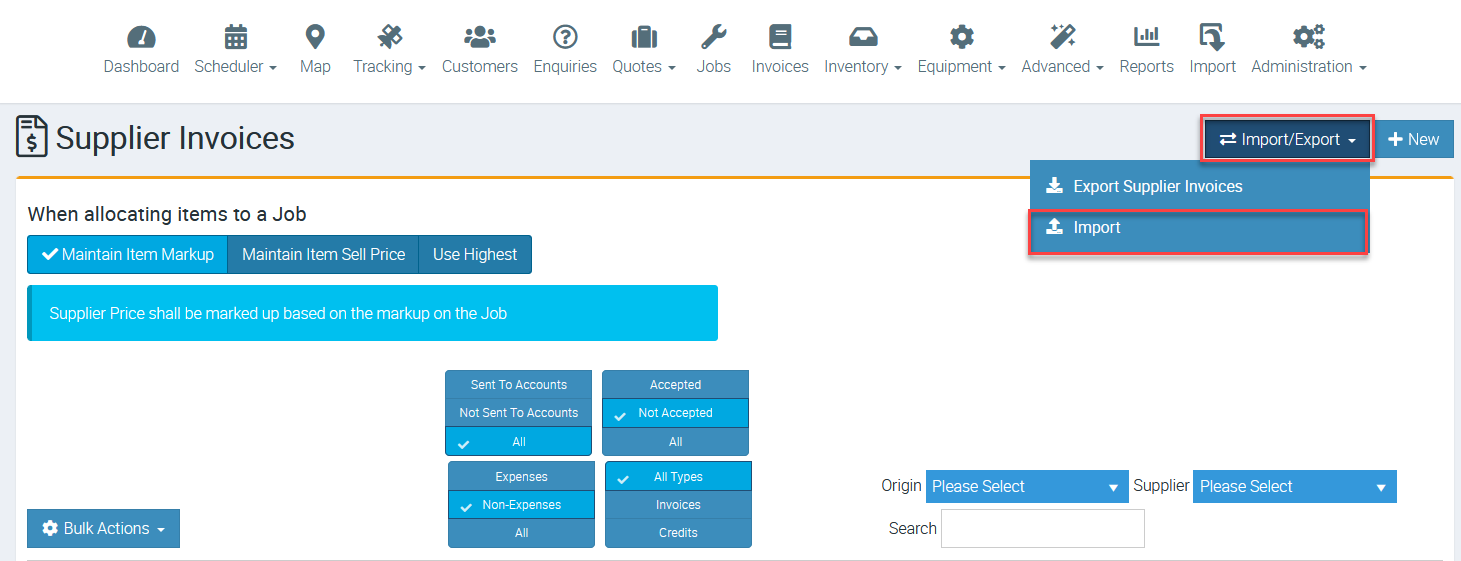
2. Click on Import/Export and select Import.
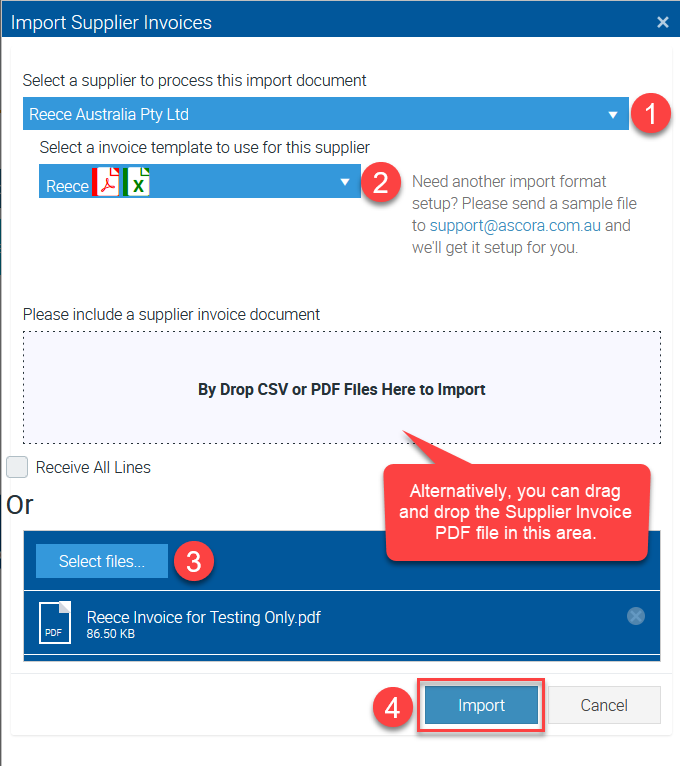
3. Select the Supplier Name from the list and select the supplier invoice format.
Next is to click Select Files to select the supplier invoice either PDF or CSV file types and then click Import.
In this example, we selected Reece and importing one supplier invoice in PDF.
4. After clicking Import, you will see the following notification and wait for it to complete the import.

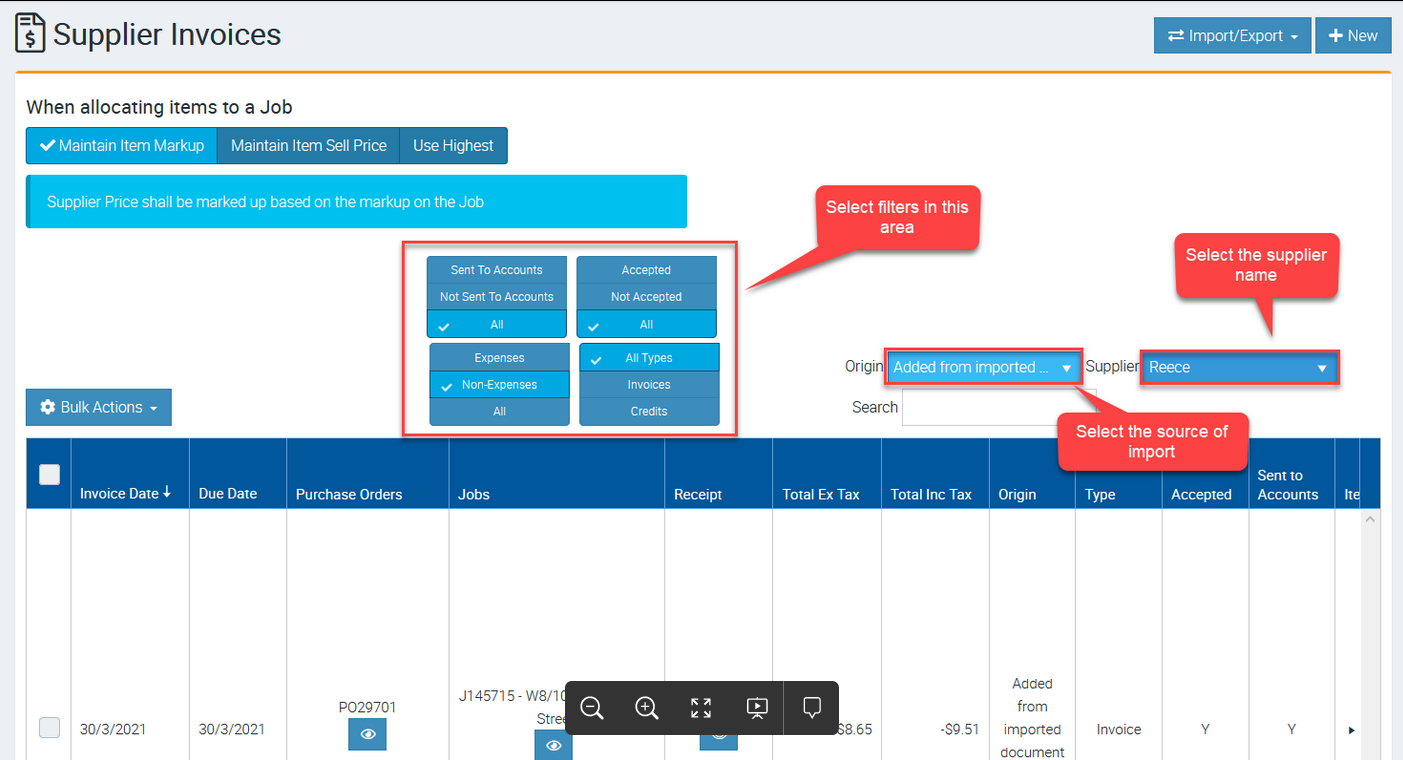
5. Once the import is complete, you are able to apply filters, to check the newly imported supplier invoice.
Importing Supplier Invoice Automatically
For supplier invoices that are part of the supported formats, you can enable automatic import and this is helpful if you are dealing with high volume of supplier invoices from the same supplier daily or weekly. This helps save a lot of time from having to create the supplier invoices manually.
For the details steps on how to set up automatic import, please see Untitled user guide.
Note: When you are using automatic supplier invoice import, there's an area where you can see the details or logs every time Ascora tries to read the emails and that is in Administration → Received Email History.
📽 Watch the video guide ⤵
Got a question?
Submit an Idea 💡 Go to Ideas Portal