The Ascora Android app allows you to streamline supply management by scanning barcodes to add materials directly to jobs. This feature saves time, reduces manual data entry, and ensures accurate tracking of supplies used on-site. You can also add barcodes to supplies within the app, making it easy to build your inventory while working in the field.
Follow this guide to scan barcodes, add supplies to jobs, and manage your materials efficiently through the Android app.
With Android Mobile App, you can do it by opening a job, then tap Supplies tab and tap on the QR icon as indicated in the image below.
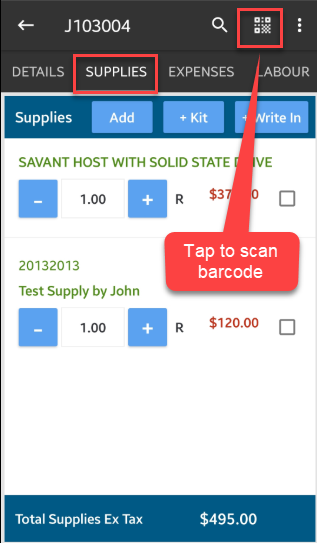
Adding Barcode from the Android Mobile App
You also have the option to add barcodes from the Mobile App and this is helpful if you have a lot of supply items to add to a certain job and you only have access to a Mobile App.
1. Go to Menu → Supplies and select your supply item with barcode you need to add to.
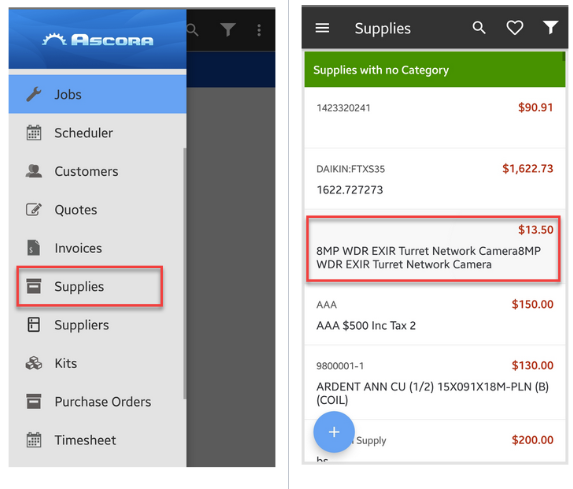
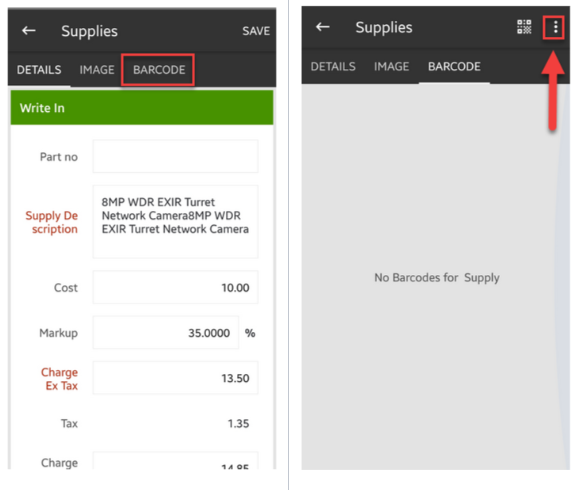
2. Tap Barcode and tap on the 3 dots located at the upper right side of the screen.
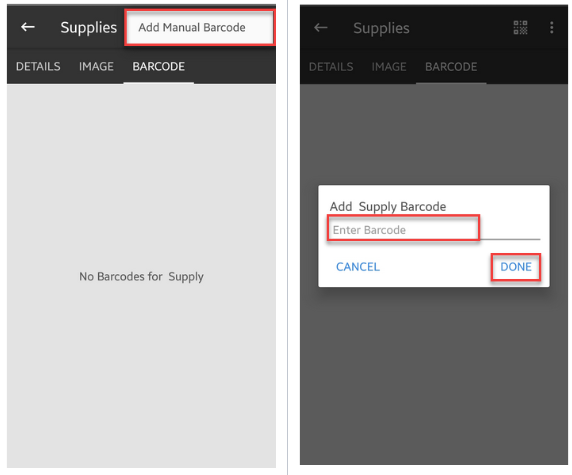
3. Tap Add Manual Barcode and enter the barcode details and tap Done.
Got a question?
Submit an Idea 💡 Go to Ideas Portal