Integrating Xero Payroll with Ascora allows businesses to automate and streamline payroll processes by syncing employee timesheets and leave periods seamlessly. This integration eliminates manual payroll entries, improves accuracy, and saves time, ensuring employees are paid correctly and on schedule.
With Ascora’s Xero Payroll Integration, you can:
✔ Sync Employee Timesheets & Leave Records – Automatically push work hours and leave data into Xero for easy payroll processing.
✔ Reduce Manual Data Entry & Errors – Ensure payroll accuracy by linking Ascora users with their Xero employee records and pay calendars.
✔ Customise Pay Rates & Earnings Types – Define Ordinary Earnings, Overtime, and Allowances to match your payroll structure.
✔ Streamline Payroll Approval & Reporting – Manage payroll efficiently with real-time tracking, draft pay runs, and payroll period selection.
This guide walks you through the setup process, from connecting Ascora to Xero to configuring employees and leave applications, ensuring a smooth payroll experience for your business.
▶ Setting up Users for Xero Payroll
▶ Integrating Employee Leave Applications
▶ Testing your Xero Payroll Integration
Getting Started
The following steps will need to be completed for an Ascora User to be compatible with sending their timesheet and leave to Xero.
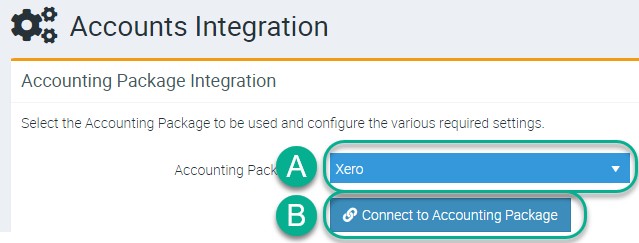
Connect to Xero via "Administration" → "Accounts Integration", then do the following:
- Set the Accounting Package to "Xero"
- Click "Connect to Accounting Package"
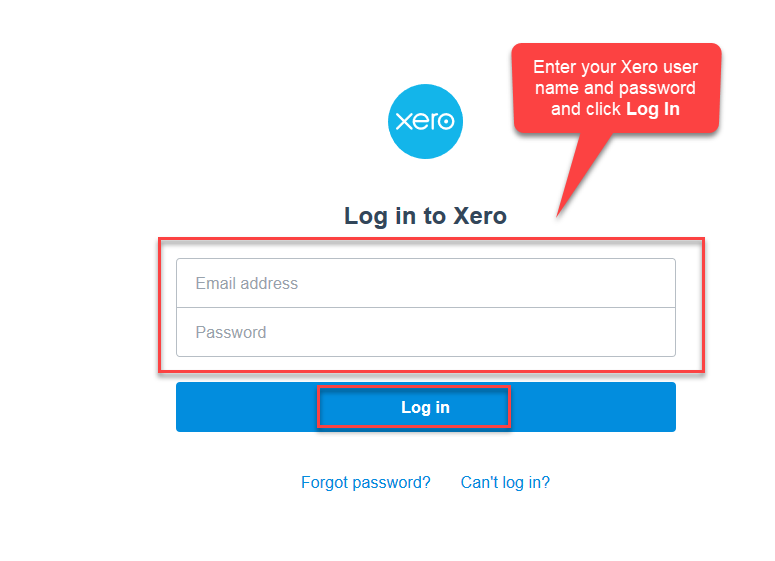
- log in to Xero and Authorize Ascora to connect to any Organization
- Set the "Organization" in Ascora and select "Save Accounting Settings"


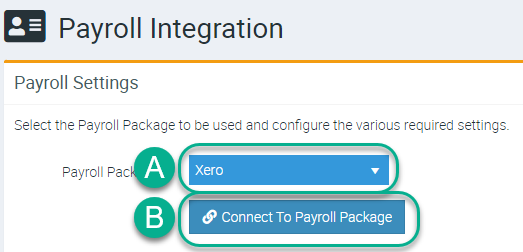
- Setup Payroll by going to "Administration" → "Payroll Settings", then do the following:
- Set the "Payroll Package" to "Xero"
- Select "Connect To Payroll Package"
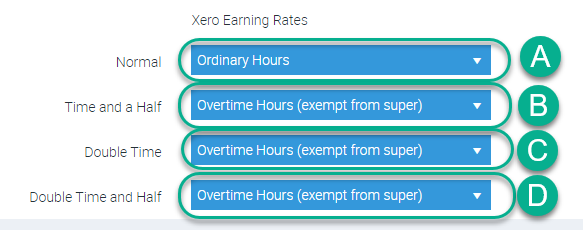
- Set the "Earnings Rate" for the Payroll Integration. Options include:
- Normal
- Time and a Half
- Double Time
- Double Time and Half
- Click "Save Payroll Settings"
Setting up Users for Xero Payroll
To set up an Ascora User to be capable of uploading their timesheets to Xero, an Ascora User will need to have an equivalent Employee on Xero that fits the following criteria:
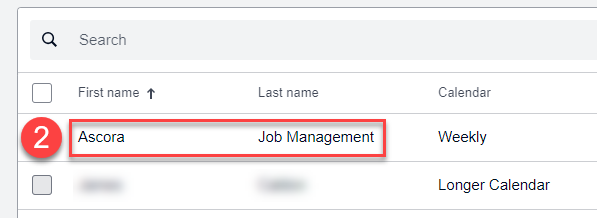
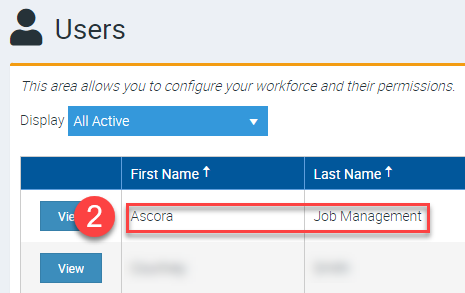
- The Xero Employee has the same first and last name as the Ascora User.
- The Xero Employee must have an associated Pay Calendar.
The following steps act as a guide for meeting the requirements:
- Start by logging in to Xero (Keep Ascora open as well for your convenience)
- Find an Employee on Xero that matches your Ascora User by the First and Last Name
- On Ascora, the users are found under "Administration" → "Users"
- On Xero, the Employees are found under "Payroll" → "Employees"
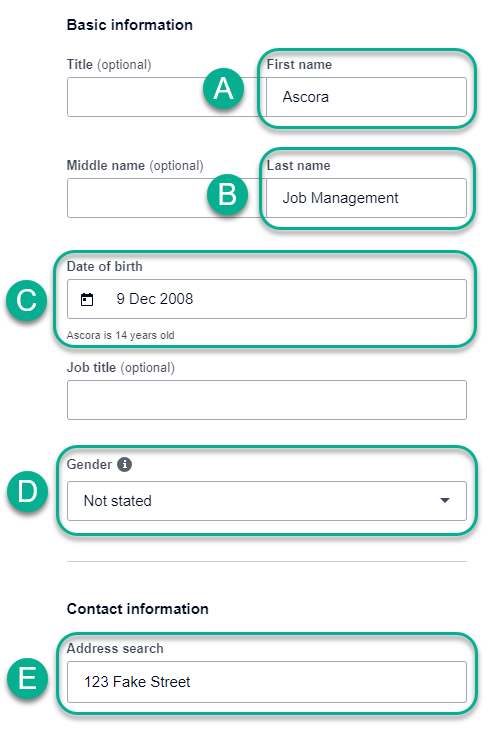
If a match cannot be found, add a new Employee and set the following:

Check if there exists a Xero Pay Calendar by going to "Payroll" → "Payroll settings" and opening the "Calendars" tab.
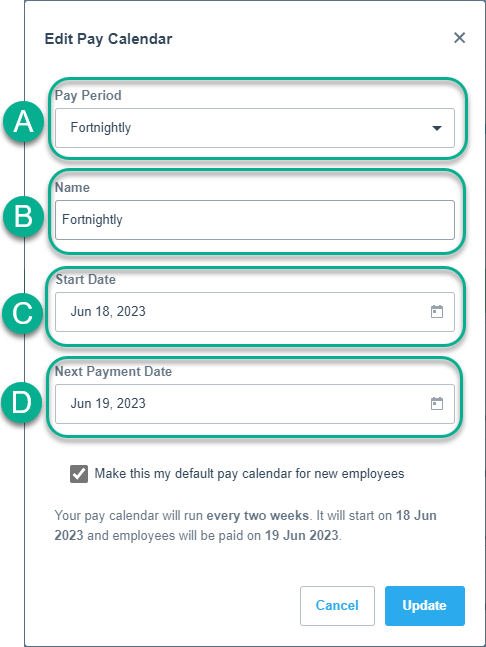
If there are no Pay Calendars, create a Xero Pay Calendar by clicking "Add"
- "Pay Period" can use any period type excluding "Twice Monthly". This is the only Pay Period Ascora does not support.
- The "Name" can be anything.
- The "Start Date" can use any date before "The First Payment Date" anything after will set the "First Payment Date" to the "Start Date"
- The "First Payment" Date can be any date past the "Start Date" Anything before will auto-set the "Start Date" to the First "Payment Date".
Open the Employee you intend to manage the payroll for under "Payroll" → "Employees"
Integrating Employee Leave Applications
To set up an Ascora User with the ability to upload Leave Applications, the equivalent user on Xero must have Leave Types assigned to them. To do this, do the following:
- Go to "Payroll" → "Employees" and find the equivalent Employee.
- From the Employee Page, assign leave by:
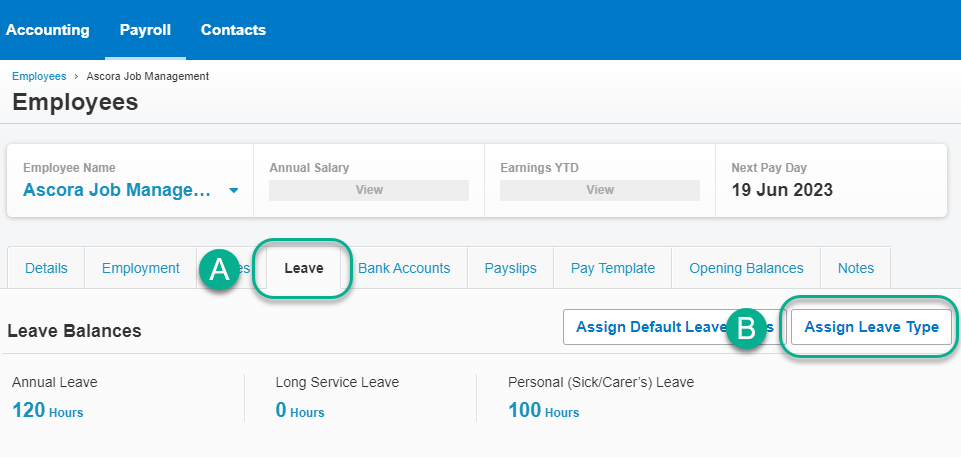
- Opening the "Leave" tab
- Clicking "Assign Leave Type"
- Enter the required information for the desired Leave Type
- Repeat steps 2 and 3 for each Leave Type you want to be available for Ascora to Upload on the Payroll page
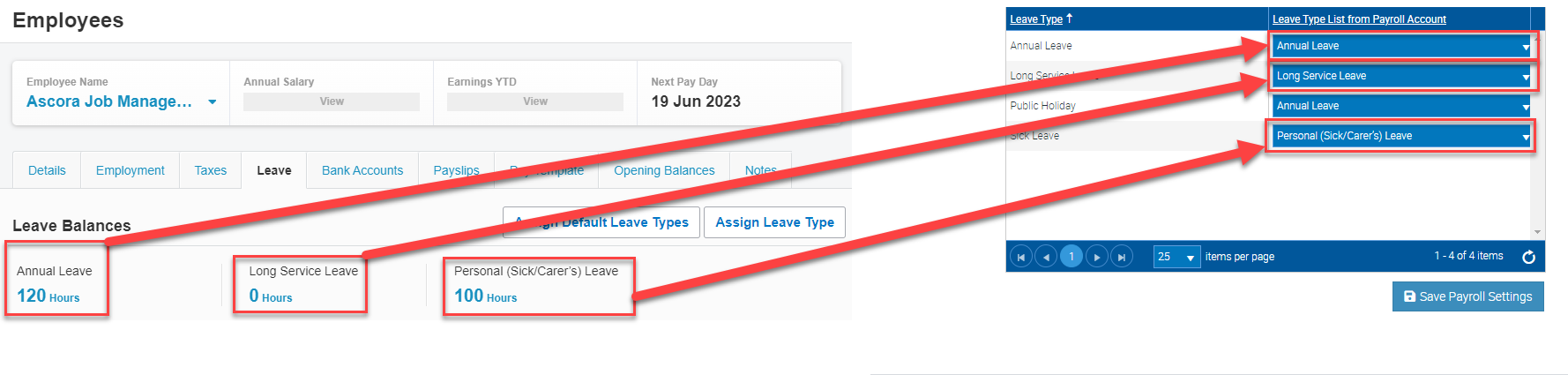
▶ The Xero Leave Types are based on the Xero Pay Items. It is possible to find the Leave Pay Items by logging into Xero, going to "Payroll" → "Payroll settings", opening the "Pay Items" and tab changing the sidebar category to "Leave". See: Add additional leave types and assign them to your employees – Xero Central
▶ Ascora will not upload a User Timesheet Xero when it already exists for the selected Pay Period on Xero.
▶ Ascora will not upload a User Leave Application when it already exists for the selected Pay Period on Xero.
Testing your Xero Payroll Integration
Once Xero has been set up to support Payroll, you should be able to push Ascora Users that are assigned Payroll on Xero, as Ascora will provide the option to Select the Xero Payroll Calendars and their associated Draft Pay run from the Users on Xero. For example:
| Ascora User | Xero Employee | Result |
|---|---|---|
| First Name: John Last Name: Smith | First Name: John Last Name: SMith Payroll Calendar: Fortnightly Has Timesheets in Period: Yes | The Ascora User will be displayed under the Pay Periods "Fortnightly" and "Fortnightly [Draft Payrun]". They will have hours in the selected period. |

| Ascora User | Xero Employee | Result |
|---|---|---|
| First Name: John Last Name: Smith | First Name: John Last Name: Smith Payroll Calendar: Fortnightly Has Timesheets in Period: No | The Ascora User will be displayed under the Pay Periods "Fortnightly" and "Fortnightly [Draft Payrun]". They not have any hours in the period, as all hours will be set to 0.00. |

To test if these works do the following:
- Go to Ascora and navigate to "Administration" → "Payroll"
- Check the available Payroll Periods
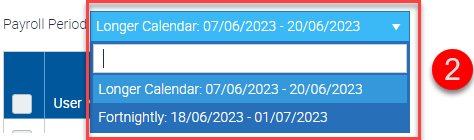
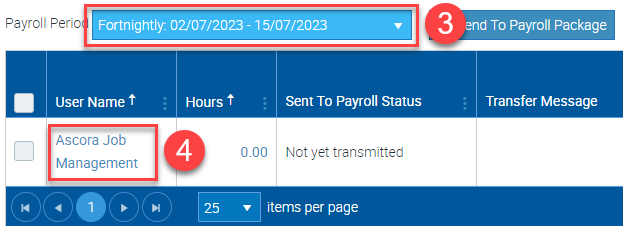
- Choose a Payroll Period containing your User
- Check if the user exists for that period
Got a question?
Submit an Idea 💡 Go to Ideas Portal