Scheduler Groups in Ascora provide a powerful way to organize and streamline your scheduling process. By grouping technicians based on roles (e.g., Apprentices vs. Tradesmen) or geographical areas (e.g., Plumbers North vs. Plumbers South), you can gain greater control over how your team is displayed and accessed in the Scheduler. This feature simplifies managing large teams and ensures you can quickly find the right technician for the job.
Key benefits of Scheduler Groups include:
- Improved organization: Easily segment and display your team based on job type, skill level, or location.
- Custom ordering: Set the display order of technicians within each group to match your operational needs.
- Enhanced flexibility: Quickly filter technicians by group for faster scheduling decisions.
Whether you're managing multiple locations, diverse skill sets, or large crews, Scheduler Groups are an essential tool for maximizing efficiency and ensuring smooth operations.
Follow the steps below to set up Scheduler Groups and learn how to leverage this feature for optimal scheduling outcomes.
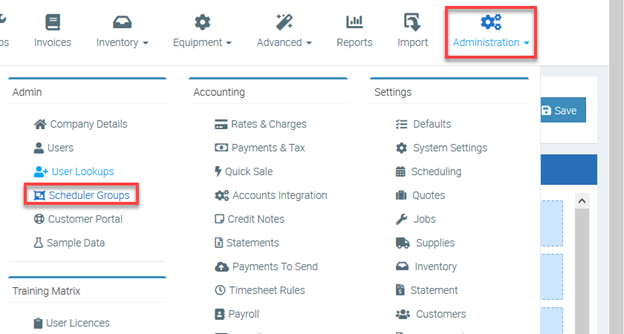
1. To create a Scheduler Group go to Administration → Scheduler Groupings
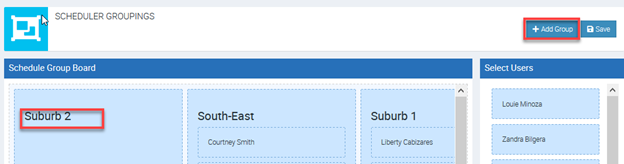
2. Click on Add Group and enter a group name.
In the following example, we added Suburb 2 as group name.
3. Once the Group has been created, you can drag Users from the right panel into the Schedule Group. You can also drag the Users within the group to set the order in which they will appear on the Scheduler.
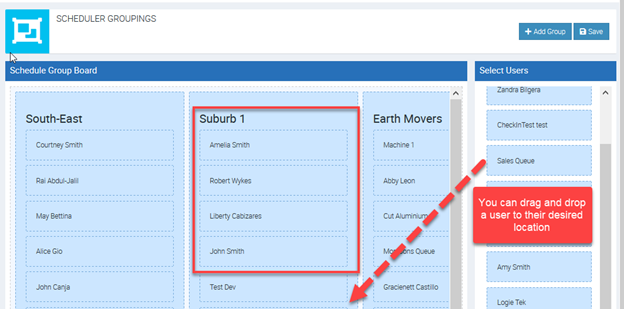
4. Click Save to record the changes made.
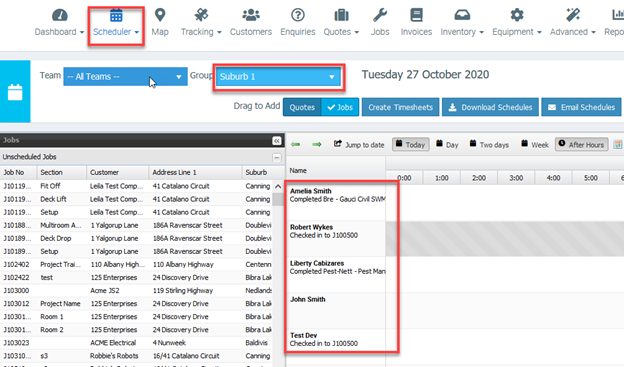
If you view the Scheduler, you will now be able to see the new Scheduler Group.
Creating Booking per Scheduler Group
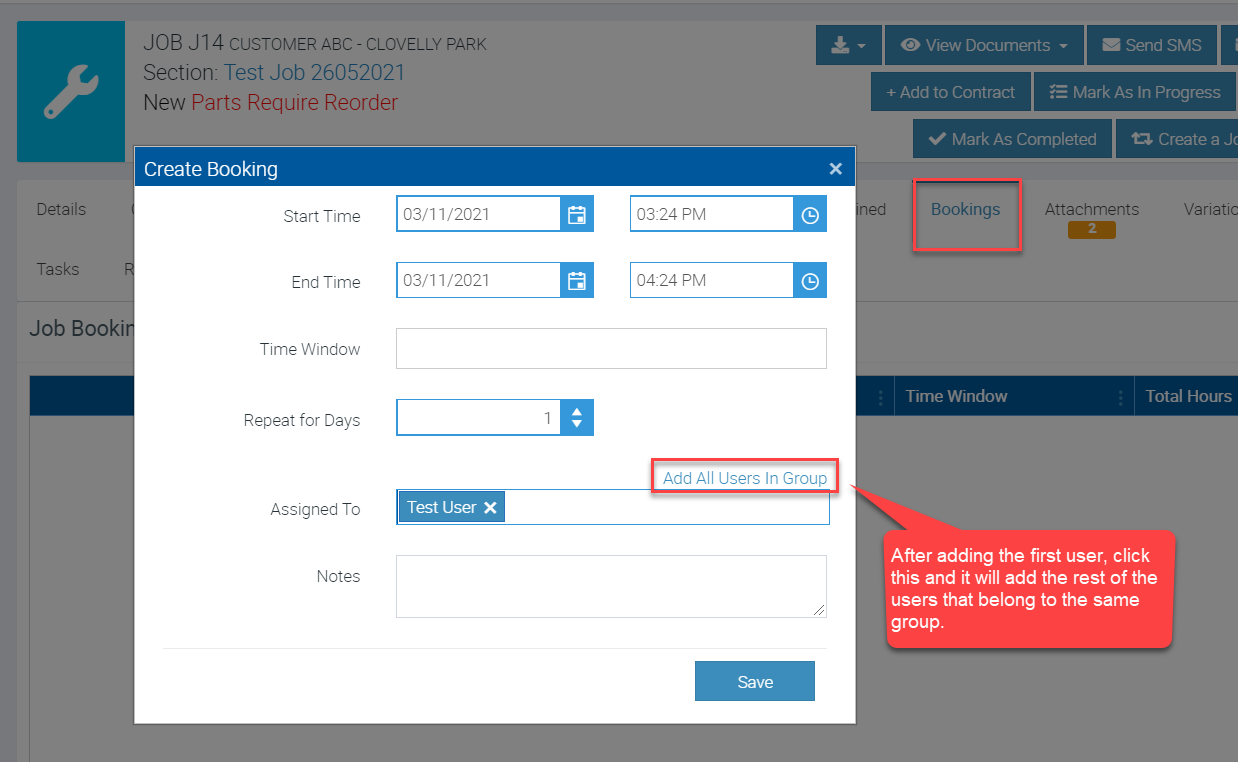
When creating a booking for a certain job, you have the option to book it for the rest of the users under the same group.
For example, if Test User belongs to North Group, you can add the rest of the users under North Group by clicking Add All Users In Group as shown in the image below.