Timely reminders help reduce no-shows, improve communication, and keep your scheduling on track. Ascora allows you to set up automated SMS and email reminders for scheduled jobs and quotes, ensuring customers and team members are always informed about upcoming bookings.
With customizable timing settings and automatic field population, you can tailor reminders to suit your business needs. Whether you choose SMS, email, or both, Ascora's automated reminders help maintain efficiency while reducing manual follow-ups.
This guide walks you through configuring job and quote reminders to ensure smooth scheduling and improved customer engagement.
📽 Watch the video guide ⤵
You are able to set up reminders for scheduled jobs or quotes in a form of SMS or Email reminder. To enable this feature, you must first complete some settings in Administration area.
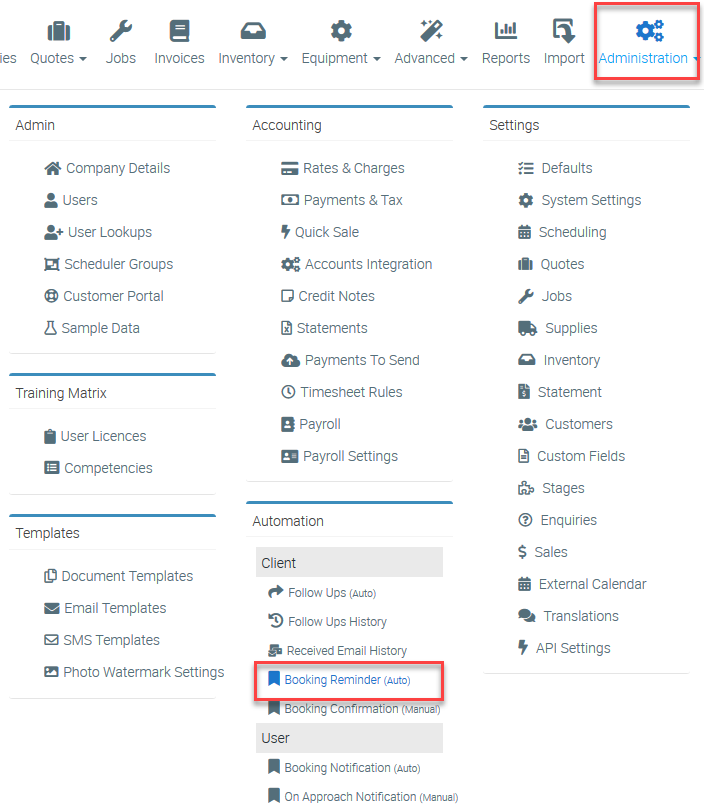
1. Go to Administration → Booking Reminder (Auto).
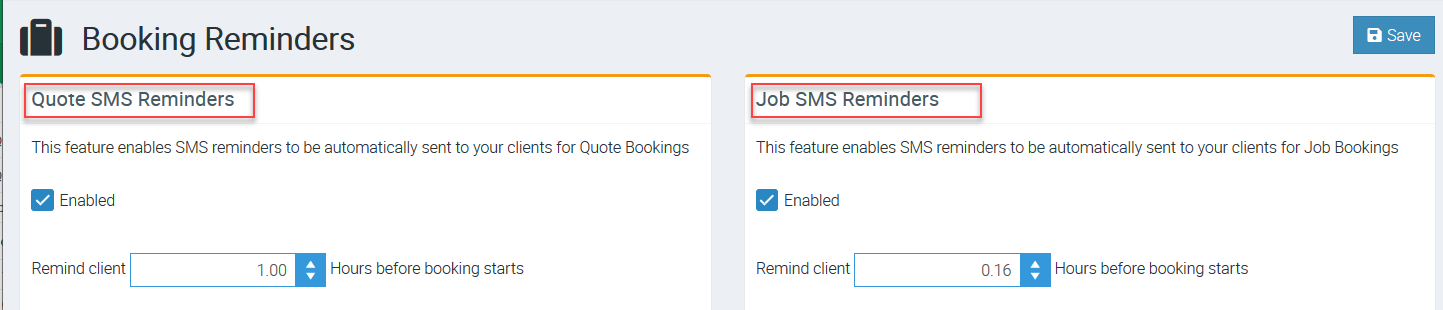
2. Under Booking Reminders, you will see Quote SMS Reminders on the left panel and Job SMS Reminders on the right panel.
The process of enabling SMS reminder or Email reminder is the same for both Quotes and Jobs and it does not matter which one you enable first. You can also enable quote reminders but choose not to enable job reminders or the other way around depending on your requirements.
Enabling Job SMS Reminders
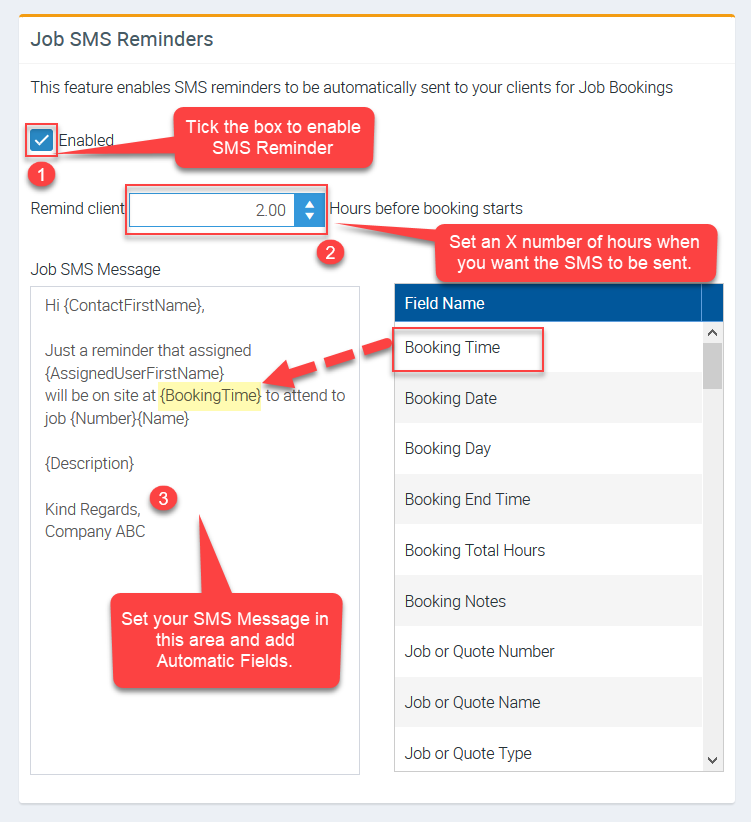
1. Tick the box beside Enabled.
2. Enter the number of hours as to when the SMS reminder is sent. In this example, we're setting it to be sent 2 hours prior to booking start time.
3. Create your SMS Message and you can utilise the Automatic Fields to auto populate certain information when the SMS reminder is sent.
In this example, we configure it to send the SMS 2 hours prior to job booking start time and we've also added a few automatic fields and one of them is Booking Time as highlighted below.
4. Make sure to click the Save button located at the upper right portion of the page after completing the configuration.
Enabling Quote SMS Reminders
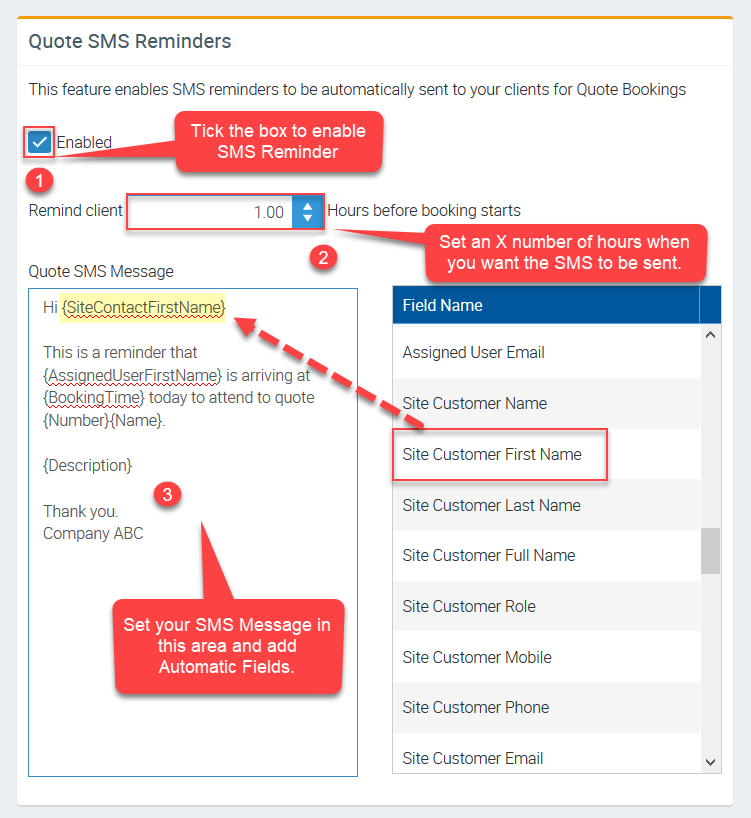
1. Tick the box beside Enabled
2. Enter the number of hours as to when the SMS reminder is sent. In this example, we're setting it to be sent 1 hour prior to booking start time.
3. Create your SMS Message and you can utilise the Automatic Fields to auto populate certain information when the SMS reminder is sent.
In this example, we configure it to send the SMS one hour prior to quote booking start time and also added a few automatic fields and one of them is Site Customer First Name as highlighted below.
4. Make sure to click the Save button located at the upper right portion of the page after completing the configuration.
Enabling Job Email Reminders
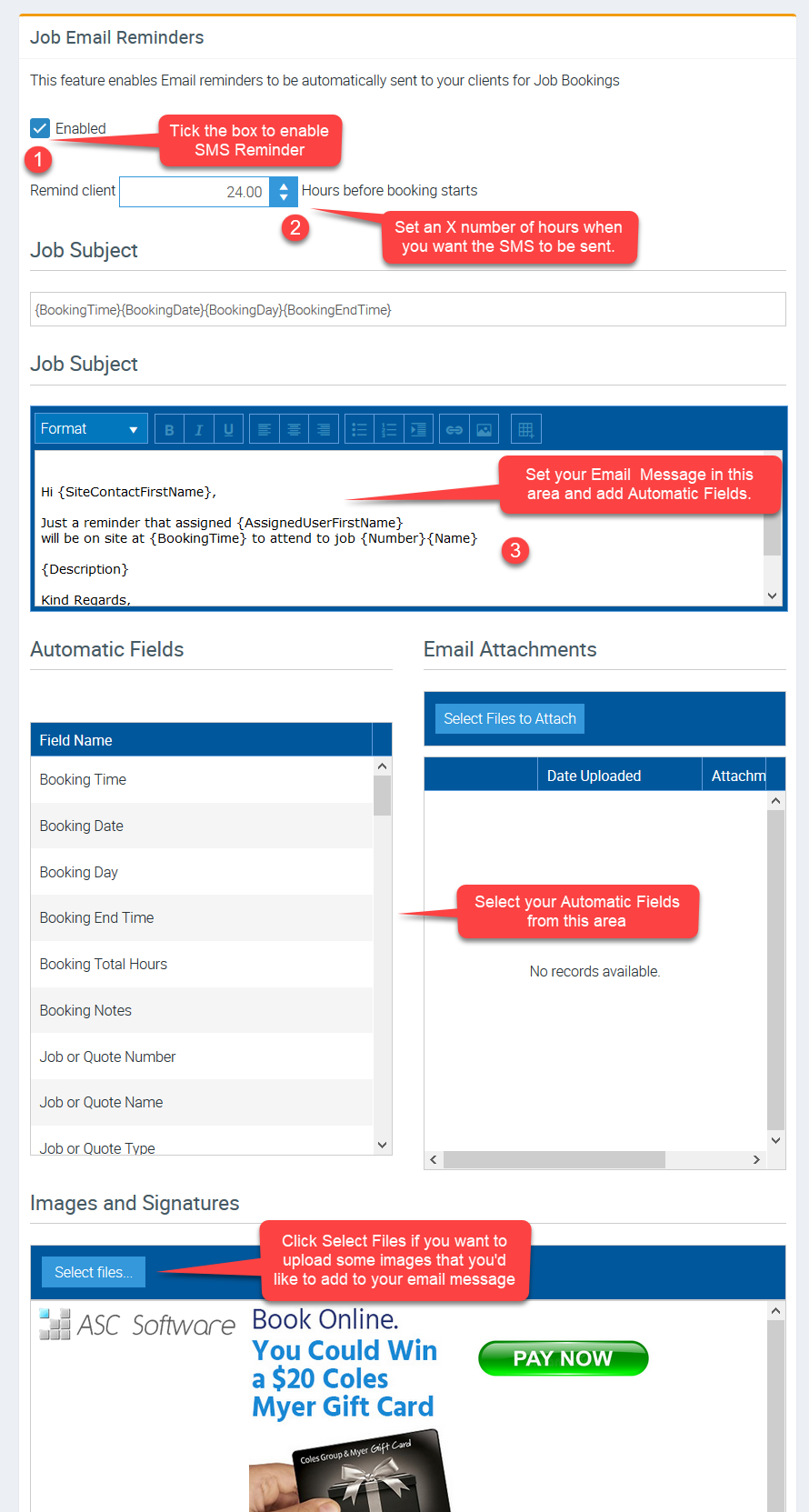
1. Tick the box beside Enabled
2. Enter the number of hours as to when the Email reminder is sent. In this example, we're setting it to be sent 24 hours prior to booking start time.
3. Create your Email Message and you can utilise the Automatic Fields to auto populate certain information when the Email is sent.
4. Make sure to click the Save button located at the upper right portion of the page after completing the configuration.
Enabling Quote Email Reminders
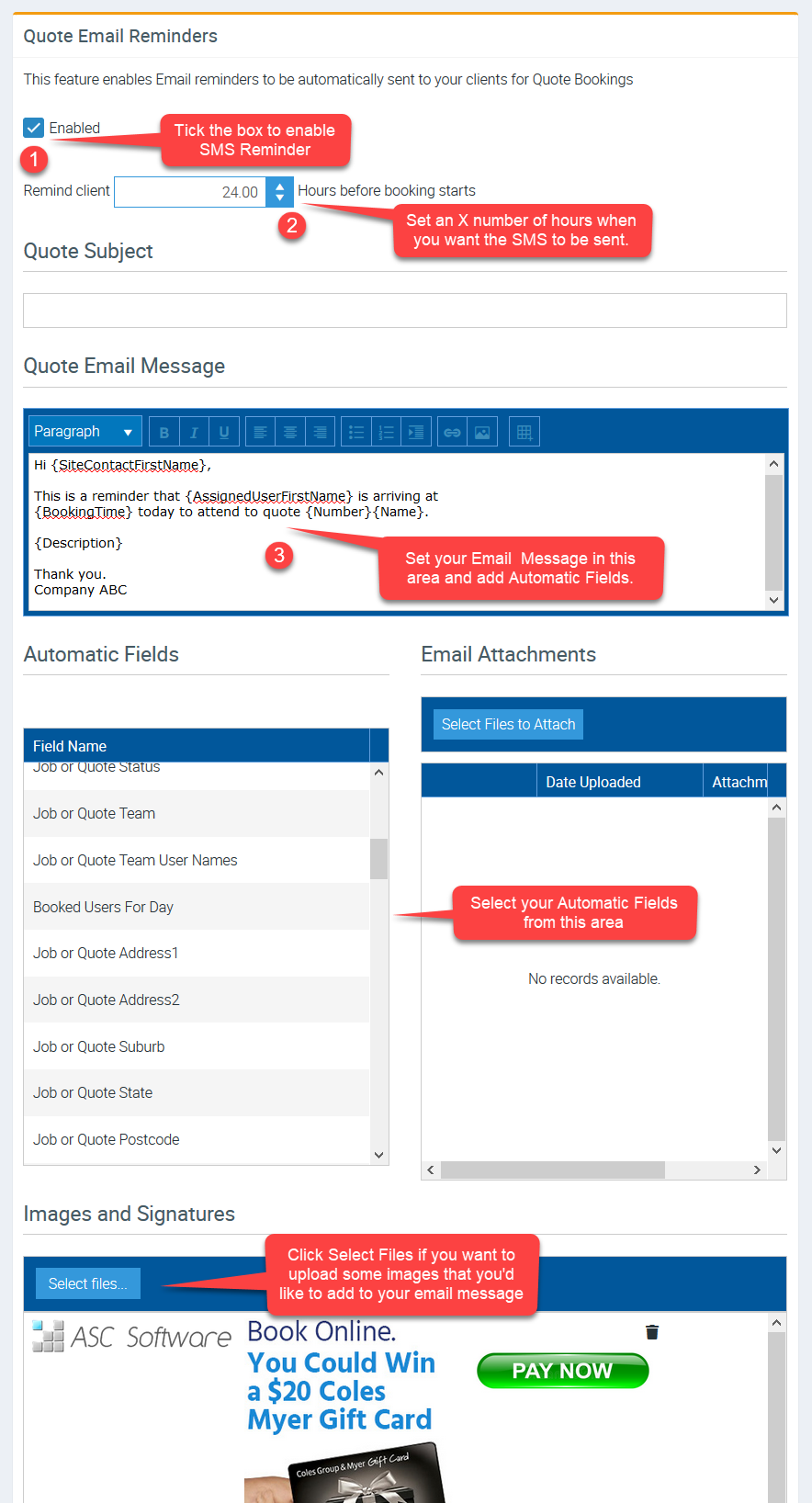
1. Tick the box beside Enabled
2. Enter the number of hours as to when the Email reminder is sent. In this example, we're setting it to be sent 24 hours prior to booking start time.
3. Create your Email Message and you can utilise the Automatic Fields to auto populate certain information when the Email is sent.
4. Make sure to click the Save button located at the upper right portion of the page after completing the configuration.