Tracking where your customers come from is crucial for evaluating the effectiveness of your marketing and outreach strategies. In Ascora, you can assign a Lead Source to each new customer record—whether it’s social media, online ads, community events, or any other channel. Once lead sources are set up, you can use the Lead Source Analysis report to gain valuable insights into which channels bring in the most profit and highest job value.
This guide walks you through adding lead sources, selecting them for individual customers, and running the report so you can optimize your marketing efforts.
Adding a Lead Source
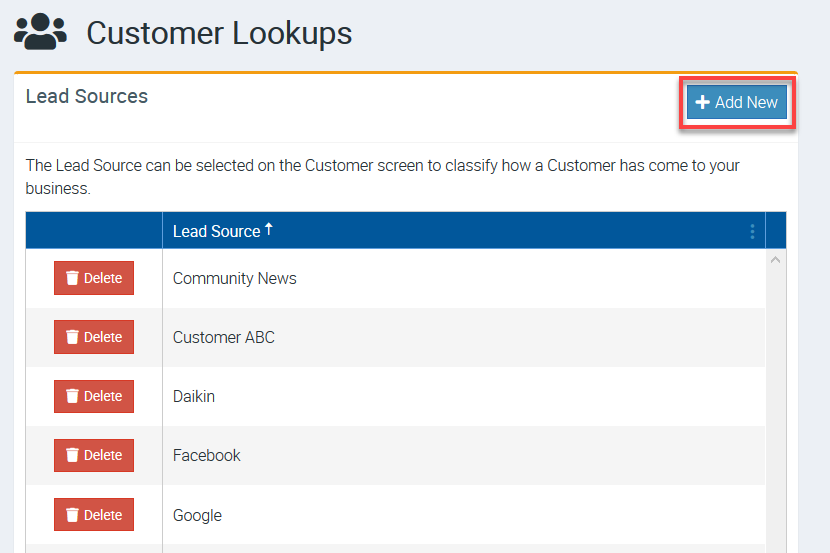
1. Go to Administration → Customers and click Add New under Customer Lookups.
In this example, we've added lead sources such as Facebook, Google, Community News, etc.
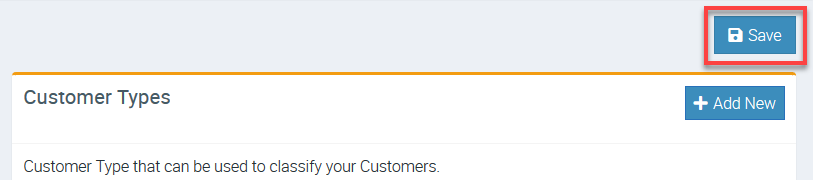
2. After adding your lead sources, click the Save button located at the right side of the screen.
Selecting a Lead Source for a Customer
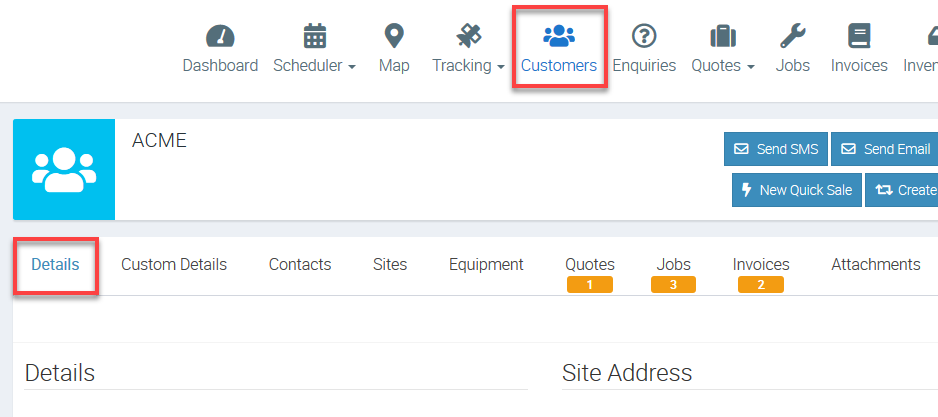
1. Go to Customers menu and select one of your customers and click Details tab.
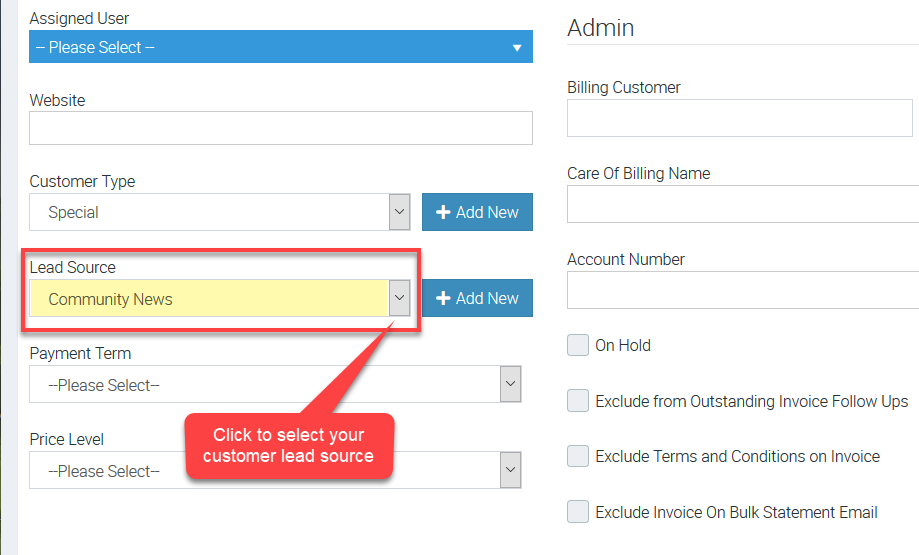
2. Scroll down and look for Lead Source field in the left panel.
In this example, we have a lead source selected as Community News for this customer.
Accessing Lead Source Analysis report.
1. Go to Reports menu and select Lead Source Analysis.

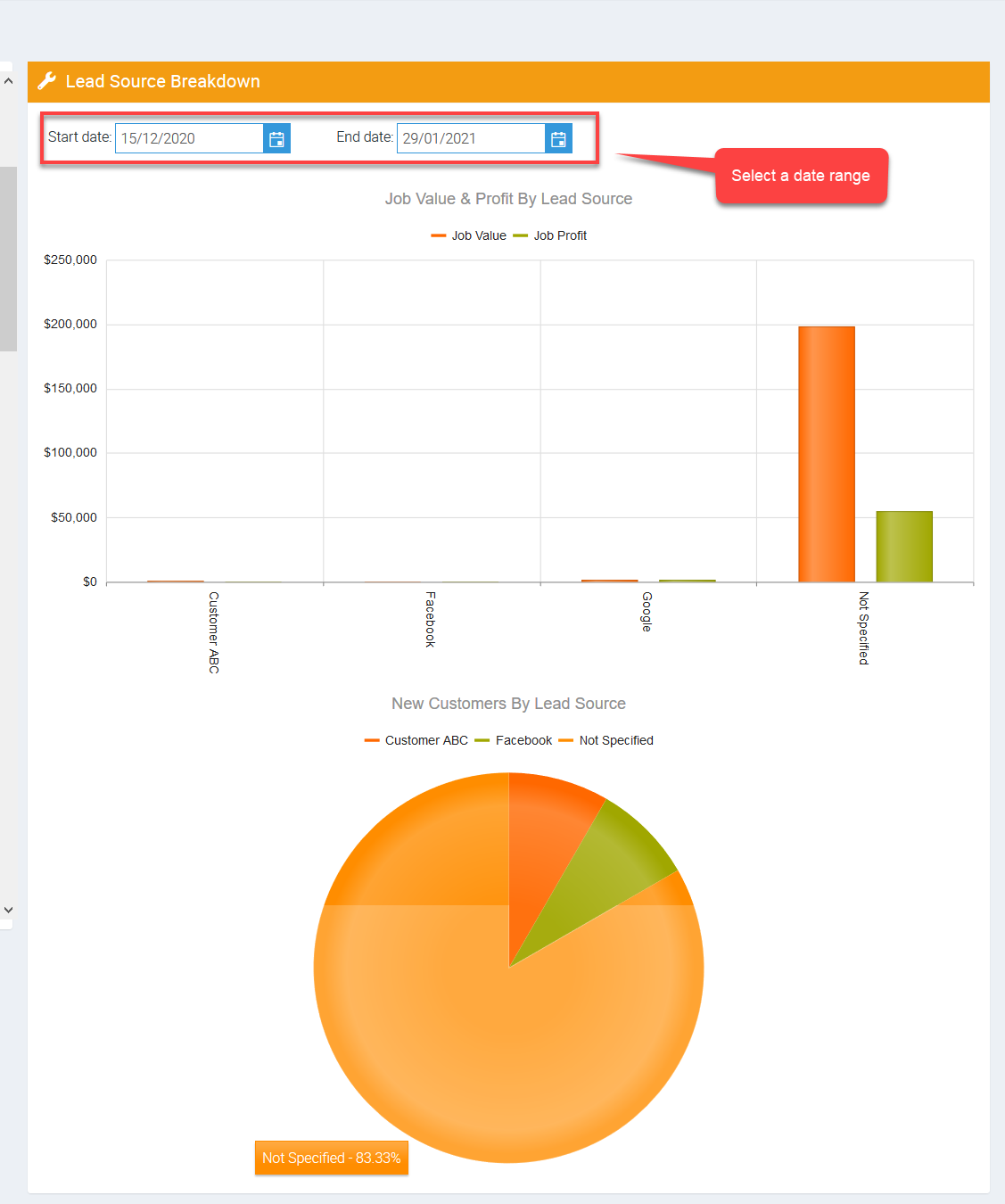
2. Select a date range and you can see an overview of job value and job profit based on lead sources. You can also see a pie showing the percentage of each lead source.
Got a question?
Submit an Idea 💡 Go to Ideas Portal