The Ascora Customer Portal is a secure online gateway that allows your customers or clients to view and manage their own Jobs, Quotes, and Equipment, all in one place. Once a contact has been set up with portal access, they’ll receive an email containing login details—enabling them to create new jobs or quotes, update company information, and even track job progress and documents. By granting specific permissions to each contact, you can tailor what they can see and do, ensuring that only the right people have access to sensitive information.
With the Customer Portal, your customers (depending on the permissions granted) can:
- Maintain Company Details: Update addresses, contact information, and other essential records.
- View & Create Quotes: Generate new quotes or review existing ones, streamlining back-and-forth communication.
- Access & Schedule Jobs: See scheduled jobs, add new ones if needed, and keep track of job status and details.
- Manage Equipment: Review existing equipment records or add new assets to ensure accurate service and maintenance.
- Browse Job Photos & Documents: Easily access attached images and files for better transparency and record-keeping.
Below, you'll find a detailed walkthrough of how the portal looks, what your customers can do in each section, and how they can navigate tasks like creating a new quote or job. By customizing permissions and setting up user-specific roles, the Customer Portal can become a powerful self-service tool—reducing administrative workload while enhancing customer satisfaction.
Example Welcome Email
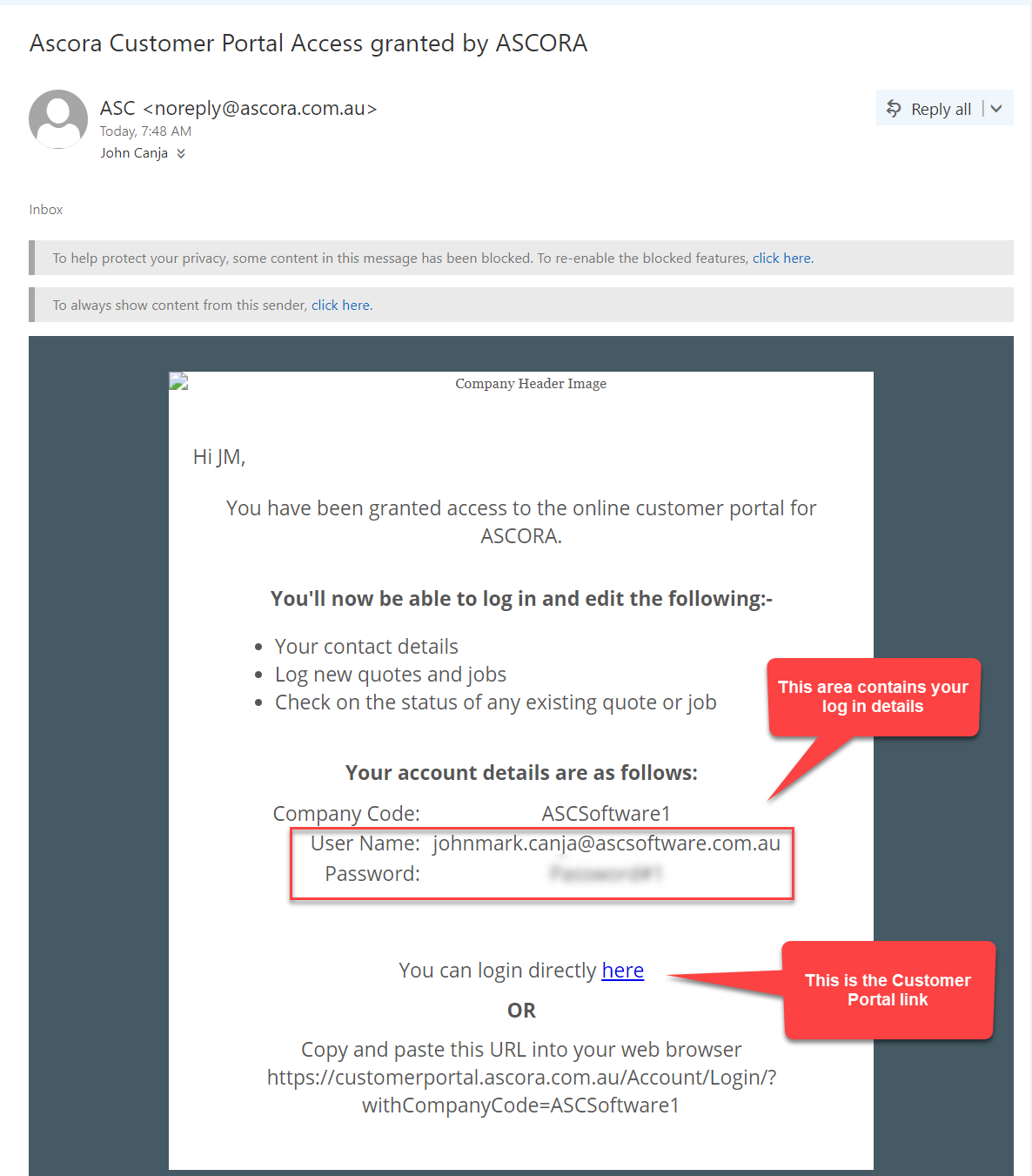
Here's an example of the welcome email sent once you've been granted access to the Ascora Customer Portal. It contains all the details you'll need to login and get started in the Customer Portal.
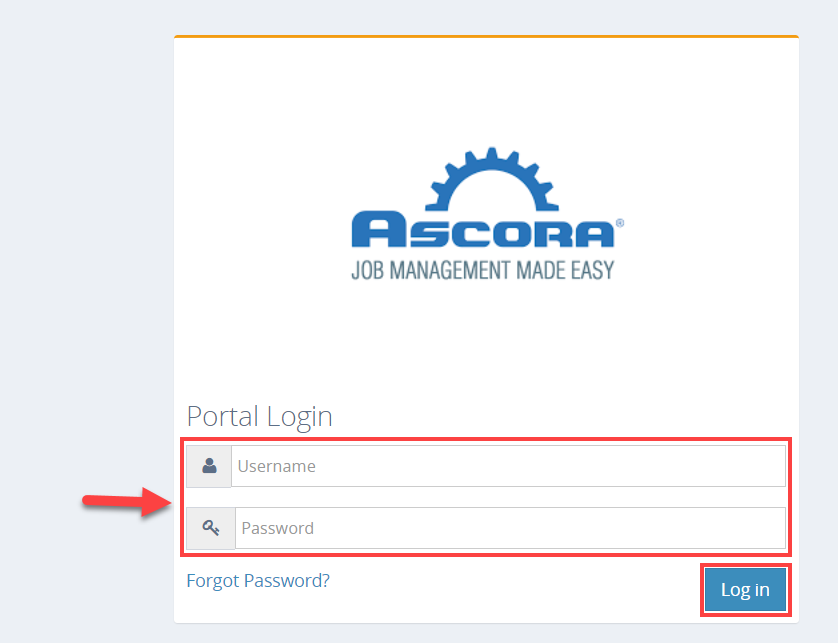
Once you've clicked the login link you'll be able to jump into the Ascora Customer Portal by entering the Username and Password which can also be found in the email.
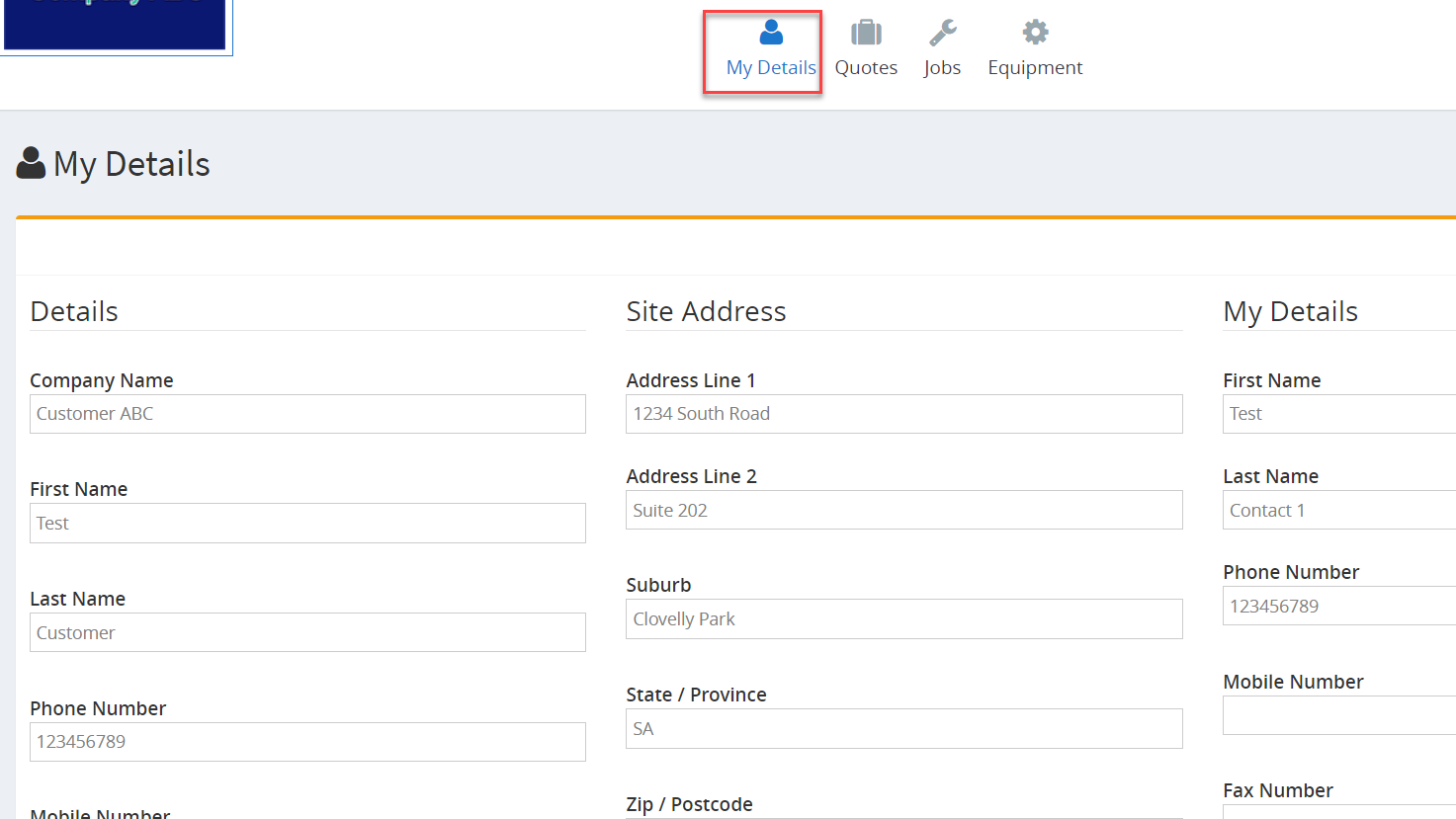
Once you’ve logged into the Ascora Customer Portal, you’ll find several navigation links at the top of the page. These links provide quick access to all the key areas of your account.
My Details
Under My Details, you can view and edit your company information, such as addresses, phone numbers, and other contact details. Keeping this section up-to-date ensures smooth communication and accurate records.
Quotes
Within Quotes, you can view your existing quotes and, if permissions allow, create new ones. This feature lets you get a head start on potential work or services without waiting for office staff.
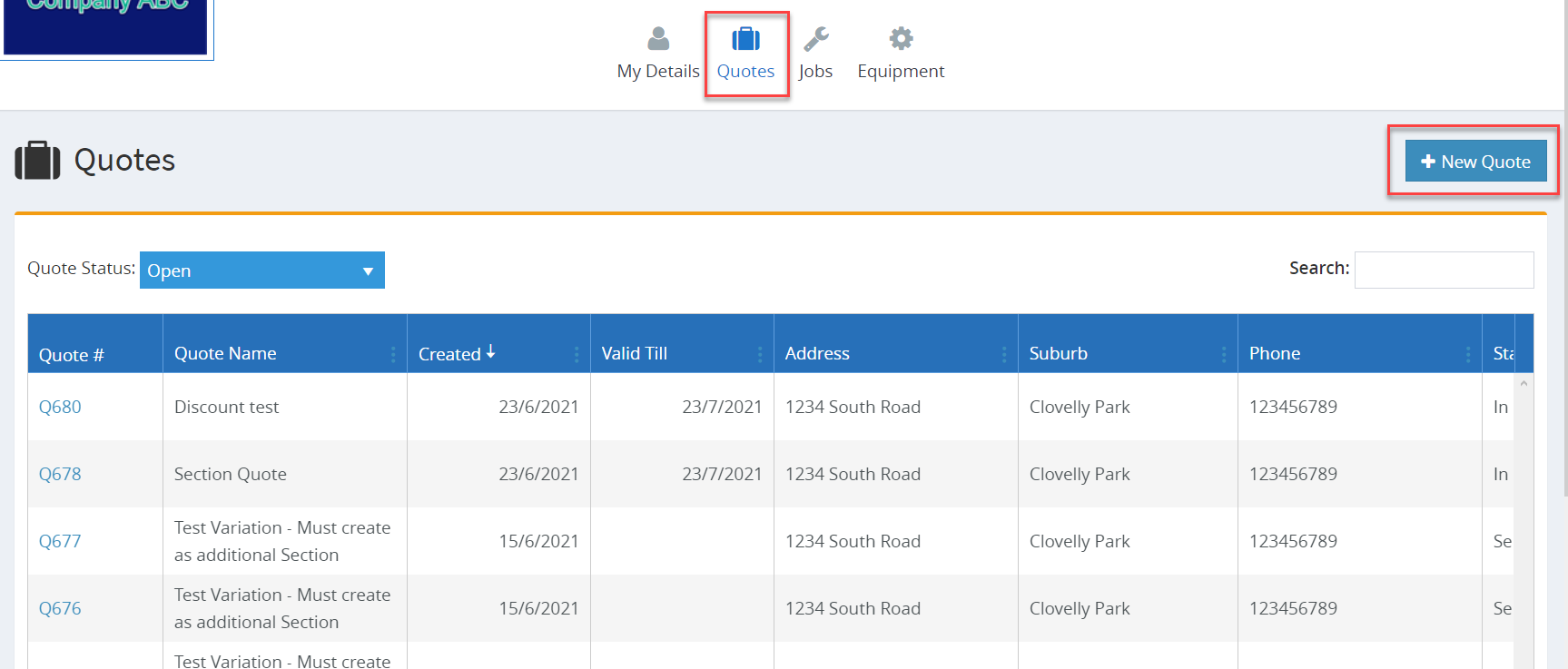
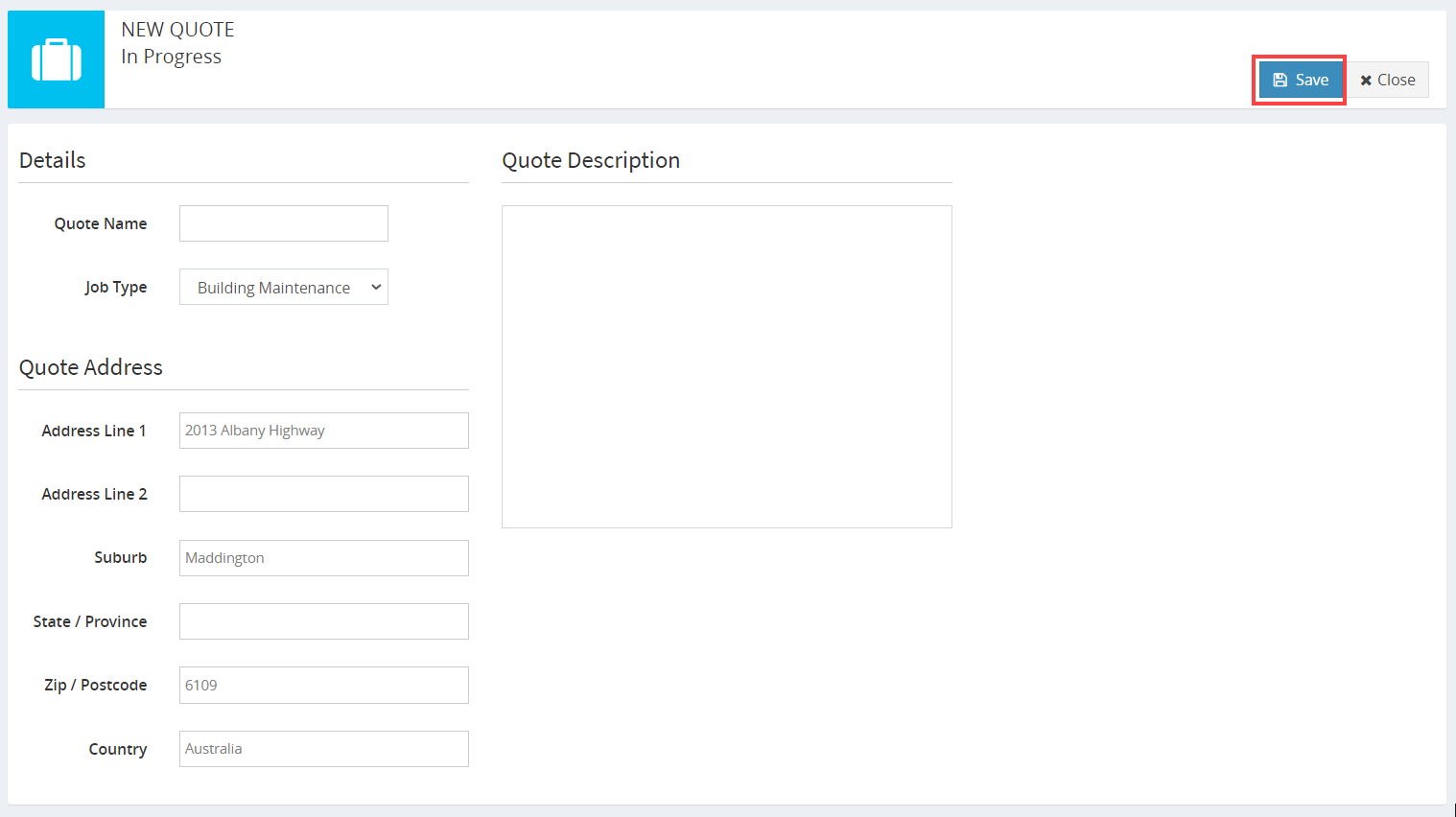
When creating a quote in the Customer Portal, you’ll enter some basic information (e.g., description, price estimate). Once saved, the quote becomes visible in Ascora’s web interface for office staff to finalize details like assigned users, scheduling, or additional information.
Here's an example of the details displayed when creating a new Quote from the Ascora Customer Portal.
Jobs
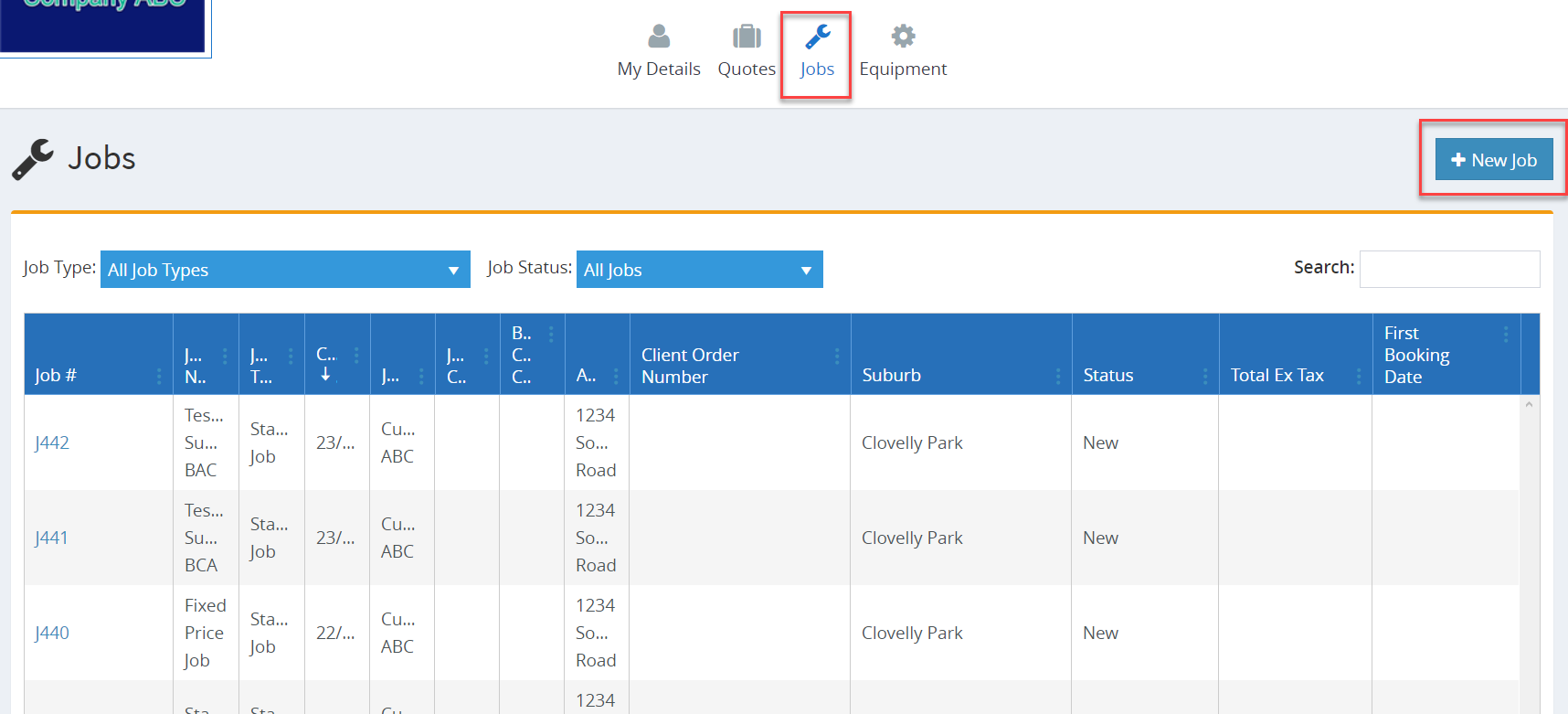
Under Jobs, you can browse existing jobs and potentially create new ones, depending on your permissions. Clicking on a job will display important details such as:
- Time Logged: How many hours have been recorded.
- Date Booked: When the job is scheduled.
- Work Undertaken: A summary of what was done or needs to be done.
Equipment
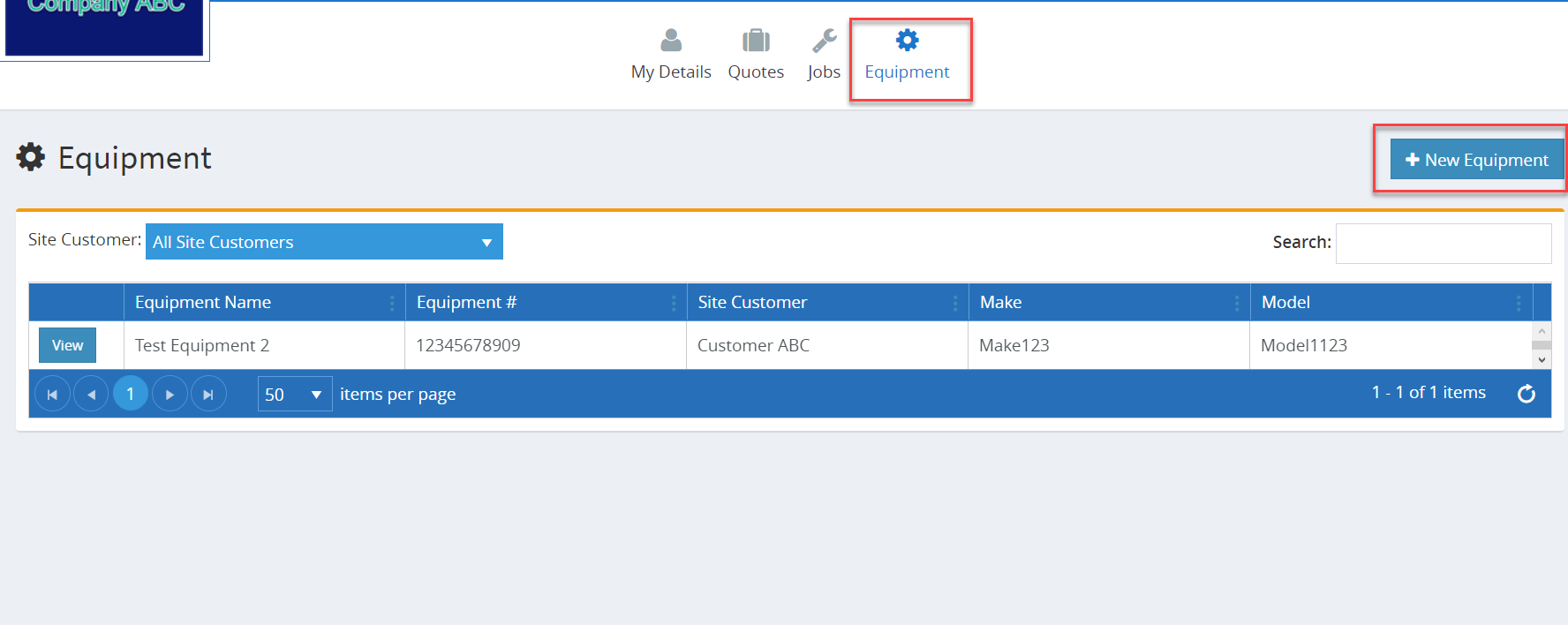
In the Equipment section, you can review any assets or plant items linked to your account, such as air conditioners or vehicles. You can also add new equipment if your permissions allow, making it easy to keep track of all items that require servicing or maintenance.
Job Photos
Any photos or documents attached to a job are visible in Job Details. You can view or download these items to stay informed about the progress and specifics of your projects.

By offering these self-service options in the Customer Portal, Ascora helps reduce administrative overhead and ensures clear, direct communication between you and your customers or clients. Each section can be tailored to individual permissions, allowing you to give the right level of access to every contact.
Got a question?
Submit an Idea 💡 Go to Ideas Portal