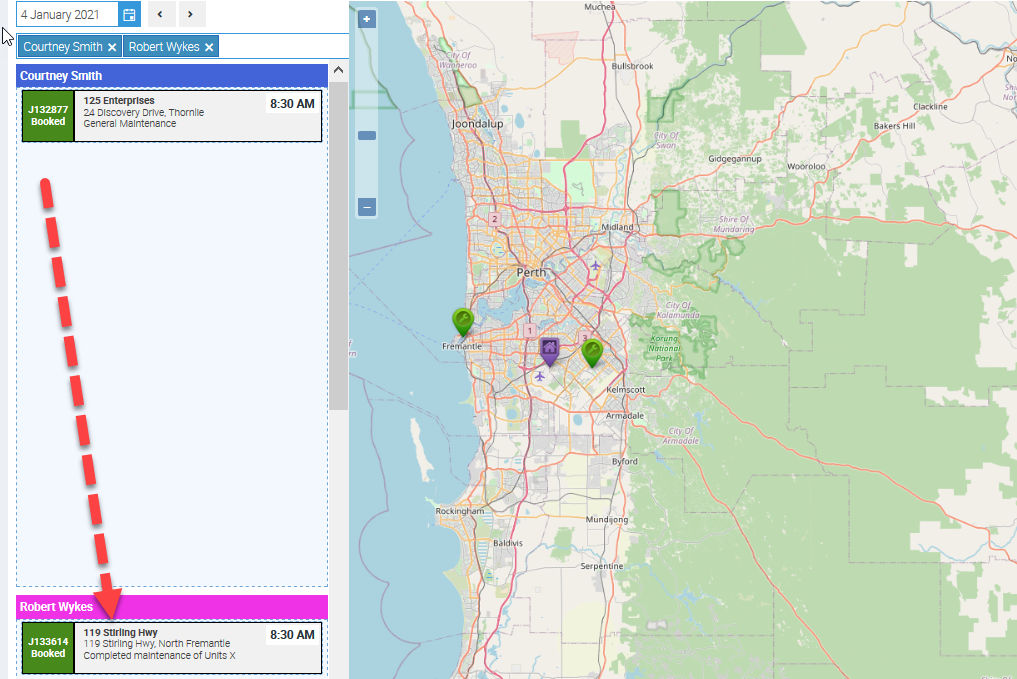
The Map Scheduler is a powerful tool that provides a visual overview of your jobs on a map, along with essential job details like job number and name. This feature allows you to see the geographic location and sequence of scheduled jobs for each user, making it easier to optimize routes, minimize travel time, and enhance overall efficiency.
With the Map Scheduler, you can:
- View job sequences for individual technicians or staff members.
- Easily reassign or reorder jobs by dragging and dropping between users.
- Quickly adjust schedules based on location visibility to streamline operations.
This feature is especially beneficial when managing multiple jobs in a single day, enabling you to ensure your team operates efficiently.
How to Use the Map Scheduler
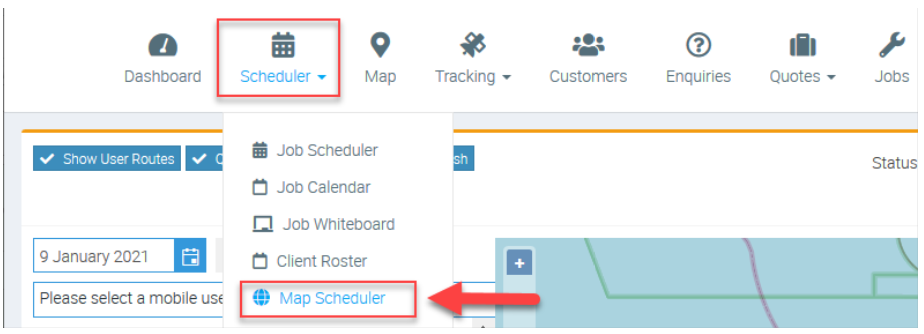
1. Go to Scheduler and select Map Scheduler.
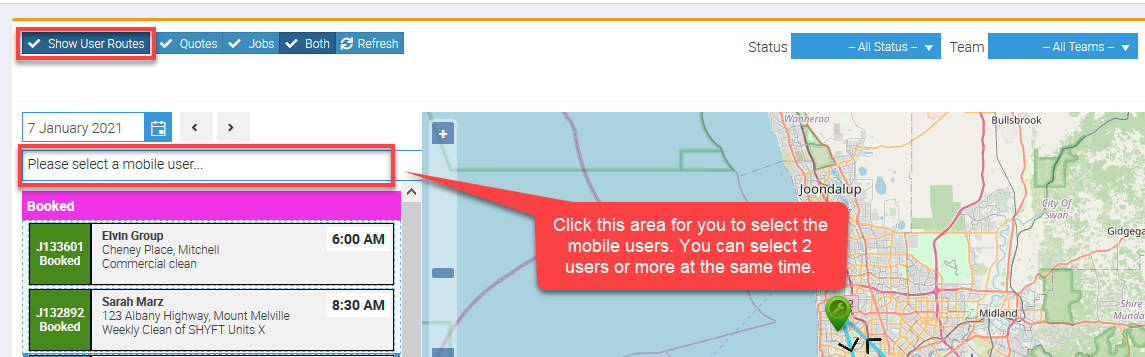
2. Click Show User Routes and then select the mobile users
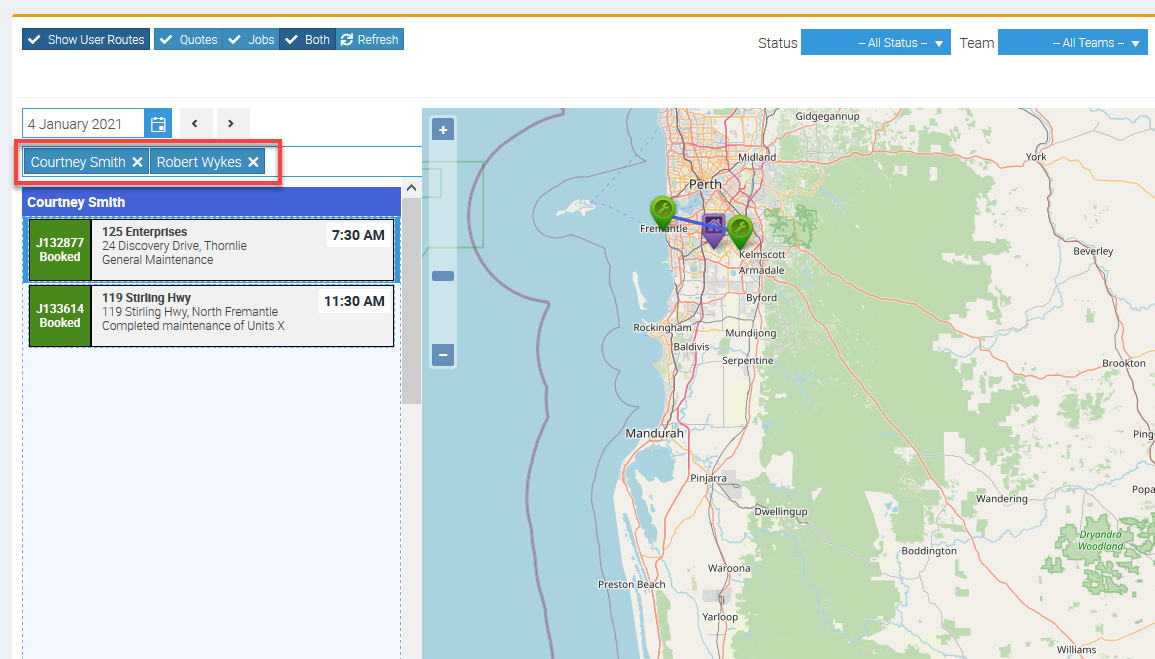
3. In this example, we selected two users who are Courtney and Robert and two jobs are assigned to Courtney while none to Robert.
4. We can simply move one job from one user to another by dragging it to the corresponding user. In this case, we moved Job J132877 to user Robert.