Managing bulk purchasing and stock control is easier with Ascora’s Pack or Box Quantity feature. This ensures that inventory is accurately recorded and that purchase orders align with supplier requirements. Instead of ordering individual units, you can set a minimum order quantity (e.g., a box of 5, 10, or 20), which helps streamline procurement and prevent discrepancies in stock levels.
With this feature, any inventory item added to a job or purchase order will automatically adjust to reflect the correct pack size, ensuring that you only order in the specified multiples. This reduces errors, prevents under-ordering, and simplifies stock tracking—especially for items that suppliers only sell in bulk.
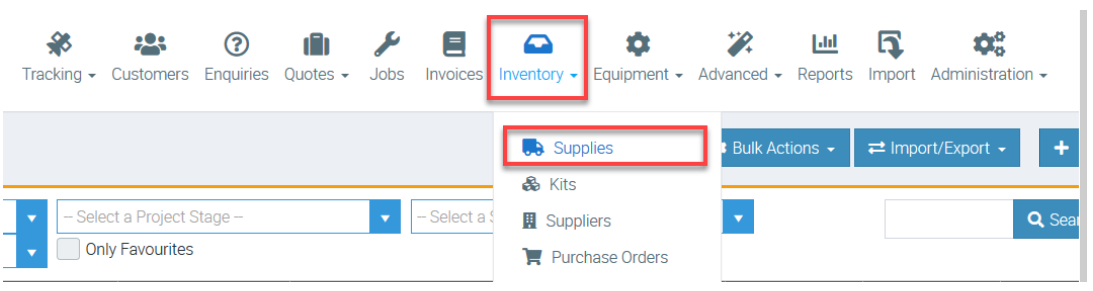
1. To set up Pack of Box Quantity, go to Inventory → Supplies.
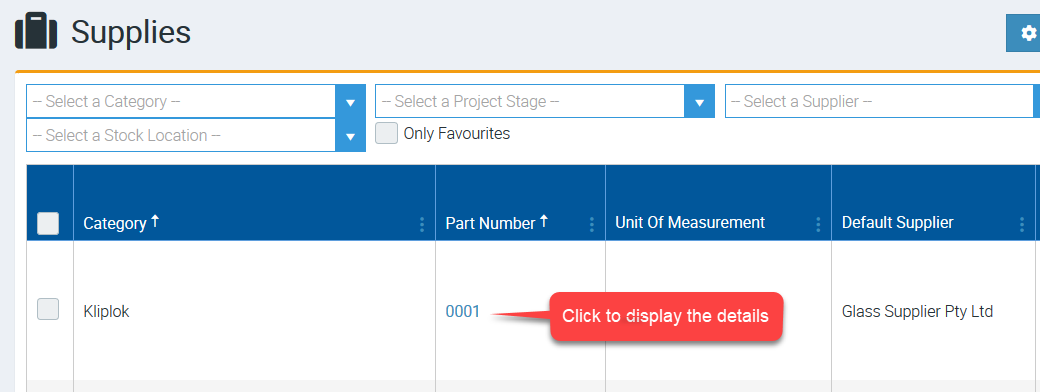
2. Search for the supply item and click the Part Number to display the details.
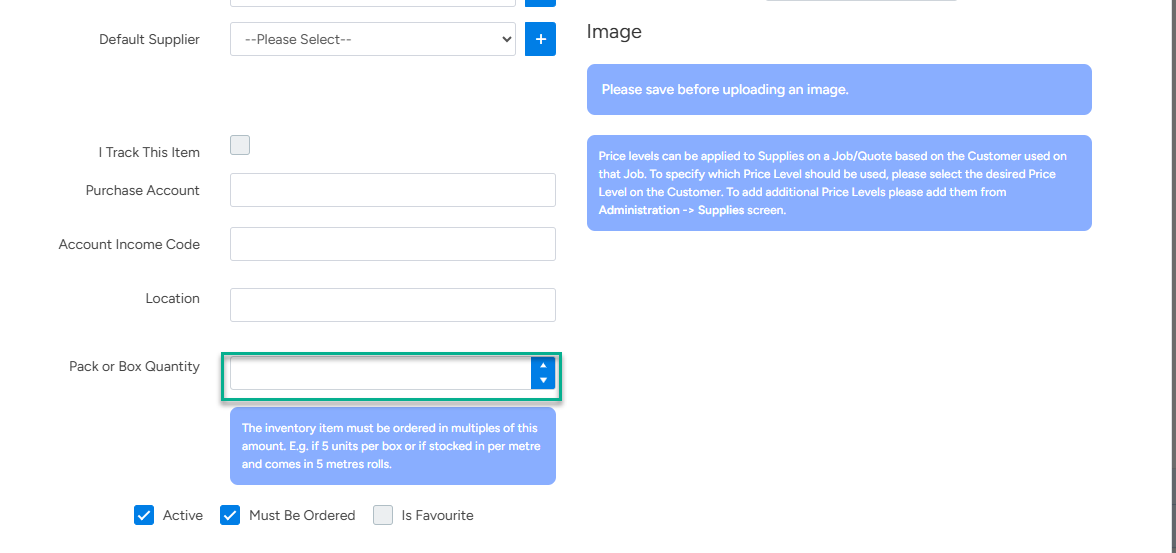
3. Once you're already in the supply details screen, enter your Pack of Box Quantity in the corresponding box.
Once done, click Save and Close button.
Adding Supply to a Job and Creating a Purchase Order
The inventory item must be ordered in multiples of the amount set up in Pack of Box Quantity.
1. In the following example, we have a supply item with Pack of Box Quantity set to 8.
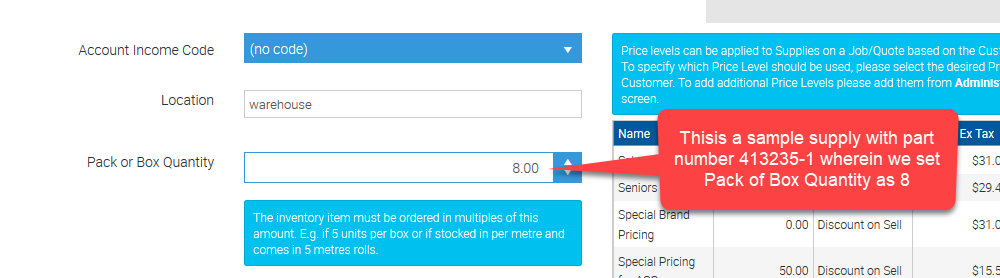
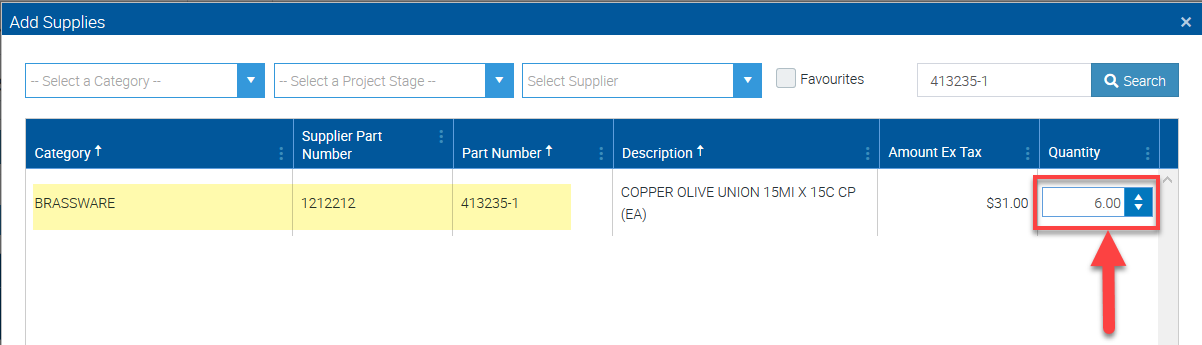
2. We then add that supply item to a job and enter 6 as our quantity.
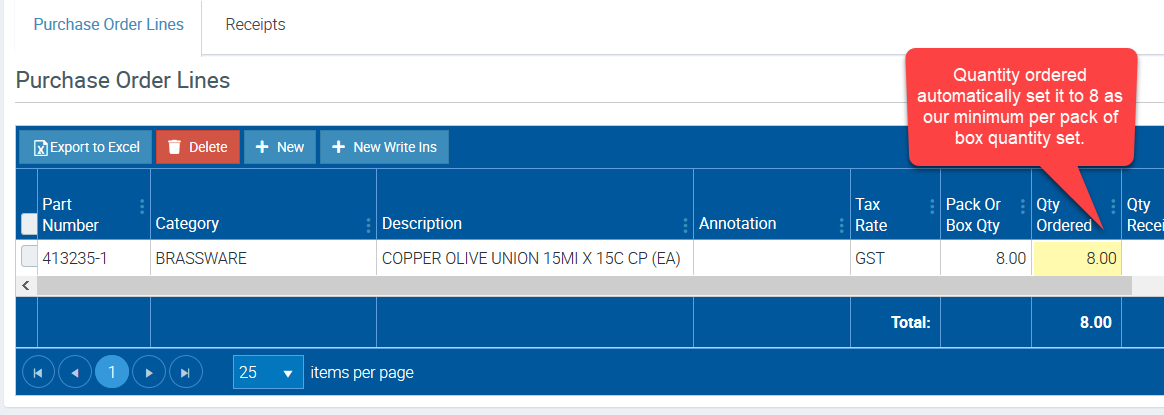
3. After creating a purchase order, notice how the quantity automatically changed to 8 since that's the minimum number of items we can order as per pack of box quantity set up.
Got a question?
Submit an Idea 💡 Go to Ideas Portal