Managing pricing effectively is crucial for customer satisfaction and business profitability. Price levels in Ascora allow you to apply special pricing structures for different customers, ensuring customized discounts and pricing adjustments without manual changes every time you generate a quote or job.
With price levels, you can offer exclusive discounts to VIP customers, apply custom rates for different labor roles, and automatically adjust supply pricing based on predefined customer categories. Whether you’re offering a fixed discount, percentage reduction, or custom rates for specific services, price levels streamline the process, ensuring consistency and efficiency.
This guide walks you through creating and managing price levels, applying them to supplies, labor, and specific customers, and ensuring that every transaction reflects the correct pricing automatically.
📽 Watch the video guide ⤵
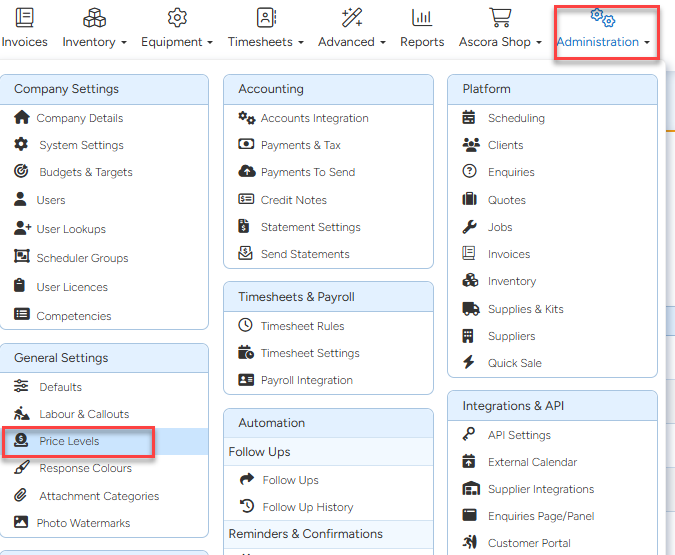
1. Go to Administration → Price Levels and click Add New then give it a descriptive name and set the standard pricing for this level.
In this example we’ve created a new pricing level for Seniors with a 0% discount on the standard pricing. we’ll adjust the Labour Rates I want to give special pricing with later.
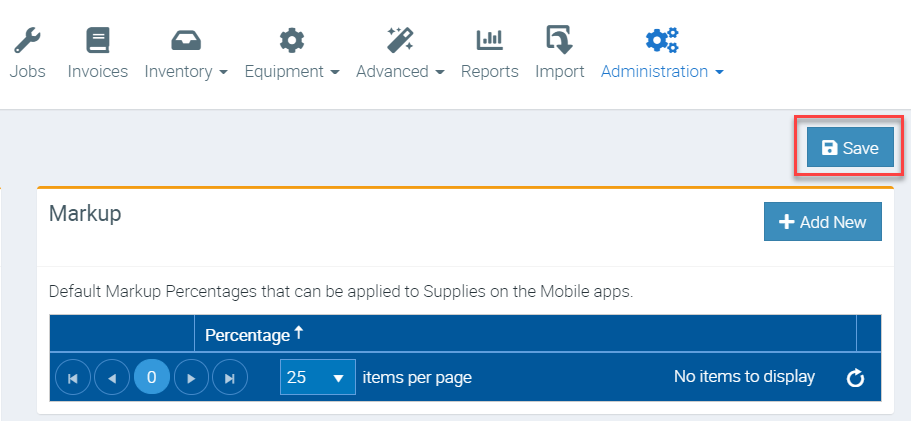
2. Click the Save button to save your changes.
Adjusting the Price for a Particular Role/Supply
You can then edit any existing Supply, Labour Role or Callout fee and adjust the Pricing. A table displaying the various Price Levels setup in Ascora will now be displayed.
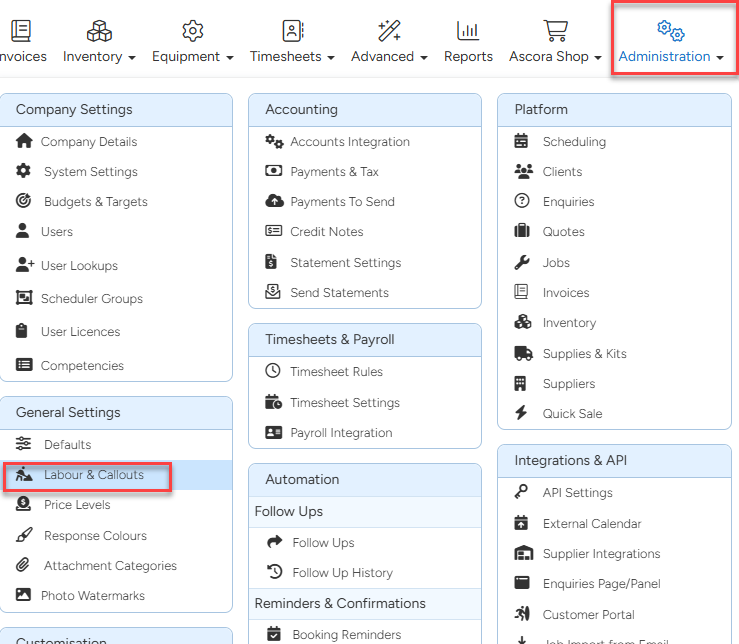
We access role in Administration → Labour & Callouts
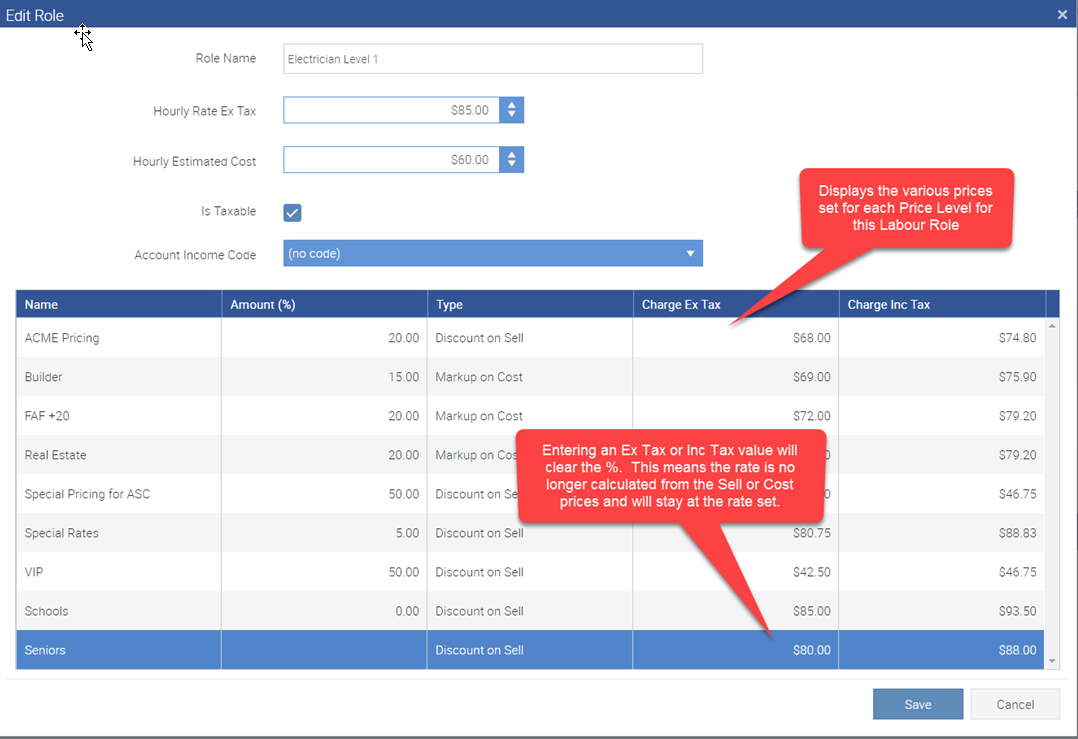
In this example, we are accessing the Electrician Level 1 role where it automatically displays the list of pricing levels but in this instance, we select the pricing level called Seniors.
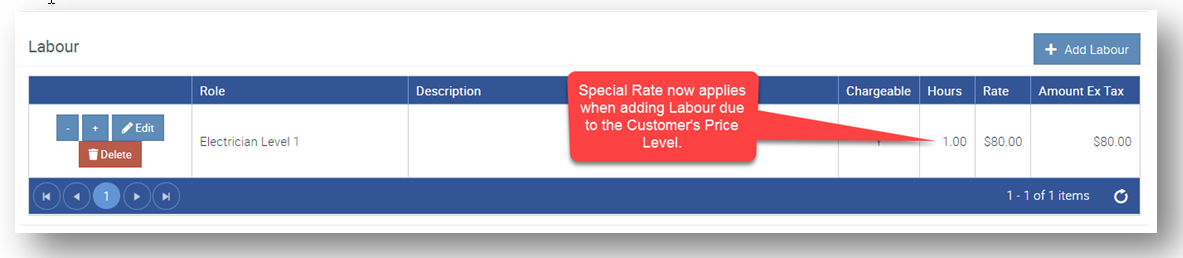
The Hourly Rate for an Electrician – Level 1 has been set to $80 Ex Tax for any Customer on the Seniors pricing level.
Specifying the Price Level per Supply Item
Go to Inventory → Supplies and open the supply item that you need to edit.
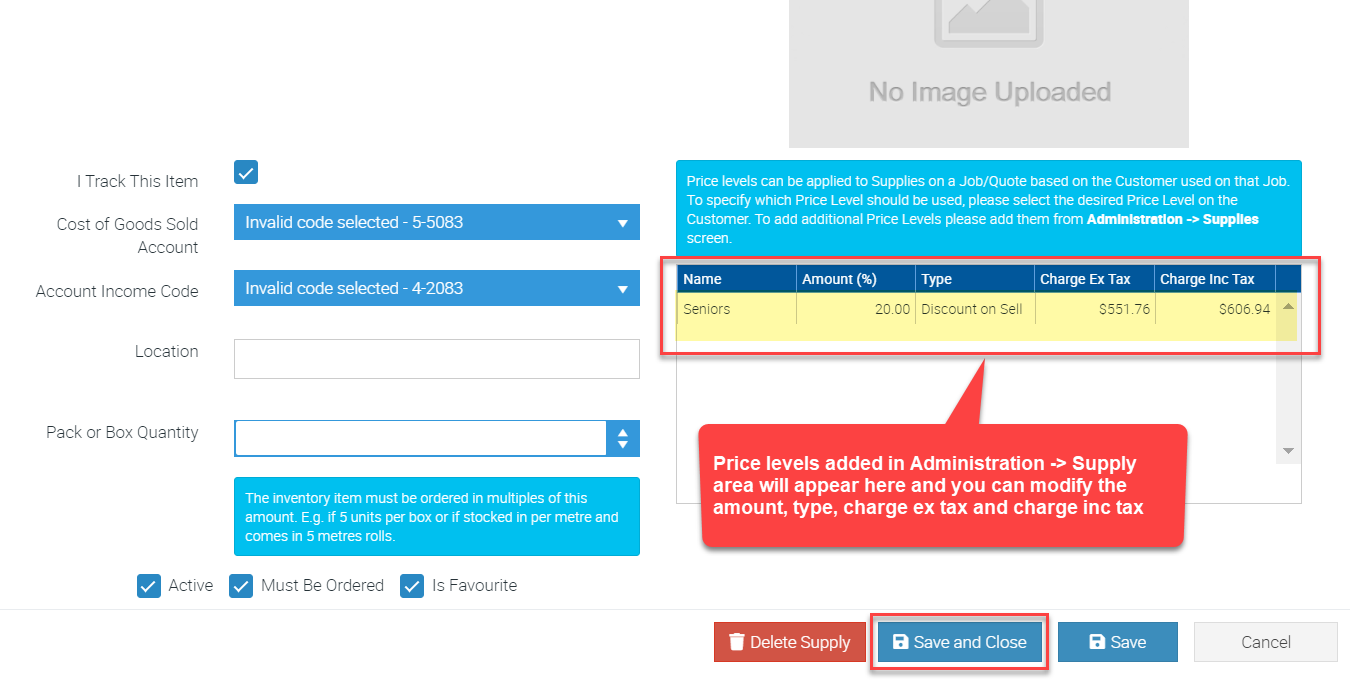
Price levels will automatically show and you can edit the discount amount as well as charge ex tax and charge inc tax per price level.
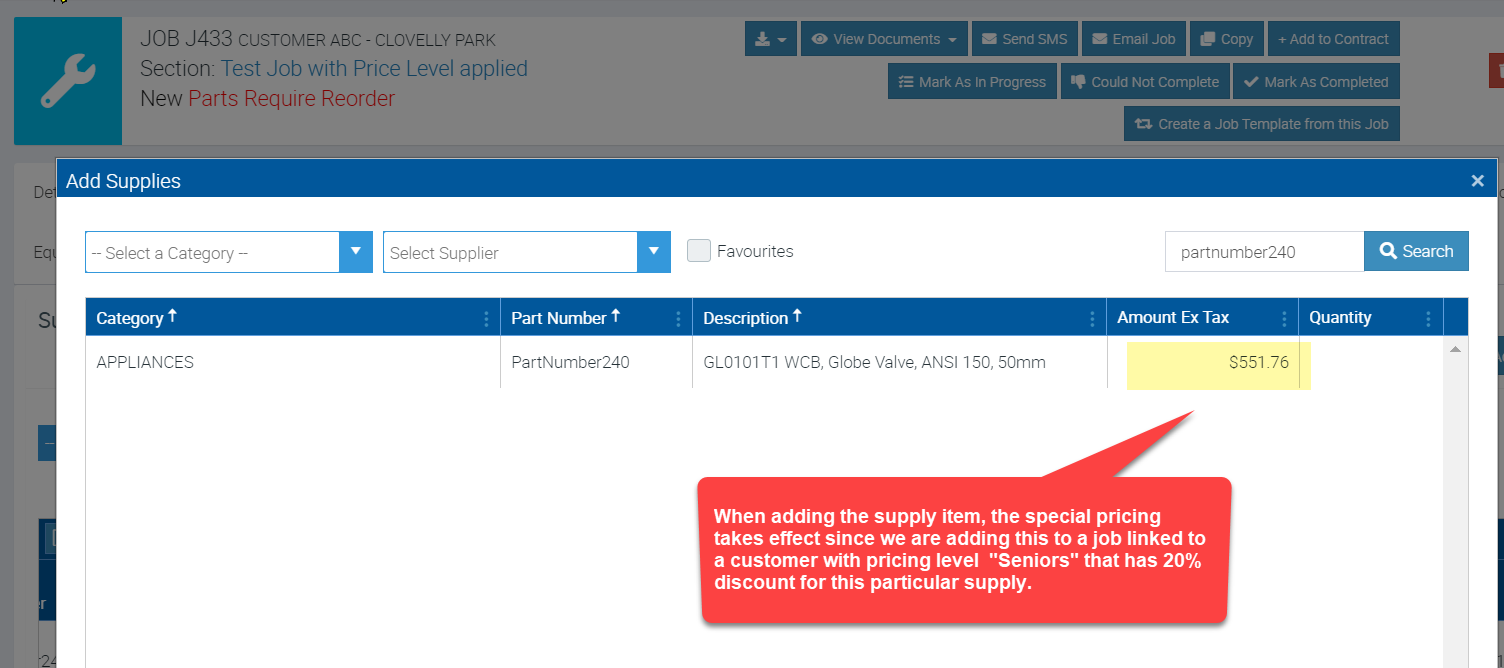
In this example, we set 20% discount for the price level called "Seniors." Once we've set this price level for a certain customer and create job and add this particular supply, this special pricing will be applied which is 20% less or with reduced charge ex tax of $551.76.
Specifying the Price Level for a Customer
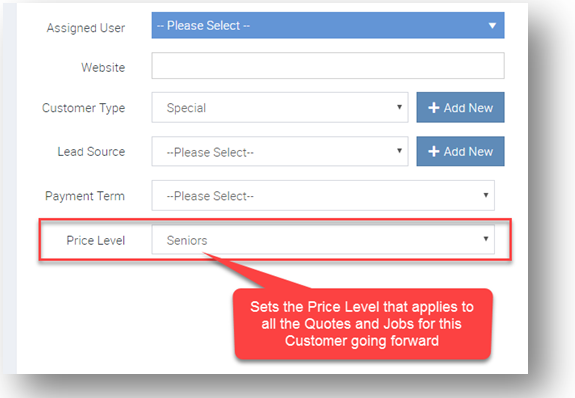
You can set which Price Level applies to the Customer under the Customer Details screen.
- Open the Customer to which you want to set the Price Level.
- Select the Price Level
- Click Save
In this example we selected a different price level called "Seniors" but it should allow you to select any price level added in Administration → Supplies → Price Level.
Adding Labour with the special pricing
When creating a Quotation for this Customer, the special pricing due to the Price Level now takes effect:
Adding Supply with the special pricing
Below is an example of a job for a customer with "Seniors" pricing level set. I've added the supply item we've modified earlier and the special pricing takes effect which is 20% less or equivalent to $551.76 (the reduced price.)
Got a question?
Submit an Idea 💡 Go to Ideas Portal