The Ascora Android app simplifies purchase order (PO) management, allowing you to create, edit, and track purchase orders directly from your mobile device. Whether you're generating a new PO for job supplies or managing existing orders, the app ensures seamless procurement and delivery tracking.
This guide walks you through creating purchase orders, adjusting quantities, and accessing the full PO list, making it easier to stay on top of your supply needs while on the go.
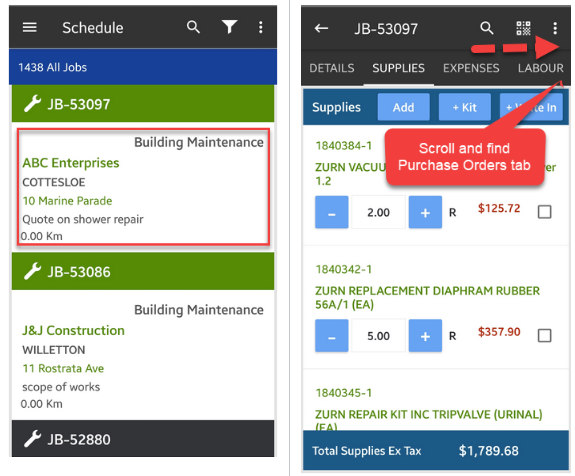
1. Tap one of your jobs to display more details or menus and scroll to reveal the rest of the tabs on the right then look for for Purchase Orders.
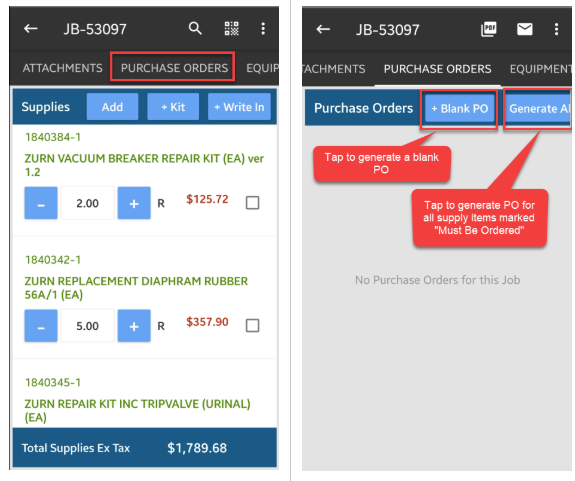
2. Tap on Purchase Orders and you can either tap + Blank PO to generate a blank PO or tap Generate All to generate PO for supply items marked as "Must Be Ordered."
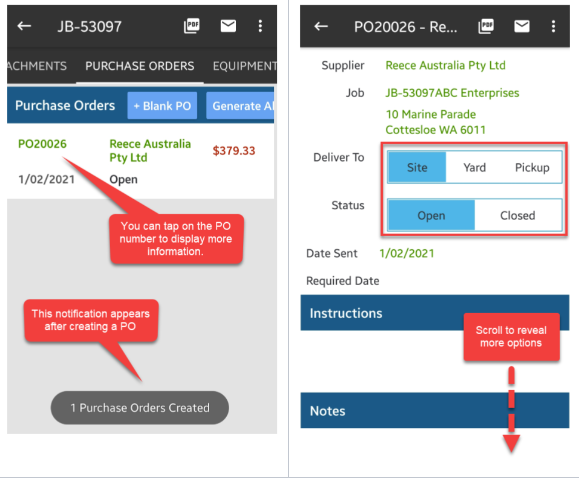
3. You can tap on the PO number to access more information and make amendments such as changing the delivery option or add instructions or notes if necessary.
4. From the following screen, you can make adjustments on quantity ordered and quantity received. You can also receive all items from there.
Click Save changes when ready to proceed.

How to access all Purchase Orders from the Android Mobile App
1. Tap the menu button on the upper left side of the screen and select Purchase Orders.
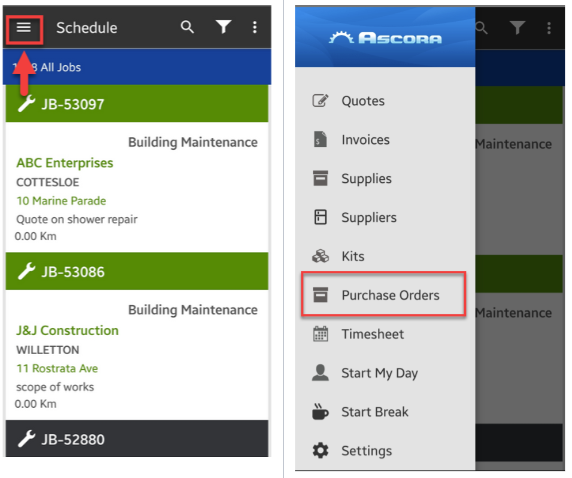
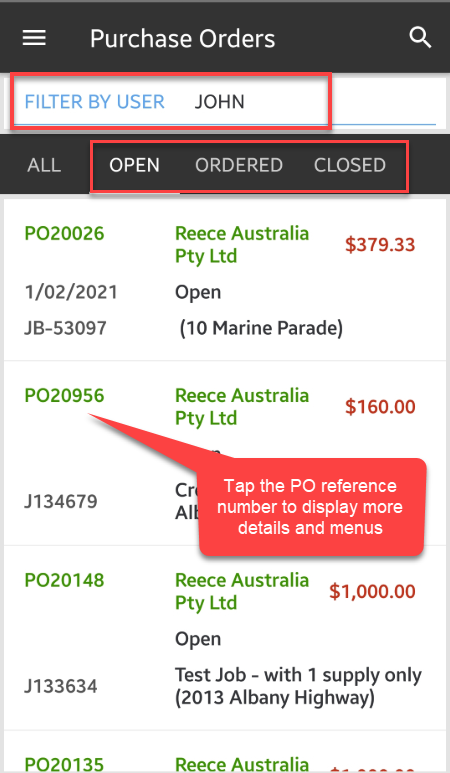
2. A list of purchase orders will be displayed which you can filter by user, or by PO status.
To access the PO details and menus, simply tap on the PO reference number.
Got a question?
Submit an Idea 💡 Go to Ideas Portal