Importing Purchase Orders (POs) into Ascora is a time-saving solution for businesses handling large-scale procurement. Instead of manually creating each PO, the import feature allows you to upload multiple purchase orders in one go.
This is particularly useful when:
- Creating Purchase Orders in Bulk – Save time by generating multiple POs at once.
- Assigning Custom PO Numbers – Override Ascora’s default numbering to match your internal tracking system.
- Delaying PO Creation – Generate purchase orders at a later stage while maintaining accurate records.
Key Benefits of Importing Purchase Orders:
✅ Efficiency – Quickly upload multiple purchase orders in a structured format.
✅ Customizable Numbering – Maintain consistency with supplier and internal order tracking.
✅ Error Detection – Receive instant feedback if there are discrepancies in the imported data.
✅ Seamless Job Linking – Automatically associates POs with jobs if job numbers are included.
By following a simple process—downloading the template, filling in the PO details, and uploading the file—you can automate procurement, reduce manual data entry, and keep your inventory management on track.
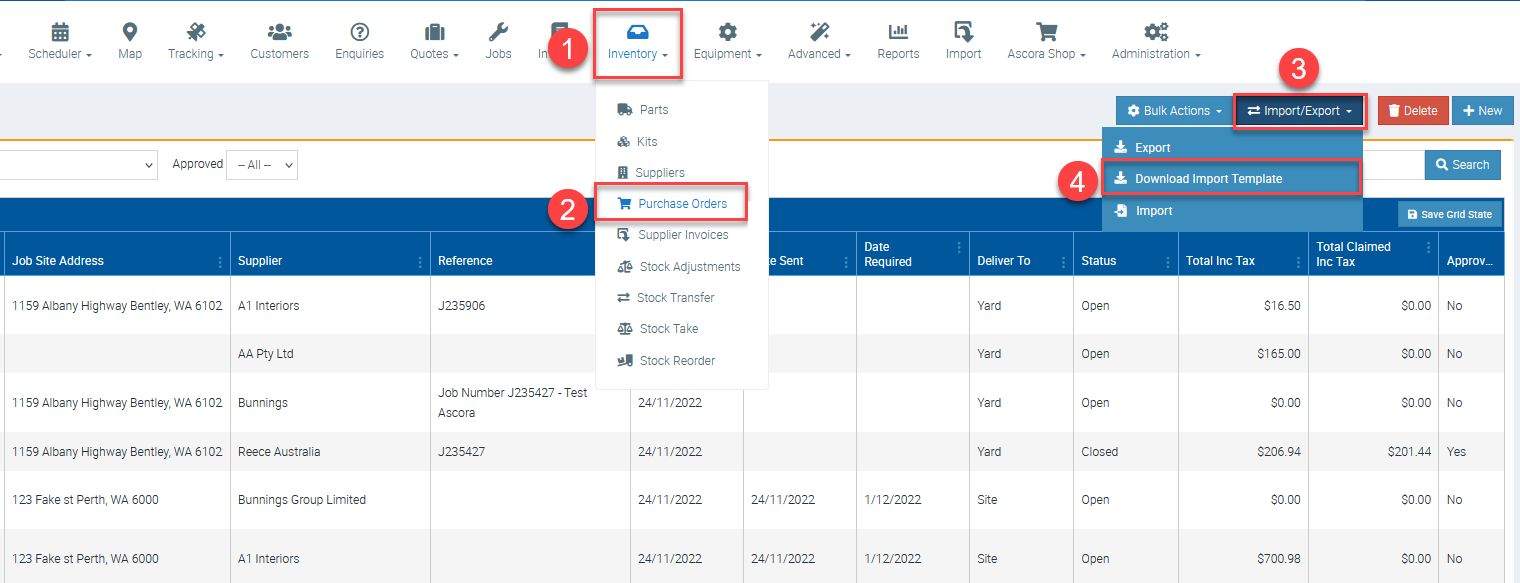
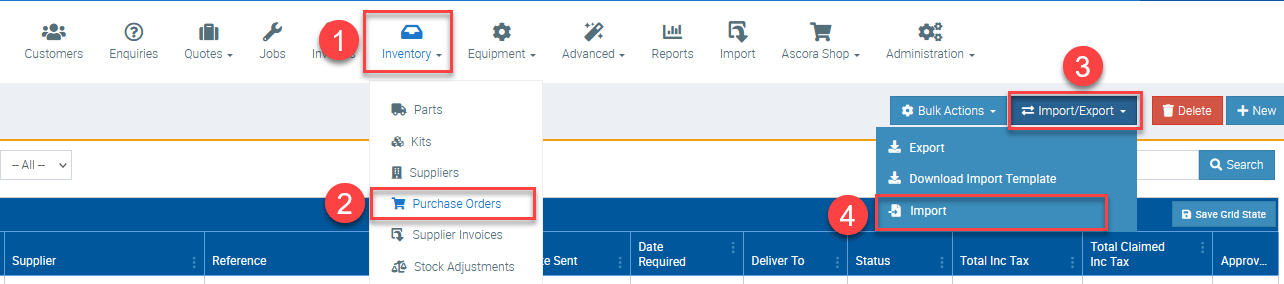
1. Go to Inventory → Purchase Orders, click on Import/Export, and select Download Import Template.
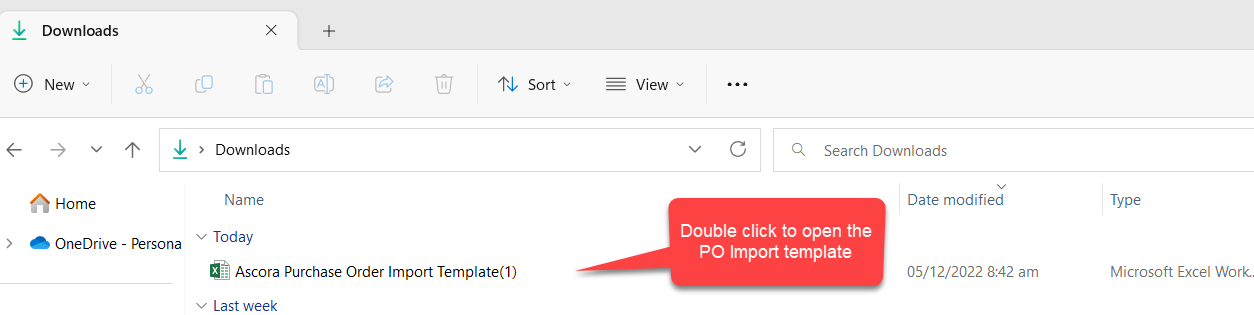
2. Depending on your computer settings, the PO import template will open automatically otherwise, you can manually open it from your Downloads folder.
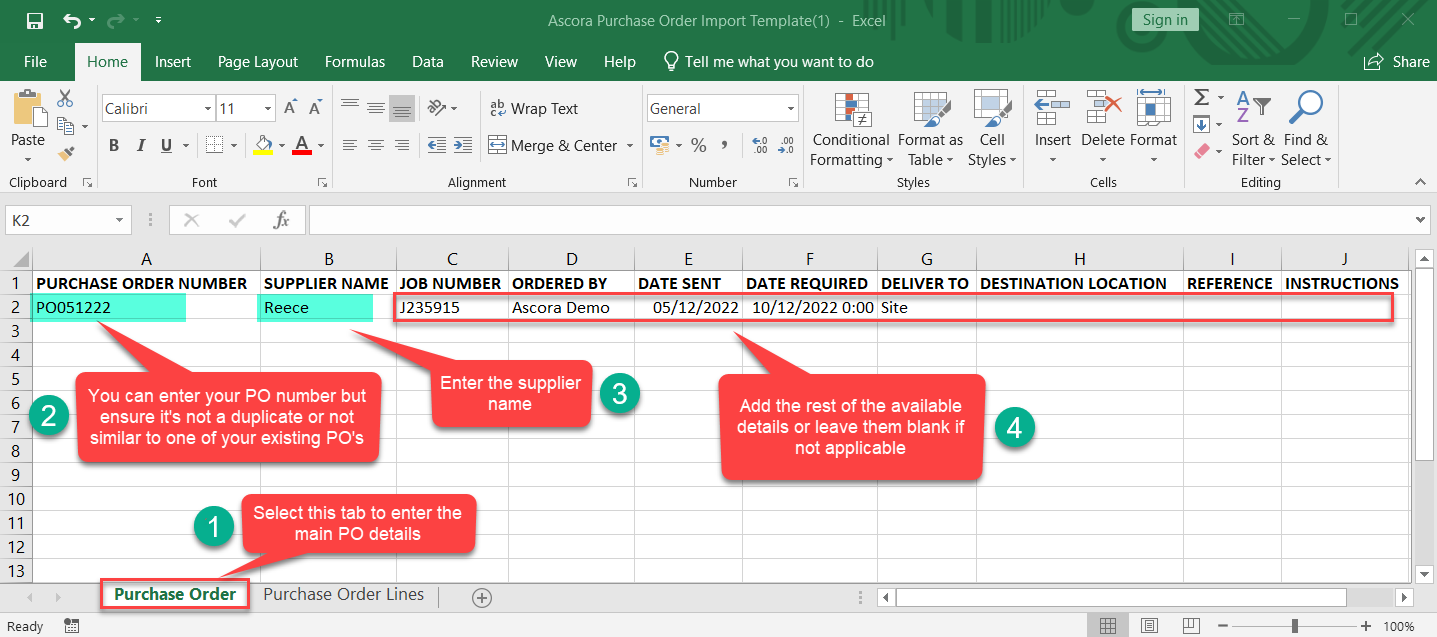
3. In the import template, access the Purchase Order tab and enter the main PO details such as PO Number, supplier name, etc.
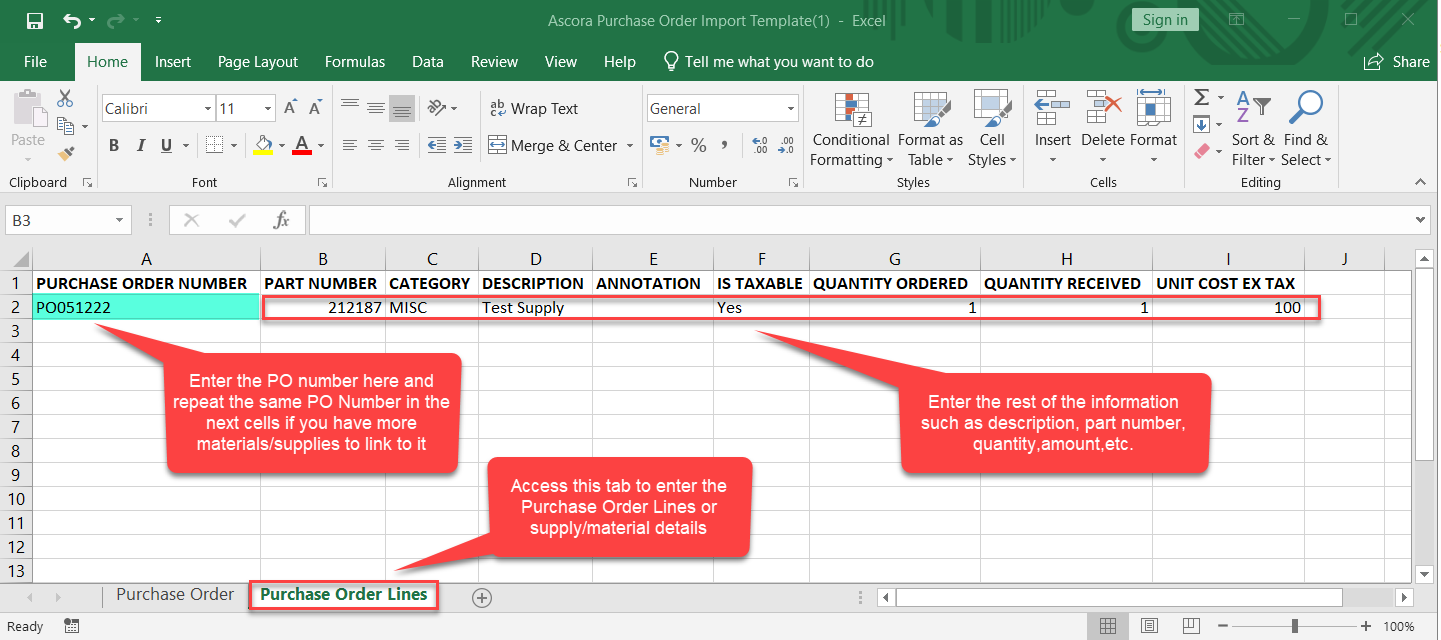
4. Access the Purchase Order Lines tab to add the supply details.
5. Save the import file on your computer as we'll need it in step 6.
6. Access your Ascora account and go to Inventory → Purchase Orders and click on Import/Export but this time select Import. Select the import file that you saved on your computer and it will import the details into Ascora.
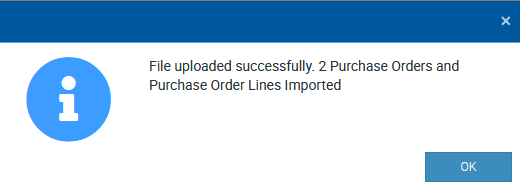
7. You'll get a notification showing a preview of what's imported and in cases when an error was encountered, it will be indicated in the same pop-up notification as well.
8. To access the newly imported Purchase Orders, go to Inventory → Purchase Orders and you'll see them in the list which you can access and adjust the details if required.
If you have a job number indicated in your import file, it will be automatically linked to the PO as well.

Got a question?
Submit an Idea 💡 Go to Ideas Portal