The Scheduler in Ascora is highly customizable, allowing you to tailor it to the specific needs of your business. By enabling or disabling key settings, you can control how job and scheduling information is displayed, streamline your operations, and provide a cleaner, more focused view of your Scheduler. Whether you want to show after-hours jobs, limit incomplete jobs for a clearer grid, or adjust mobile app views, the Scheduler’s configuration options offer the flexibility to optimize your scheduling workflows.
This guide walks you through essential settings such as grid configurations, mobile schedule adjustments, and advanced automation features like auto check-in and check-out. You’ll also learn how to customize the Scheduler view directly, resize grid columns, and enable or disable after-hours visibility for better scheduling management.
With these tools at your fingertips, you can ensure your team is always informed, your jobs are scheduled efficiently, and nothing falls through the cracks. Explore the various configuration options to create a scheduling experience that fits your business perfectly.
📽 Watch the video guide ⤵
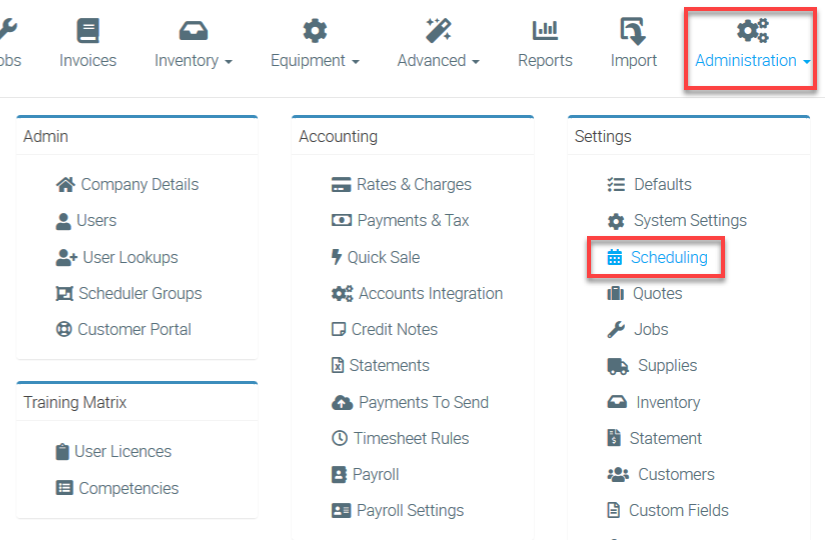
- To access all settings or configurations, go to Administration → Scheduling.
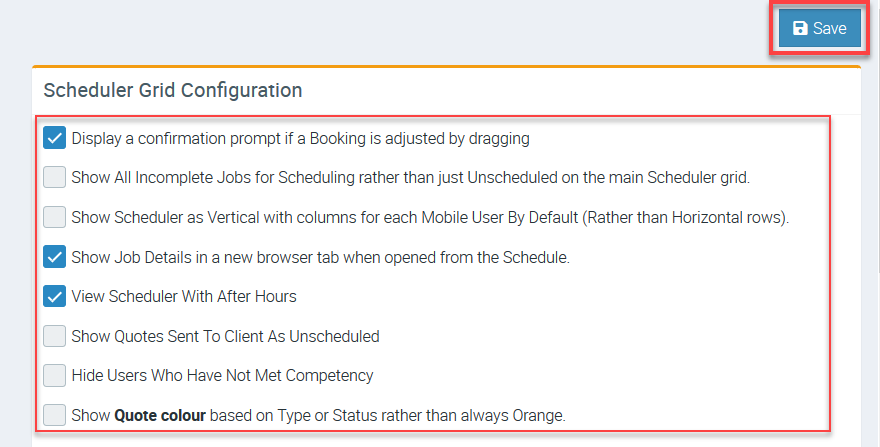
- Under Scheduler Grid Configuration, you can enable certain settings by ticking the corresponding boxes or disabling them by unticking the boxes.
In this example, we enable only three settings as indicated by the blue boxes with check marks.
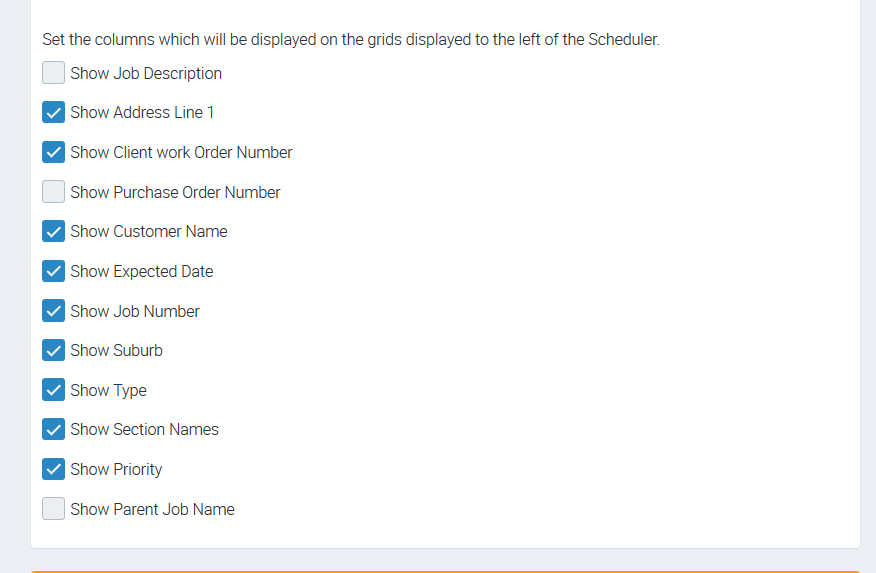
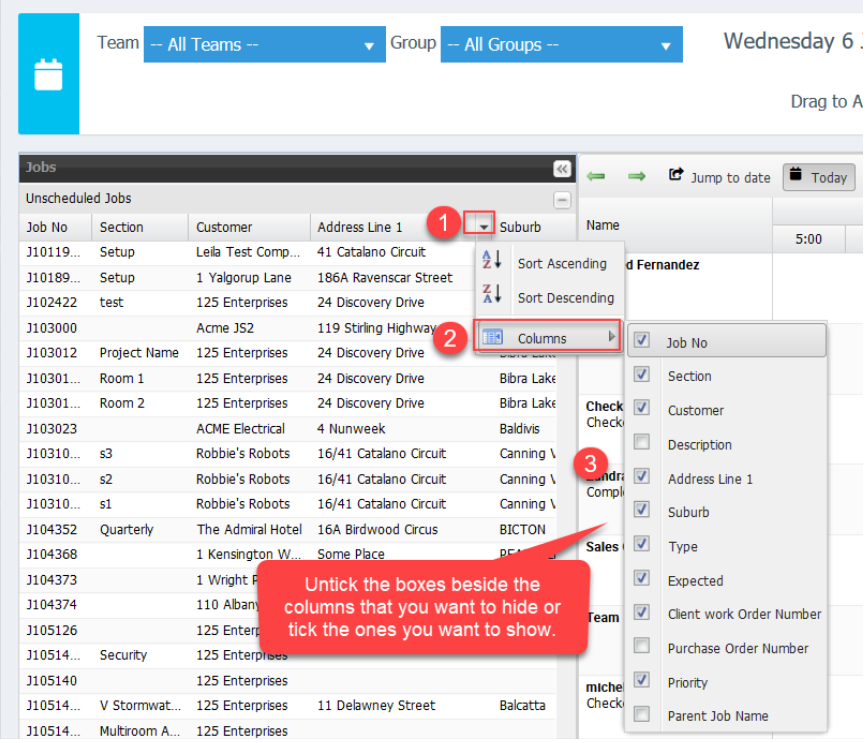
- From the following settings, you can choose which information to display on the grids by ticking or unticking the corresponding boxes.
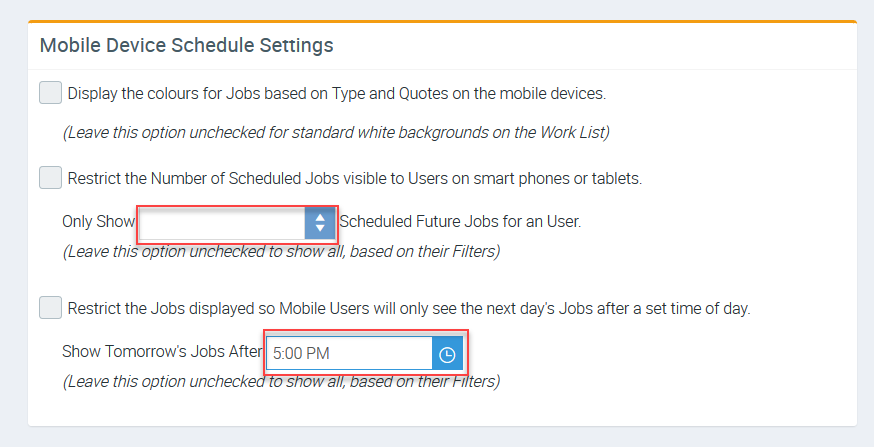
- You can also configure Mobile Device Schedule Settings by enabling or disabling the following settings.
- You can select an X number of future jobs to be displayed on the mobile app by activating this setting.
- You can also select a time as to when to show Tomorrow's Jobs to prevent congestion on the mobile app screen.
- You can activate or deactivate a few more settings such as;
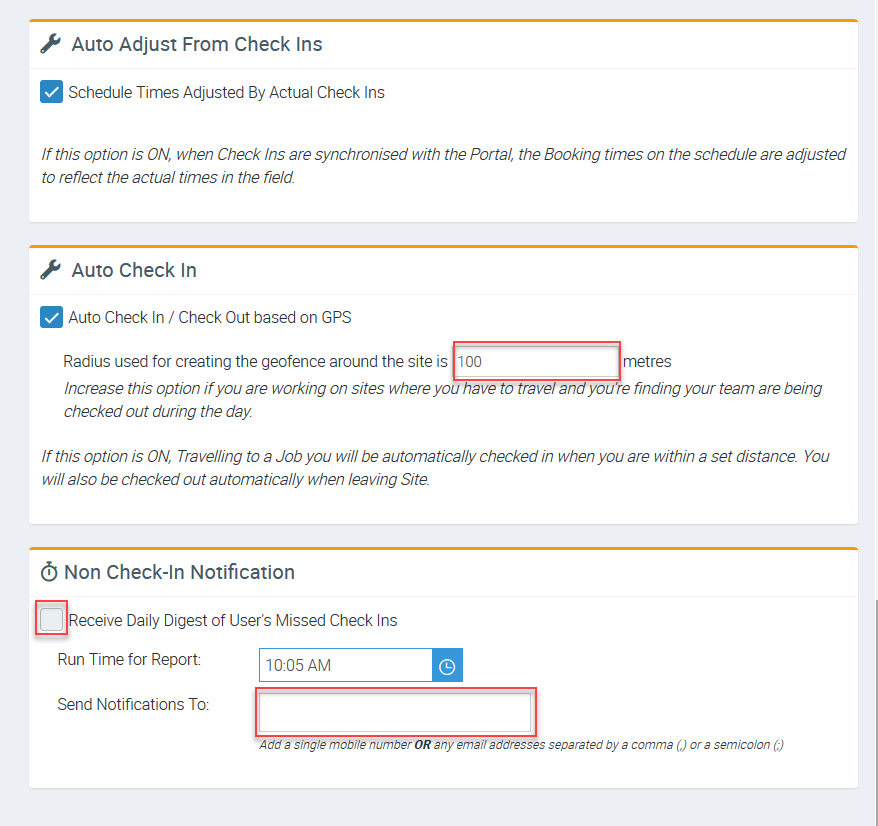
- Auto Adjust From Check Ins which basically updates the job to reflect the actual check in and check out times.
- Auto Check In is where you can set up a radius so your technicians are automatically checked in when entering the site and automatically checked out when leaving the site.
- Non Check-In Notification allows you to receive a quick summary of missing check ins.
Adjusting Scheduler Grid Columns
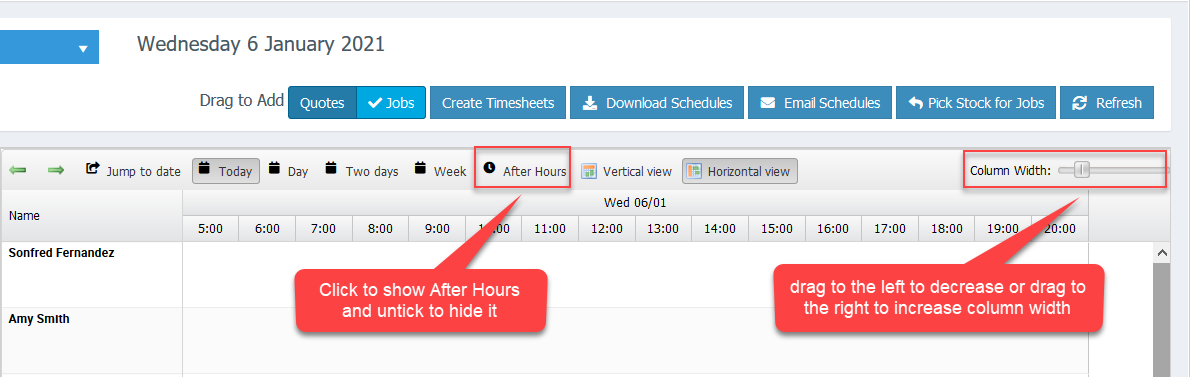
Resizing column with and showing/hiding After Hours
SCHEDULER FACTS
- A job will be shown under Incomplete jobs once it has a booking attached to it (i.e. even if you have a booking attached to it in the past). This is to capture all jobs that already has a booking, but not completed for any reason so they won’t be missed out.
- Only jobs that has no prior bookings will be shown in the Unscheduled Jobs Table.