Keeping your stock levels accurate is crucial for smooth operations, preventing shortages, and avoiding unnecessary stock build-up. In Ascora, you can adjust stock levels as needed and transfer stock between locations to ensure supplies are available where they are most needed.
By enabling Inventory Tracking, you gain real-time visibility into your stock levels across multiple locations, including warehouses, storage areas, and service vehicles. This allows your team to update stock quantities, adjust costs, and seamlessly manage stock movements without manual record-keeping errors.
This guide will walk you through the steps to adjust stock levels, update unit costs, and transfer stock between locations, helping you maintain a well-organized and efficient inventory system.
Enabling Inventory Tracking
To enable inventory tracking, go to Administration → Defaults and tick the box beside Enable Inventory Tracking.

ℹ For more information see 🔀 How to enable Inventory Tracking
Adjusting Stock Levels
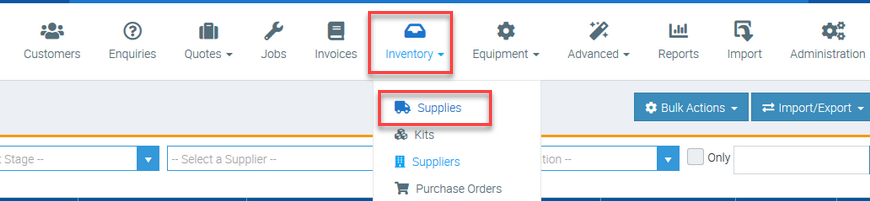
1. To adjust stock levels, go to Inventory → Supplies.
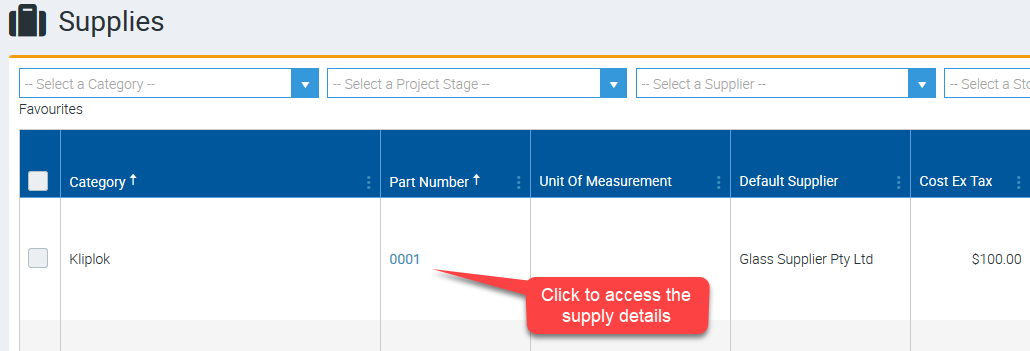
2. Click the supply part number to access the details.
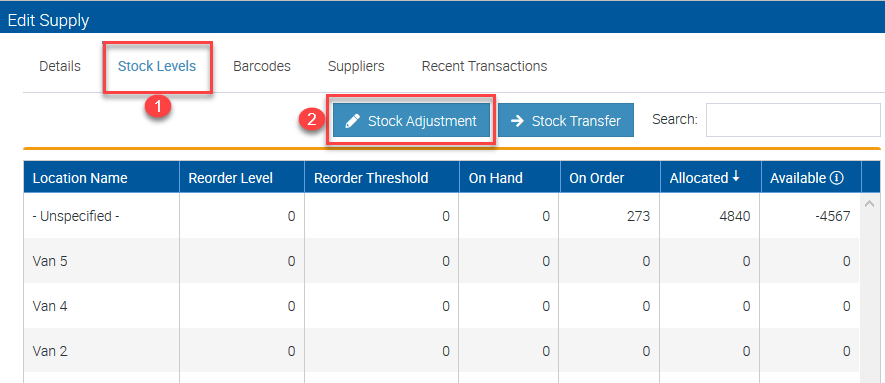
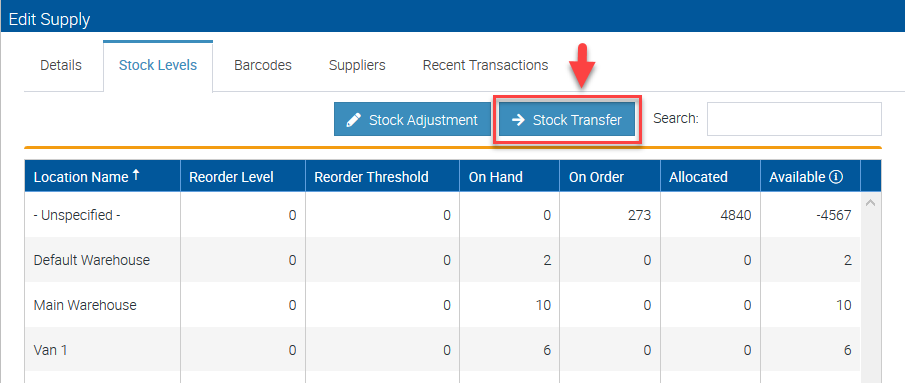
3. Click Stock Levels and then select Stock Adjustment.
4. You can adjust stock quantity by putting the figures under the column named Adjusted Quantity.
For example, you may want to adjust the quantity for Default Warehouse, Main Warehouse, etc.
If you adjust the units upward, effectively you are creating a new inventory stock unit on hand and if you need to update the unit cost, you can enter a new value in the field called Stock Unit Cost.
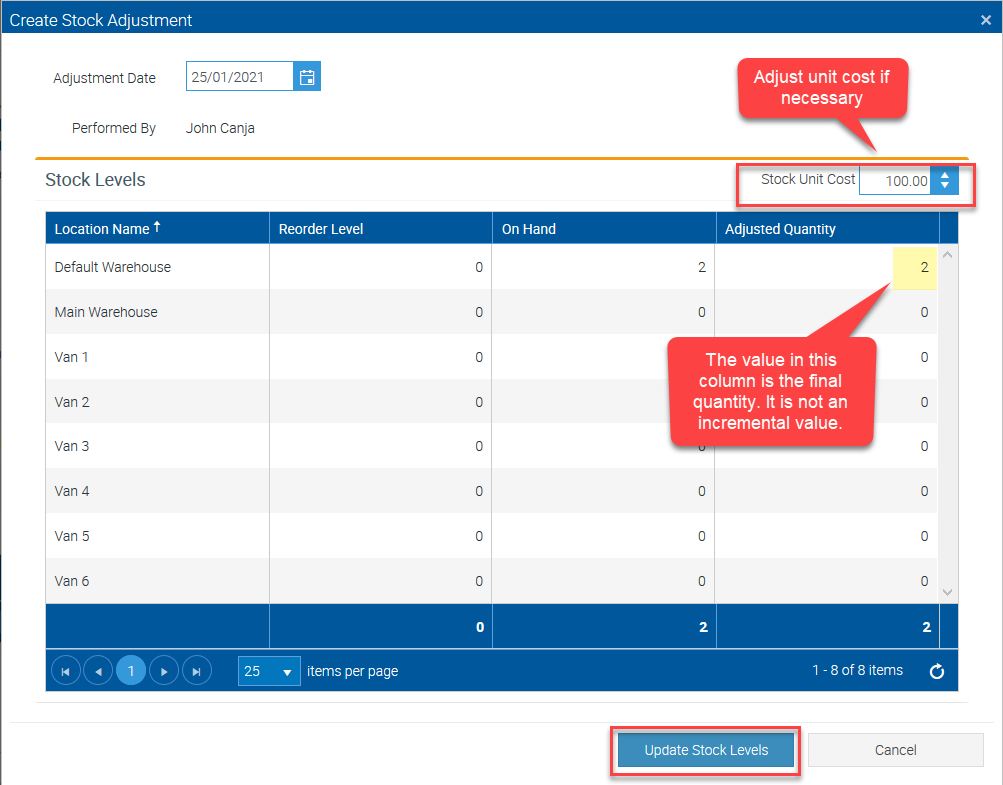
After making the changes, click Update Stock Levels to proceed.
5. From the Edit Supply screen, click the Refresh button to make the changes visble or you can just close the screen and reopen.
You can also reset average cost from this Edit Supply screen and once done with the changes, click Save and Close.

Stock Transfers
1. You can also perform stock transfer by clicking Stock Transfer button.
What it does is let you transfer stocks from one location to another based on existing stock items.
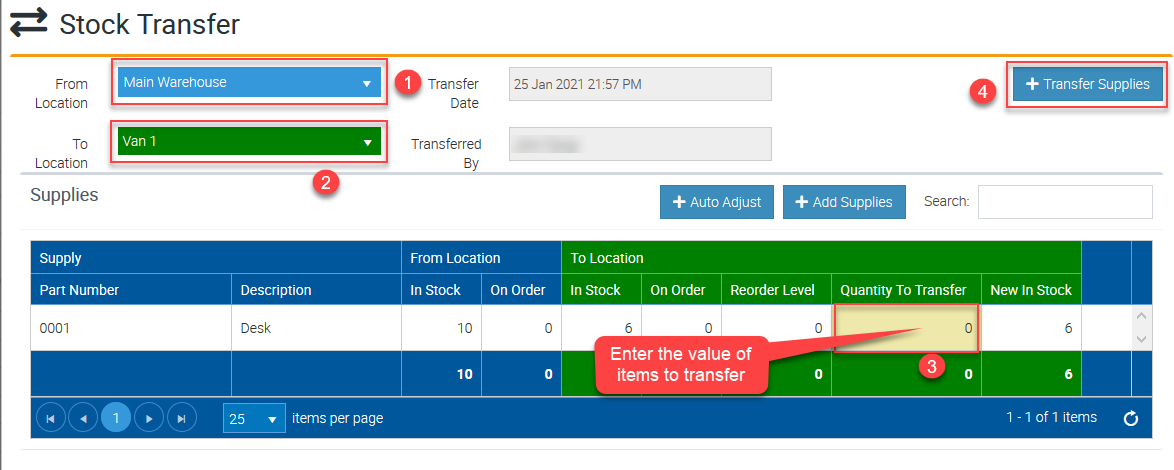
2. Select the source location and the target location, enter the quantity of the supply item that you need to transfer and click Transfer Supplies.
You can also click Add Supplies if you want to add new ones.
Got a question?
Submit an Idea 💡 Go to Ideas Portal