Conducting a stock take is an essential part of inventory management, ensuring that stock levels in Ascora align with the actual quantities in your warehouses, storage areas, or service vehicles. Regular stock takes help maintain accuracy, prevent discrepancies, and allow for efficient inventory tracking.
If you're just starting with Inventory Tracking, a stock take can also be used to reset all stock levels to zero before entering new quantities. This ensures a clean slate and accurate tracking moving forward.
With Ascora, stock takes can be performed per location and updated in bulk using the stock take template. Whether you're adjusting stock levels to match physical counts or zeroing out stock for a fresh start, this guide will walk you through the process step by step.
By following the below guide, you can streamline stock adjustments, improve inventory accuracy, and reduce manual errors, helping your business maintain a well-organized and efficient inventory system.
📽 Watch the video guides ⤵
Stock Takes
Reordering Stock
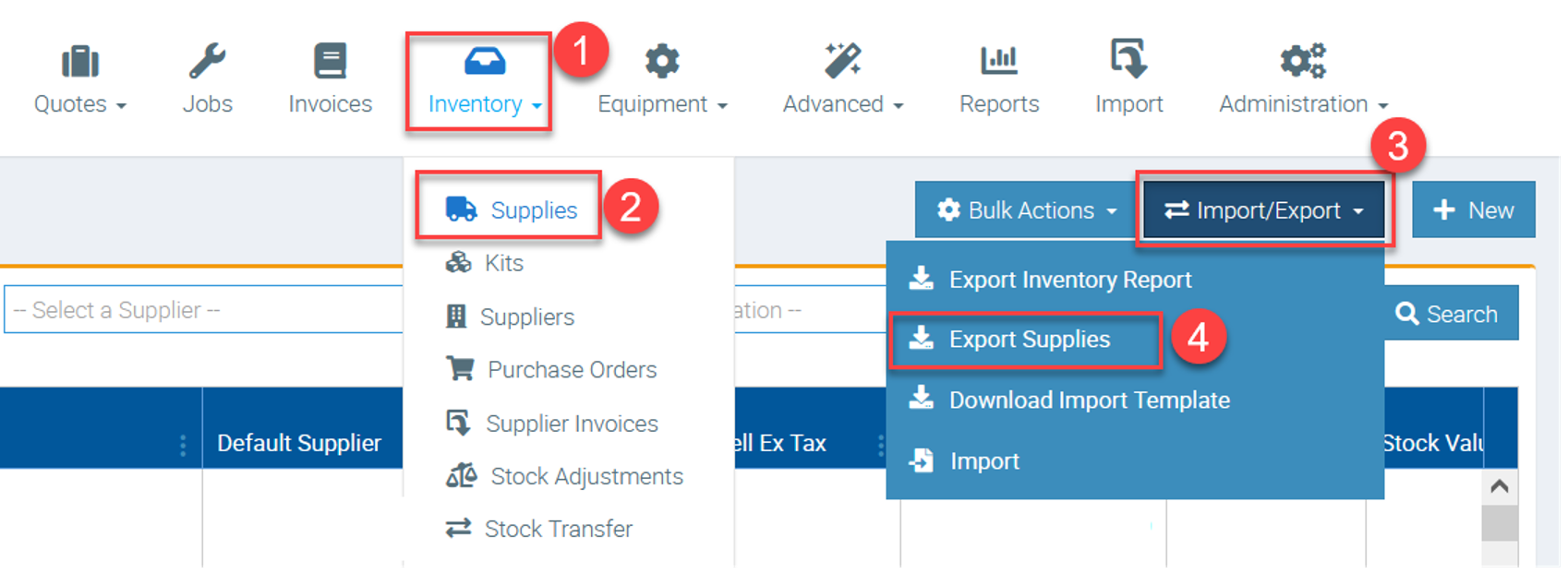
1. Export Supplies list by going to Inventory → Supplies → Import/Export → Export Supplies.
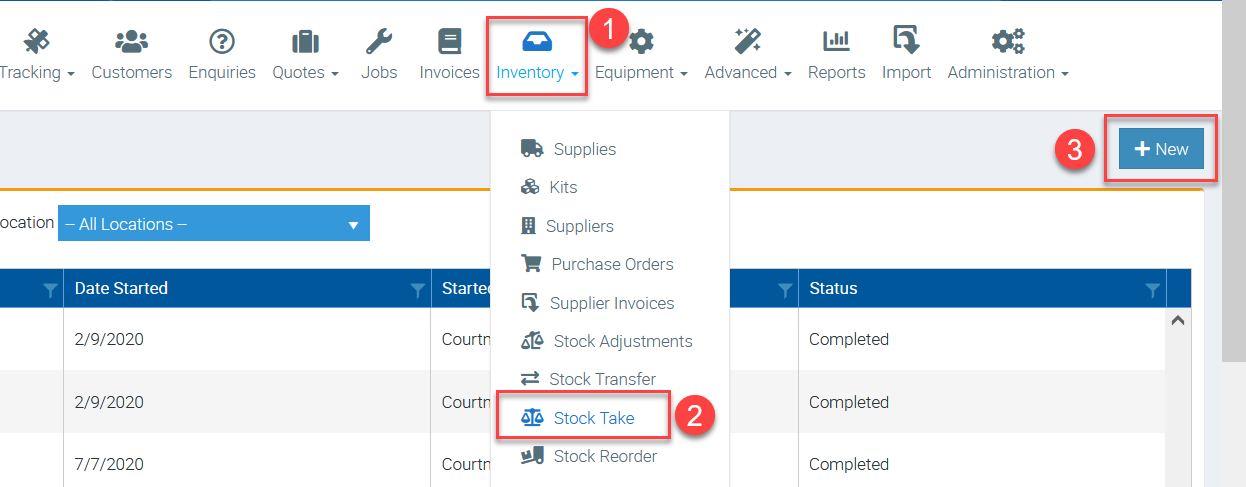
2. Create stock take for location by going to Inventory → Stock Take and click New.
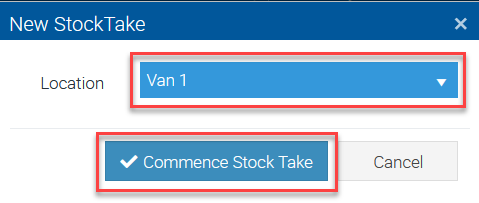
3. Select location and click Commence Stock Take.
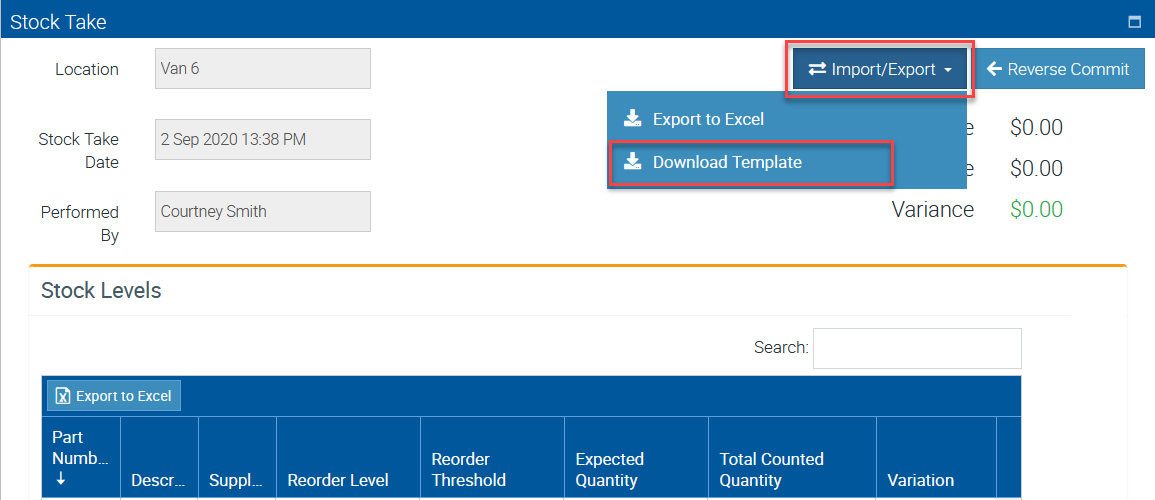
4. Download stock take Template (can be used multiple times if necessary)
5. Copy the Part Number and/or description from supplies list and paste into stock take template and set quantities to zero but if you are updating stock levels, simply put the actual updated quantities.
Save the file as you will use it for the import process in the next step.
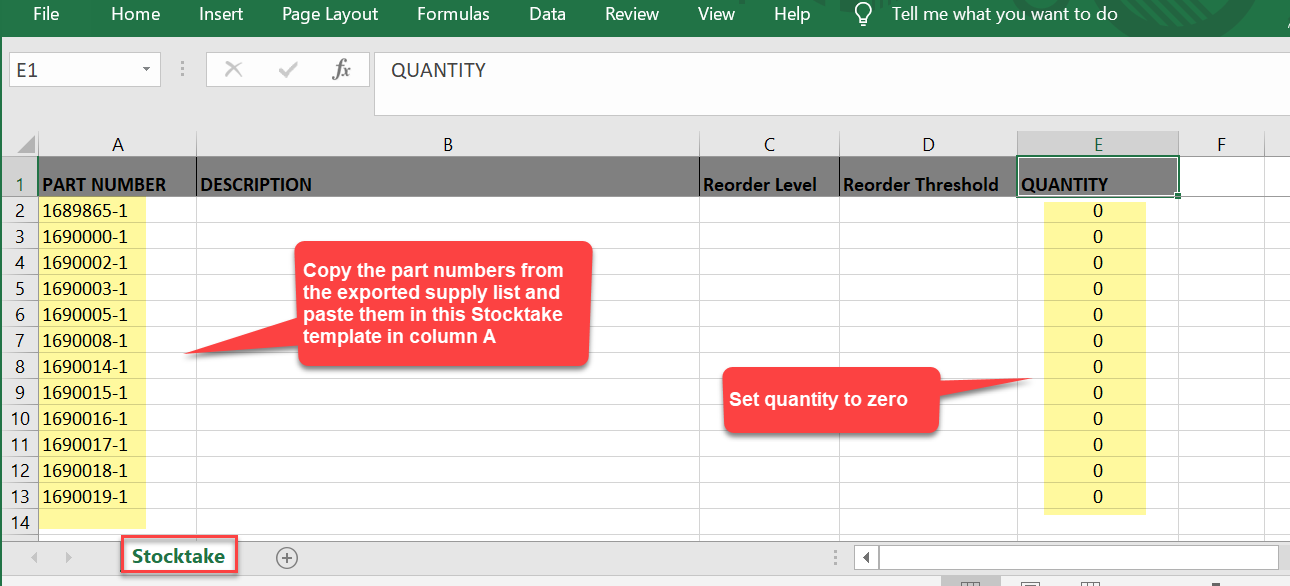
When importing the stocktake file, please ensure that you are using the standard template as per above photo showing five columns.
Using other templates such as the one from the export file won't work.
6. Go back to the Stock Take screen and click Import/Export → Import Stocktake and select the stocktake file that you've saved.
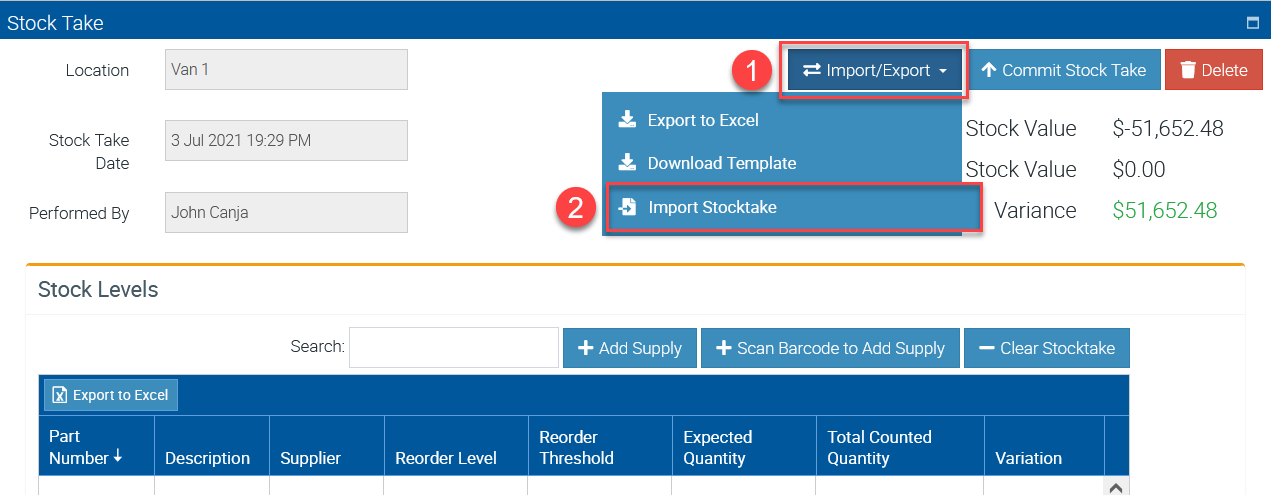
7. After completing the stocktake, this should update all stock on hand at the stock take location or revert stocks to zero if you indicated zero quantities in the template.
Got a question?
Submit an Idea 💡 Go to Ideas Portal