Managing multiple outstanding invoices for a single customer can be time-consuming. Ascora’s Batch Payment feature streamlines this process by allowing you to apply a single payment across multiple invoices, saving time and ensuring accurate financial records.
With batch payments, you can:
- Apply payments to multiple invoices in one transaction
- Choose from various payment methods, including cash, direct deposit, EFTPOS, or credit card
- Easily track payments under each invoice for better financial visibility
This guide walks you through the steps to process batch payments, helping you maintain efficient accounts receivable management while ensuring customers' outstanding balances are up to date.
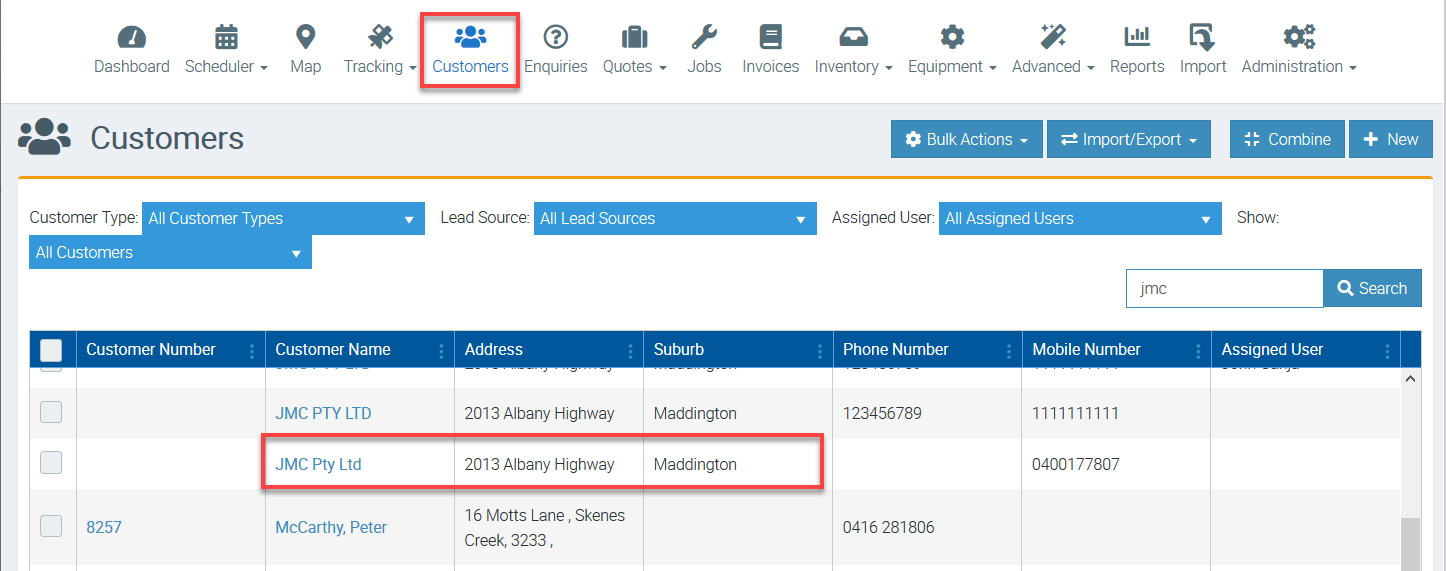
1. Go to Customers tab and search for a specific customer that has pending invoices and with a batch payment you'd like to process.
Click on the Customer Name to access the details.
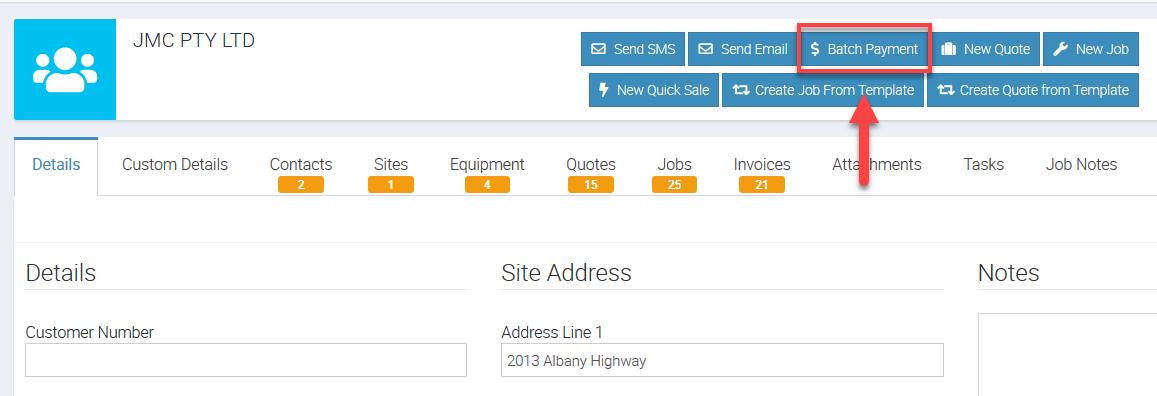
2. From the Customer Details screen, click Batch Payment.
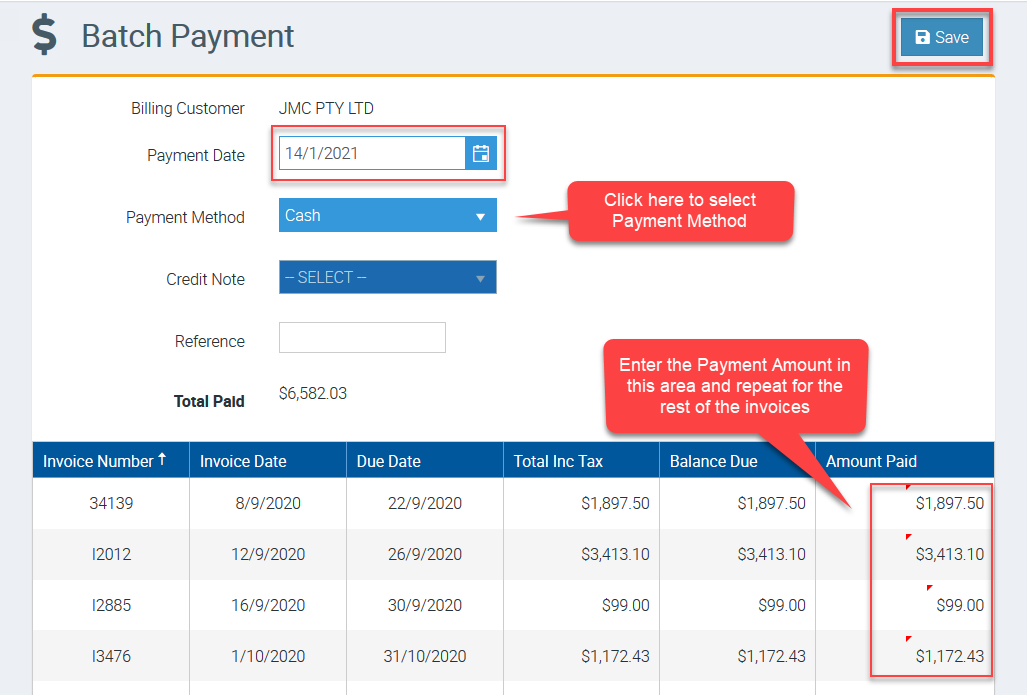
3. Enter the Payment Date then select the Payment Method. Go through the list of invoices and enter the Amount Paid for each of them or the ones that are part of the batch payment you are processing.
In this example, we entered the full payments for all four invoices.
Once you're done applying the amount paid , click Save.
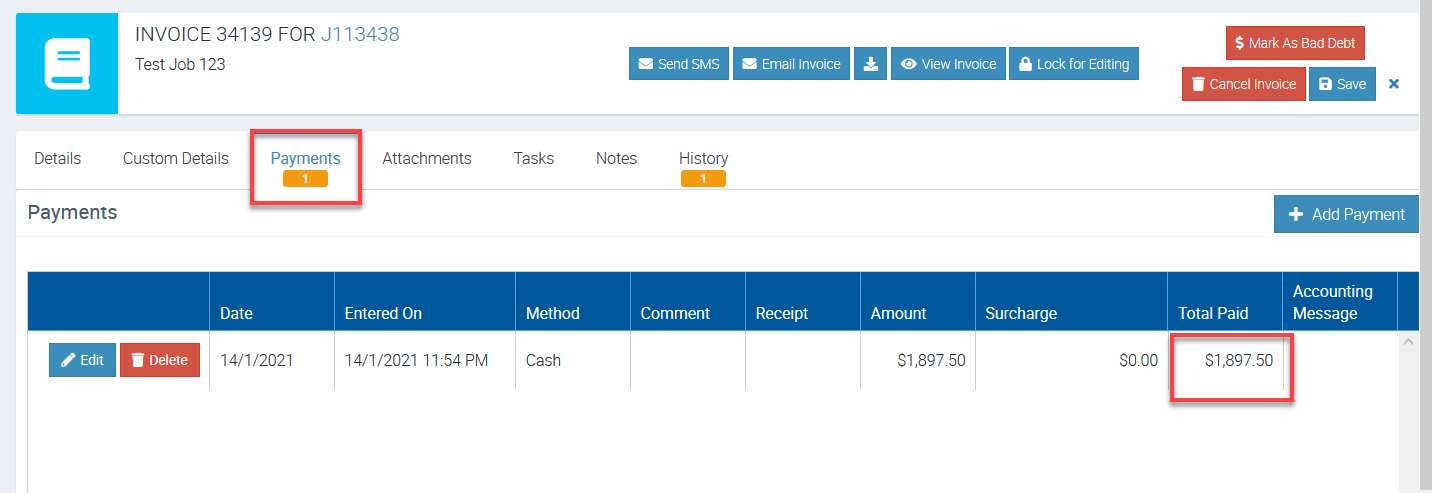
4. You can go back to the Invoice screen and access one of the invoices and should see the Payment having been applied.
In this example, we opened Invoice 34139 with amount paid $1,897.50 showing in Payments tab. This is the amount we included when we processed the batch payment.
Got a question?
Submit an Idea 💡 Go to Ideas Portal