Reassigning a Purchase Order (PO) ensures that materials and costs are accurately tracked against the correct job or job section. In Ascora, you can reassign a PO as long as it remains open and has no supplier invoice lines attached.
This is particularly useful when:
- A job scope changes and materials need to be allocated elsewhere.
- A Purchase Order was created under the wrong job or section.
- A project is restructured, and supplies need to be reassigned efficiently.
Key Benefits of Reassigning a Purchase Order in Ascora:
✅ Maintains Accuracy – Ensures that all purchases are correctly allocated, reducing billing discrepancies.
✅ Enhances Flexibility – Easily move POs between jobs or job sections without needing to cancel and recreate them.
✅ Saves Time – Prevents duplicate POs and allows quick adjustments in procurement workflows.
To reassign a Purchase Order, navigate through Inventory → Purchase Orders or access it directly from the Supplies Tab in the Job Screen. With a few simple steps, you can update the assigned job, keeping procurement records clean and ensuring accurate cost tracking.
To proceed in re-assigning a Purchase Order, follow the steps below.
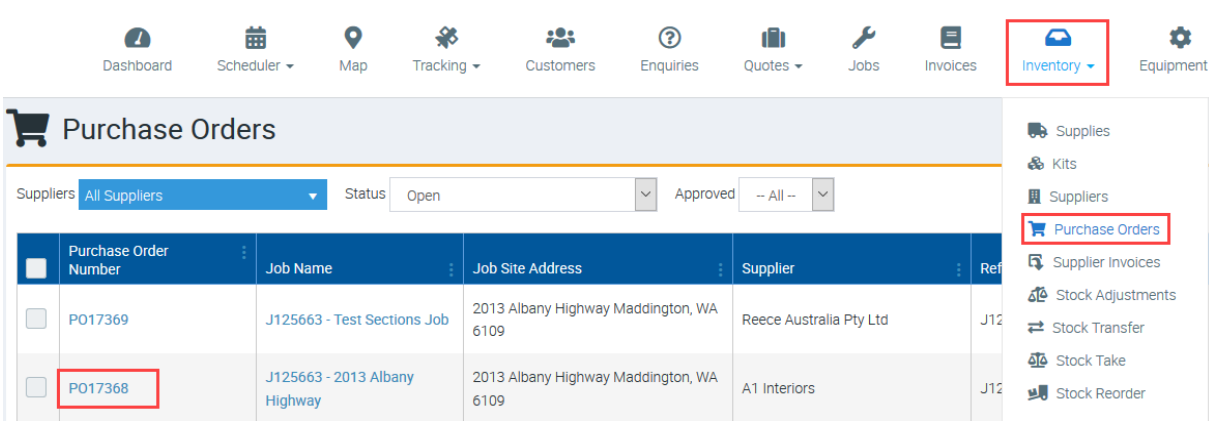
1. Access the Purchase Order by going to Inventory → Purchase Orders → then open the PO that you want to reassign.
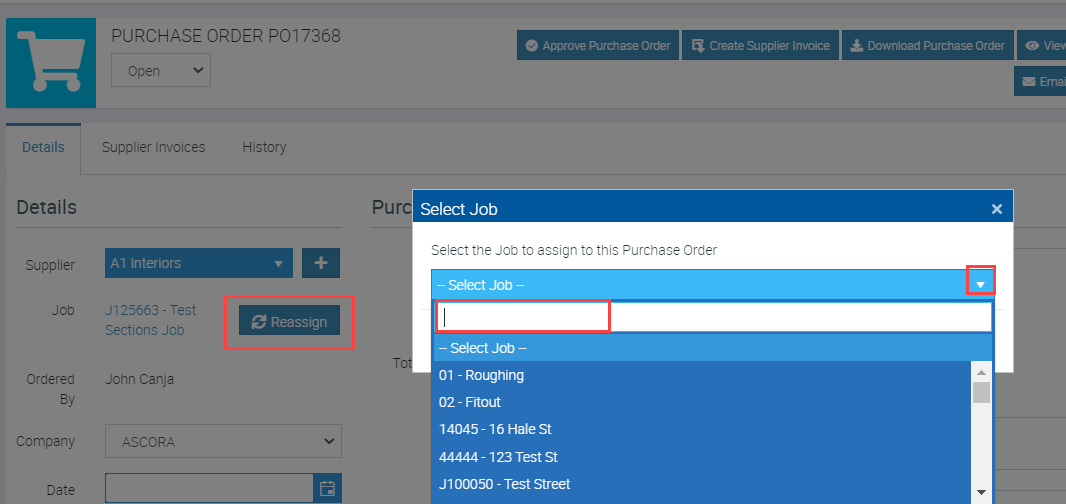
2. Once you've opened the PO details, click on Reassign button and click the white arrow and enter the new Job Number on the Search Bar. Job number has to be the one you need your PO reassigned to.
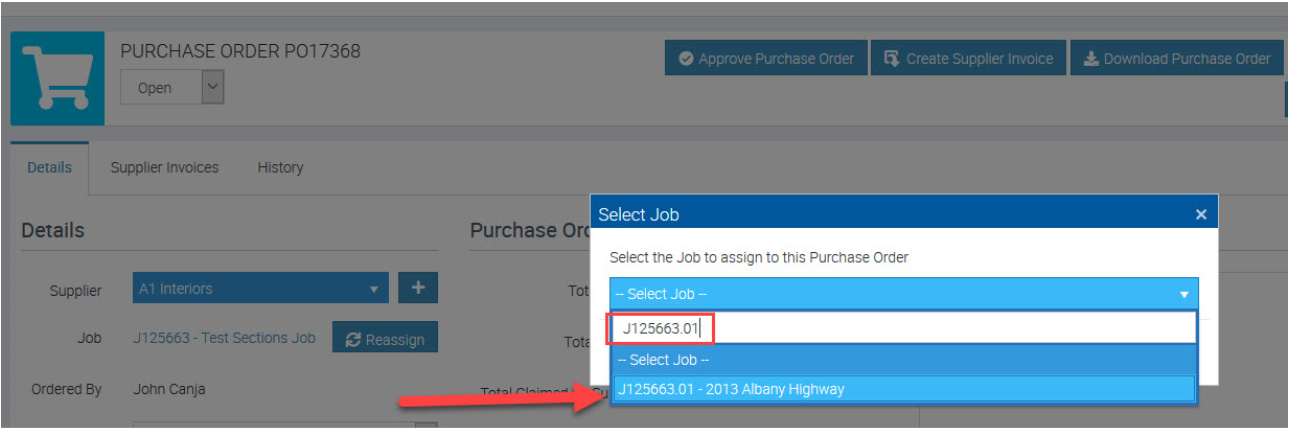
3. Once you've entered the new Job number, click on the job number that matches the information.
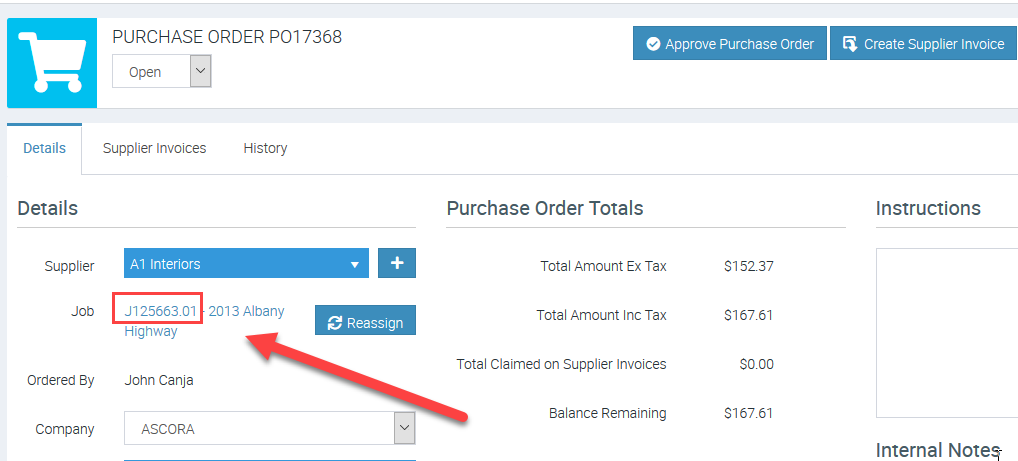
In this example, we are reassigning a PO from a Parent Job J125663 to a Job Section J125663.01.
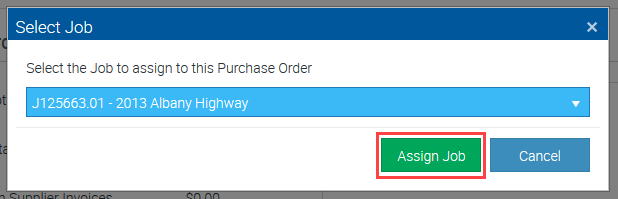
4. Click on Assign Job button and Confirm.
5. Wait for the screen to refresh and you should see the new job number showing in the PO screen.
Got a question?
Submit an Idea 💡 Go to Ideas Portal