The Follow Ups History page provides a centralized log of all automated follow-ups sent for quotes, jobs, and invoices. Here, you can review the details of each follow-up notification—including the message content, attachments, recipient information, and processing timestamps. Use the filters to sort by follow-up type, name, and date, enabling you to quickly locate specific communications and troubleshoot any issues. This log is an essential tool for monitoring your automated workflows and ensuring that your follow-up processes are functioning as expected.
Below are the key steps to access and utilize the Follow Ups History page effectively.
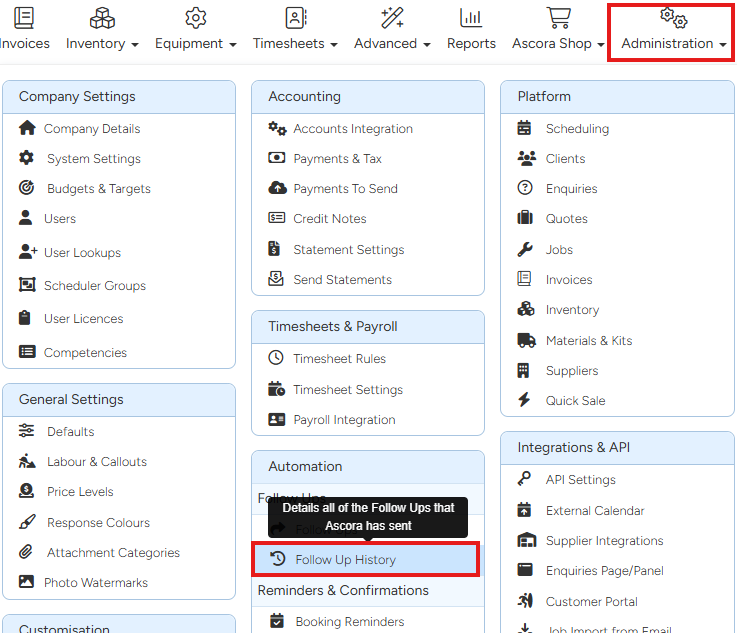
1. Go to Administration → Follow Ups History.
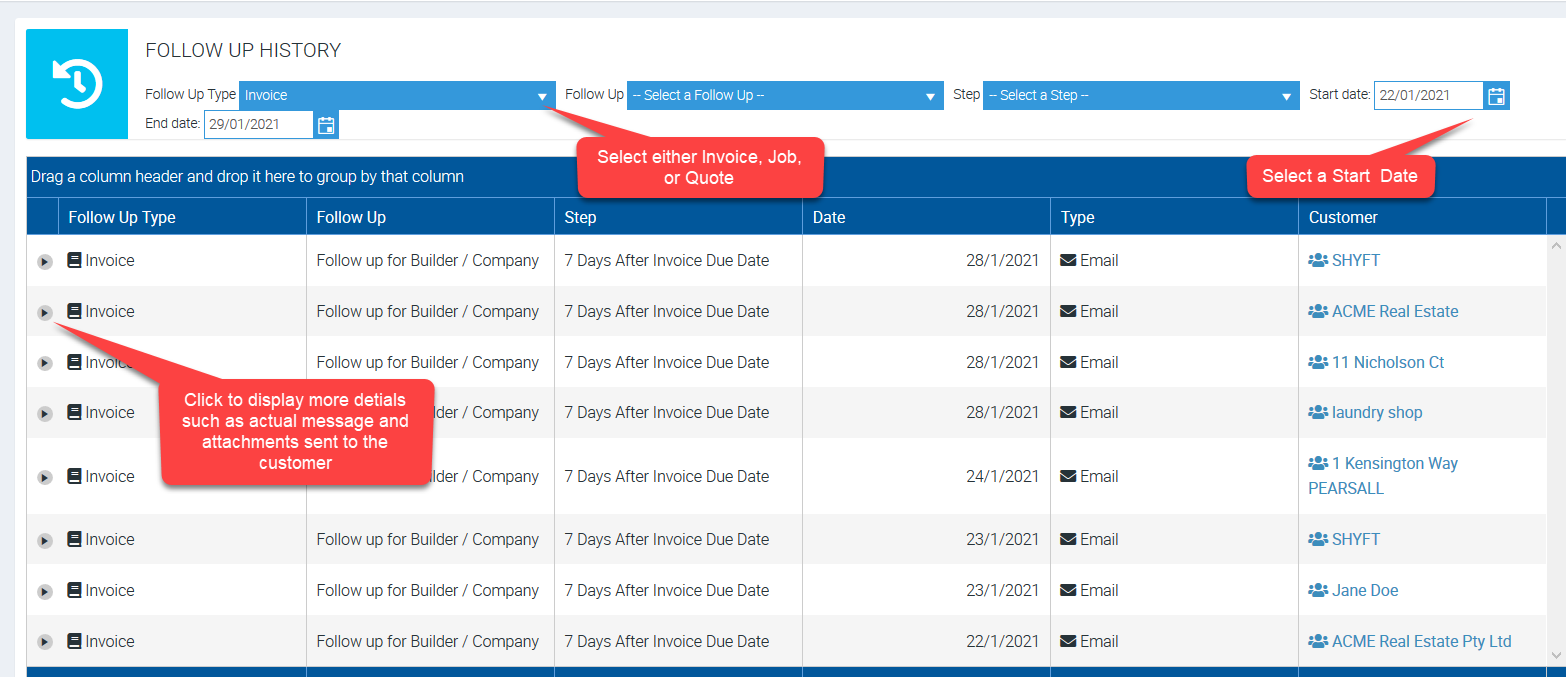
2. Select the Follow Up Type, Follow up Name, and Start Date.
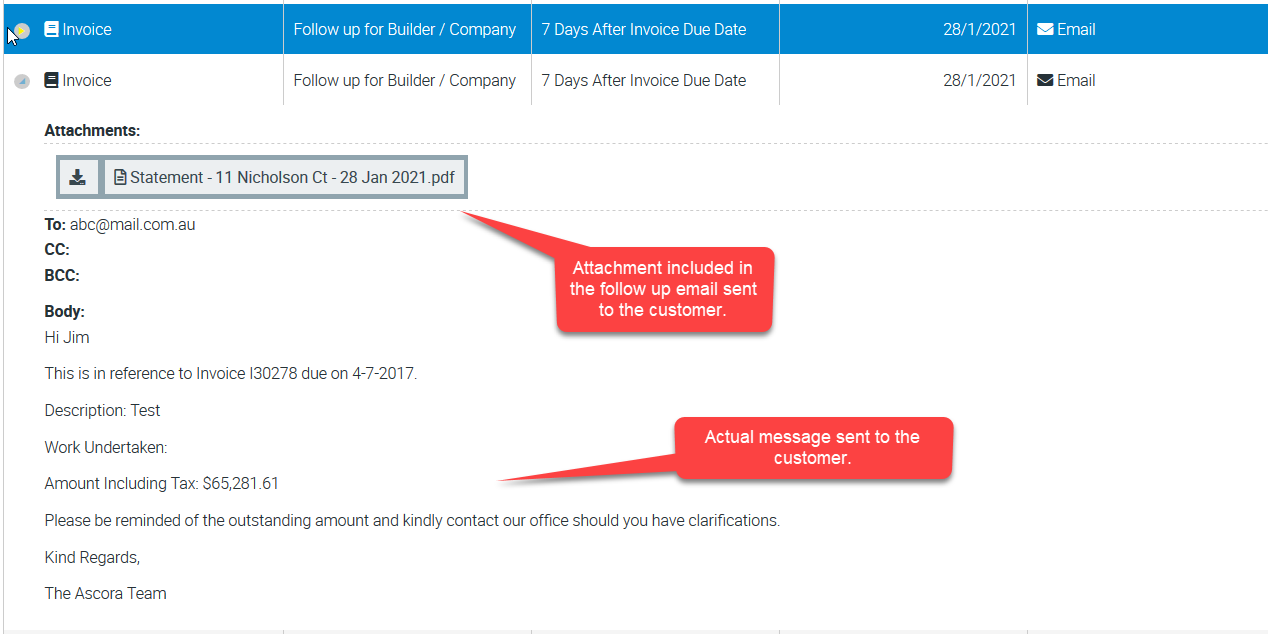
To display the actual copy of the email sent to your customer including any attachments, click the little triangle on the left most column.
3. The following is an example of a follow up history wherein it shows the actual email message, attachment, as well as email recipient.
Got a question?
Submit an Idea 💡 Go to Ideas Portal