In Ascora, you can add contractors as suppliers to simplify your procurement and invoicing processes. This allows you to:
✅ Raise purchase orders (POs) directly to contractors – Streamline job-related material or service procurement.
✅ Receive supplier invoices against contractors – Easily track and manage payments.
✅ Push contractor invoices to Xero – Automate your accounting workflow for accuracy and efficiency.
✅ Track contractor expenses within jobs – Maintain clear visibility on project costs.
By integrating contractors into your supplier management workflow, you can ensure accurate cost tracking, avoid manual data entry, and enhance overall financial transparency.
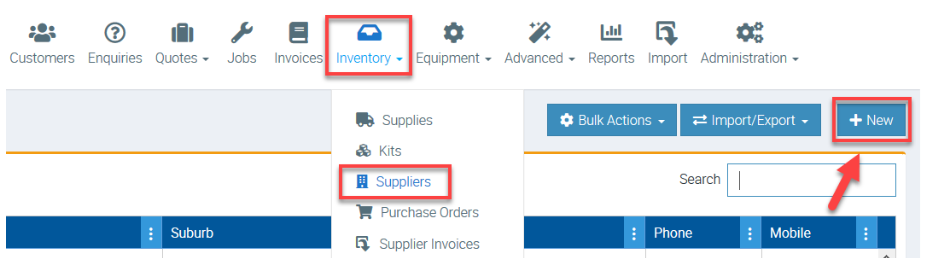
1. Go to Inventory → Suppliers and click on New.
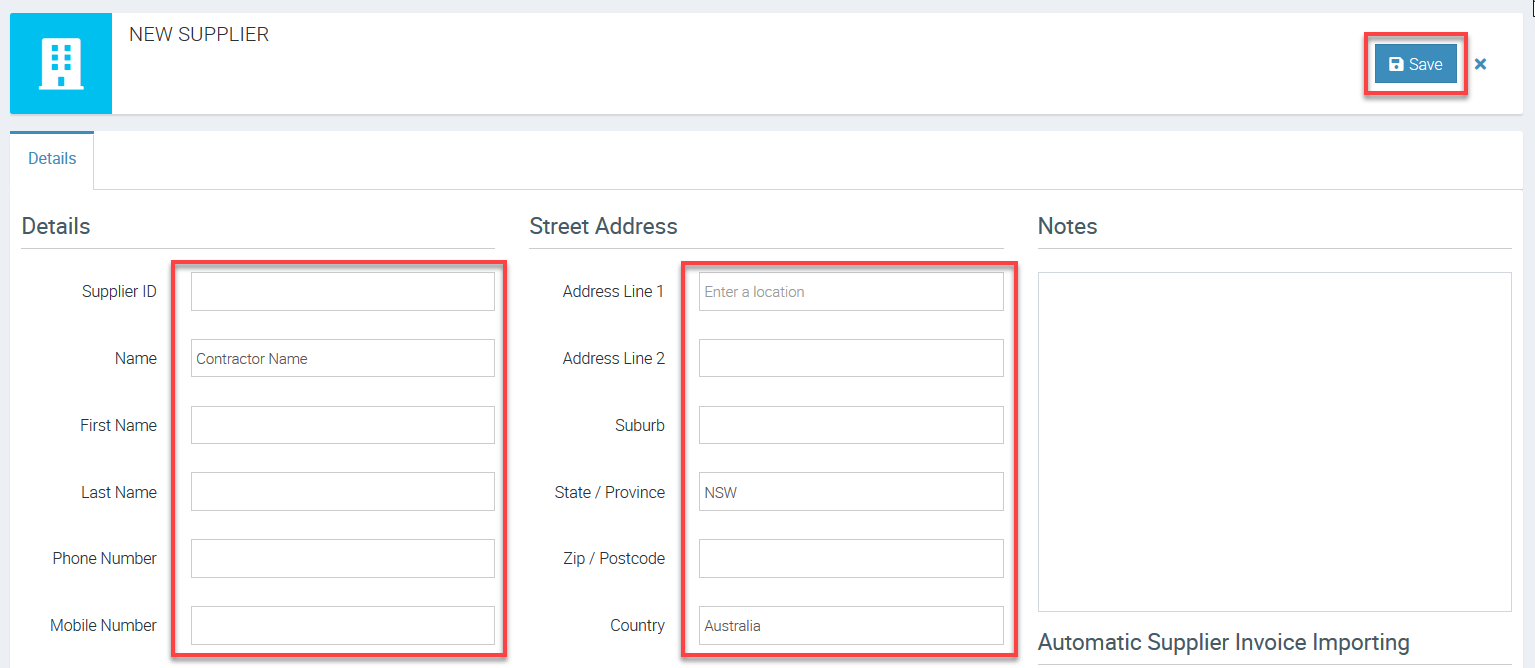
2. Enter the necessary details like you normally do with supplier but this time, enter the contractor information such as name, address, etc.
Once done, click Save.
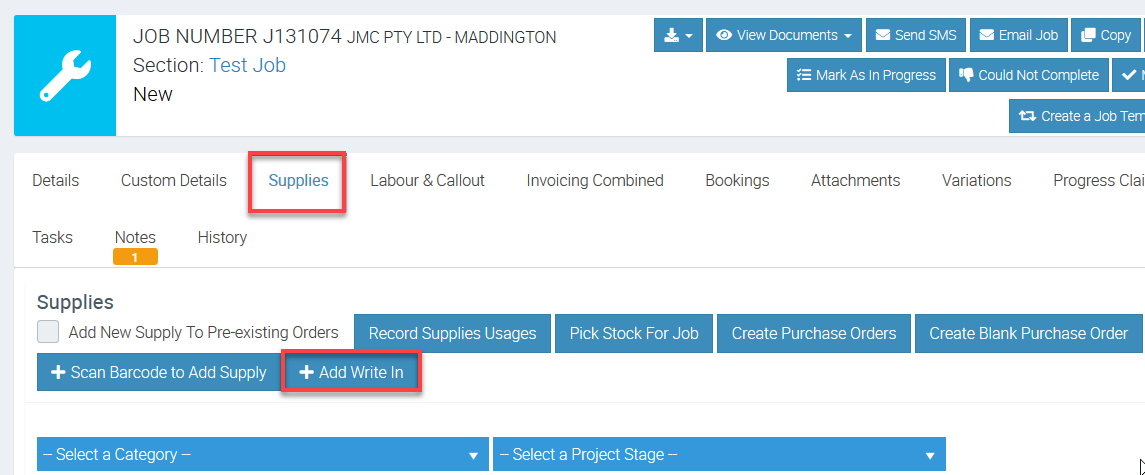
3. You can add a Write In and select the Contractor as Default Supplier and raise PO.
Access one of your jobs and to go Supplies tab and Add Write In.
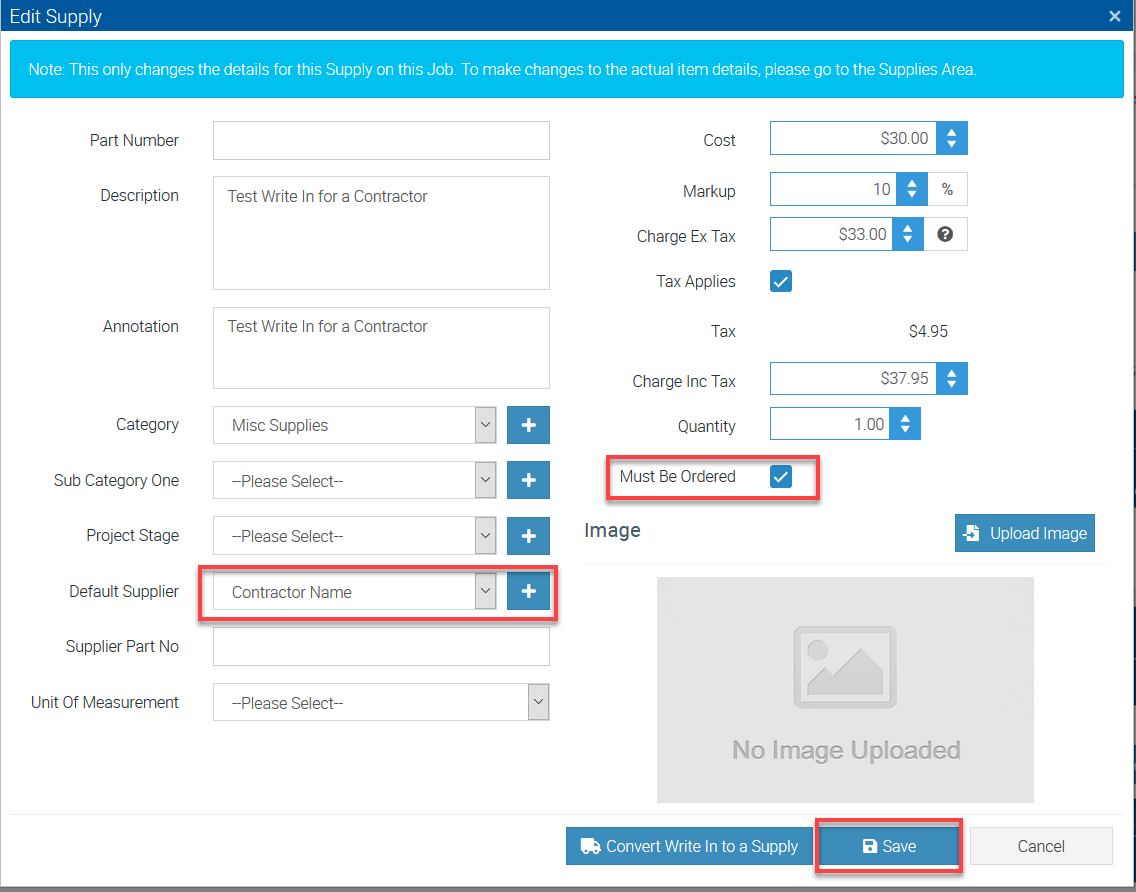
4. Add the necessary details, tick the box beside Must Be Ordered and select the Contractor Name and once done, click Save.
5. Click Create Purchase Orders.
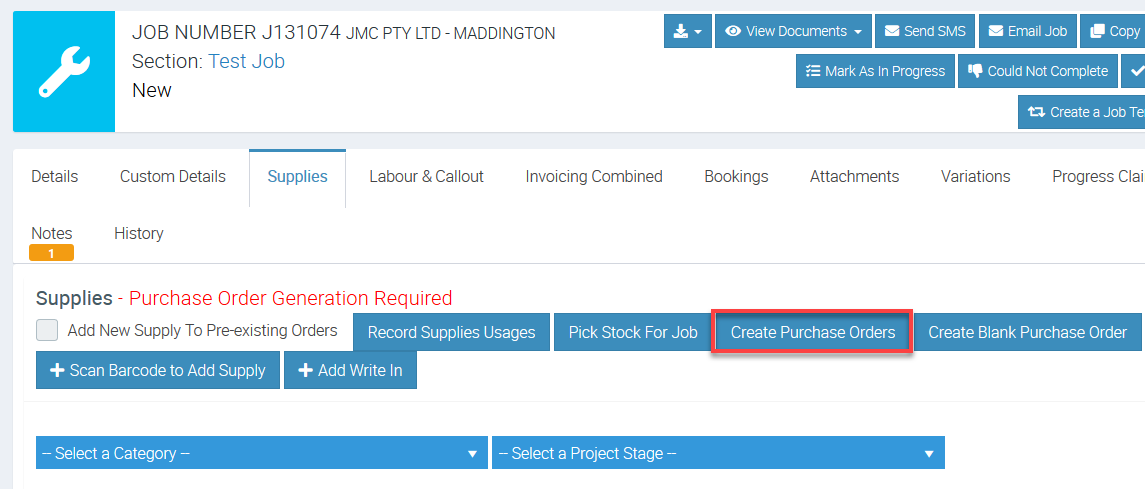
6. A PO gets generated and access it to view more details.

7. From the Purchase Order screen, you have the option to Email it to the contractor.
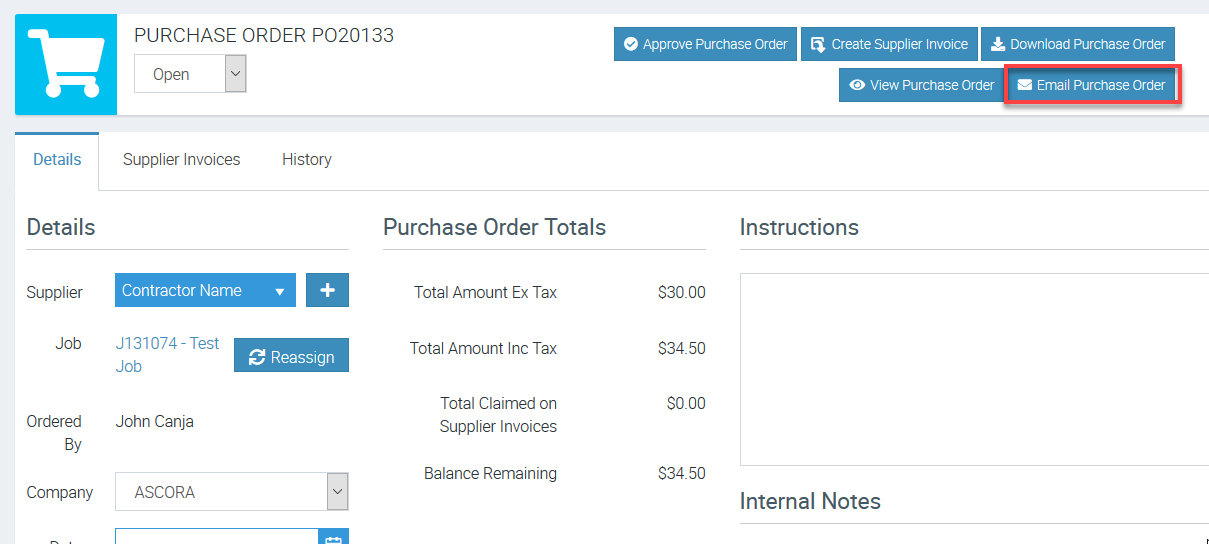
8. Receive the Supplier Invoice against the Contractor and you can have them pushed across to your Accounting Package.
Got a question?
Submit an Idea 💡 Go to Ideas Portal