About Ascora
Where is Ascora Based?
Ascora’s Head office is based in Perth, Western Australia. However we have team located all over Australia.
How long has Ascora been around?
Ascora has been operating now for over 10 years.
Multi-Company
Can Ascora handle multi-Company?
Yes, Ascora can handle Multi-Company. For more information on this please visit 🏙️ Using Multiple Companies in Ascora
Invoicing
Can an invoice include the details of the technician name, date or time attended job?
This is possible by adjusting your invoice template in Administration → Document Templates area. To learn more about updating your invoice templates, you can access the following guide 🧾 How to Update a Document Template
Can we add parts or supplies (not part of supplies list) directly to an invoice?
You can add parts directly to an invoice and if it's a totally new part or supply, you can click on + Add Write In. To learn more visit 🔨 Adding Supplies, Kits, and Write-Ins
How do we flag our maintenance clients, so that the labour for jobs is NOT charged when invoicing?
For the Maintenance Clients, you can create a Price Level for them in which Labour is non-chargeable. This can be set up via Administration → Supplies → Price Level. To learn more about price level, please access the following user guide 📊 How to create a New Price Level
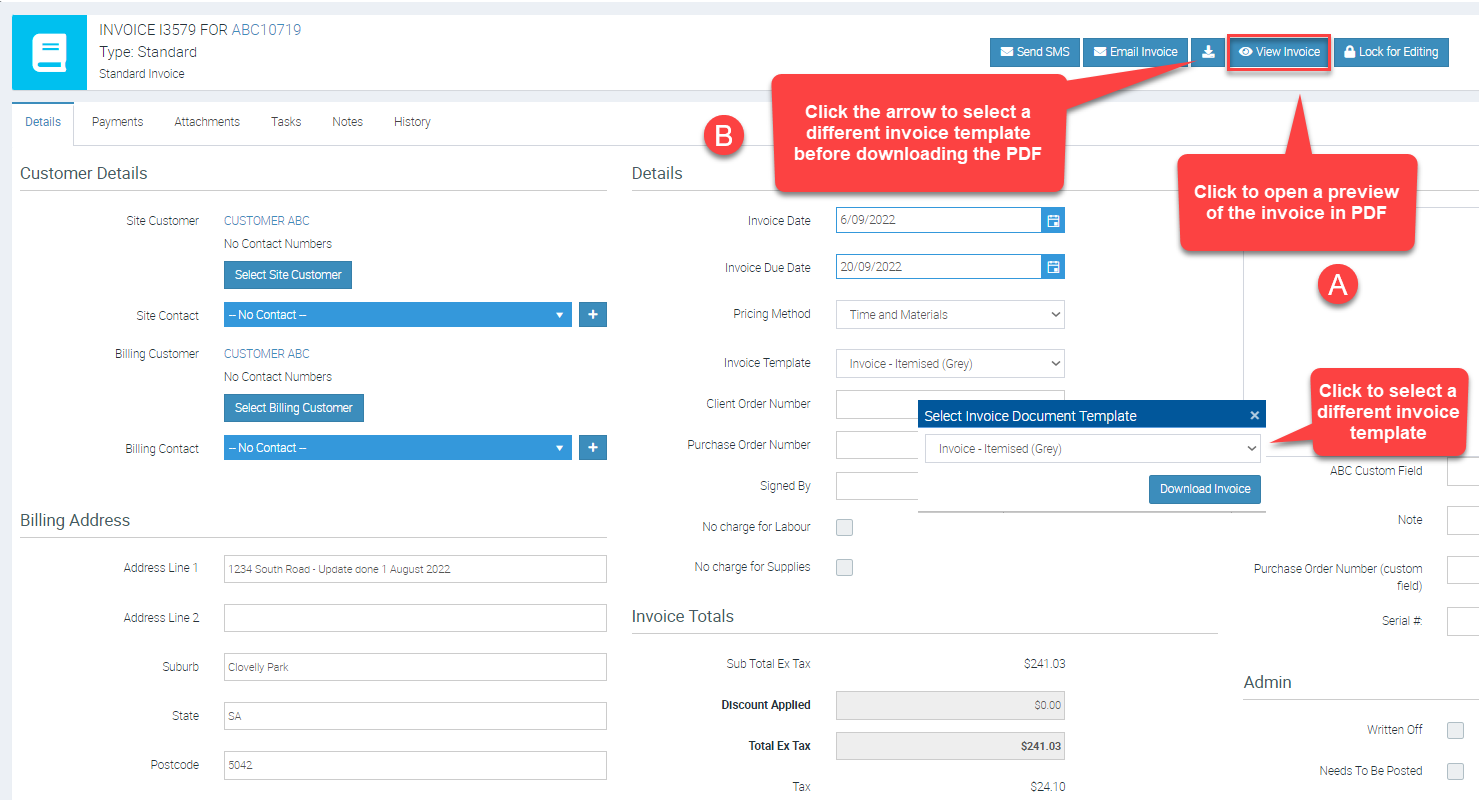
How to preview an invoice?
A. View Invoice will bring up the PDF invoice output on the screen
B. The Download Button allows you to select the various invoice template prior to downloading the updated PDF based on the Invoice template selected.
How to set up recurring invoices in Ascora?
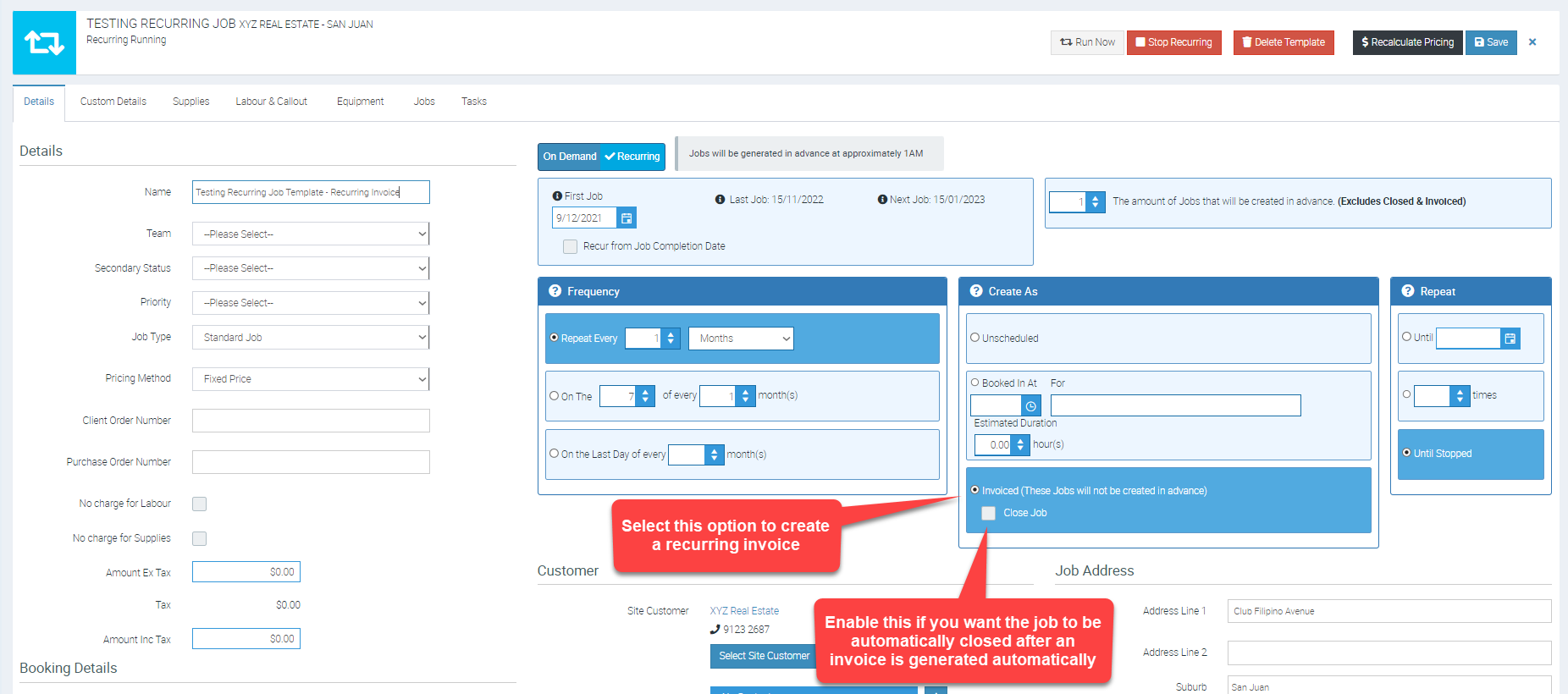
Recurring Invoices can be set up via Advanced → Job Templates.
Please refer to the image below as an example job template set up to create a recurring monthly invoice.
Is there any way Invoices can be moved from a Section to another Section (or to a the Parent) within the job?
It's not possible to move invoices that way. Once a payment is applied and reconciled, that transaction is locked in the accounting package.
The only way to rectify that is to backtrack manually by going into your accounting package and undo the payment, unreconcile, and then cancel the invoice in Ascora and then recreate the invoice in the correct section and reconcile it again in the accounting package.
Logging Into Ascora
How do I login to the App?
Once you’ve downloaded the Ascora app from the app store you will need to enter your email address and PIN. The Pin is set when the user is created under Administration → Users on the Ascora portal. For new sign-ups the PIN will be set to 1234 initially and this can be changed any time.
Can we add parts or supplies (not part of supplies list) directly to an invoice?
You can add parts directly to an invoice and if it's a totally new part or supply, you can click on + Add Write In. To learn more visit 🔨 Adding Supplies, Kits, and Write-Ins
I’ve entered my password incorrectly too many times, and now I can’t login. Can you unlock my account?
If you enter your password incorrectly too many times within a set time window your Ascora login will be disabled for 30 minutes. This is a security feature to protect your account from unauthorised access. Your account will automatically be re-enabled after 30 minutes. If you are still having issues after that time please let us know.
Ascora Trial Accounts
Is there any limitations to the free trial account?
The free trial is fully featured – you’ll be able to do everything in Ascora with the exception of being able to send SMS. SMS cannot be enabled on a trial account.
Can I book a demo or have my queries answered?
We do have a demo video online at https://ascora.wistia.com/medias/lfr0aiudhf which will give you a good run through on the features Ascora has. Once you have watched the online demo, you can book in your free 1 hour demo with our product specialists who will run through Ascora based on your business requirements. To book a demo please head to: https://www.ascora.com.au/home/bookdemo Please note that spaces get taken up relatively quickly and there is often a 2-3 week wait time.
Will the information I entered during the trial period be lost once I start subscribing?
No, the information you have entered during the trial period stays in your account when you start subscribing.
Scheduling
Can I set a default team in the Scheduler?
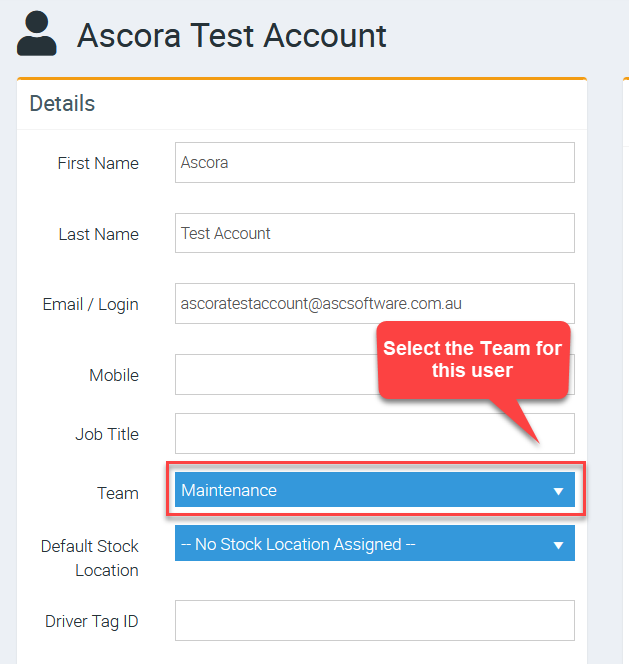
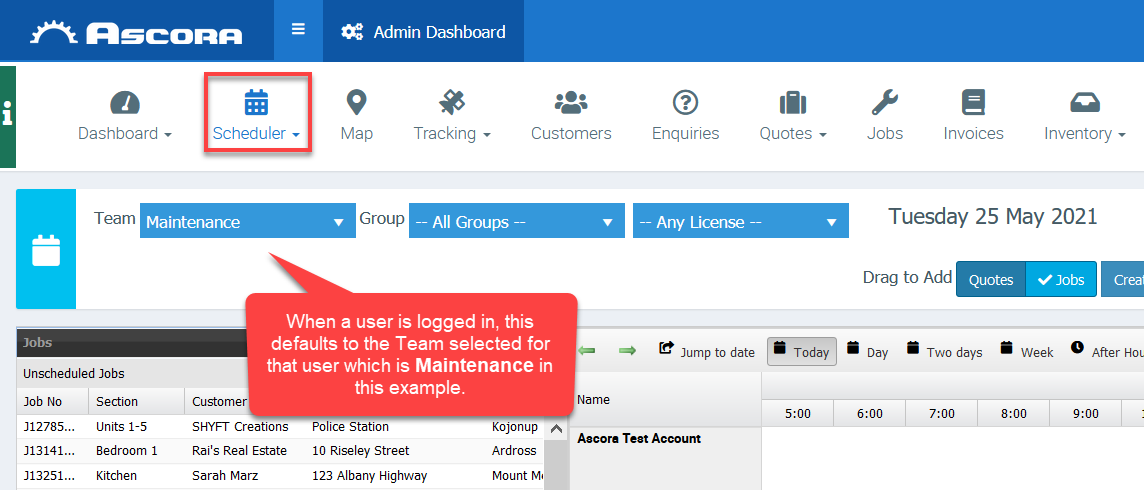
You can set the Default Team on the Scheduler Page by adjusting the Team you are set as under your User Details.
So for example if you are assigned to the "Maintenance" Team in your User Details, the Scheduler will open to "Maintenance" as the team selected.
1. Go to Administration → Users to edit or set the Team.
2. When a user is logged in and goes to Scheduler the default team will be his team or the team assigned to that particular user.
Assigned Users
What is an Assigned User?
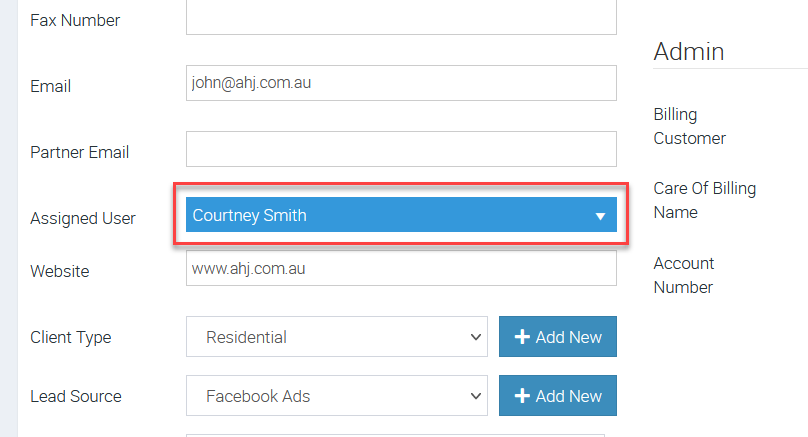
An Assigned User relating to a Customer Card is used for assigning an account manager, and can be useful in filtering customers in the Customer menu.
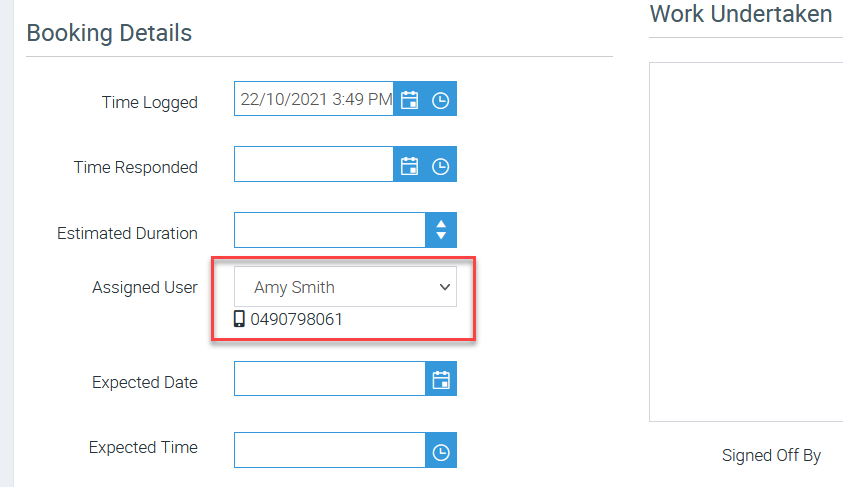
An Assigned User relating to a Job Card is the tradesperson/technician/staff member assigned to work on the Job.
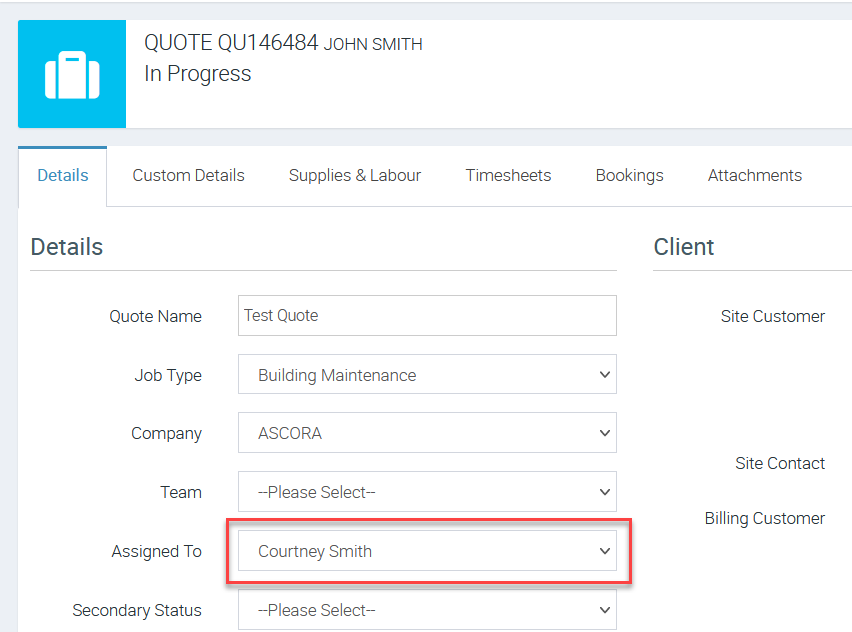
An Assigned User relating to a Quote or Quick Sale is used to display the logged in user that created the Quote or Quick Sale.
Other FAQS
Can we sent automated emails to the lead depending on the industry or type of job they have enquired for?
You can create Automatic Follow Ups for Quotes, Jobs, Invoices based on the Customer Types. It is possible to have a different email sent to the different Customer Types at different stages.
I can see only a small amount of data on each screen, how can I adjust this?
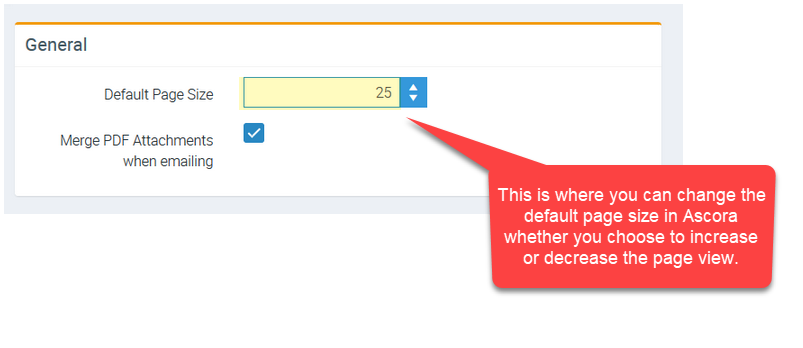
The majority of screens are paged and the page size can be set in the Administration → Defaults. Contacts were set to use the visible area of the screen. This has been adjusted so that it uses the standard Page Size from Defaults rather than the size of the user’s screen.
Why is the event feed showing a user has checked in but data not appearing in Timesheet editing?
The event feed message is an immediate push of data that is NOT processed through the sync. Items in here will show up prior to a sync being performed.
Elements such as Timesheets etc. are only available on the web after a sync has occurred.
Ascora App (iOS & Android)
Can you take photos on jobs?
Definitely! They’ll be able to either take new photos or select existing photos from the gallery on their device to upload them against the Job or Quote.
Can I use my phone, or do I need a table?
You can definitely use your phone. We’re finding currently that over 75% of Ascora users are running the app on their phone rather than a tablet (this number has increased over the years as the phones have become larger). It’s quite common to go for a tablet if you are viewing a large number of plans during the day as it gives you more screen to view them on.
Does Ascora use a lot of mobile data?
No – we have offline capabilities so the app is not always communicating with the Ascora server. Additionally all data between the app and server is compressed/zipped to make it as small as possible. We do have clients on the 12 GB per year mobile plan with Telstra for example.
Does Ascora work in Android and/or iOS (iPhone / iPad)
Yes – we have native apps for both Android and iOS that are available from the app stores.
If I delete and reinstalled the app, could I still access history?
If you have a fresh install, you won't be able to pull down the history going back so far but you can download all history for a Customer under the Customer Details → Retrieve Customer History.
For a device running for longer it will be building up that history as you go.
If you need the history of Customer's previous visits, you can pull down all visits since the start of time for that Customer - which will then pull through in the Calendar etc.).
Email
Ascora emails are not received by our clients/customers
Ask your customer to update their email settings
- Sometimes emails from Ascora can be caught in high-level email filters set by the email hosting provider. Ask your customer to check that the email hasn't been marked as spam, and redirected to their junk or spam folders.
- To stop future emails from being marked as spam, your contacts should add @ascsoftware.com.au to their email safe senders list. They might need their IT administrator to do this.
- If your customer receives an error message after they add @ascsoftware.com.au to their safe sender's list, they'll need to check with their email provider to see why Ascora emails are bouncing.
For your customers with a '@bigpond.com' email address please note:
Telstra has advised that they are phasing out Bigpond accounts. Therefore, it is no longer possible to set up an account, and the Bigpond mail servers are only receiving the bare minimum of maintenance just so that existing customers can keep receiving their bills. Due to the lack of maintenance, it is likely that the mail servers have fallen out of step with current web standards, and unfortunately, that means that we can no longer guarantee delivery of emails to Bigpond mail addresses. The issue is beyond our control.
Jobs
Can we assign multiple people to a job?
Many Users can be booked onto a Job however ultimately only a single user can be responsible for the Job (in the same way that a Task is assigned to a single User). If more than one person is responsible for a single job, then accountability is lost.
When a job is booked for multiple users, each one of them will see the job in the mobile app and can add the corresponding details during job completion such as photos, work undertaken, etc..
Can we get an alert for jobs “ready to be invoiced”?
In the Job List, you can filter jobs that are "Ready to be invoiced." From the Job Status dropdown list, you can select either Completed, Completed Not Fully Invoiced or Ready to Invoice. The logic behind this is you are invoicing for a job and can be at various levels so invoices are tracked from the job level.
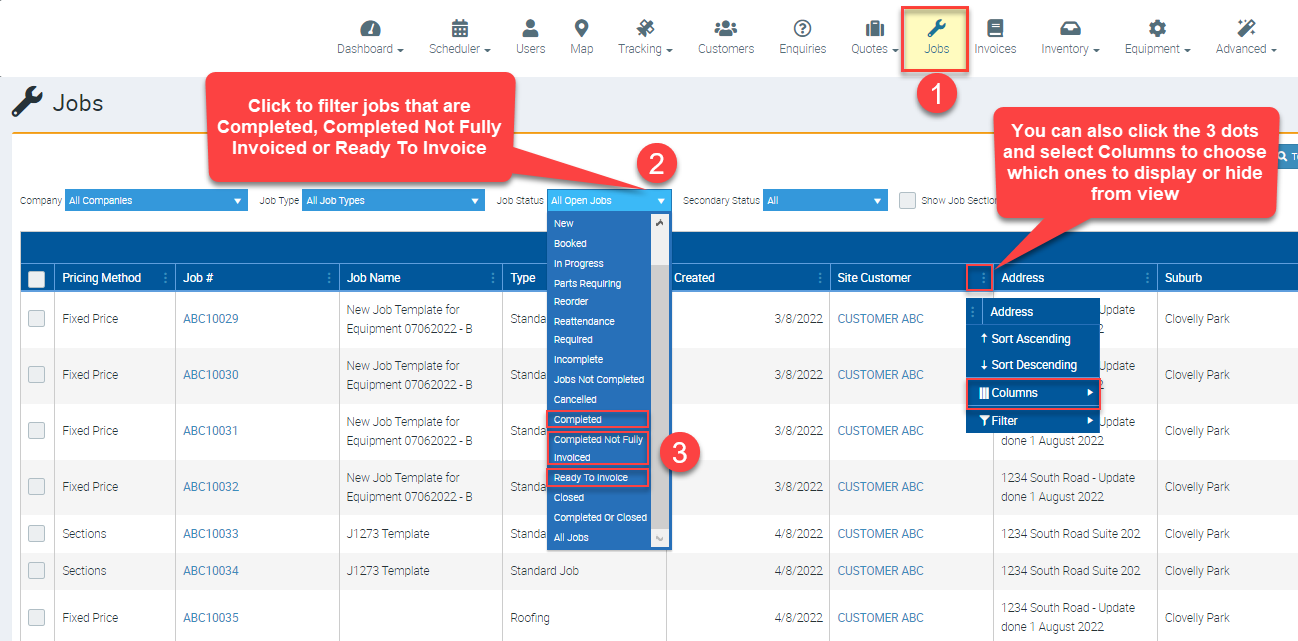
Jobs can be marked as completed either by the technicians (after they completed the work on site) or by the office person who does the invoice and filter jobs accordingly (ie. Completed, Completed Not Fully Invoiced or Ready to Invoice) and generate the invoices.
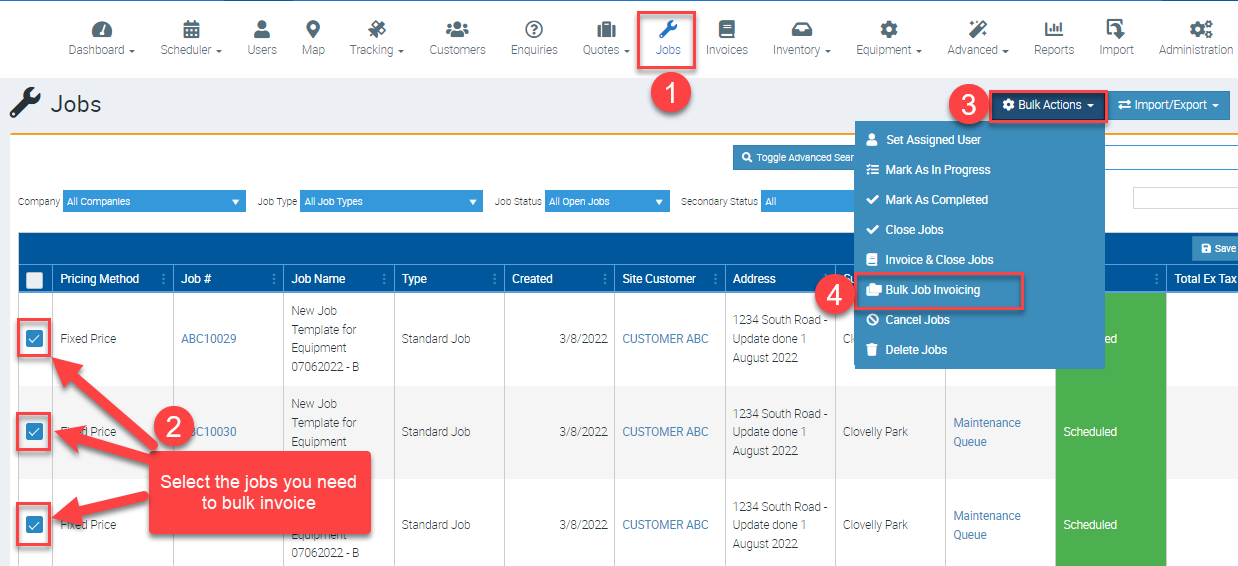
Invoices can be done in Bulk as well via the Bulk Actions icon. Please refer to the image below but to learn more about Bulk Invoicing, access the Untitled user guide.
When a job is booked for multiple users, each one of them will see the job in the mobile app and can add the corresponding details during job completion such as photos, work undertaken, etc..
Can we make travel time chargeable?
The travel to action is not chargeable. In order to charge travel time, the Start Travel Within Job action needs to be selected.
For Android app, it is under the Labour tab on the Job, under the Check In Action button.
For iOS app, it is under Job details → labour.
Can we rebook recurring jobs assigned to an ex-employee to a new employee?
Before disabling access of the ex-employee, you can first view both users from the Scheduler and move each booking manually (drag from ex-employee to new employee.) Next, you can go to Advanced → Job Templates and update the assigned user.
Once the above steps are already completed, you can make the ex-employee an inactive user
For the detailed steps in disabling a user, please see 🙅♂️ Disabling User or Removing Duplicate Users
How do we assign different labour rates depending on job?
Project-specific rates or client-specific rates can be established by accessing the job → Job Specific Rates tab.
Alternatively, the user can select and change the Labour Role on the Job as needed.
This can be done in the mobile app by accessing the job and navigating to the Labour tab as per screenshot below.
Client Specific Rates can be set under Price Levels. To learn more about price levels, please see 📊 How to create a New Price Level user guide.
How to go about a recurring job with two visits per year but need a monthly invoice?
The easiest way to handle this is to create two different Job Templates which you can do in Advanced → Job Templates.
- The first template is for the various visits.
- The second is set to Invoice and Close the Job and would be for the monthly billing.
How to see more details in the Audit Log (Jobs, Quotes or Invoices)?
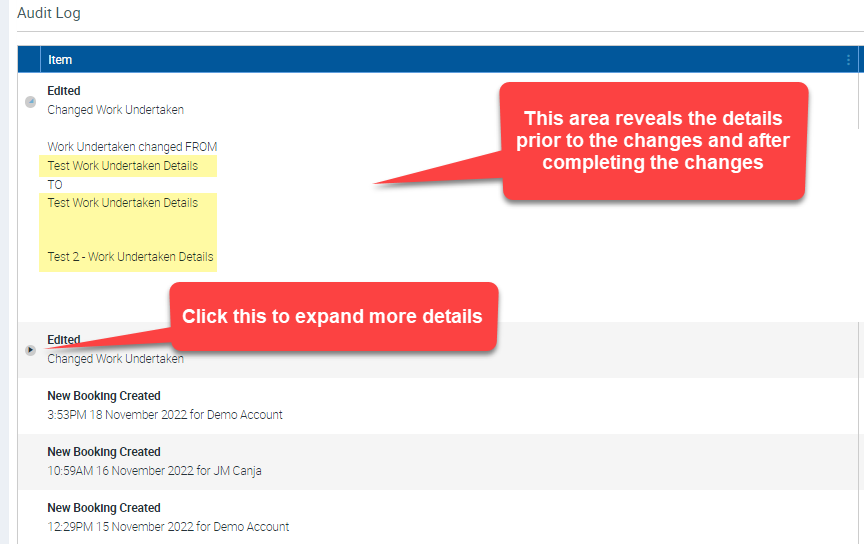
Ascora logs the important and common actions to ensure most items are trackable. The audit log in many cases can be expanded to show the previous and new values of the affected fields. It is important to note that it is impossible to log everything without making everything clunky.
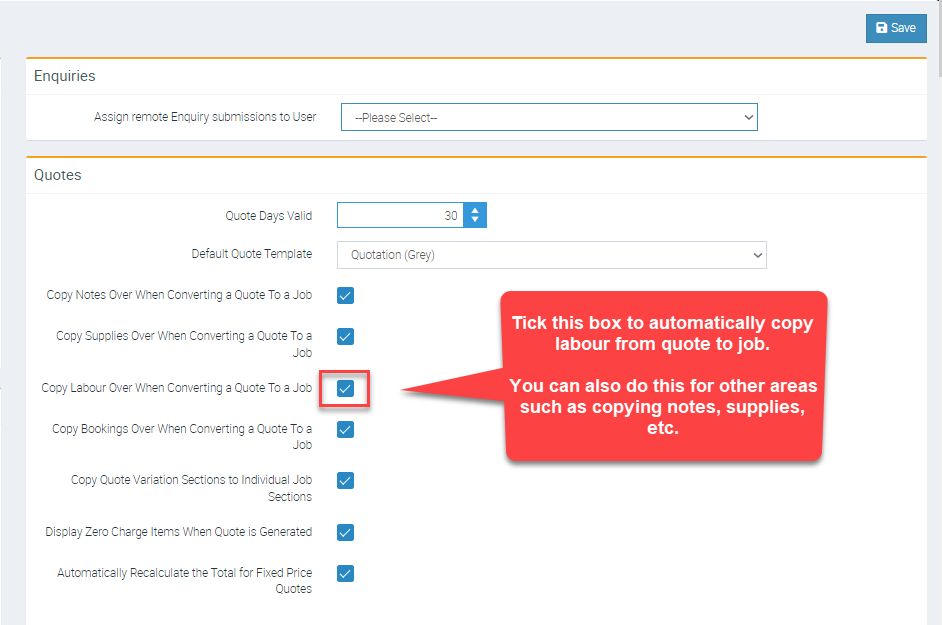
Is it possible to have the Labour from Quotes map across to jobs if needed?
This preference can be adjusted in the Administration → Defaults screen.
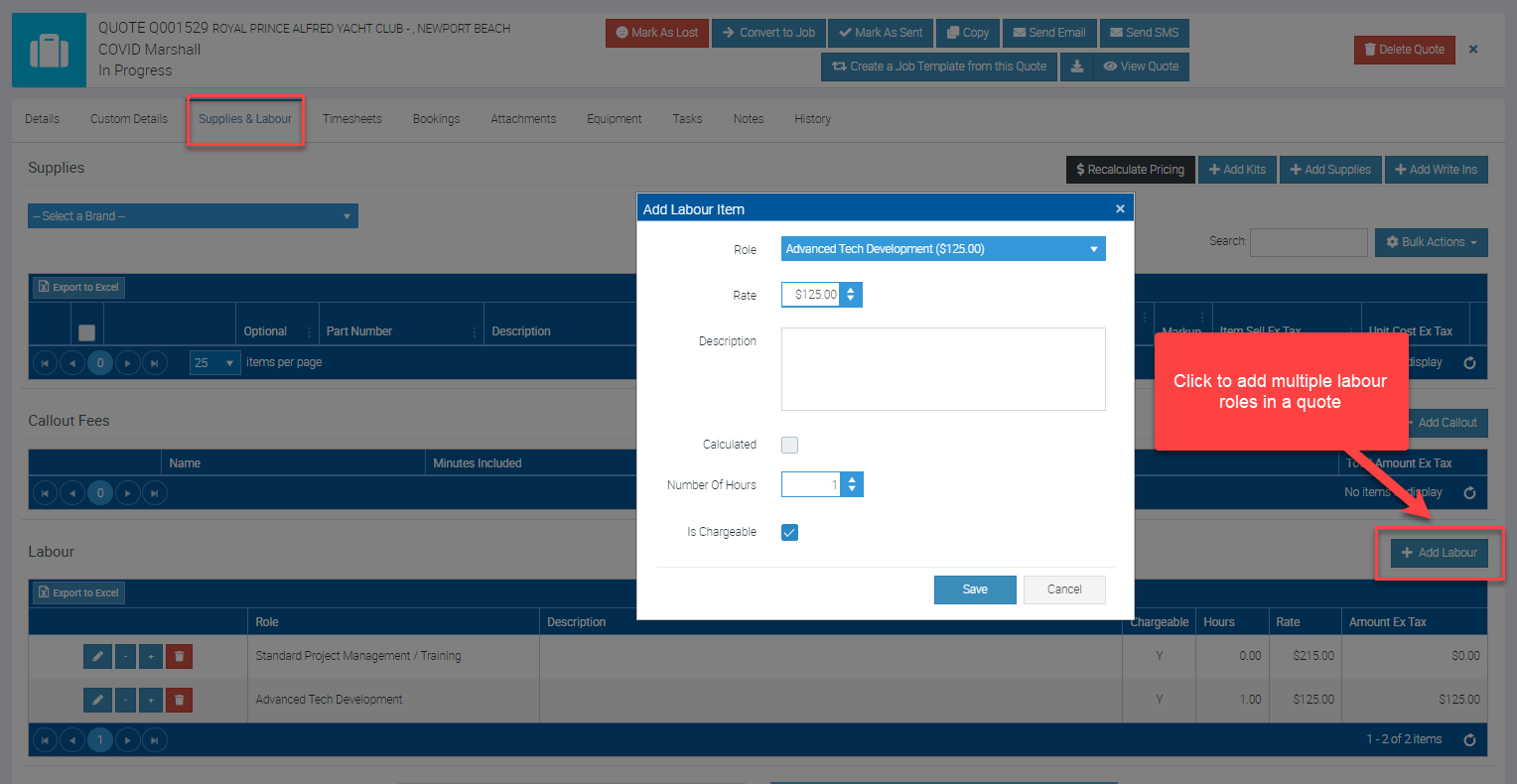
When quoting, how do we add multiple labour roles?
You can add as many labour roles as needed on the quote level.
This can be done by accessing the quote and navigating to the Supplies & Labour tab and clicking on + Add Labour.
Why is there a jump in job, invoice or quote numbers?
Each mobile app will pre-allocate 25 numbers whether it's quote numbers, job numbers, or invoice numbers. This ensures that a mobile app user can create a quote, job, or invoice without mobile coverage as Ascora supports offline mode. You will see a jump in numbers, as expected behaviour, to guarantee unique quote, job, or invoice numbers can be allocated.
You might also see a big gap when mobile apps are being deleted and reinstalled multiple times.
My Ascora Account & Subscription
How to access the Idea’s Portal?
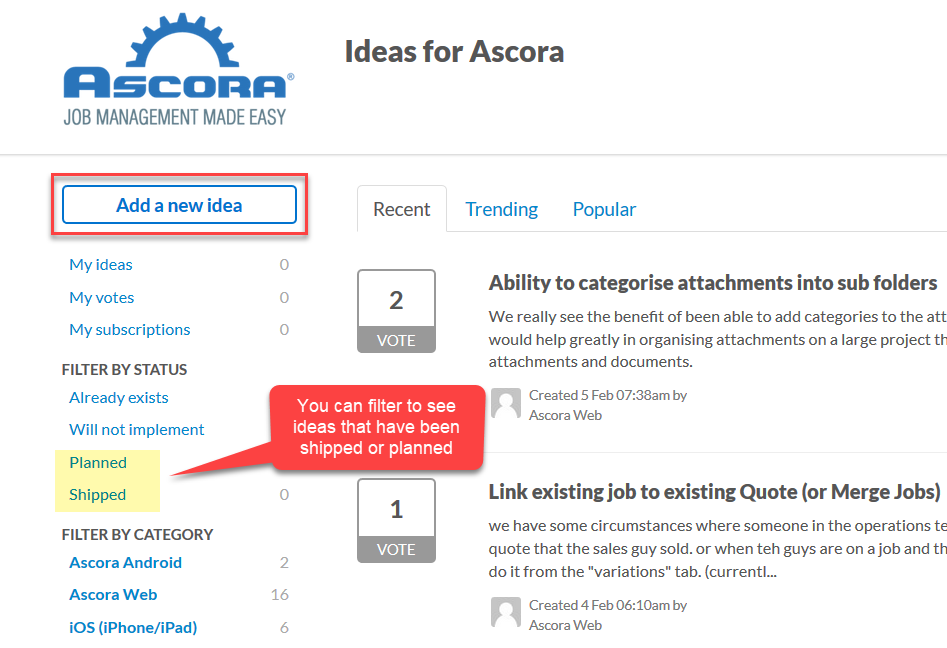
Ideas Portal is where you can add your idea or feature request for possible consideration and if approved, will become a new feature in Ascora.
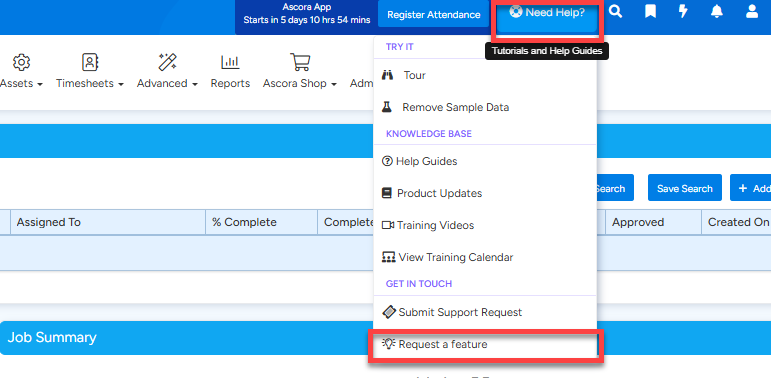
1. To access Ideas Portal, click on the Need Help? located on the upper right part of the screen and select Request a Feature.
2. To add your feature request, click Add a new idea.
How to change email address to receive Ascora Invoices?
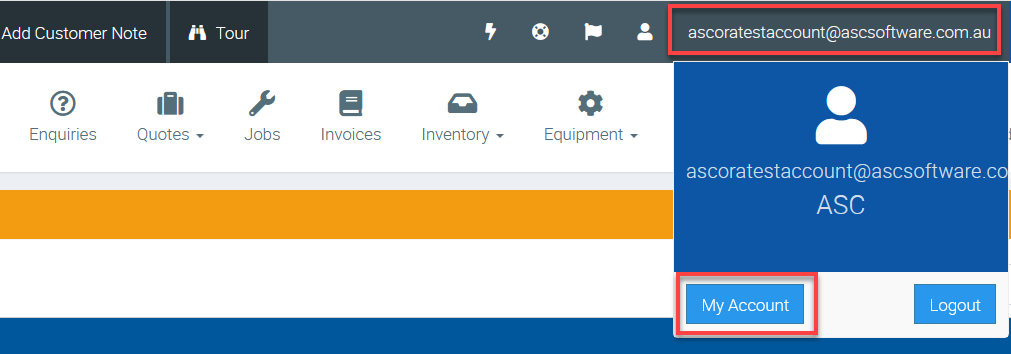
1. You can update the email to receive Ascora monthly invoices by clicking on your email address on the top right hand side of the Ascora screen and click My Account.
2. In the Account Summary tab, enter or change the email address in the field called "Send Invoices to" and click Save.
Note: You can also access your monthly invoices by navigating to Your Invoices tab.
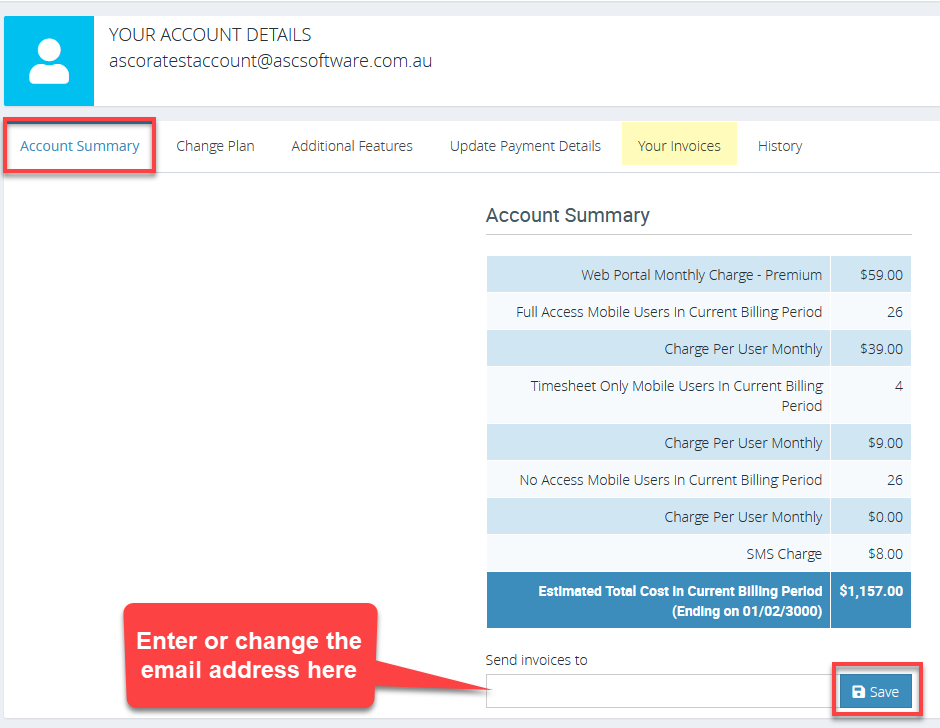
Important Note: If no email address was set on the "Send Invoices to" field, the monthly invoice or notifications regarding invoices will be sent to all users.
How to update Credit Card Details for your subscription
You can update your credit card details by clicking on your email address on the top right hand side of the Ascora screen → My Account → Update Payment Details.
Enter or update your credit card details and click on Update Details located on the lower portion of the screen.
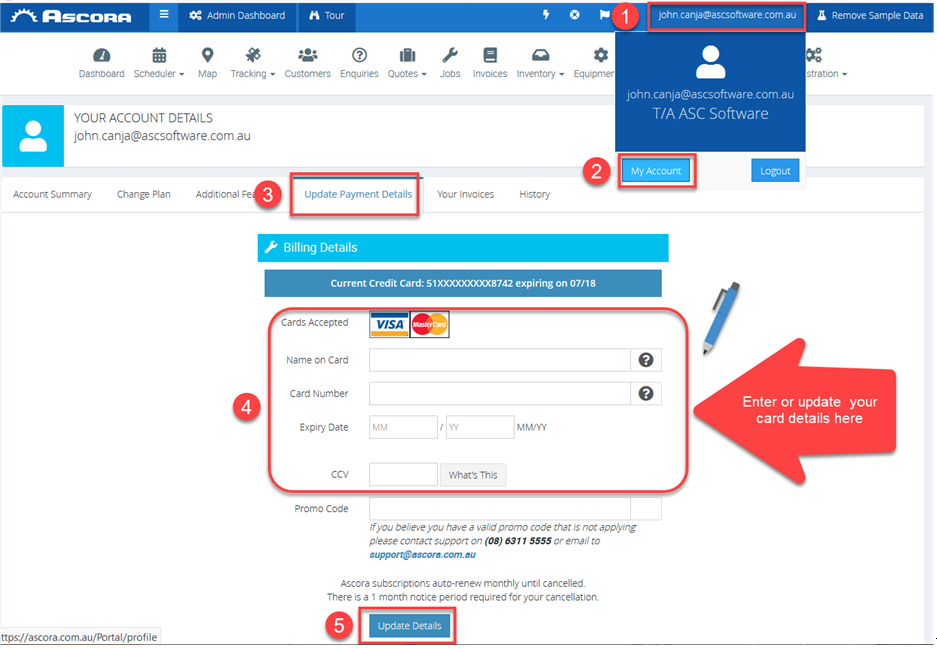
Note: If your most recent payment was unsuccessful, once you've updated your credit card details, payment will be automatically re-processed and unlock your account if it has been locked.
How would I know about recent System or feature updates in Ascora?
1. You can join our Ascora Toolbox Talk Private Group in Facebook wherein we will update our Ascora users when there are updates being rolled out. It's also a group where users can share their Ascora knowledge amongst members.
2. You can click the Product Updates button in Ascora and this will show a list of recent or new updates or features and/or functionalities. Once a new release note is available, it will be indicated as unread message in the Release Notes area.
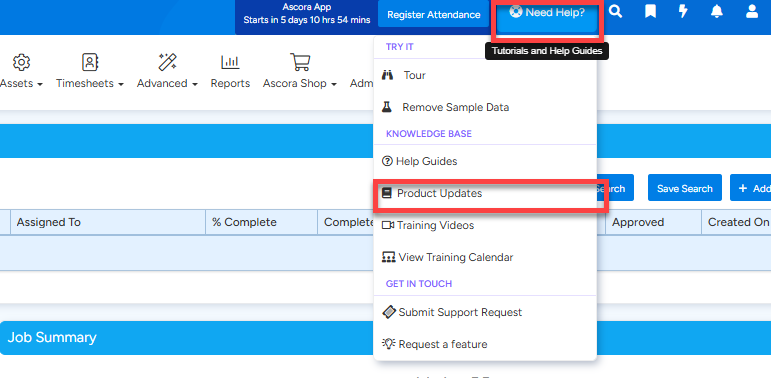
Can I get a copy of my monthly invoice?
You will be able to retrieve a copy of you invoice following the below steps:
Once logged into Ascora, please click on your email address on the top right corner → MyAccount → Your Invoices
How does subscription pricing work?
Please visit https://www.ascora.com.au/price for more information
How much does it cost to send SMS’s from Ascora?
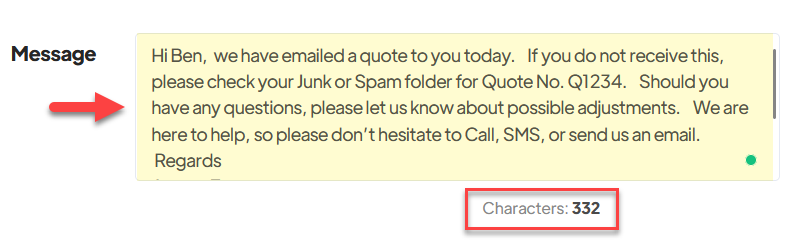
SMS is charged as $0.10 per SMS per frame (which contains 250 characters.)
This is how all other SMS systems function, and is a straightforward value metric – the more SMS you send, the more value and are then invoiced accordingly.
For example, if you had 120 SMS sent for the past 30 days as we bill in arrears, that's calculated as 120 x 0.10 = $12.00 total SMS charge.
The following example message is equivalent to 2 SMS as it has 332 characters in total (250 characters on the first frame and then 82 characters on the second frame).
This will be charged as $0.10 x 2 = $0.20
Quotes
Is there a way we can round up the $ dollar value in quotes, so quotes don’t issue to clients with odd amounts?
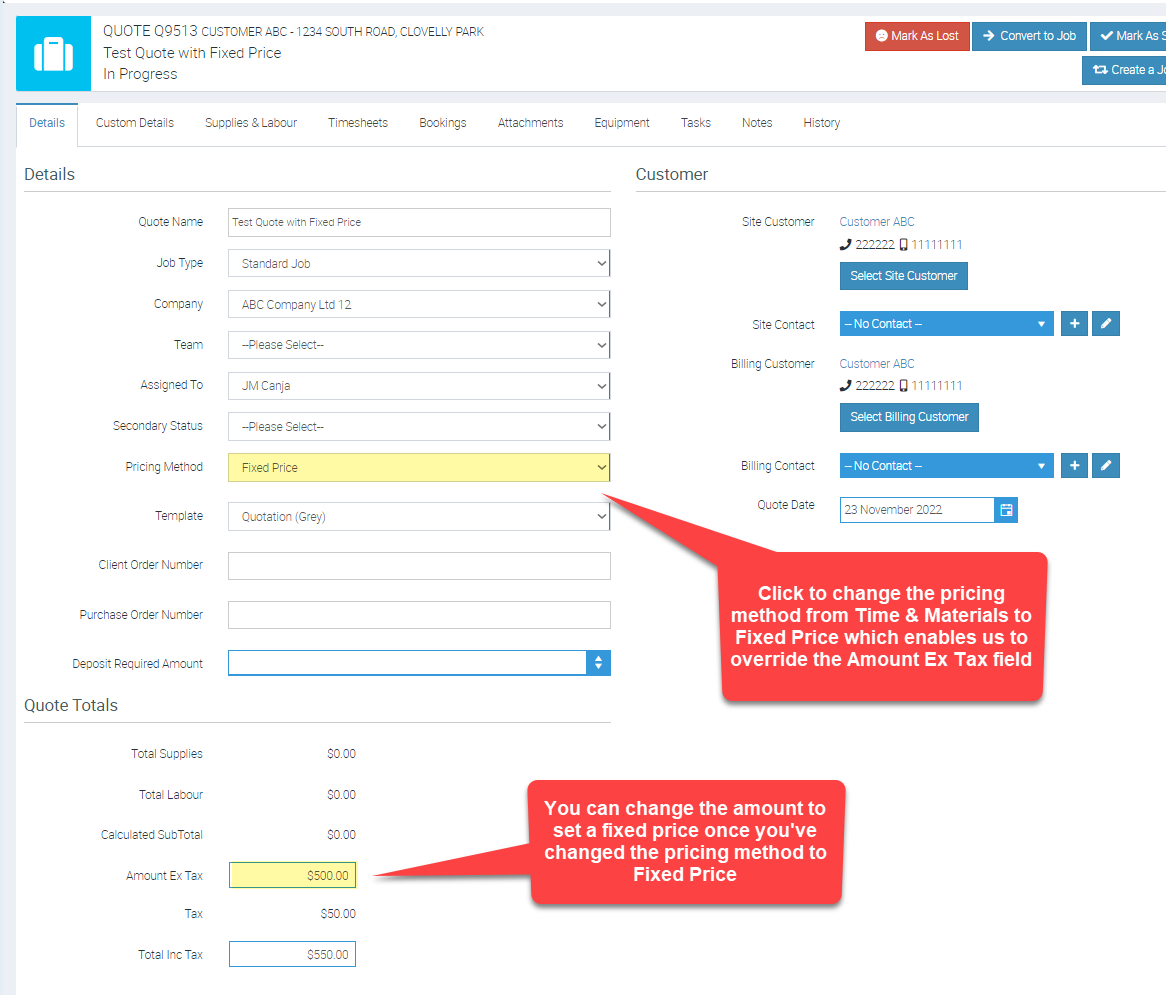
This can be adjusted manually - You can change the pricing method to Fixed Price and adjust the price field accordingly.
Please refer to the image below on how to change the pricing method to a Fixed Price and how to change the Total Quote Value.
Xero Integration Errors
Xero Returned: Invoice not of valid status for modification.
What does the following error message mean when trying to push an invoice across to Xero?
Xero Returned: Invoice not of valid status for modification. This document cannot be edited as it has a reconciled payment or credit note allocated to it.
The message displayed is that Ascora is attempting to adjust the Invoice but it can't as a Payment has already been allocated to the Invoice in Xero (just like if you are using the Xero web the API behind the scenes won't let us update the invoices in this case).
If they need to be updated you would need to remove the payment, push/edit the Invoice and then reapply the payment again.
Xero Error: Website must be valid
Problem
One error that may occur when pushing Ascora Invoices to Xero is "Website must be valid". This means that the website field of the contact in Xero needs to be formatted correctly or contain invalid characters. To fix this error, you must find and edit the relevant contact in Xero and ensure that the Xero contact’s website is valid. To achieve this, here are the steps to do so:
Solution
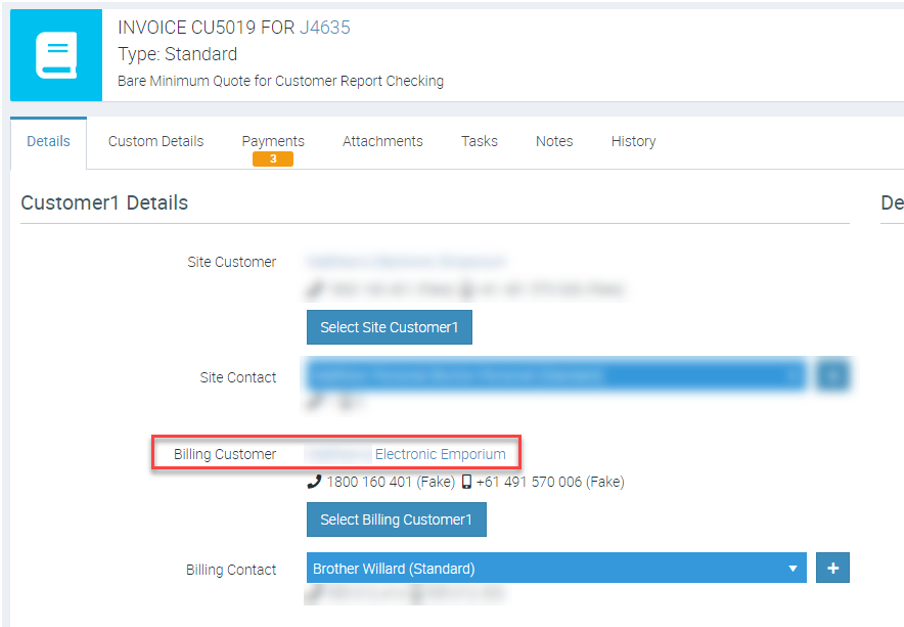
1. Find the Billing Customer's name on the Ascora Invoice. The contact in Xero will use the same name.
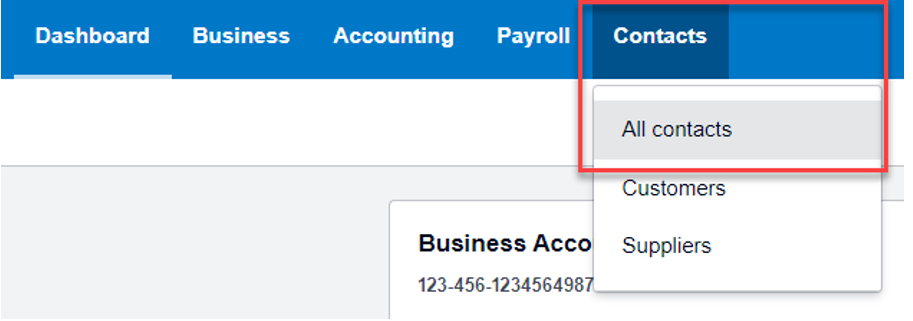
2. Log in to Xero and go to Contacts > All contacts.
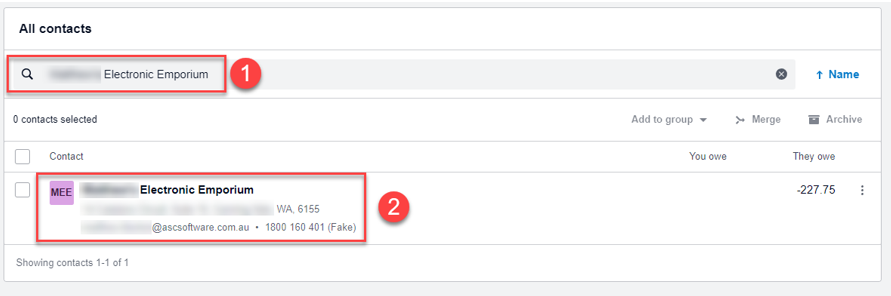
3. Search for the contact's name^{1} and click on it^{2} to open their details page
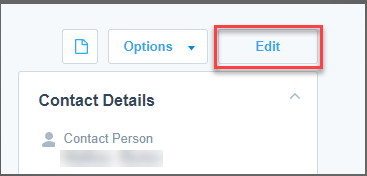
4. Click the Edit button on the right and above the contact details.
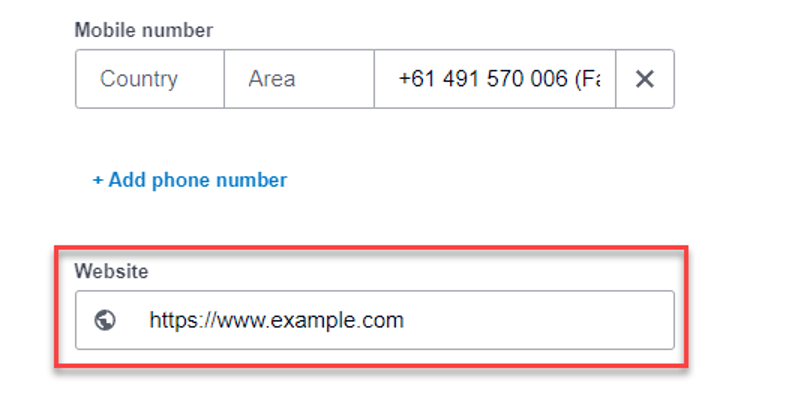
5. Scroll down to the Website field, then clear or update it to use a valid URL.
For Example, A valid URL should start with http:// or https:// and have no spaces or special characters. For example, http://www.example.com is valid, but www.example com is not.
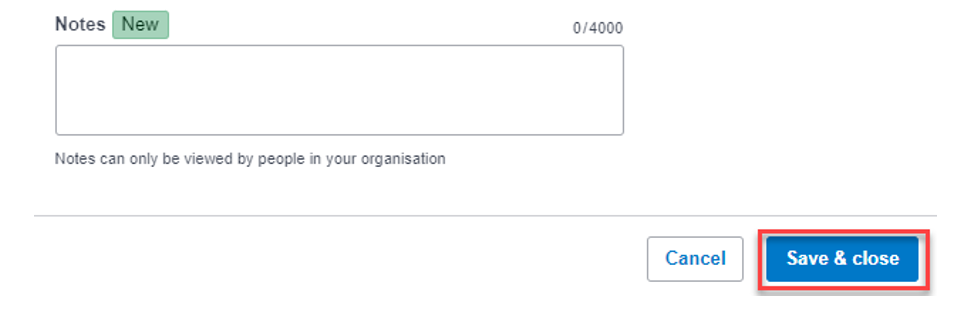
6. Click Save & close at the bottom of the page to apply the changes.
After editing the contact's website in Xero, you can try pushing the Ascora Invoice again, and it should work without any errors. This way, you can ensure that your invoices are synced correctly between Ascora and Xero.