Attachments in Ascora streamline the management of job-related files by allowing you to associate important documents and media directly with Quotes or Jobs. Whether it’s before-and-after photos, plans, contracts, or supporting documents, attaching files ensures all relevant materials are organized and accessible in one place. Attachments can be shared with customers via the Customer Portal, providing transparency, or marked as confidential to restrict access to authorized Mobile App Users.
By using the attachment functionality, you can enhance collaboration, improve efficiency, and maintain secure access control for sensitive information. This guide will walk you through the steps to attach, view, share, and restrict access to attachments, ensuring you get the most out of this feature in your daily operations.
▶ Share an Attachment via the Customer Portal
▶ Restrict User’s Ability to View Attachments
Access the Job Card:
- Click on the Jobs Icon in the Top Menu to display the Jobs List.
- Select the applicable Job from the list to open the Job Card

Adding Attachments to a Job
1. Choose the Attachments Tab on the Job Card.

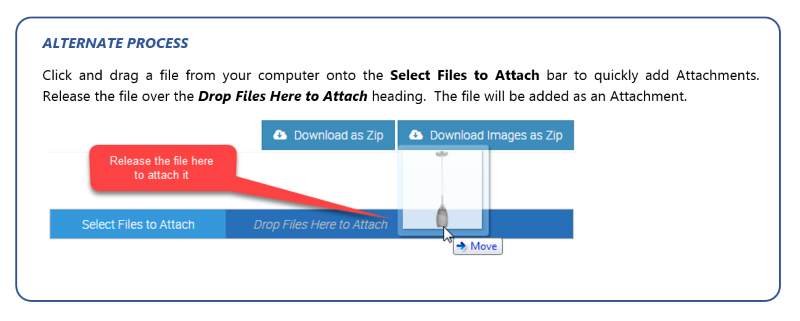
2. Click the Select Files to Attach button. Locate the file on your computer and click Open. The file will be added to your Attachments list.

View an Attachment
- Click the Attachment’s Name to view it.
- Images (e.g., JPEG, PNG) will display in a pop-up window.
- PDFs and Word documents will automatically download to your computer.
- Alternatively, click the Download Icon next to the file to download it directly.
Share an Attachment via the Customer Portal
Set Files as Viewable:
- By default, attachments are Hidden from customers.
- To share a file:
- Select the file by checking the corresponding box.
- Click the Viewable in Customer Portal button.
- The ‘N’ in the Customer View column will change to a ‘Y’.

Restrict User’s Ability to View Attachments
Mark Attachments as Confidential:
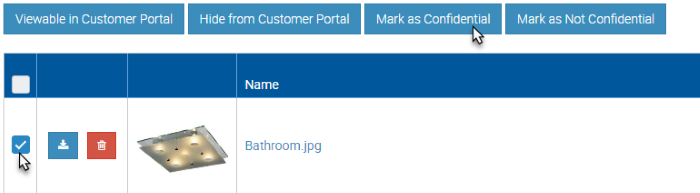
- Select the file by checking the box.
- Click Mark as Confidential.
- The ‘N’ in the Confidential column will update to ‘Y’.
Adjust Mobile Access Permissions:
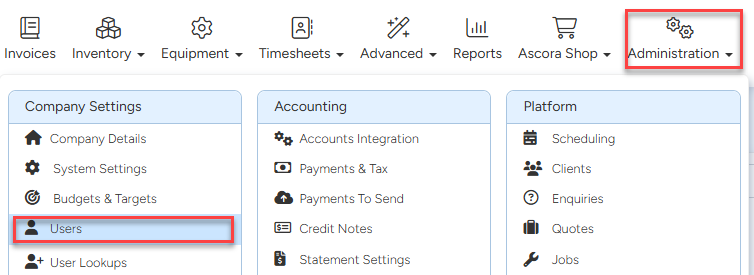
- Go to Administration Icon → Users.
- Locate the desired User and click View.

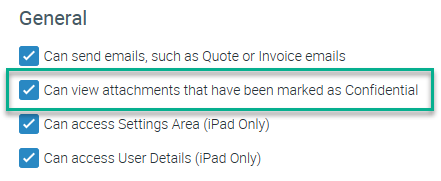
- Under Mobile Access Level Permissions, scroll to the General section and toggle the Can view attachments that have been marked as Confidential option as needed.
Got a question?
Submit an Idea 💡 Go to Ideas Portal