The Ascora Android app allows you to efficiently manage equipment testing directly from the job details screen. With the Pass, Fail, and Not Tested options, you can quickly log equipment status while on-site. Additionally, you can access detailed equipment information, view history, and upload attachments, ensuring accurate record-keeping and streamlined job management.
Follow this guide to navigate the equipment tab, update details, and record testing outcomes with ease.
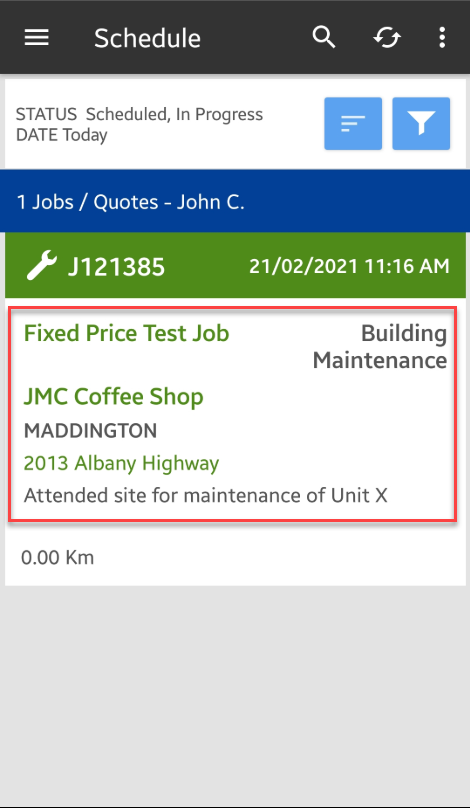
1. Access the job details screen from your Mobile App either by searching for the Job number or by going to Jobs menu.
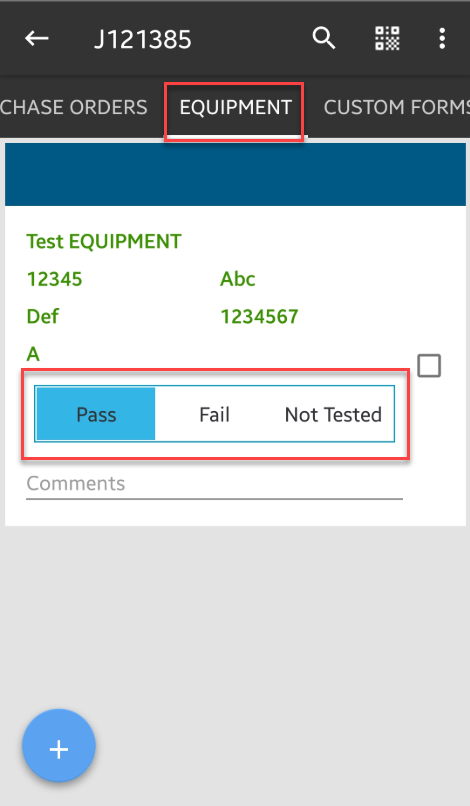
2. Go to Equipment tab and you can immediately see the pass and fail or not tested buttons.
How to access more Equipment Details
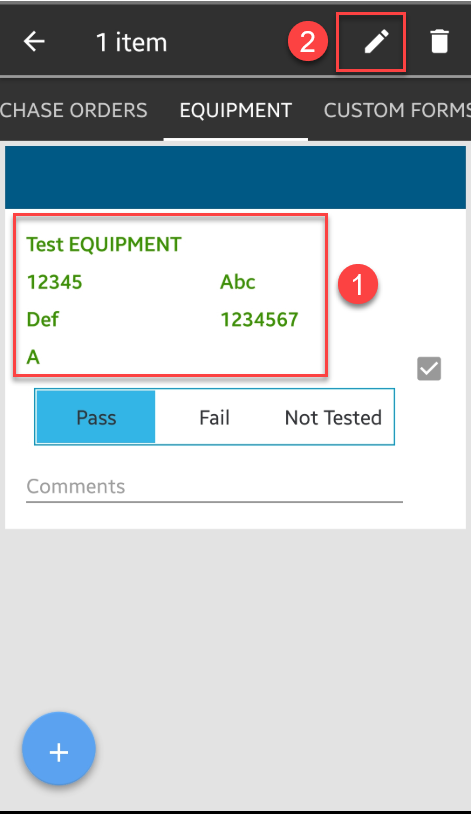
1. You can also tap on the Equipment Name and then tap on the Pencil icon to access more details and menus.
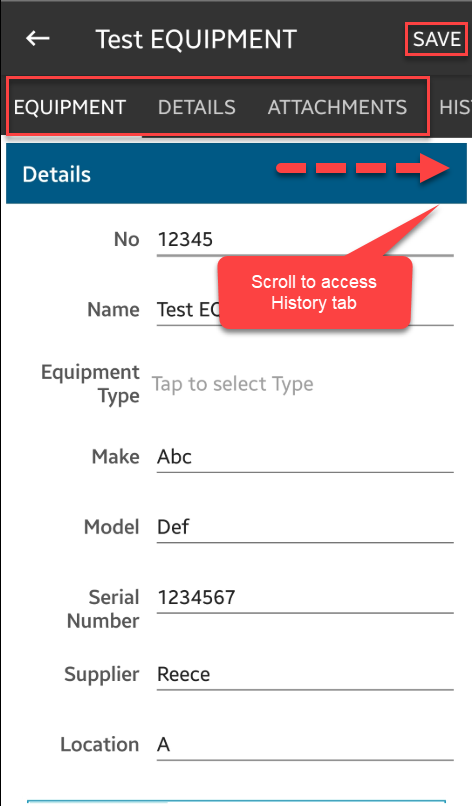
2. You can access the Equipment and Details screen, as well as Attachments and History.
You can add or amend some details if necessary and then tap Save to proceed.
Got a question?
Submit an Idea 💡 Go to Ideas Portal