Managing public holidays efficiently ensures your entire team is aligned with scheduled non-working days without manual entry for each user. Ascora simplifies this process by allowing you to apply Public Holiday Leave to all employees at once, ensuring that holidays are properly reflected in schedules and payroll calculations.
With this feature, businesses can:
✅ Save time by applying public holidays in bulk instead of manually adding leave for each employee.
✅ Improve accuracy by ensuring all affected users have their schedules updated consistently.
✅ Enhance visibility with a clear view of scheduled holidays in the Scheduler to prevent unnecessary job assignments.
✅ Reduce scheduling conflicts by preventing jobs from being booked during public holidays.
By using Scheduler Groups, you can further streamline the process by applying holidays to specific teams or regions (e.g., state-based public holidays). This guide walks you through setting up Public Holiday Leave, ensuring your workforce is organized and your operations run smoothly during designated holidays.
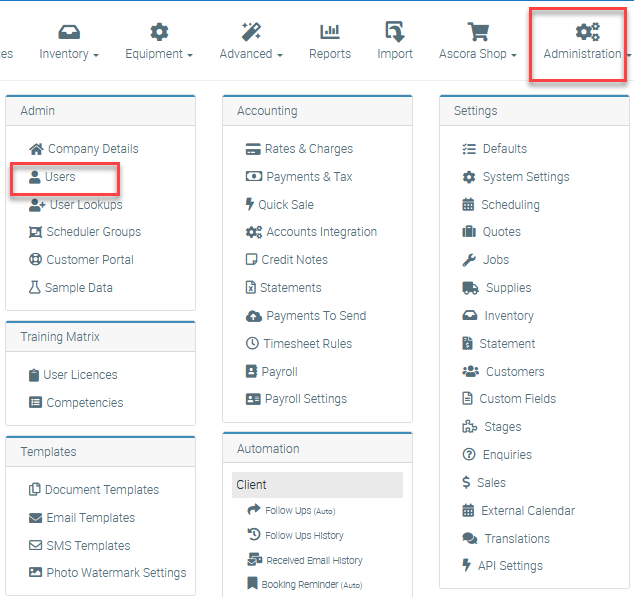
1. Go to Administration → Users screen.
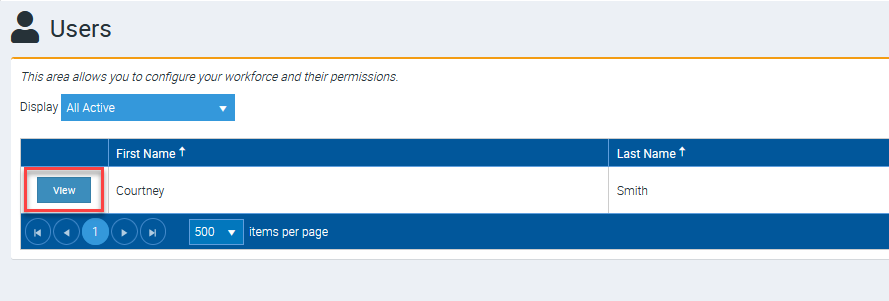
2. Click View beside the user name to access the user details page where we can add leaves.
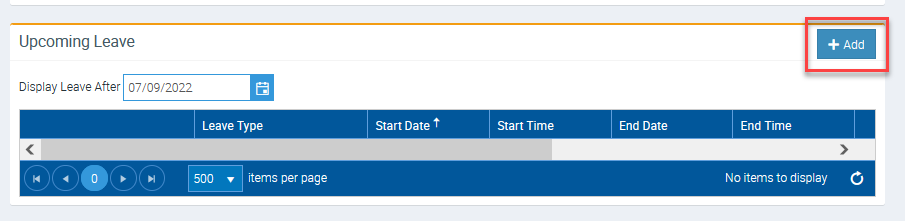
3. In the Upcoming Leave section located in the lower part of the page, click on the + Add button.
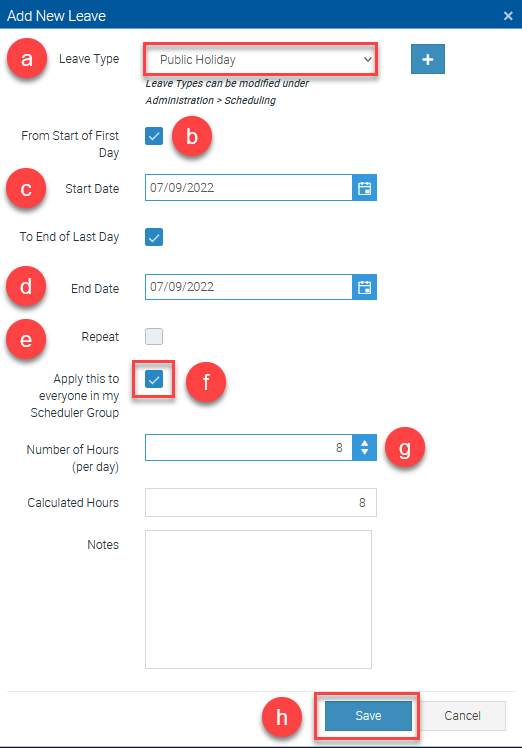
4. Select "Public Holiday" as Leave Type but if you haven't added that leave type yet, click on the + icon to add it to the list.
Complete the rest of the required or applicable fields and ensure to tick the box "Apply this to everyone in my Scheduler Group" to add Public Holiday to the team.
You can refer to the following references.
a. This is where you can select the leave type
b. Tick the box to automatically use the default work start time or untick it to enter a specific start time
c. Select the Start Date
d. Select the End Date
e. Tick the box to schedule a daily, weekly, monthly, or yearly repetition and also set when to end the occurrences.
f. Tick the box to apply the leave to all users that belong to the same scheduler group. If you need to set up groups you can do it in Administration → Scheduler Groups.
g. Enter the number of leave hours per day and it will automatically calculate the total hours in the Calculated Hours field.
h. Click Save once ready to proceed.
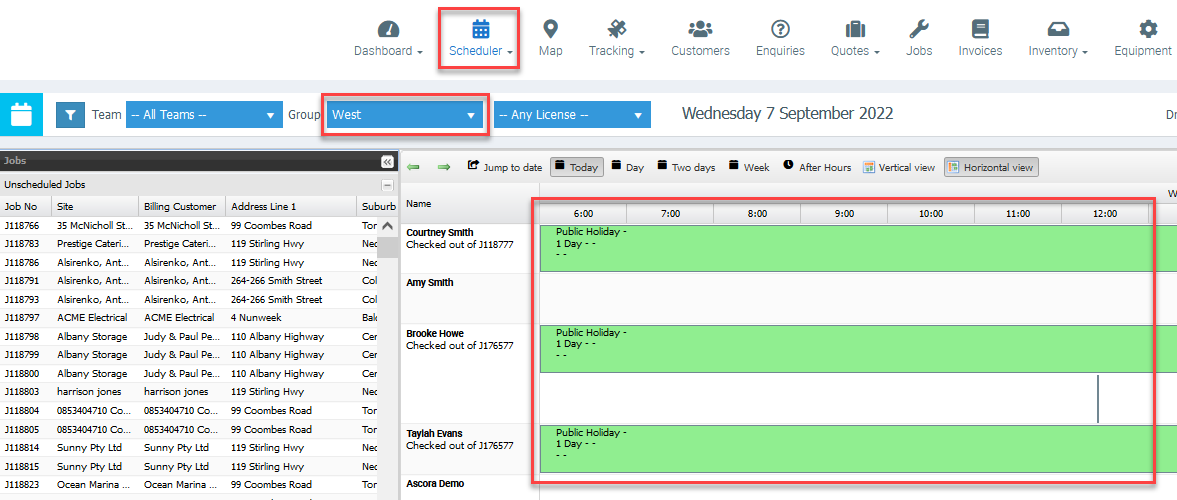
5. Go to Scheduler and filter by Group and you'll see the Public Holiday leave applied to all users in that group.
In this example, we've added a public holiday to the West Group.
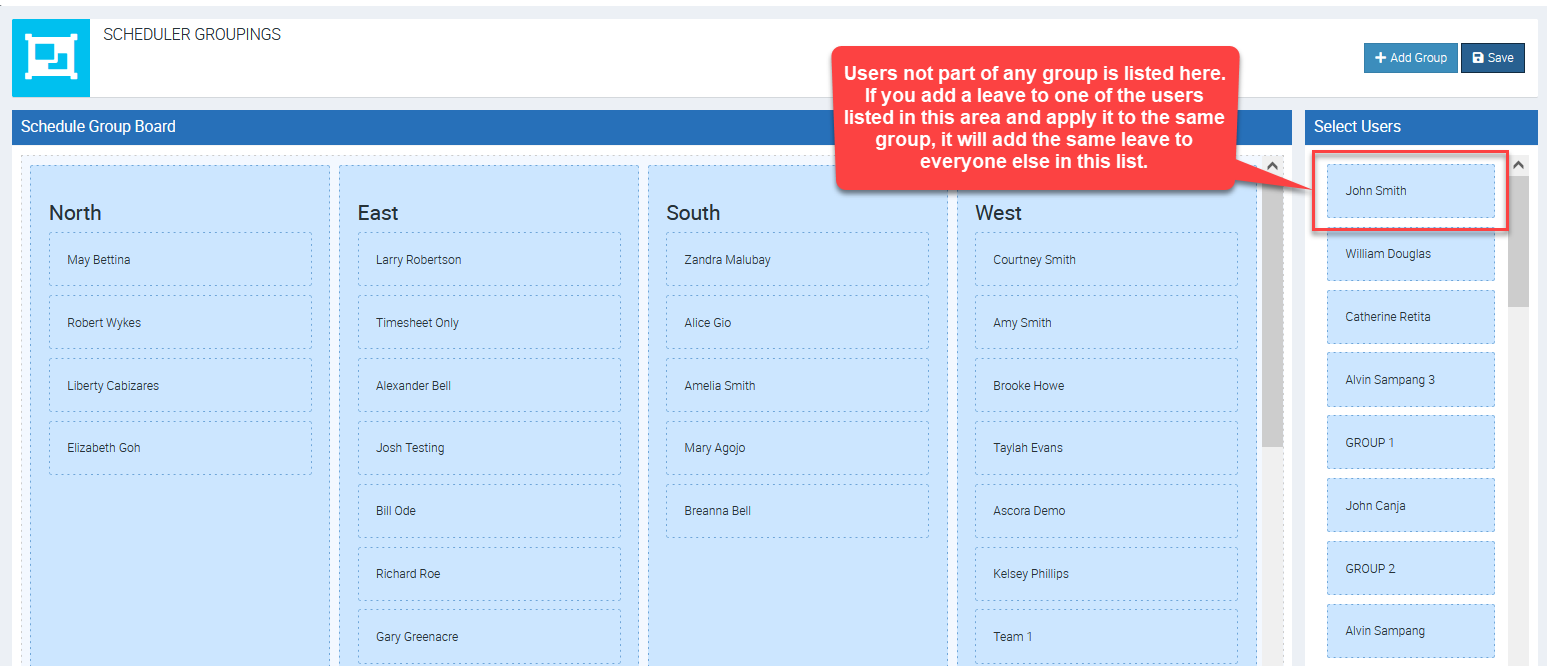
6. You may need to check Administration → Scheduler Groups to see add a user to the corresponding group.
Users who are not part of any group are listed in the "Select Users" area and adding leaves with the option "apply to everyone else in the scheduler group" enabled will apply the same leave to all users in that list.
To learn more about Scheduler Groups, you can access the following user guide link.
🤼 How to use Scheduler Groupings
Got a question?
Submit an Idea 💡 Go to Ideas Portal