Efficient timesheet tracking is key to managing labor costs, optimizing team productivity, and ensuring payroll accuracy. Ascora simplifies this process with multiple ways to log work hours—automated check-ins via the mobile app, manual job-based entries, and bulk adjustments through the Timesheet Editing tool. With customizable settings, automated calculations for penalty rates, and seamless payroll integration, Ascora ensures accurate labor tracking while reducing administrative effort.
Whether you're managing field technicians or office staff, these features help streamline operations, enhance compliance, and provide clear insights into workforce efficiency.
Ways to Create Timesheets:
✅ Mobile App Check-in/Check-out – Automatically logs work hours when users check in and out of jobs or quotes.
✅ Manual Entry from the Job Screen – Go to Labour & Callout → Timesheet → New, then enter user details, start and end times, check-in type, and rate.
✅ Timesheet Editing (Bulk Updates) – Navigate to Reports → Timesheet Editing to create, adjust, or correct timesheet entries, including start/end times, breaks, and allowances.
Mobile App Check-in/Check-out
There are different ways of creating timesheet entries in Ascora and one of them is by checking in and checking out of a job or quote from the mobile app. This automatically creates a timesheet entry against a user which is linked to a particular job or quote.
Manual Entry from Job Screen
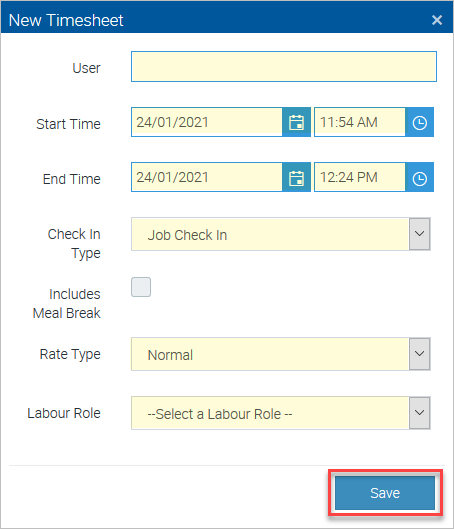
The second way of creating a timesheet is by manually doing it from Ascora web. From the job screen, go to Labour & Callout and under Timesheet area, click New.
Select the user and enter the rest of the necessary information such as start time and end time, check in type, rate type, and labour role then click Save.
Timesheet Editing
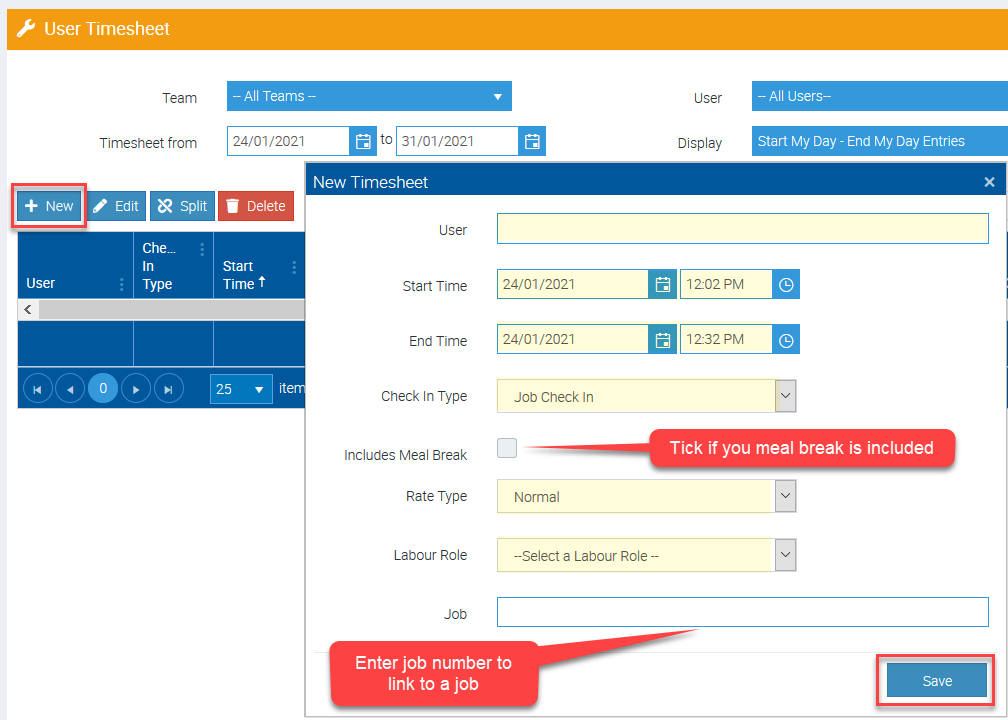
The third way of creating a timesheet is by going to Reports → Timesheet Editing. From there, you can click New to create a totally new timesheet entry or you can filter existing timesheet entries and be able to edit the information such as making correction on start time and end time, specifying if meal break is included or not, and even adding allowances if applicable.
Timesheet Configurations
Prior to using the timesheet feature in Ascora, it is important to set a few configurations first.
- Administration → Defaults → and set your ordinary work hours and break time and also select to allow timesheet overlap or to not allow timesheet overlap
- Administration → Timesheet Rules and this affects how Ascora automatically calculates time and a half or double time penalty rates.
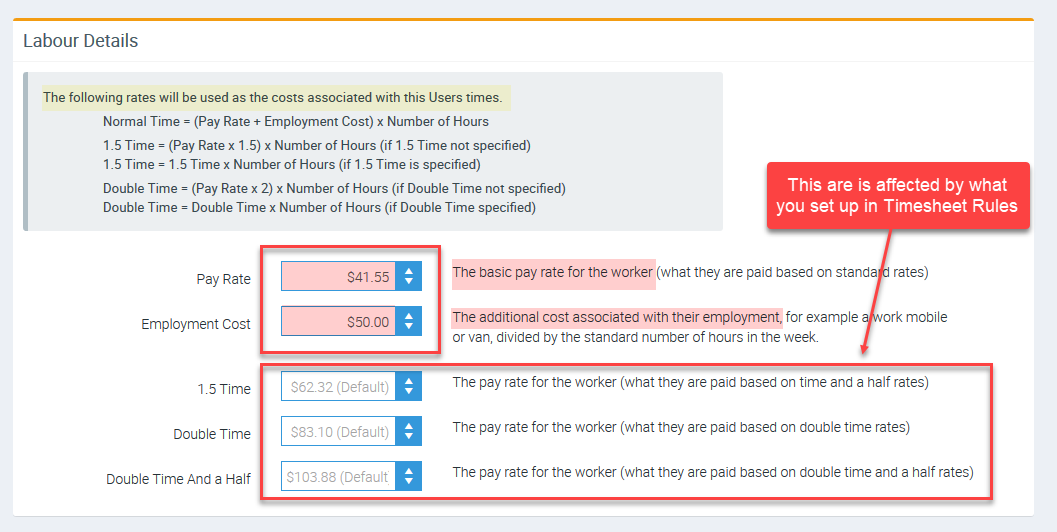
- Administration - Users → View → Labour Details and this is the area where you can set up rates per technician/employee.
Setting up Rates
It is important to set up rates per technician/staff as this impacts the pay rate.
1. Go to Administration → Users → click View for the particular User.
2. In Labour Details enter the pay rate, employment cost and the rate for the 1.5 Time, Double Time and Double Time and a Half rates.
Got a question?
Submit an Idea 💡 Go to Ideas Portal