Uploading your database from the Ascora Android Mobile App ensures that all job details, timesheets, and other important data are securely backed up and accessible for troubleshooting or support. This feature is especially useful when encountering issues with syncing, job visibility, or data discrepancies.
This guide walks you through the step-by-step process of uploading your database, ensuring that Ascora's support team can quickly assist you if needed.
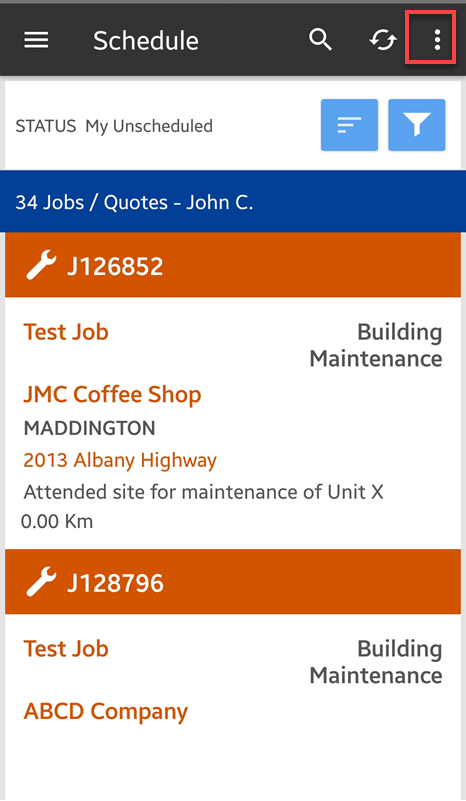
1. Tap on the 3 dots located on the upper right side of the mobile app screen.
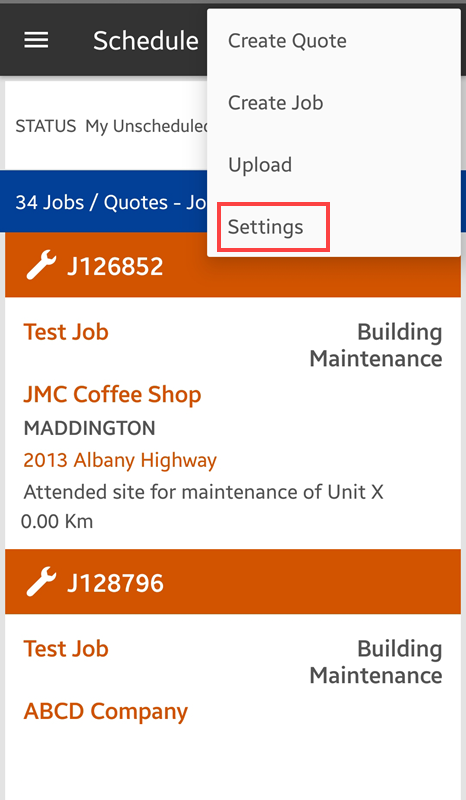
2. Tap Settings from the menu.
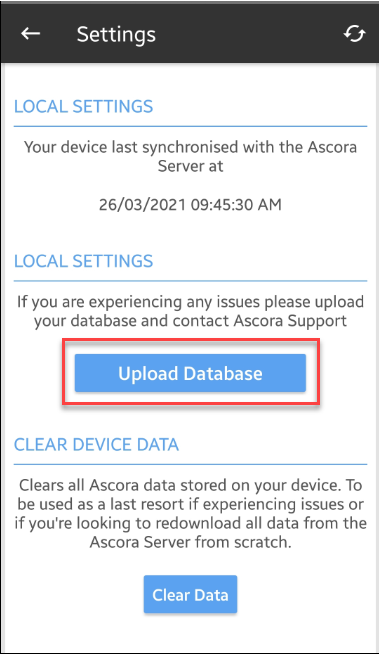
3. Tap on Upload Database.
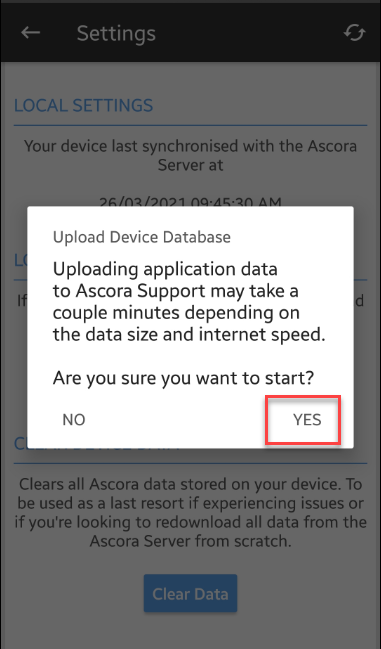
4. Tap YES when you get the following message.
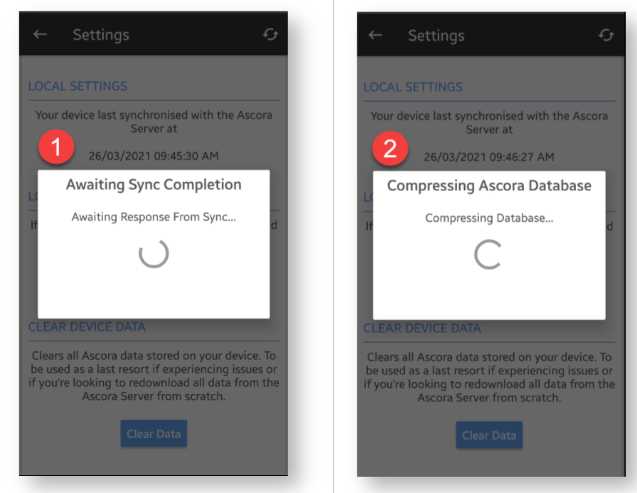
5. The following notifications appear while the system does a forced sync and compresses the database.
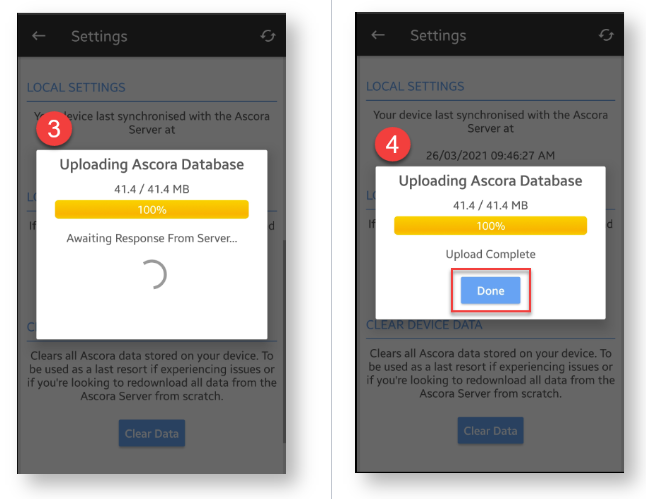
6. Database will begin to upload and wait for it to complete indicated by the status Upload Complete and then tap Done.
7. Contact Ascora after uploading the database for further assistance.
📞 1300 810 789
Got a question?
Submit an Idea 💡 Go to Ideas Portal