Sometimes the party responsible for paying the invoices is different from the site or property where the work is carried out. In Ascora, you can easily link a Site Customer (e.g., a tenanted property) to a Billing Customer (e.g., a real estate agency or property manager). This setup keeps your records organized and your invoices directed to the correct payer, without losing track of the work performed on-site.
Use the following steps to link two separate customer records—one for the service location, and another for billing—so that jobs, quotes, and invoices flow through Ascora as seamlessly as possible.
📽 Watch the video guides ⤵
- Open the Customer Card
- Click the Customers icon in the top menu to display the Customer List.
- Select the Site Customer (e.g., the tenanted property) for which you want to add a separate Billing Customer.

- Access the Details Tab
- Within the selected customer record, go to the Details tab.
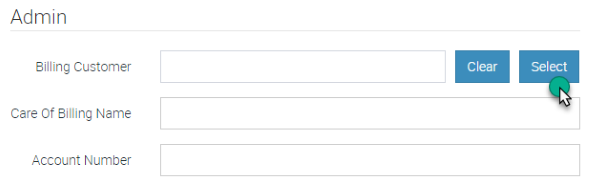
- Scroll down to the Admin section.

- Select the Billing Customer
- Click the Select button to open the Select Billing Customer popup.
- Either search for the existing Billing Customer or click Create New if you need to add a new customer record for billing purposes.
- Confirm and Save
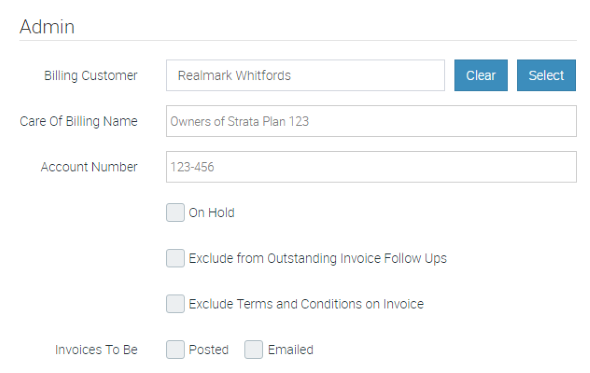
- Once chosen, the Billing Customer’s details will appear in the Admin section of the Customer Card.
- Confirm the information is accurate, then save your changes.
Tip: Linking a third-party Billing Customer ensures invoices are automatically directed to the correct payer. This setup can be especially useful for properties managed by a real estate agency or other third-party entities, keeping your records organized and payment processes efficient.
Got a question?
Submit an Idea 💡 Go to Ideas Portal