You can record the screen on your iPhone or iPad using the built-in screen recording option on iOS devices. This is helpful if you need to report an issue or some features that are not working or not available in your Ascora App.
To proceed with screen recording, complete the following steps.
1. With iOS 14 or later, go to Settings → Control Centre, then tap the Add button next to Screen Recording. After adding the Screen Recording, you should have it set up in your Control Centre.

2. Access your iPhone Control Centre and touch and hold the grey Record button .

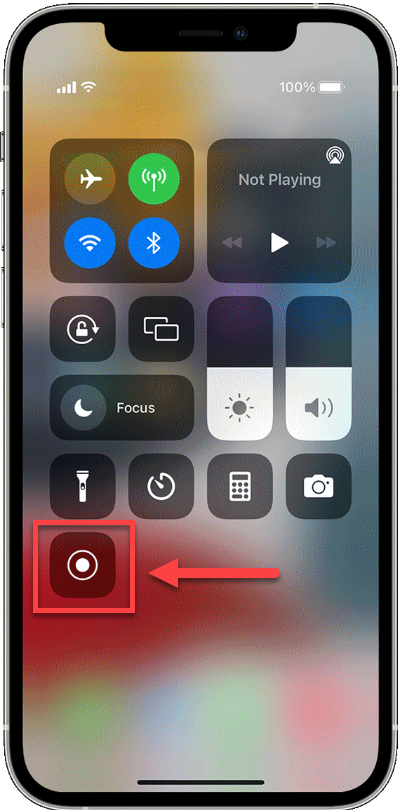
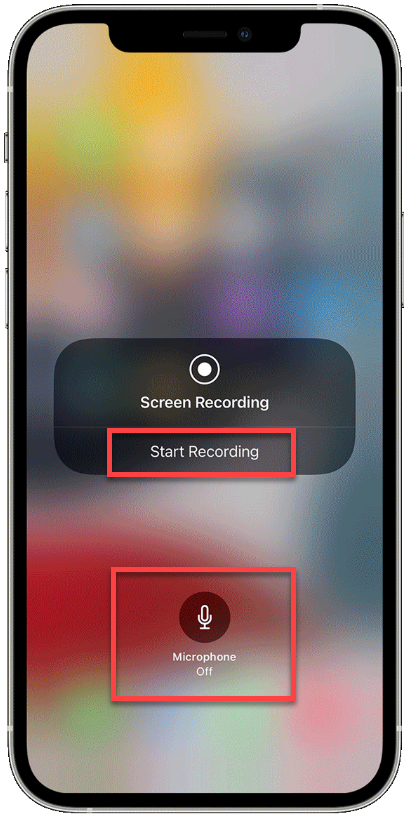
3. Tap on Microphone if you also need to record audio then tap on Start Recording and wait for the three-second countdown.
4. Access your Ascora App and complete the steps that will show the issue that you are reporting such as accessing a job or a PO or trying to send an email.
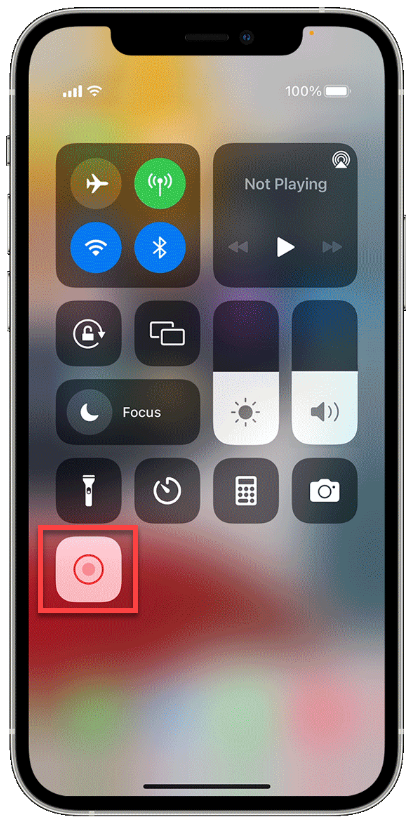
5. To stop recording, open Control Centre, then tap the red Record button or tap the red status bar at the top of your screen and tap Stop.

6. Go to the Photos app and access your screen recording video file.
7. Send the file to support@ascora.com.au including the details of your query.
References obtained from https://support.apple.com/en-au/HT207935
Got a question?
Submit an Idea 💡 Go to Ideas Portal